

This article explains how to check when your Windows 11 Insider Preview Build will expire.
What is Windows 11 Insider Preview Build?
Windows 11 Insider Preview Build is a testing version of Windows 11. It lets Windows Insider members try new features before they’re released to everyone. You can test changes and send feedback to Microsoft to help find problems.
Why would you want this? Because you get to see what’s coming next in Windows and help shape it.
Why Check Your Expiration Date?
Insider builds don’t last forever. They expire after a certain time. If you don’t update your build before it expires, Windows will stop working properly. You’ll get notifications to update, so pay attention to them.
How to Check Your Expiration Date
Method 1: Use the Settings App
- Open the Settings app. Click the Start menu and select Settings. Or press the Windows key + I together.
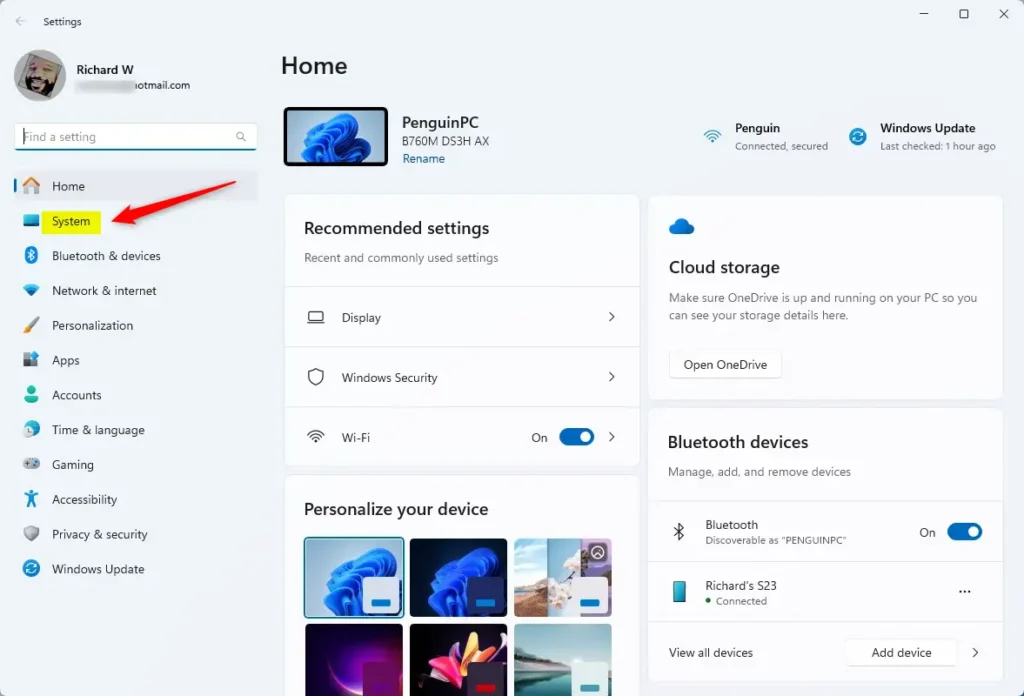
- Click System on the left side.
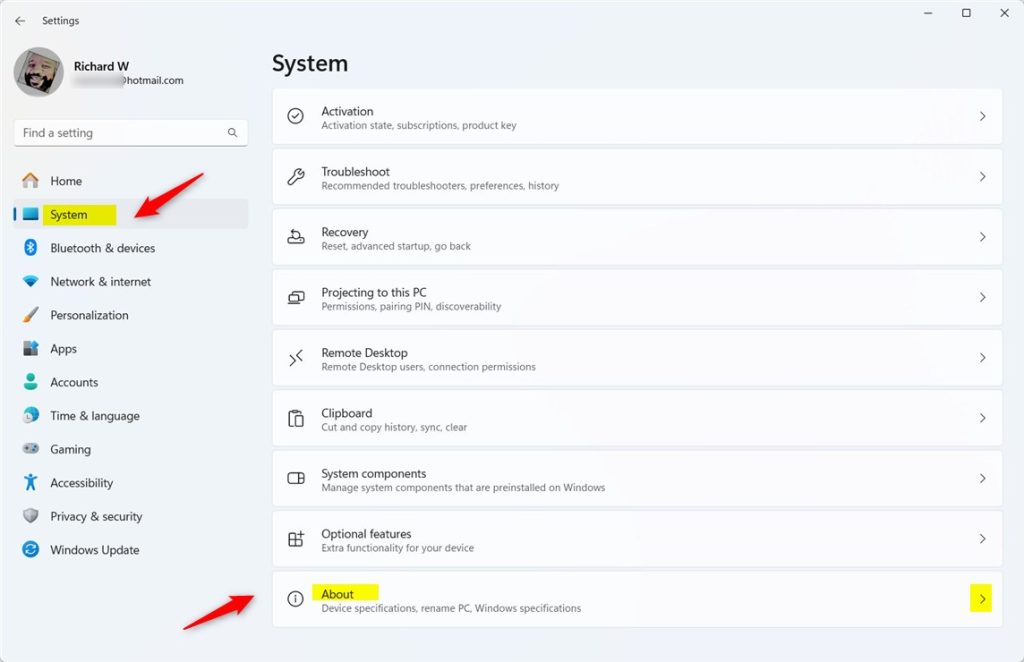
- Select About.
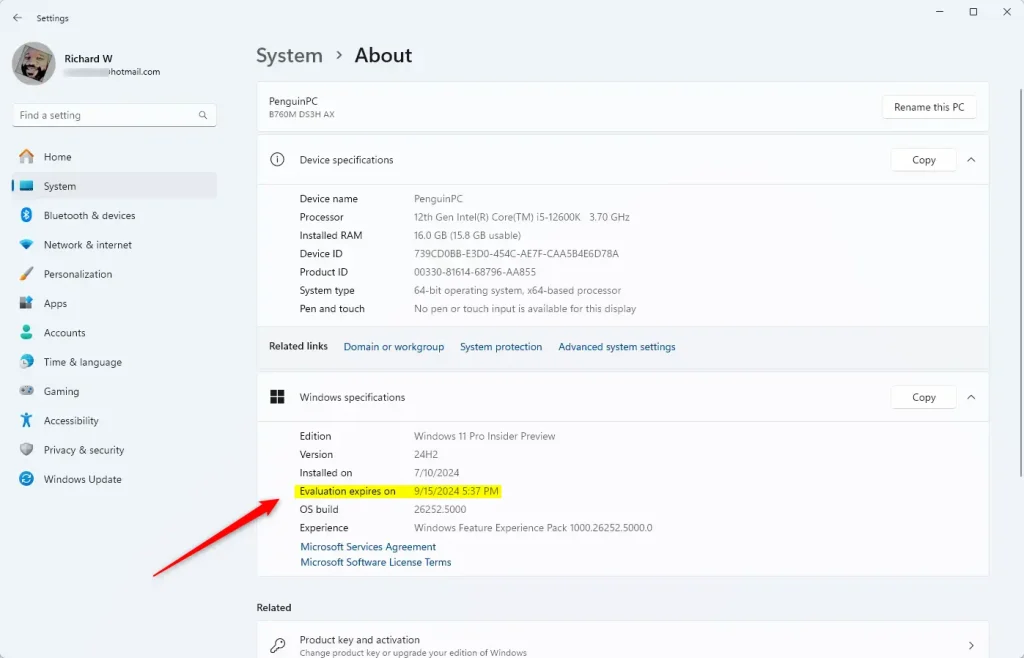
- Look for “Evaluation expires on” under Windows specifications. This shows your expiration date and time.
Method 2: Use the Winver Command
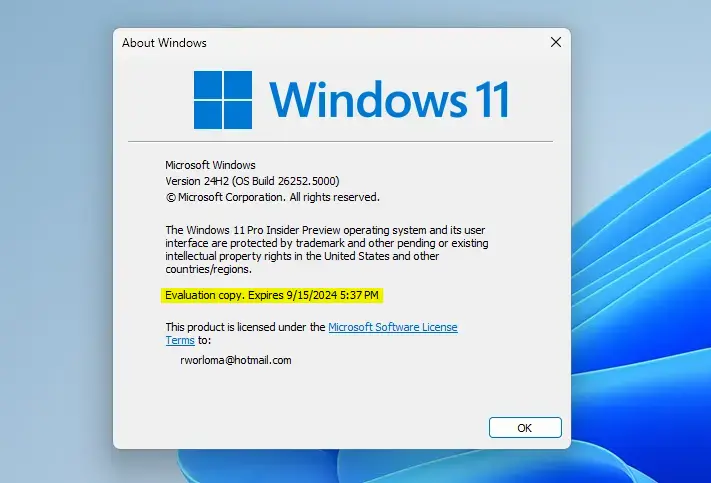
- Press Windows key + R to open the Run window.
- Type this command:
winver
What Happens When Your Build Expires?
When your Insider build expires, Windows may stop updating and working properly. You’ll see notifications telling you to update. Update your build right away to keep Windows running smoothly.
Summary
Windows 11 Insider Preview Build is a testing version of Windows. It lets you try new features early and help Microsoft find problems. But these builds expire after a set time.
You can check when yours expires in two ways. Use the Settings app and go to System > About to find “Evaluation expires on.” Or use the winver command through the Run window.
Keep an eye on your expiration date. Update your build before it expires so Windows keeps working well. Watch for update notifications and act on them quickly.
Frequently Asked Questions
How do I check the expiration date of my Windows 11 Insider Build?
What happens when my Windows 11 Insider Build expires?
Can I find the expiration date using a command?
Why is it important to check the expiration date of my Insider Build?
Where can I find more information about Windows 11 Insider Builds?



Leave a Reply Cancel reply