
What is Secure Boot?
Secure Boot is a security feature in Windows 11 that helps keep your computer safe. It makes sure your PC only starts up with trusted software. This stops harmful programs from running when you turn on your machine.
Why Check Secure Boot?
Before installing Windows 11, your computer needs to support Secure Boot and have it turned on. Checking your Secure Boot status tells you if your PC is protected.
How to See if Secure Boot is On or Off
Here are three easy ways to check your Secure Boot status on Windows 11:
1. Check Using the Windows Security App
- Click the Start button and type Windows Security, then open the app.
- Click on Device security.
- Look for the Secure Boot section. It will say On if it’s enabled or Off if it’s disabled.
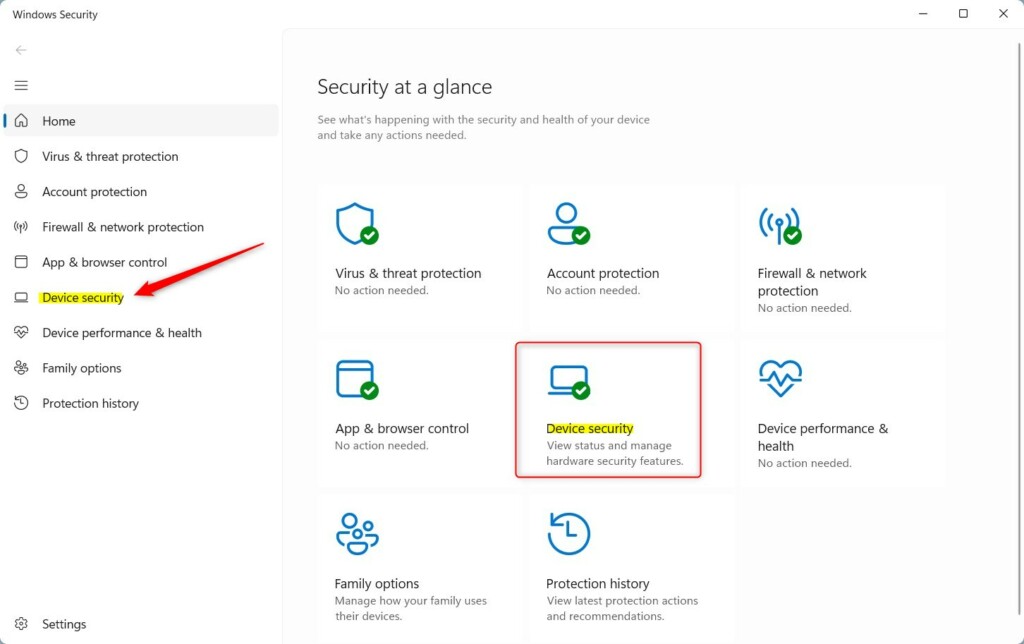
This is the easiest way to see your Secure Boot status.
2. Use the System Information Tool
- Press Windows + R on your keyboard to open the Run box.
- Type
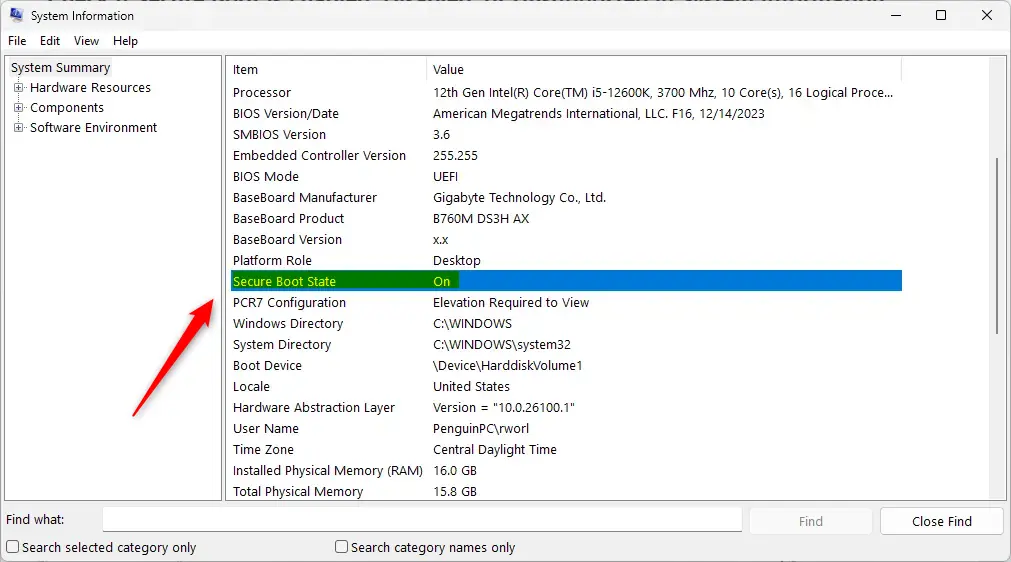
msinfo32and press Enter. - In the window that opens, look for BIOS Mode and Secure Boot State on the right side.
- If BIOS Mode says UEFI and Secure Boot State says On, then Secure Boot is enabled.
- If it says Off, then Secure Boot is disabled.
3. Use Windows Terminal to Check
- Right-click the Start button and select Windows Terminal (Admin). %%SC0%%
- In the terminal window, type the following command and press Enter:
Confirm-SecureBootUEFIYou will see one of these results:
- True — Secure Boot is enabled.
- False — Secure Boot is disabled.
- An error message — Secure Boot is not supported on your device.
Summary
- Secure Boot helps protect your PC by only allowing trusted software when it starts.
- Windows 11 requires Secure Boot to be enabled for installation.
- You can check Secure Boot status using the Windows Security app, System Information tool, or Windows Terminal.
- Secure Boot status will show as On/Off or True/False depending on the method you use.
Checking Secure Boot is a simple way to help keep your PC safe from malware and unauthorized software. If you find it’s off and want to turn it on, you might need to change settings in your computer’s UEFI/BIOS menu (this is like the PC’s control center when it starts). For help with that, see this guide on accessing UEFI/BIOS firmware settings.
If you have questions or need more help, feel free to ask in the comments below!

Leave a Reply Cancel reply