
RAM (Random Access Memory) is the temporary memory your computer uses to run programs and work faster. Sometimes, you might want to check how much RAM you have, what type it is, and how fast it runs. This is useful, for example, when checking if your PC meets the Windows 11 system requirements.
Here are easy ways to check your RAM details on a Windows 11 computer.
1. Check RAM Using the Settings App
The Settings app is the easiest place to see how much RAM your PC has.
- Click the Start button (Windows icon) at the bottom-left of your screen.
- Click Settings (gear icon). Or press Windows key + I on your keyboard to open Settings quickly.
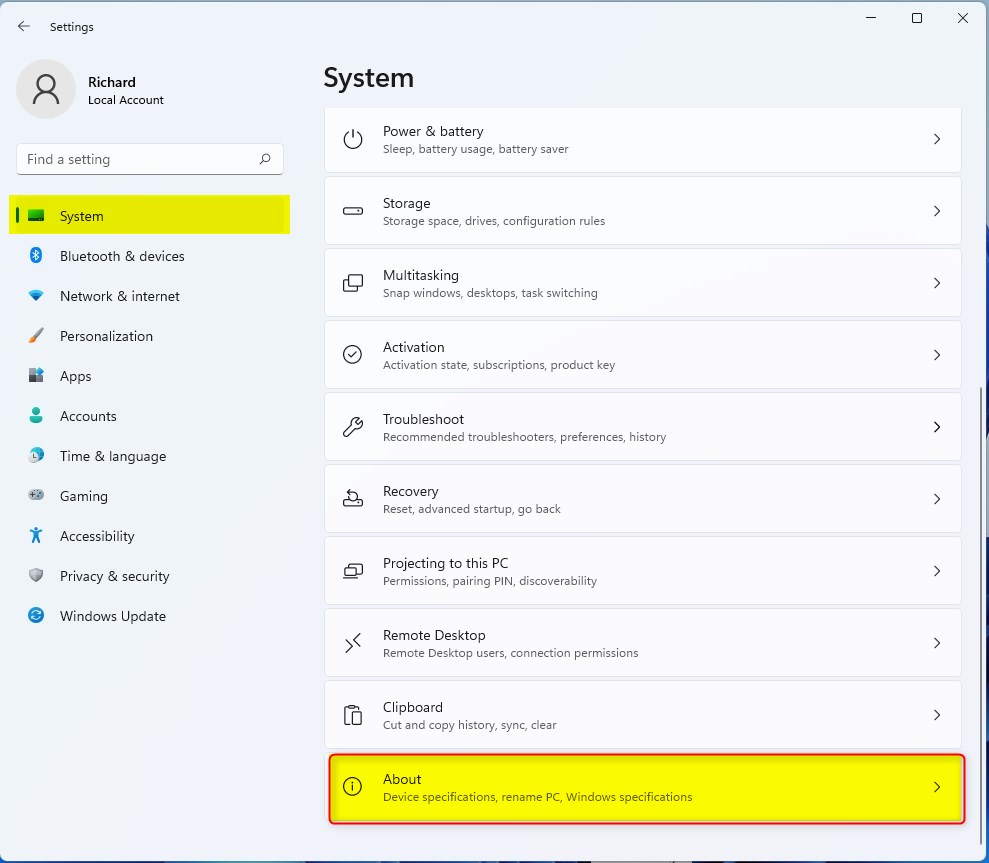
- In Settings, click System on the left side.
- Scroll down and click About at the bottom of the System menu.
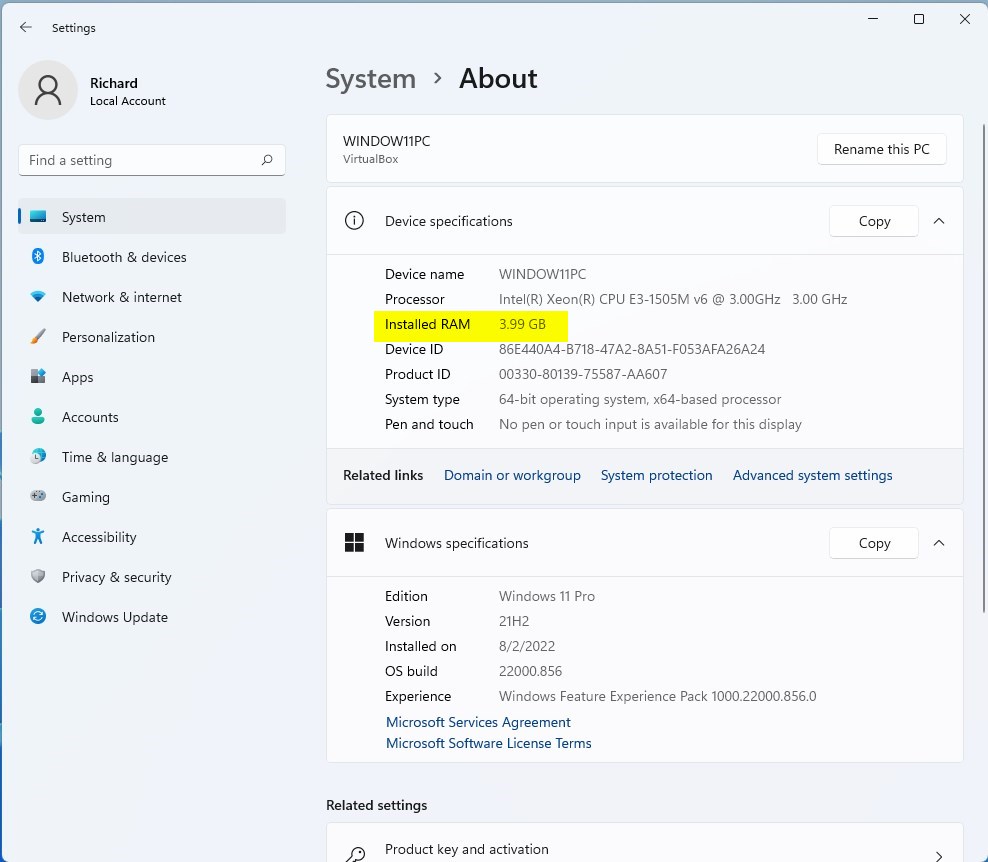
- Look for Installed RAM on the right. This shows how much RAM is currently installed.

2. Check RAM Using Task Manager
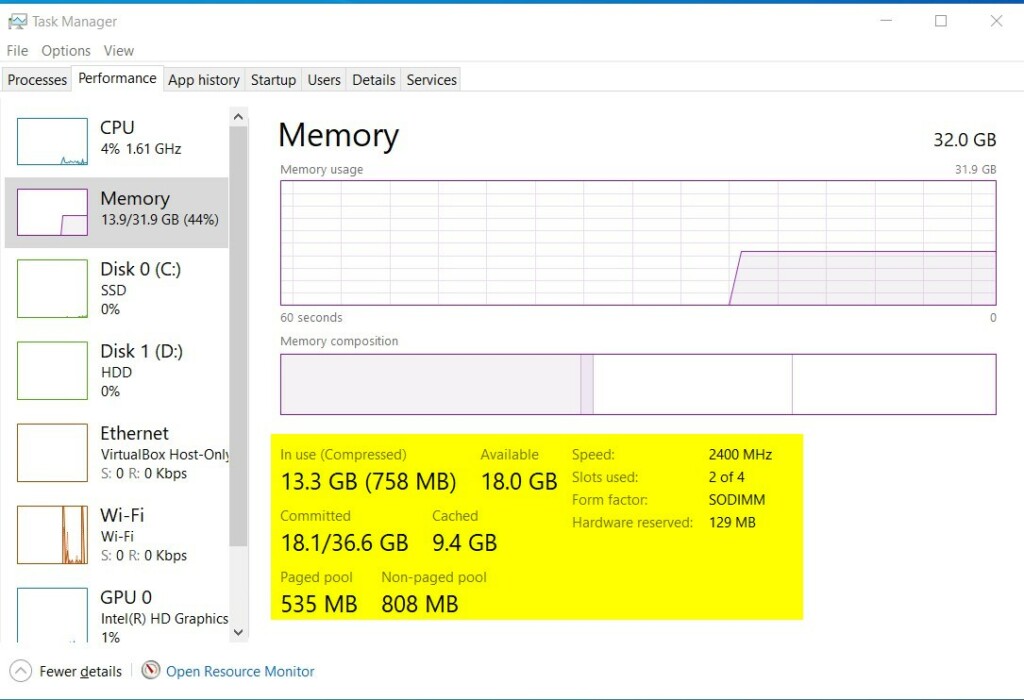
Task Manager shows more detailed info about your RAM, like speed and how many memory slots are used.
- Click Start and type Task Manager, then open it.
- In Task Manager, click the Performance tab at the top.
- Click Memory on the left side.
- Here, you can see your total RAM, speed (in MHz), type (e.g., DDR4), how many slots are used, and more.
3. Check RAM Using System Information
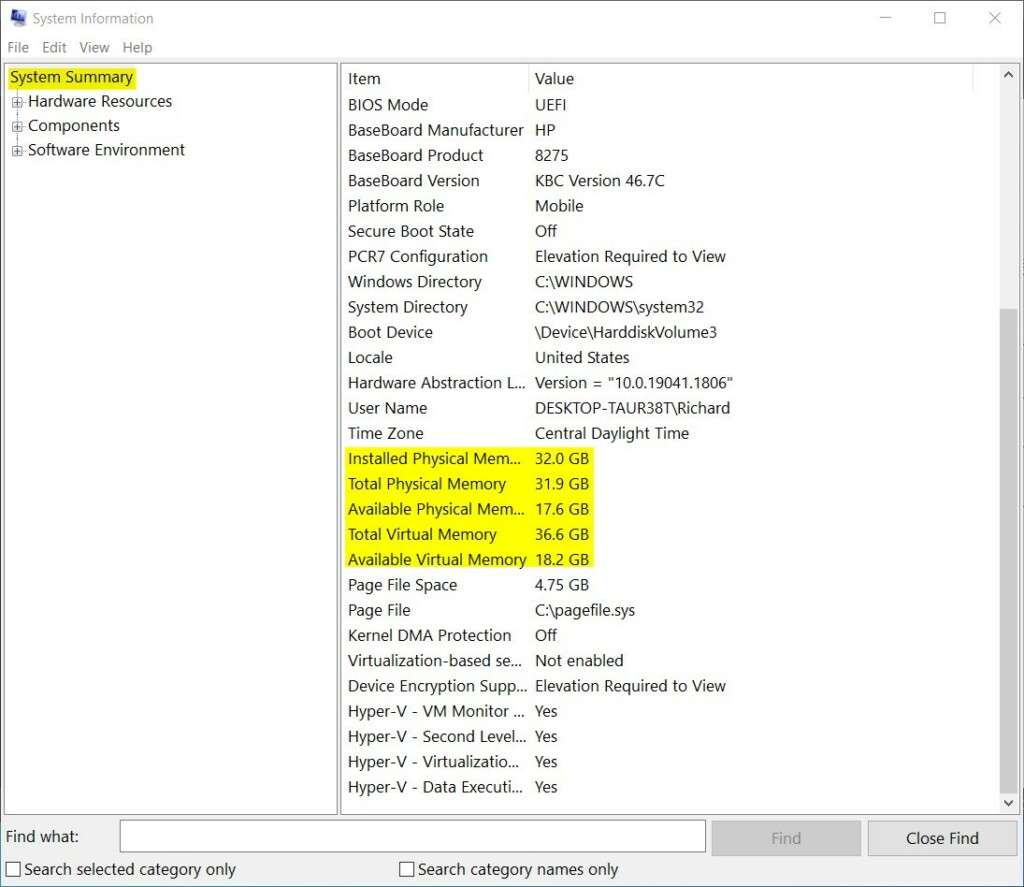
The System Information app gives a summary of your computer, including RAM details.
- Click Start and type System Information, then open it.
- Make sure System Summary is selected on the left.
- Look for Installed Physical Memory (RAM) to see your total RAM.
4. Check RAM Using PowerShell Commands
If you like using commands, you can find detailed RAM info with PowerShell:
- Click Start, type Windows Terminal or PowerShell, and open it.
- Type or copy-paste the following command and press Enter:
Get-WmiObject Win32_PhysicalMemory | Format-Table Capacity, Manufacturer, FormFactor, BankLabel, ConfiguredClockSpeed, Speed, DeviceLocator, SerialNumber -AutoSizeThis command will show details like the size of each RAM stick, its manufacturer, speed, and slot location.
Summary
- RAM is important for your computer’s speed and performance.
- You can easily check your RAM size and type using Windows 11’s Settings, Task Manager, System Information, or PowerShell.
- Knowing your RAM details helps you decide if you need to upgrade or if your PC meets Windows 11 requirements.
- If you want to learn more about Windows 11 features, check out our Geek Rewind website.


Leave a Reply Cancel reply