Device Encryption helps keep your files safe by locking your computer’s data so others can’t access it without your permission. In Windows 11, this feature can protect your information if your PC gets lost or stolen.
What is Device Encryption?
It’s a security feature that automatically locks (encrypts) your PC’s hard drive using a tool called BitLocker. This means your data is scrambled and safe from unauthorized access.
Learn more about turning Device Encryption on or off
What Does Your PC Need to Support Device Encryption?
- A special security chip called TPM 2.0 (Trusted Platform Module).
- Your PC’s startup system should be UEFI firmware with Secure Boot enabled.
- Supports Modern Standby or HSTI-compliant hardware.
If your PC doesn’t meet these, you can still use standard BitLocker encryption, but that’s usually for Windows 11 Pro or above.
How to Check Device Encryption Support Using System Information
Here’s an easy way to find out if your PC can use Device Encryption:
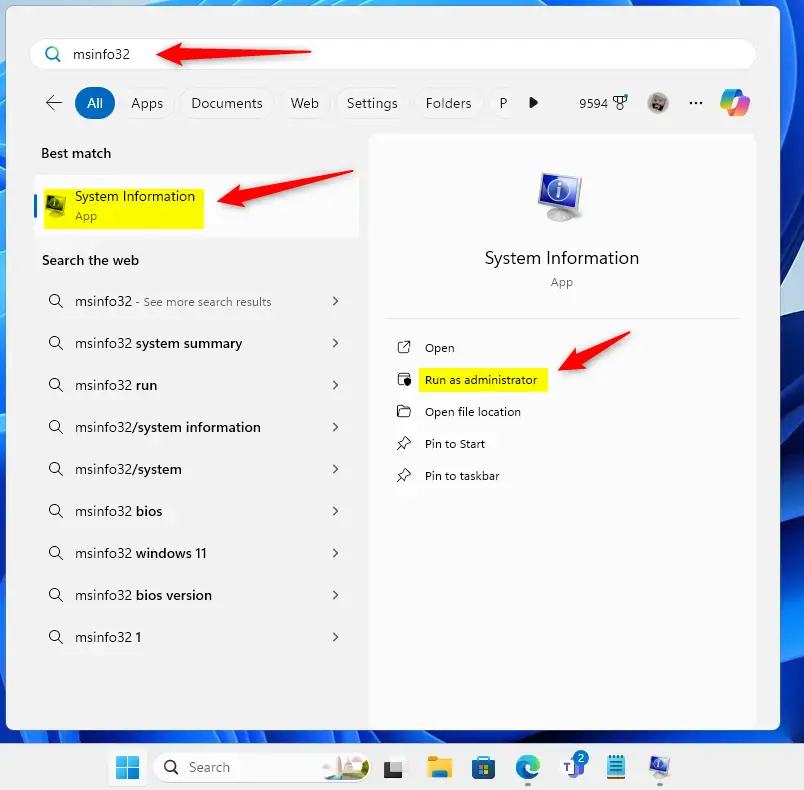
- Click the Start menu button (the Windows icon).
- Type
msinfo32in the search box, then click on the System Information app that shows up. - Right-click on the System Information app and choose Run as administrator to open it with full access.
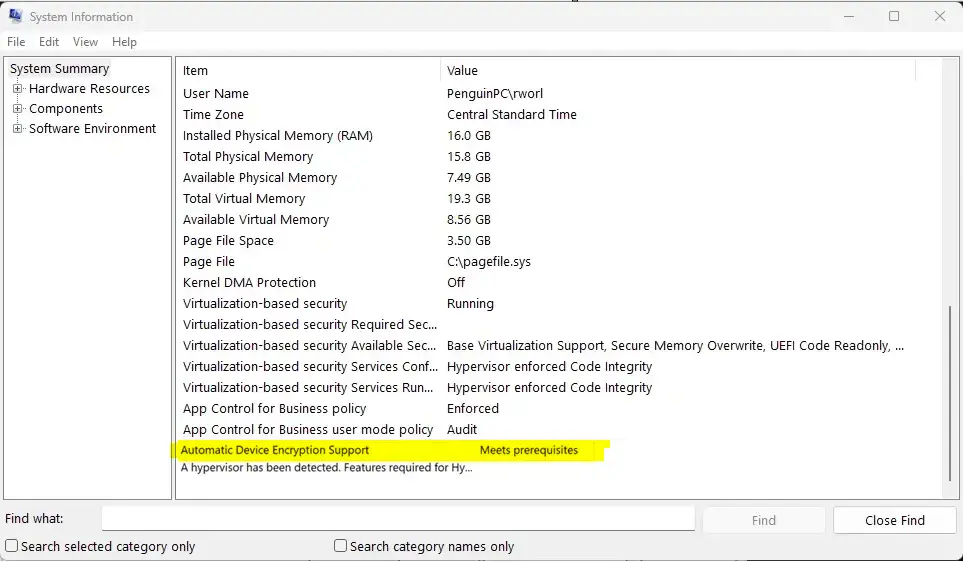
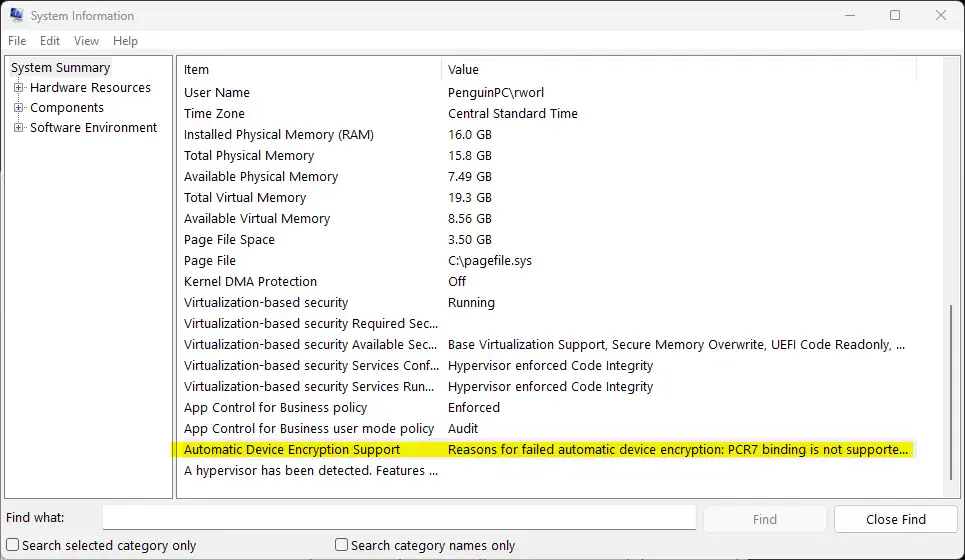
When the window opens, scroll down the list on the right and find Automatic Device Encryption Support.
If it says “Meets prerequisites”, your PC supports Device Encryption! If it shows a reason why it doesn’t, your PC can’t use this feature automatically.
Once done, you can close the System Information window.
How to Check Device Encryption Support Using Windows Settings
You can also check using your PC’s Settings app:
- Open the Settings app by clicking the Start menu and selecting Settings, or press Windows key + I on your keyboard.
- In Settings, click on Privacy & security on the left side.
- On the right, click on Device encryption to see its settings.
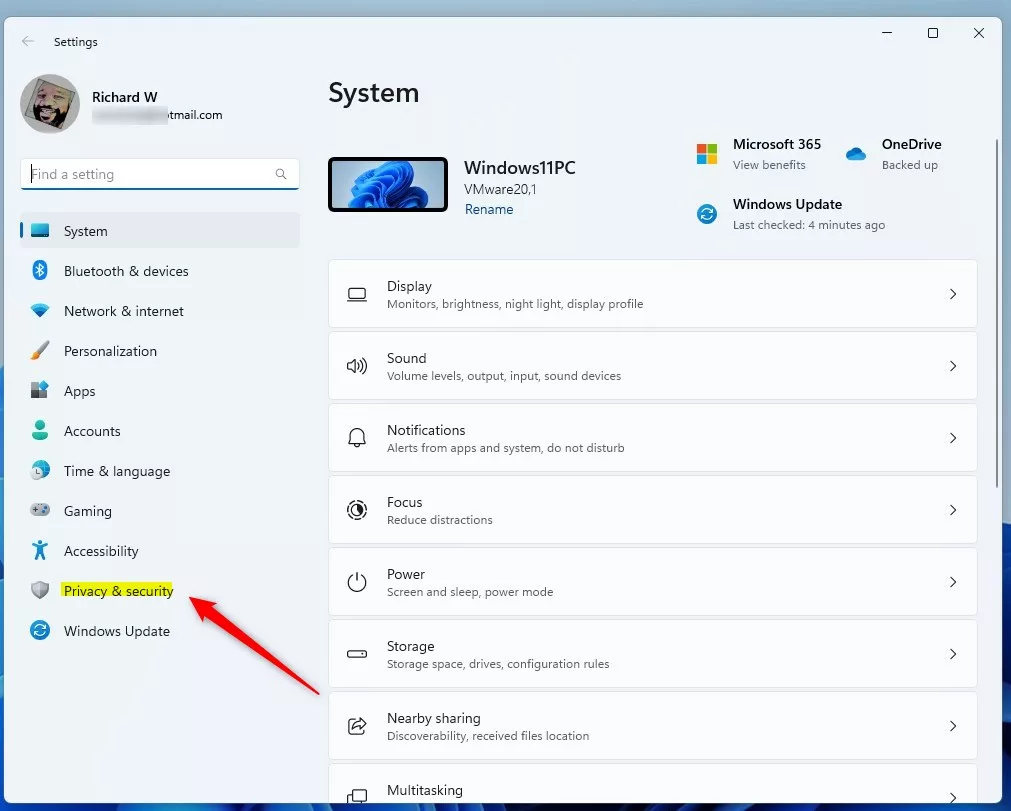
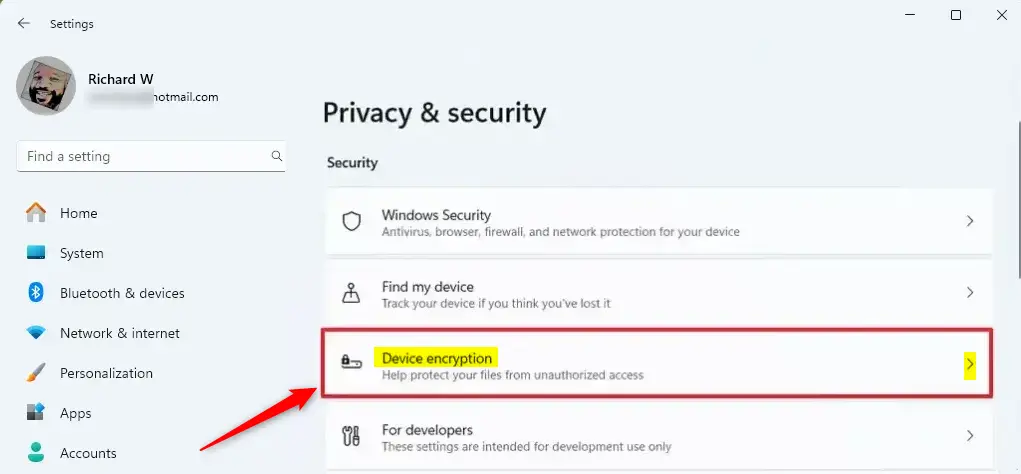
Here, you can see if Device Encryption is available and turn it on or off.
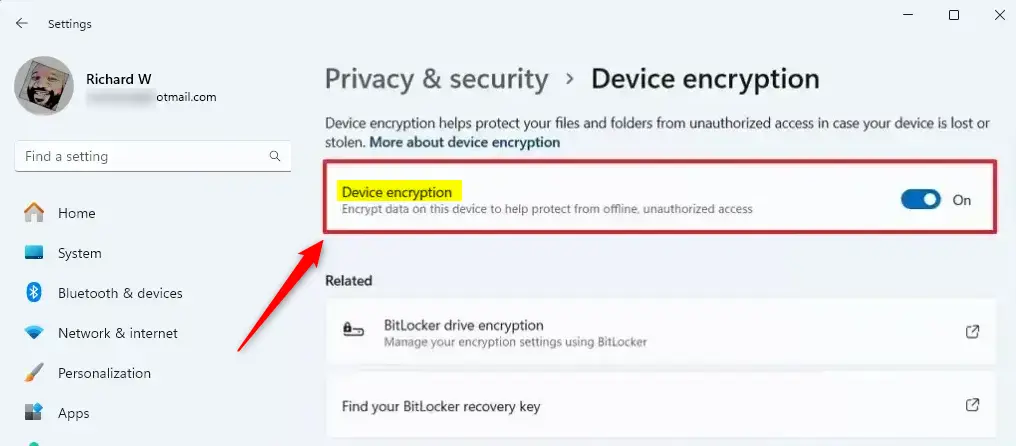
When finished, just close the Settings app.
Summary
- Device Encryption helps keep your data safe by locking your PC’s drive.
- You can check if your PC supports it using System Information or the Settings app.
- Your PC needs some special hardware like TPM 2.0 and Secure Boot to use Device Encryption automatically.
- If your PC doesn’t support Device Encryption, you can still use standard BitLocker encryption (on Windows 11 Pro or higher).
- Checking this helps you protect your information easily.
Learn more from Microsoft: BitLocker device encryption info
Leave a Reply Cancel reply