
Want to make your computer feel more like yours? Changing your desktop background is an easy way to do that! In Windows 11, you can use any photo you like as your background, not just the ones that come with your PC.
Having a background picture you love can make using your computer more fun and personal. Let’s walk through how to change it step-by-step.
How to Change Your Desktop Background Using Your Own Photos
Follow these simple steps to set your favorite photo as your desktop background in Windows 11:
Open Settings:
Press the Windows key + I on your keyboard at the same time.
OR
Click the Start button (the Windows icon on the bottom left) and then click Settings.

Go to Personalization:
In the Settings window, click on Personalization from the list on the left side.
Then, click on Background on the right side.
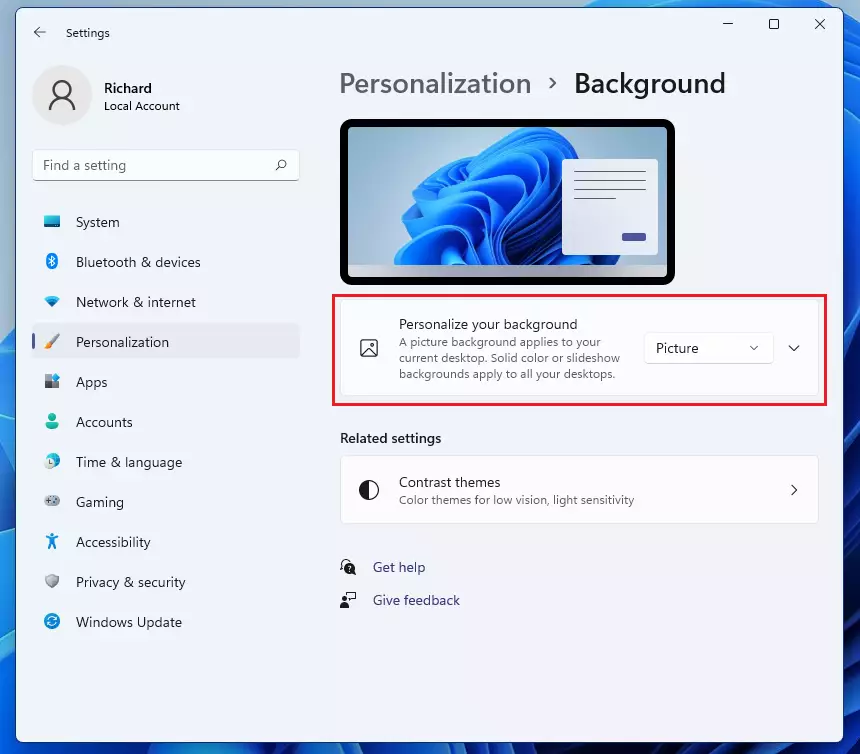
Under the “Background” section, you’ll see a dropdown menu. Select Picture if you want just one photo, or Slideshow if you want to cycle through multiple photos automatically.
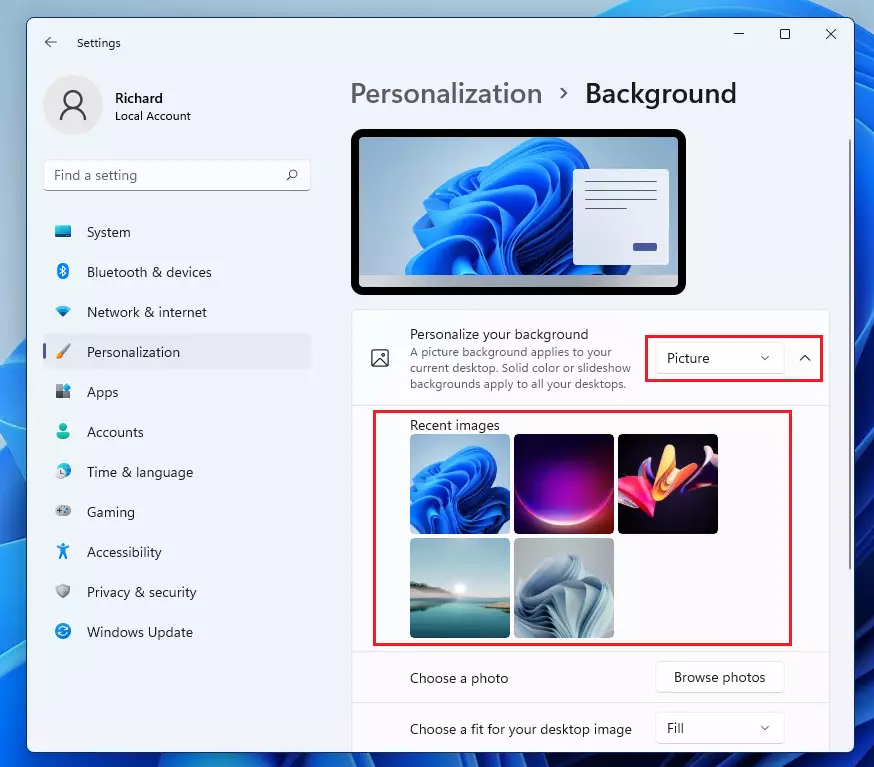
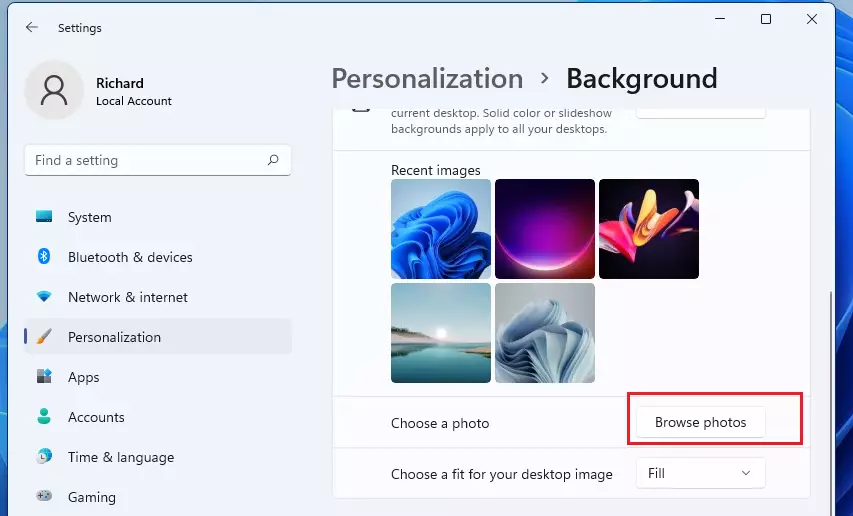
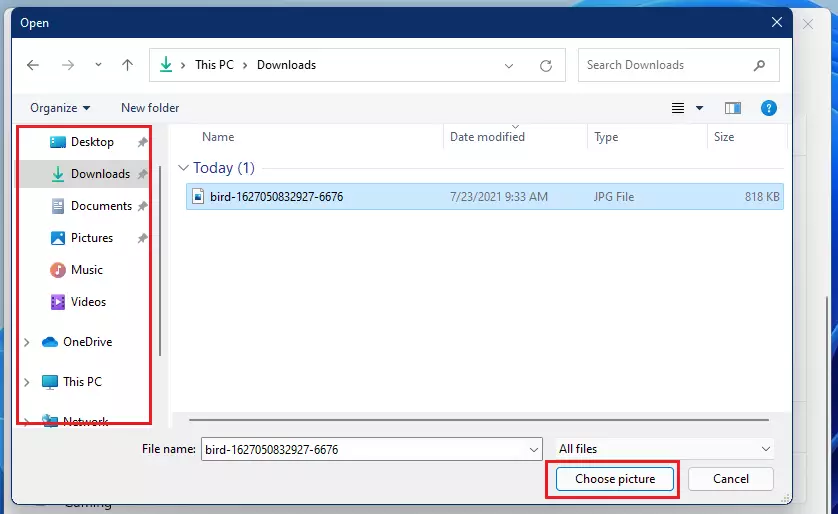
If you want to use your own photo, click Browse photos and find the picture you want on your computer.
Find your photo file (it can be a JPG, PNG, GIF, or BMP file) and click Choose picture.
Your desktop background will change right away!
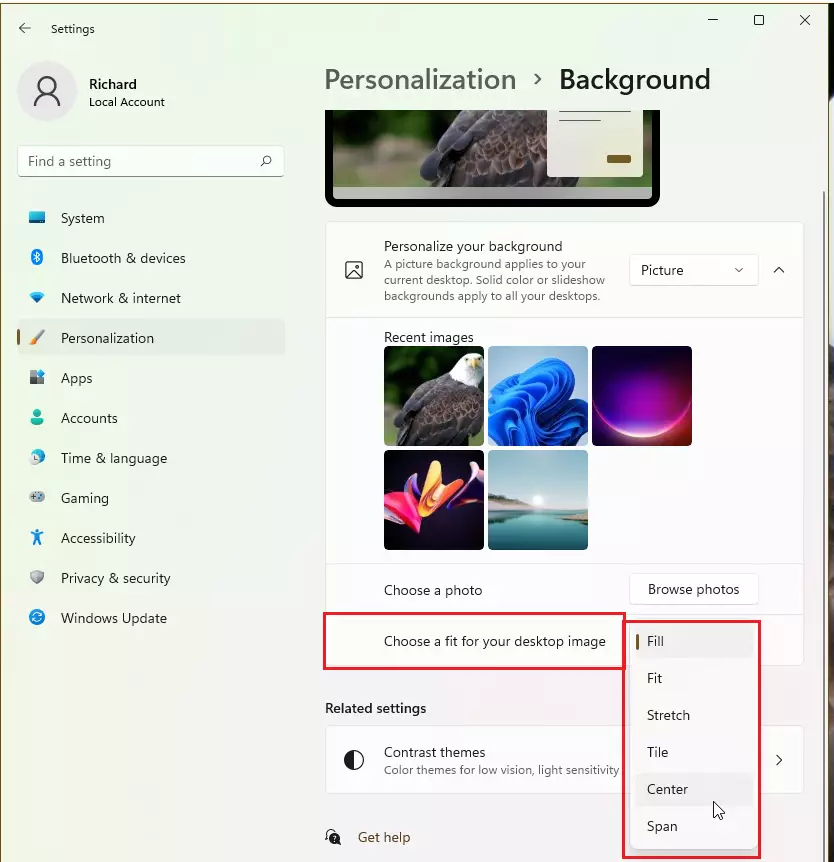
Sometimes pictures don’t fit the screen perfectly. You can choose how the picture fits by selecting options like Fill, Fit, or Stretch from the “Choose a fit for your desktop image” dropdown.
That’s it! Now your desktop will show your favorite photo or a slideshow of pictures you love.
Why Change Your Desktop Background?
- It makes your computer feel more personal and unique.
- You can use any photo you want — family pictures, pets, nature, or artwork.
- A slideshow lets you enjoy lots of pictures without changing them yourself.
- Adjusting the fit makes sure your background looks good on your screen.
- It helps you quickly recognize your computer if you have more than one.
If you want even more tips on customizing Windows 11, check out Microsoft’s official guide.


Leave a Reply Cancel reply