

Do you find the way your touchpad scrolls unnatural? You can easily change it in Windows 11 to match how you prefer to move through pages.
Why change your scroll direction?
Some people prefer “natural” scrolling, where swiping up moves the page down. Others prefer the traditional way, where swiping up moves the page up. Changing this setting makes your computer feel more intuitive and easier to use.
What happens when done?
Once you change this setting, your touchpad will immediately follow your new preference. Every time you use two fingers to swipe, the page will move exactly the way you expect it to.
You can also adjust other settings like turning on or off the on-screen touchpad, using touchpad gestures, turning off touchpad clicks, tapping twice and drag to multi-select item, changing touchpad cursor speed or disable your device touchpad altogether and more.
How to change the scroll direction
To change these settings, you need to open the Windows Settings app. You can do this by pressing the Windows key + I on your keyboard, or by clicking Start > Settings.

Once the Settings window is open, follow these steps:
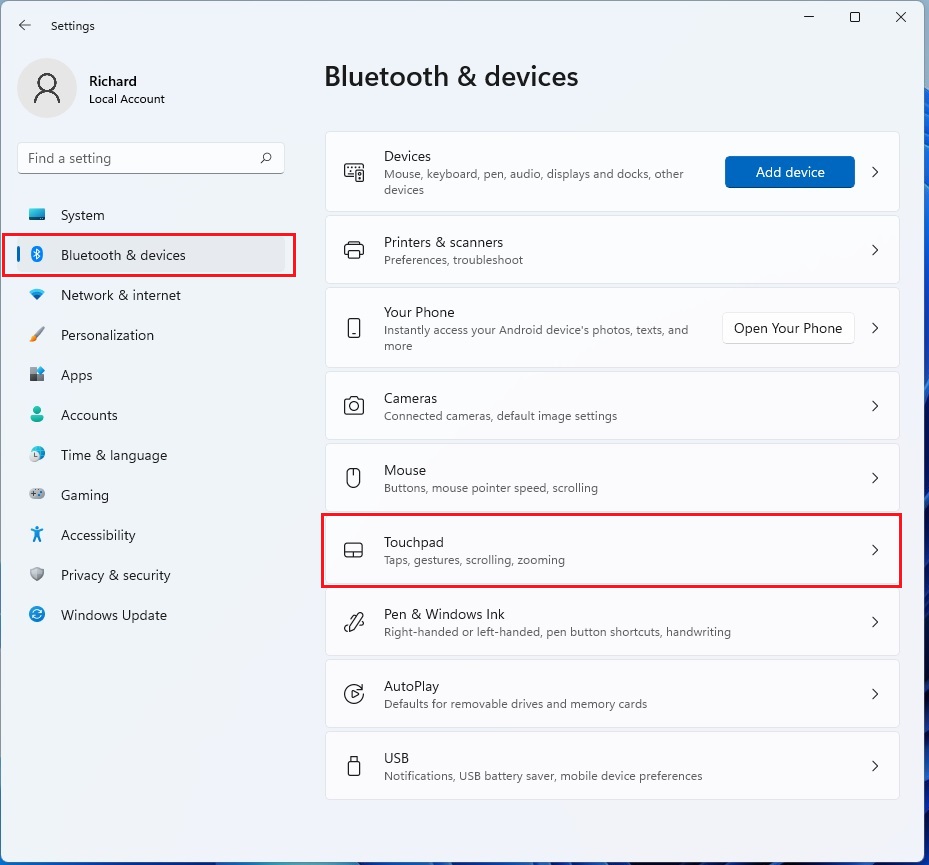
- Click on Bluetooth & devices in the left-hand menu.
- Select the Touchpad tile on the right side of the screen.
Next, follow these steps to finish:
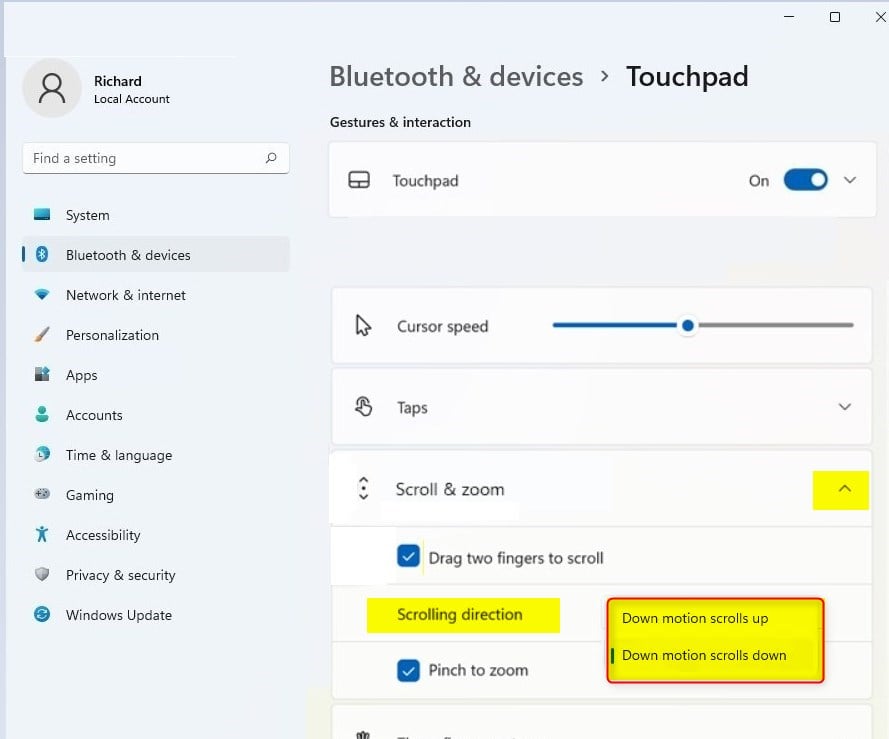
- Look for the Gestures & interaction section.
- Click the Scroll & zoom tile to see more options.
- Find Scrolling direction and click the menu to choose your preference:
- Down motion scrolls up: This is often called “natural” scrolling.
- Down motion scrolls down: This is the traditional scrolling method.
Summary
Changing your touchpad scroll direction is a simple way to make your Windows 11 experience more comfortable. By visiting Settings > Bluetooth & devices > Touchpad, you can toggle between natural and traditional scrolling in just a few clicks. These settings do not require admin privileges to change.


Leave a Reply Cancel reply