How to Change Power Mode in Ubuntu Linux

You change power modes in Ubuntu Linux to optimize your system’s performance versus its energy consumption.
Power modes allow you to quickly switch between configurations that prioritize speed or battery life, directly impacting how your CPU and other components operate.
Ubuntu offers distinct power profiles, including “Balanced” (the default setting), “Power Saver” for extended battery duration, and “Performance” for maximum processing speed.
For instance, activating “Power Saver” mode can significantly prolong your battery life by reducing CPU clock speeds and disabling non-essential background processes.
Open System Settings, click on Power, and then select your desired Power Mode from the dropdown menu. You can choose between Balanced, Power Saver, or Performance profiles to optimize for battery life or speed.
How to choose power mode in Ubuntu Linux
As mentioned, Ubuntu Linux lets you change your power mode to suit your needs. You can pick a setting for the best battery life, or one that balances performance and battery use.
Here’s how to do that in Ubuntu Linux.
Ubuntu Linux keeps most of your settings in one place, called the System Settings panel. You can access it through the Activities overview by typing “Settings,” or by clicking the System menu in the top-right corner and selecting “Settings.”
To get to System Settings, open the Activities overview and start typing Settings.
Alternatively, click on the System menu at the top-right corner of your desktop’s top bar.
On the System menu, select Settings, as shown below.

In the Settings app, click on the Power tile.
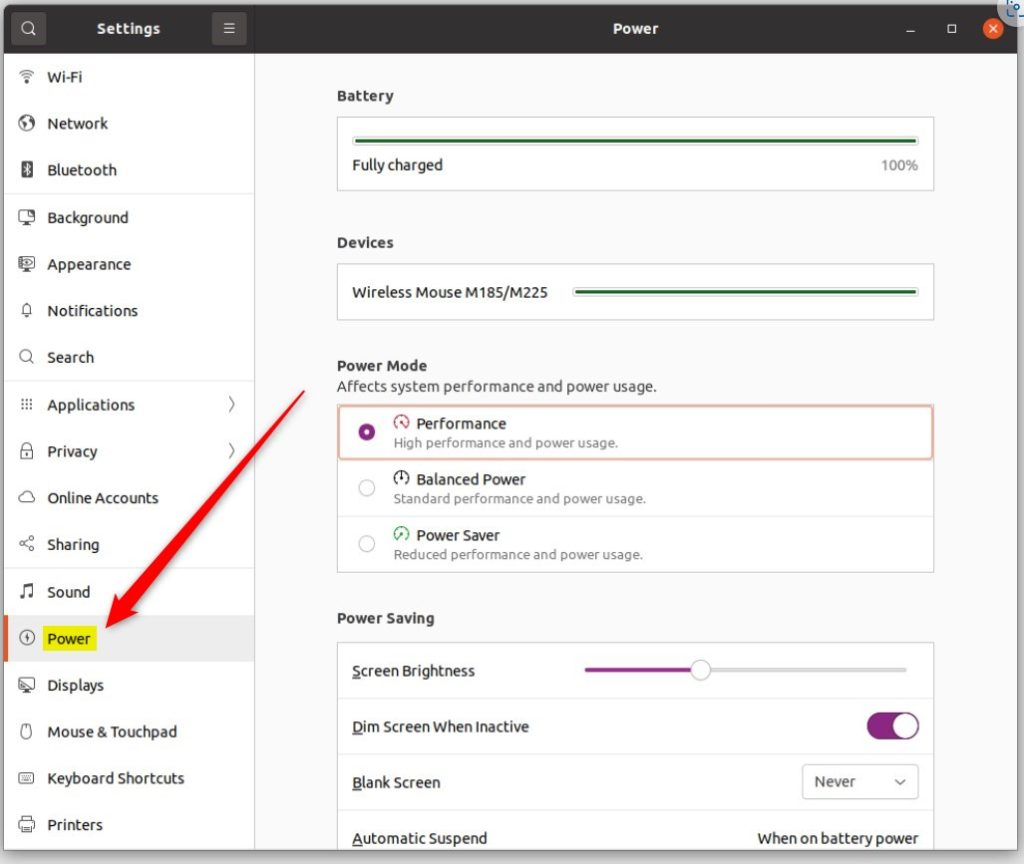
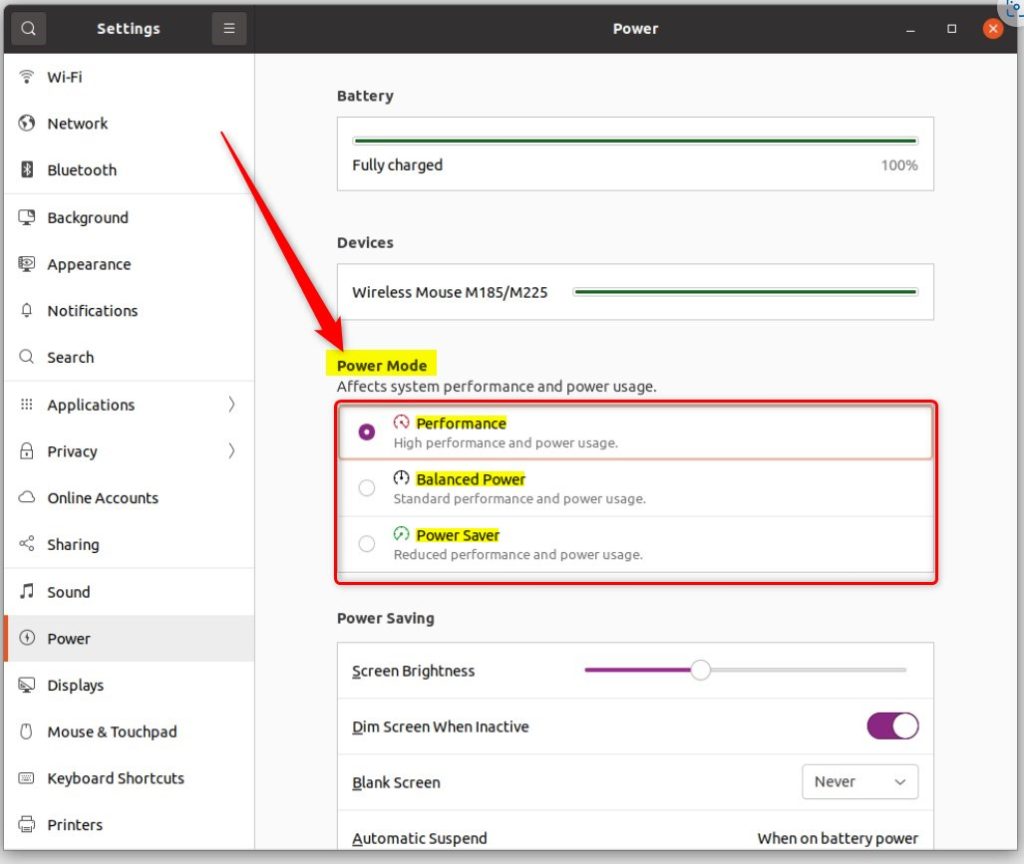
On the System Settings > Power settings panel, under Power Mode, choose a power mode or profile:
- Balanced: Standard performance and power usage. This is the default setting.
- Power Saver: Reduced performance and power usage. This setting maximizes battery life. It may enable some power-saving options and prevent them from being switched off.
- Performance: High performance and power usage. This mode will only be visible if it is supported by your computer. It will be selectable if your computer is running on AC power. If your device supports lap detection, you will not be able to select this option if the device is running on someone’s lap.
That’s it! You can now close the Settings app.
Conclusion:
- Changing the power mode in Ubuntu Linux is a straightforward process that allows users to optimize performance and power usage according to their needs.
- Following the steps outlined in this article, users can select from different power modes such as Balanced, Power Saver, and Performance, ensuring flexibility based on their specific requirements.
- Accessing the System Settings panel and navigating to the Power settings allows users to seamlessly modify the power mode for their Ubuntu Linux system.
- Whether prioritizing battery life, performance, or a balance between the two, Ubuntu Linux empowers users with the tools to customize their power usage effortlessly.
Was this guide helpful?

About the Author
Richard
Tech Writer, IT Professional
Richard, a writer for Geek Rewind, is a tech enthusiast who loves breaking down complex IT topics into simple, easy-to-understand ideas. With years of hands-on experience in system administration and enterprise IT operations, he’s developed a knack for offering practical tips and solutions. Richard aims to make technology more accessible and actionable. He's deeply committed to the Geek Rewind community, always ready to answer questions and engage in discussions.



[…] systems it is possible to set a power mode to allow you to use the least amount of power you need. In Ubuntu this is done from the Power settings, but in Debian running XFCE the Power Manager does not give you this option. But that doesn’t […]
Anyone who dont have performance button enabled. You can also use that terminal command as a root.
powerprofilesctl set performance