

This post describes changing the mouse pointer color when using Ubuntu Linux.
Ubuntu Linux has a standard mouse pointer color and size, which is small and blank. Unfortunately, the default black color usually isn’t helpful, especially for people with poor vision.
With wide screens and higher resolutions, spotting the mouse pointer across bigger areas or even double screens cannot be easy.
Changing the color of the mouse pointer may not only be for people with poor vision or low light sensitivity but a cosmetic change to match the color of the desktop theme or background or for people who want to have some fun.
How to change your mouse pointer color in Windows 11
As described above, one can easily change the mouse pointer color in Ubuntu Linux for any reason. This change could help people with poor vision and those struggling to see black objects on the screen.
Windows 11 has a centralized location for the majority of its settings. As a result, everything can be done, from system configurations to creating new users and updating Windows from its System Settings pane.
However, the default Ubuntu installation does not come with mouse color-changing settings. To do this, you will have to install separate software.
To do that, use the steps below:
Press the CTRL + ALT + T on your keyboard to open the terminal console. Then, run the commands below to install Gnome Tweaks.
sudo apt install gnome-tweaks
After installing the app, go to the Activities overview and search for Tweaks.
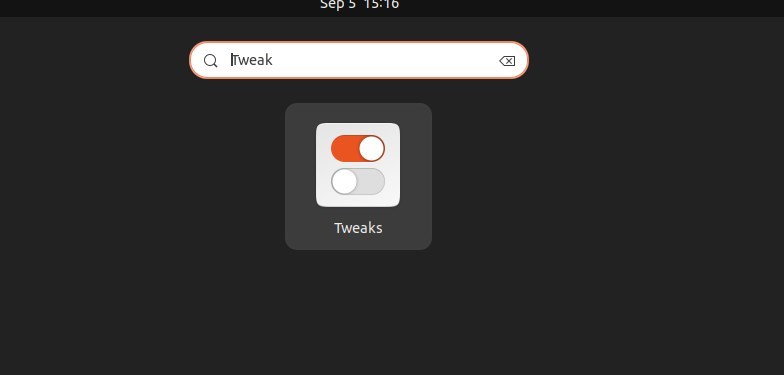
In the app, under Appearance, choose a mouse color theme you want to use.
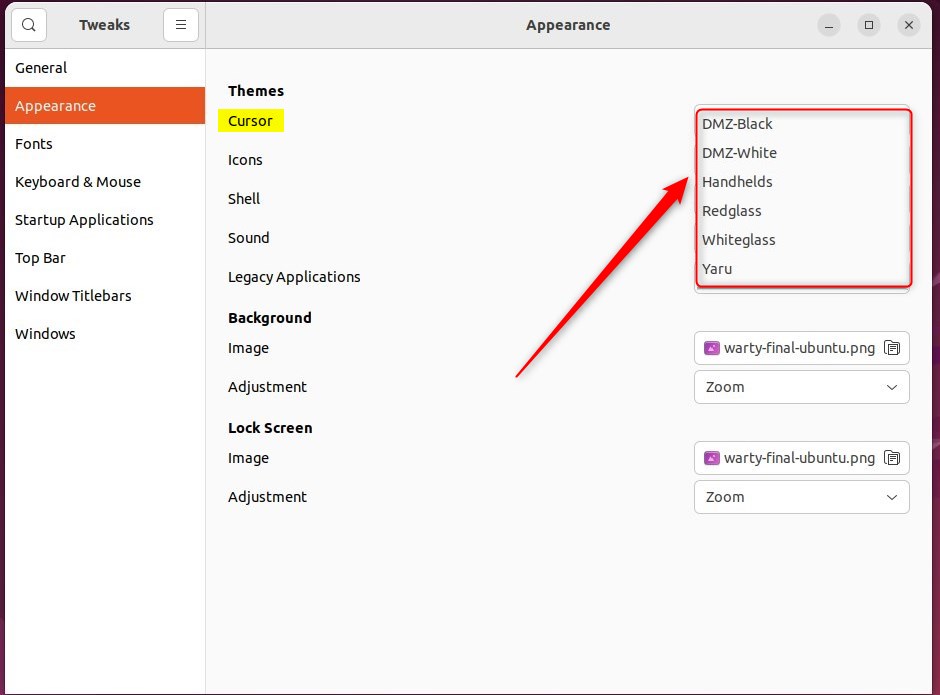
That should do it!
Conclusion:
- Changing the mouse pointer color in Ubuntu Linux can greatly benefit people with poor vision or low light sensitivity and those looking to match the color with the desktop theme or background.
- This cosmetic change can also make locating the mouse pointer on wide screens or across multiple displays easier.
- While Windows 11 offers centralized settings for various configurations, Ubuntu may require the installation of additional software, such as Gnome Tweaks, to change the mouse pointer color.
- By following the steps provided, users can customize the mouse color theme in Ubuntu Linux to suit their preferences or accessibility needs.
Leave a Reply Cancel reply