

This post describes steps to set laptop lid close behavior to ignore if the laptop lid or screen is closed in Ubuntu Linux.
Ubuntu Linux is configured to automatically suspend when the laptop lid is closed to save power. This feature has always been part of the Ubuntu Linux platform but is relatively easy to disable, so when you close the laptop screen or lid, it doesn’t sleep.
When Ubuntu Linux goes to suspend mode, it’s not turned off – go to sleep. Then, you can resume by opening the lid, and your session will continue from where you left off.
When the action is set to ignore, you can close the lid without putting the laptop to sleep while work is still being done.
How to keep the laptop on when the screen is closed in Ubuntu Linux
As described above, Ubuntu Linux automatically suspends when you close the laptop lid to save power. You can change that so it doesn’t sleep; below is how.
To stop Ubuntu Linux from suspending when the lid is closed, follow these steps:
These instructions will only work if you are using systemd.
First, press the CTRL + ALT + T keyboard shortcut to open the command console terminal.
Run the commands below:
sudo gedit /etc/systemd/logind.conf
Once the file opens, search for the line below:
#HandleLidSwitch=suspend
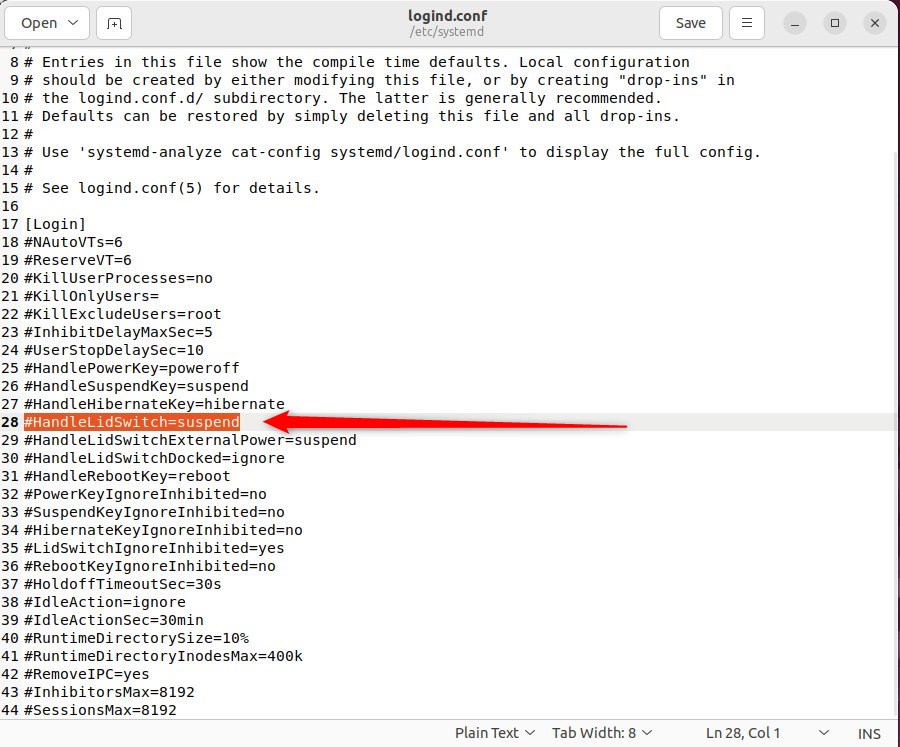
Then change the line to:
HandleLidSwitch=ignore

Save the file and exit.
Next, run the commands below to apply your changes.
sudo systemctl restart systemd-logind.service
Finally, you can restart and test your computer to see if it works.
If not, continue below.
Alternatively, install Gnome Tweaks to help you control laptop lid close behavior in Ubuntu Linux.
Run the commands below to install.
sudo apt install gnome-tweaks
After installing the app, go to the Activities overview and search for Tweaks.
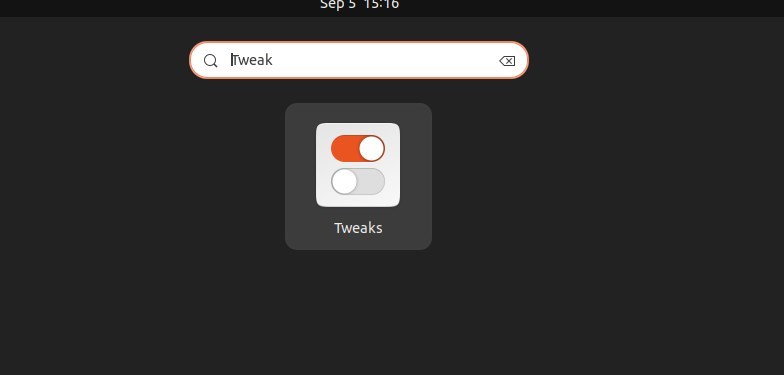
Under General, toggle the switch to Off for Suspend in the app when the laptop lid is closed.
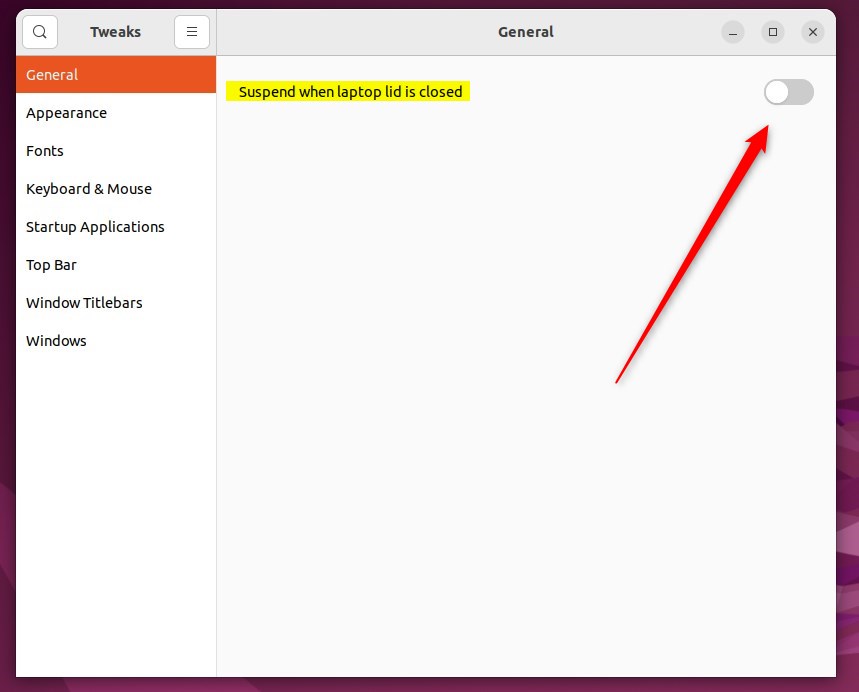
That should do it!
Conclusion:
- Ubuntu Linux provides a straightforward way to change the laptop lid close behavior to “ignore,” allowing users to avoid automatic suspension when the lid is closed.
- Modifying the HandleLidSwitch parameter in the login.conf file or utilizing the Gnome Tweaks application, users can keep their laptop running even when the screen is closed.
- With these simple steps, Ubuntu Linux users can ensure their work continues uninterrupted when the laptop lid is closed, providing greater flexibility and control over power management.


Leave a Reply Cancel reply