

This post describes the steps to increase the font or text size in Ubuntu Linux.
The default font size in Ubuntu Linux is usually good for most people who use it. However, for some small groups, it might be too small and not helpful, especially for people with poor vision.
With wide screens and higher resolutions, it cannot be easy to see clearly across bigger areas of the screen or even double screens.
If you have difficulty reading on your screen in Ubuntu Linux, you can easily change the font size so you can enjoy reading. Sometimes, the font becomes too small to see clearly; increasing it will allow you to read without straining your eyes.
The steps below will show you how to increase the font size in Ubuntu Linux.
How to increase font size in Ubuntu Linux
As described above, if the font size is small and you have difficulties reading, you can increase the size so you can enjoy reading.
Below is how to do that.
Ubuntu Linux has a centralized location for the majority of its settings. From system configurations to creating new users and updating, all can be done from the System Settings panel.

Alternatively, click on the System menu at the top-right corner of the top bar on your desktop.
On the System menu, select Settings, as highlighted below.

In the Settings app, click the Accessibility tile to open the panel.
In the System Settings -> Privacy -> Accessibility setting pane, under Seeing, toggle the Large Text switch to On to increase the text size in Ubuntu Linux.
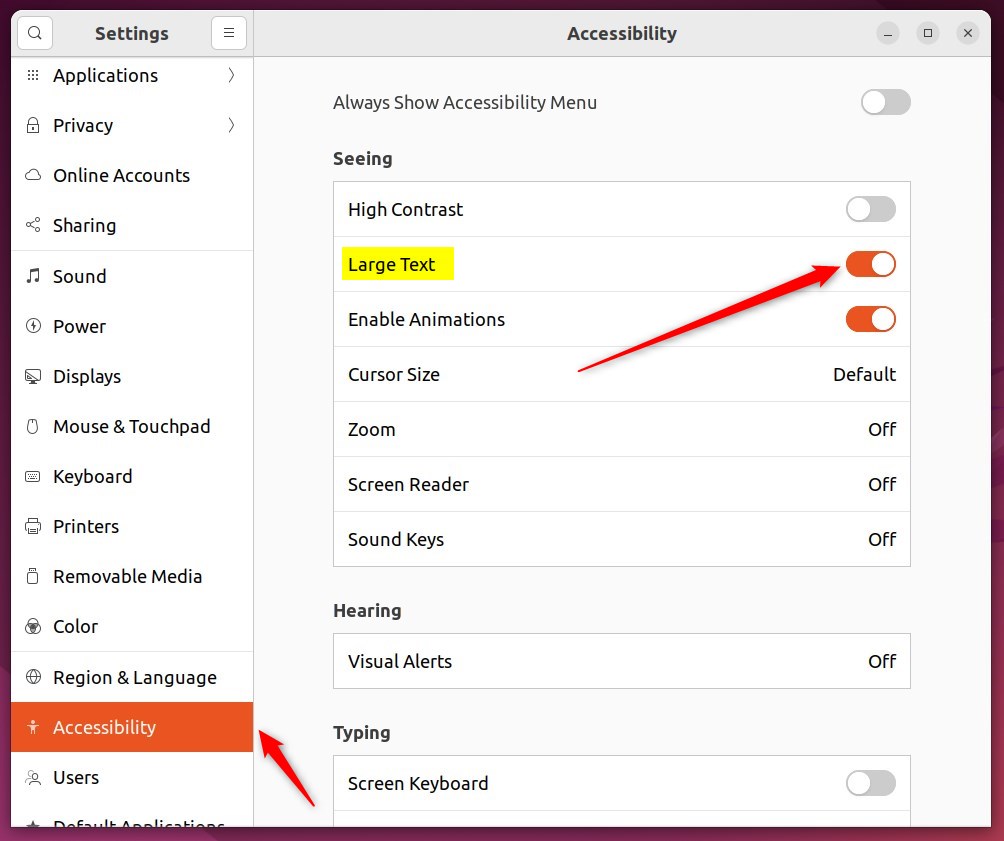
To restore the default size, switch the Large Text switch to Off.
Ubuntu fonts and text size should automatically increase after the actions above. For example, a large Text will scale the Text by 1.2 times.
You can increase the text size anytime in many applications by pressing CTRL + +. To reduce the text size, press CTRL + –.
How to increase font size in Ubuntu Linux from the command terminal
The same actions above can be done via the command line. You run the commands below to change the text size by the scaling factor of 1.5 times.
gsettings set org.gnome.desktop.interface text-scaling-factor 1.5After this, the font size in Ubuntu Linux should be much larger than the default. More advanced methods may be possible in Ubuntu Linux; however, the steps above should be enough to increase the font size.
That should do it!
Conclusion:
- Adjusting the font size in Ubuntu Linux is essential for improving readability, especially for users with poor vision or larger displays.
- By accessing the System Settings panel and toggling the Large Text switch under Accessibility, users can conveniently increase the text size.
- Alternatively, advanced users can utilize the command line to change the text size by a specific scaling factor.
- The ability to adjust text size in Ubuntu Linux ensures a more comfortable and customized user experience for all individuals, regardless of their visual requirements or display setups.

Leave a Reply Cancel reply