
This guide will help you adjust how long notifications stay visible on your braille display when using Windows 11. If notifications disappear too fast or stay too long, you can change this setting to fit your needs.
Why would you do this? When you use Narrator with a braille display, you can control how long notification messages stay on the screen before disappearing. This makes it easier to read messages at your own speed.
Narrator is a tool built into Windows that reads text out loud. It helps users who have difficulty seeing the screen.
Steps to Change Notification Timeout for Braille Display
- Open Settings. Click the Start menu (the Windows icon in the bottom-left corner) and choose Settings. Or press
Windows key + Ion your keyboard to open the Settings app quickly. - Go to Accessibility. In the Settings window, find and click Accessibility on the left side menu.
- Open Narrator Settings. On the right side, click on the Narrator section to see more options.

- Find Braille Settings. Scroll down to the Braille section and click on Use a braille display with Narrator to open it.
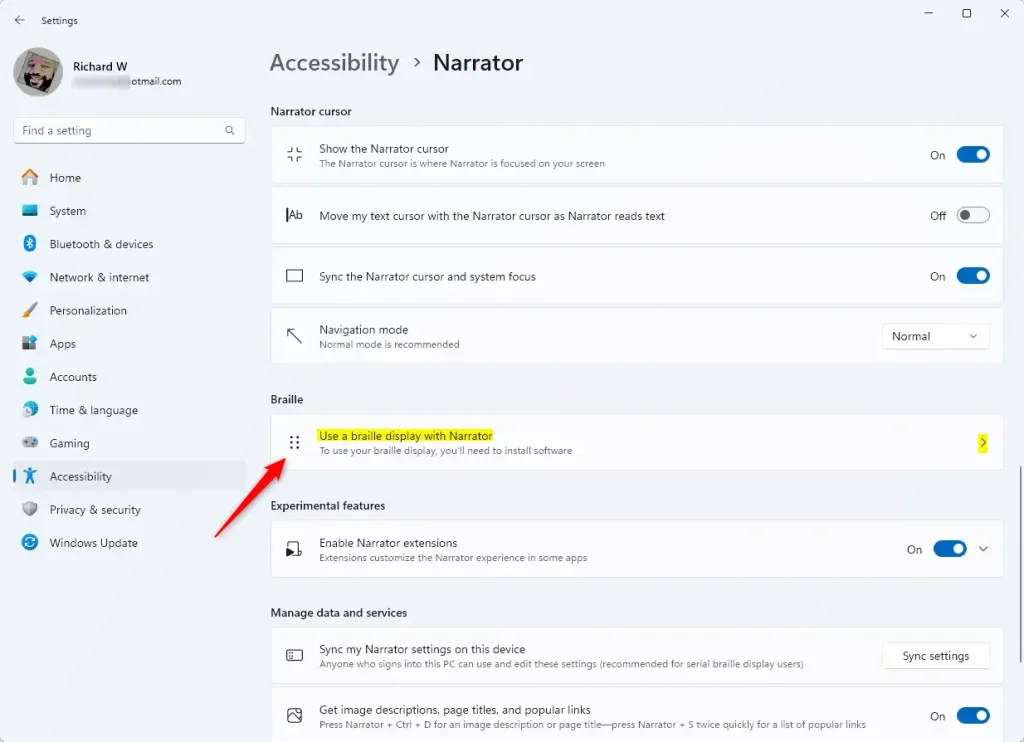
- If you haven’t installed braille support yet, click Download and install braille to add it to your computer. (Learn more about installing braille support)
- Add your braille display. Under Braille displays and drivers, click Add a braille display and choose your device’s brand and connection type.
- Find the Notifications section. Click on Notifications timeout after.
- Pick your timeout length. Choose how long you want notifications to stay on your braille display before they disappear. You can select options like 5 seconds, 10 seconds, or more.
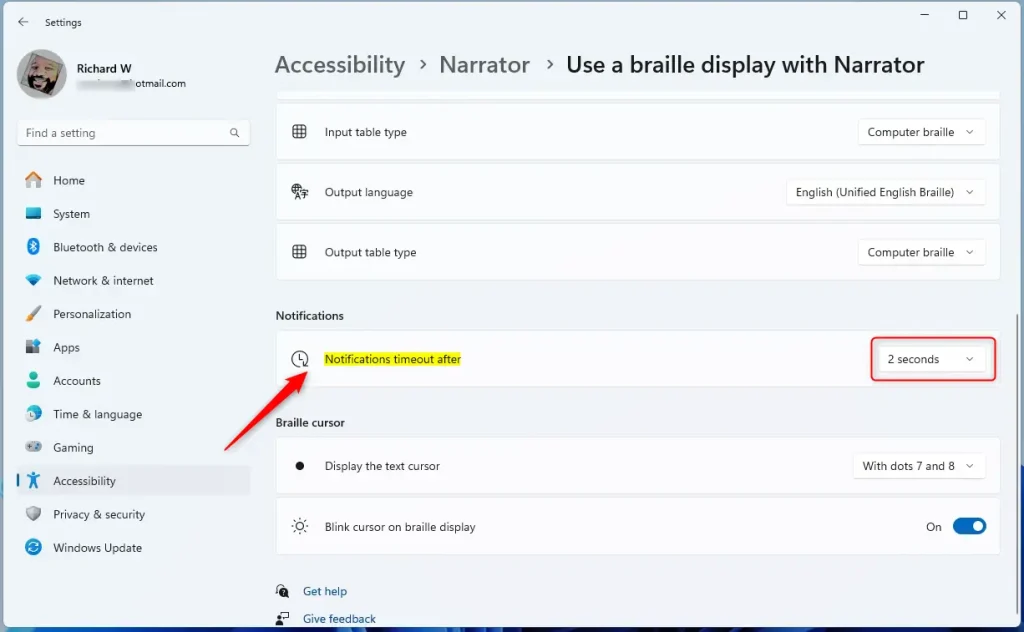
What happens when you’re done? Your braille display notifications will now stay visible for the time you chose.
Summary
- You learned how to open the Settings app and find the Narrator braille display options.
- You can change how long notifications stay on your braille display to make reading easier and avoid interruptions.
- If you want to learn more about using Narrator and braille displays, check out this helpful guide: How to Use a Braille Display with Narrator on Windows 11.



Leave a Reply Cancel reply