
If you use BitLocker to protect your computer’s data, it’s important to save your BitLocker recovery key. This key helps you unlock your computer if Windows ever asks for extra security.
What is BitLocker?
BitLocker is a built-in Windows feature that locks (encrypts) your drive to keep your files safe from others. It makes sure only you (or someone with the right password) can open your data.
Sometimes, Windows will ask for your recovery key if it thinks someone else might be trying to access your data, or if you change certain parts of your computer (like hardware or software). This is an extra safety step.
Your BitLocker recovery key is a special 48-digit number. You need to keep it safe because you’ll need it to unlock your computer if Windows asks for it.
Why Back Up Your BitLocker Recovery Key?
Always keep a backup of your recovery key. If you lose it, you might not be able to access your files, and in some cases, you may have to reset Windows and lose your data.
Here’s what can happen if you don’t have the key:
- If Windows asks for the recovery key and you don’t have it, you can’t unlock your computer.
- If it’s a data or removable drive and you lose the key, the data will be lost unless you format the drive (which deletes everything).
How to Back Up Your BitLocker Recovery Key
Follow these simple steps to save your recovery key safely:
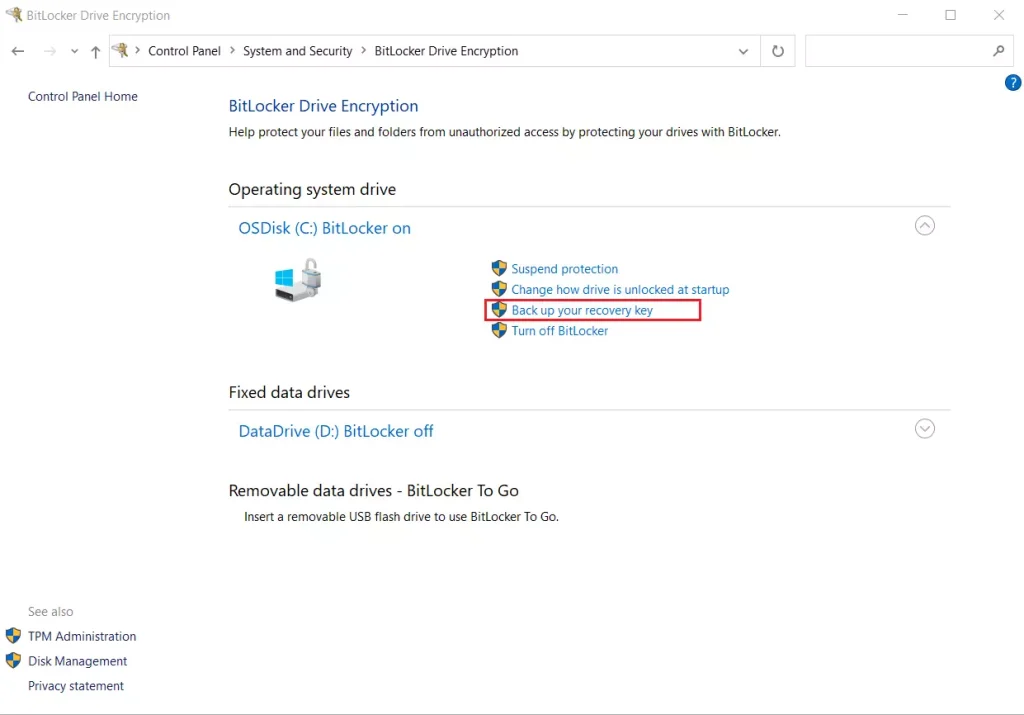
Then, switch to Large icons or Small icons view if needed, and click on BitLocker Drive Encryption.
Click on Back up your recovery key.
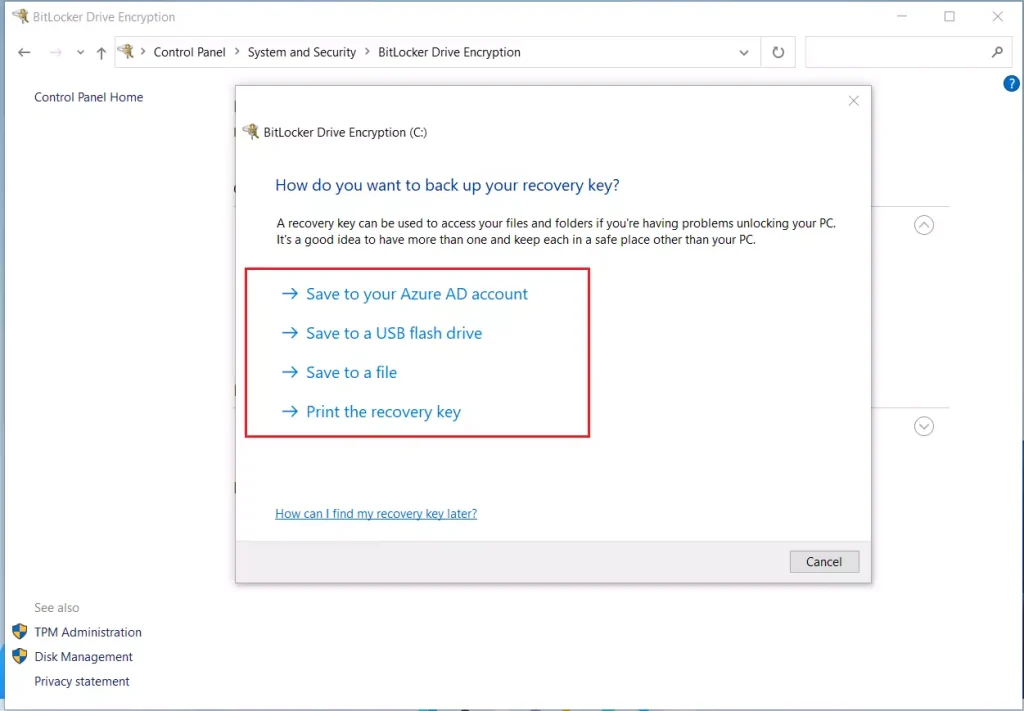
- Save to your Microsoft account – saves your key online so you can get it anytime by logging in.
- Save to a USB flash drive – saves the key as a file on a USB stick.
- Save to a file – save the key on your computer or another location.
- Print the recovery key – print out a paper copy to keep somewhere safe.
Save to Your Microsoft Account
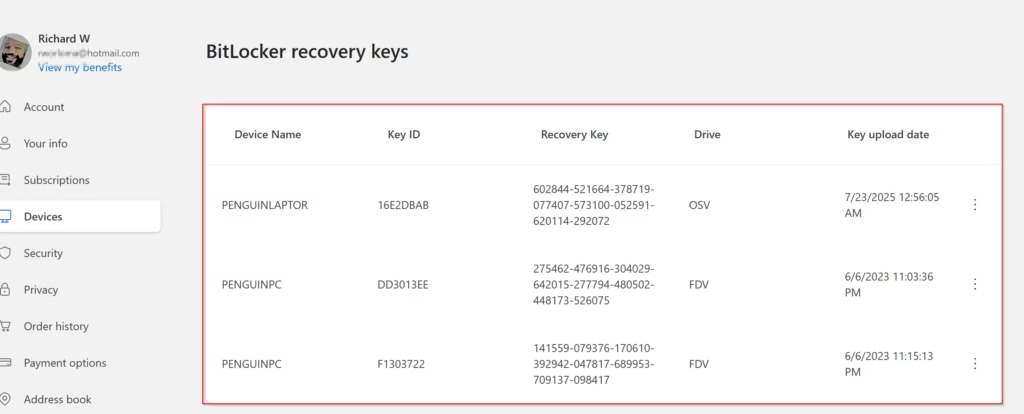
Click Save to your Microsoft account.
This stores the recovery key online safely. You can find it anytime here:
Save to a USB Flash Drive
- Plug in a USB flash drive to your PC.
- Click Save to a USB flash drive.
- Select the USB drive from the list and click Save.
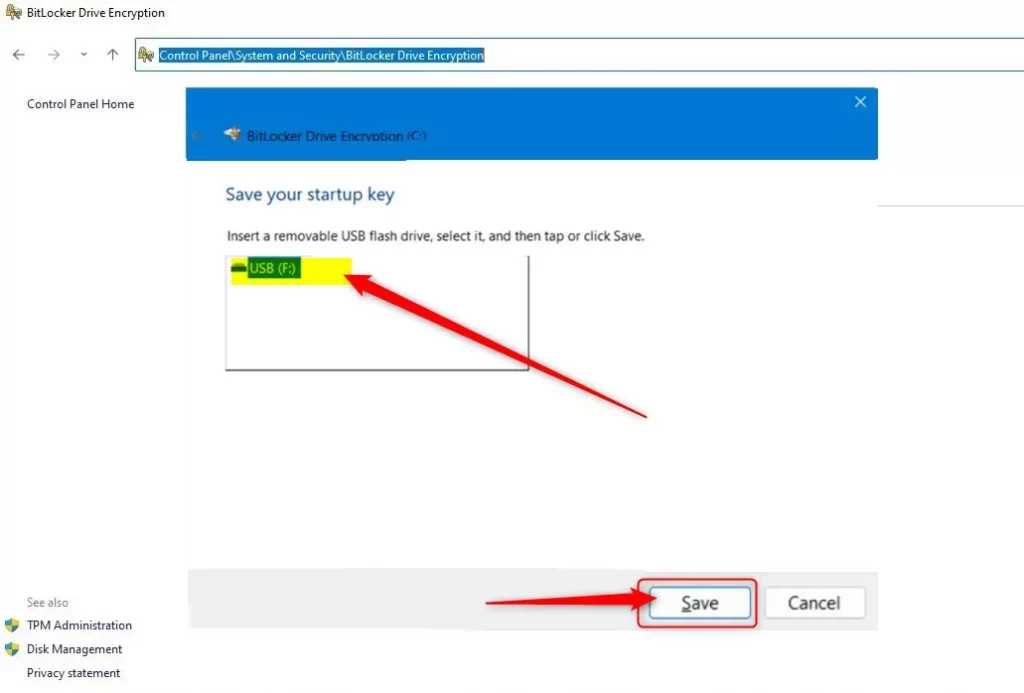
The recovery key will be saved as a text file on your USB drive.
Save to a File on Your Computer
- Click Save to a file.
- Choose a safe folder on your computer to save the file.
- Click Save.
Print the Recovery Key
- Make sure your printer is turned on and connected.
- Click Print the recovery key.
- Choose your printer and click Print.
Summary
- Backing up your BitLocker recovery key keeps your data safe and accessible.
- You can save your key to your Microsoft account, a USB drive, a file, or print it out.
- Store your recovery key somewhere secure to stop others from accessing it.
- If you lose the recovery key and are locked out, you risk losing access to your data.
- Check your backup methods regularly, especially if you change or update your computer.
If you want to learn more, check out the official Microsoft guide here: Back Up Your BitLocker Recovery Key – Microsoft Support.



Leave a Reply Cancel reply