How to Add a Drive to a Storage Pool in Windows 11

You can add a drive to a Storage Pool in Windows 11 to expand your storage capacity and improve data resilience.
A Storage Pool is a Windows feature that lets you combine multiple physical drives into a single, larger virtual drive, giving you more space and options for protecting your data.
Adding a new drive, such as another SSD or HDD, allows you to increase the total capacity of your existing pool or create a new one.
This process is straightforward and helps you manage your growing digital life more effectively on your PC.
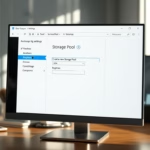
Open Settings and navigate to System > Storage > Advanced storage settings > Storage Spaces. Click your existing pool, then select Physical Disks and click Add a disk. Choose the new drive and confirm to add it to the pool.
What is Storage Spaces?
Storage Spaces is a handy Windows 11 tool that lets you group several hard drives or SSDs together into one big storage pool.
- Get more storage space by combining drives together.
- Protect your files with redundancy (backup copies of your data).
- Speed up storage by using multiple drives at the same time.
You can add more drives to your storage pool anytime. This increases your space and keeps your data safer.
How to Add a Drive to Your Storage Pool
Adding a new drive to your existing Storage Pool in Windows 11 is straightforward with these steps.
- Open Windows Settings. Click the Start menu and select Settings. Or press Windows key + I on your keyboard.
- Go to System Settings. In the Settings window, click System on the left side.
Windows 11 System button in Settings - Open Storage Settings. On the right side, click Storage to open the storage options.

Windows 11 Storage tile in Settings app - Find Storage Spaces. Scroll down and click Advanced storage settings to expand it. Then click Storage Spaces.
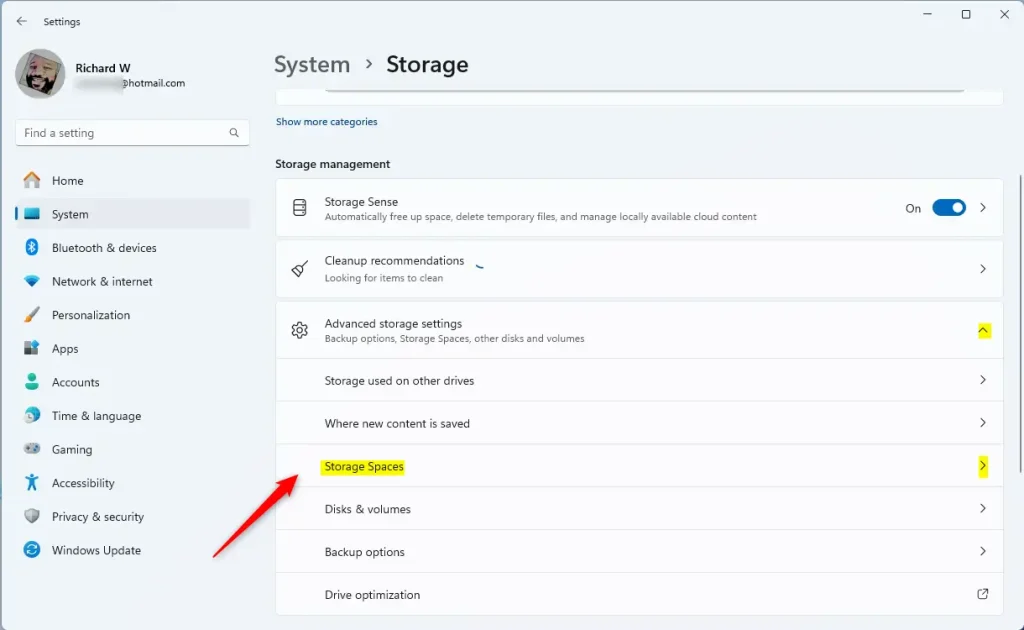
Windows 11 Storage Spaces tile in Settings app - Open Your Storage Pool. Click on your existing Storage pool to see its details.
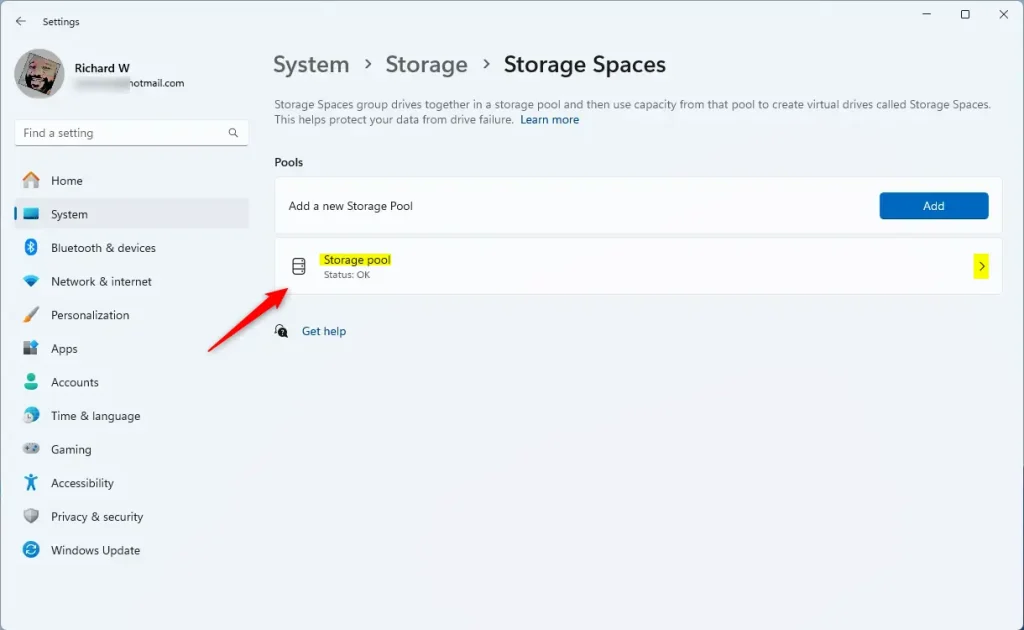
Windows 11 storage pool tile - Add a New Drive. Click on the Physical Disks section. Then press the Add a disk button. ⚠️ Admin privileges required
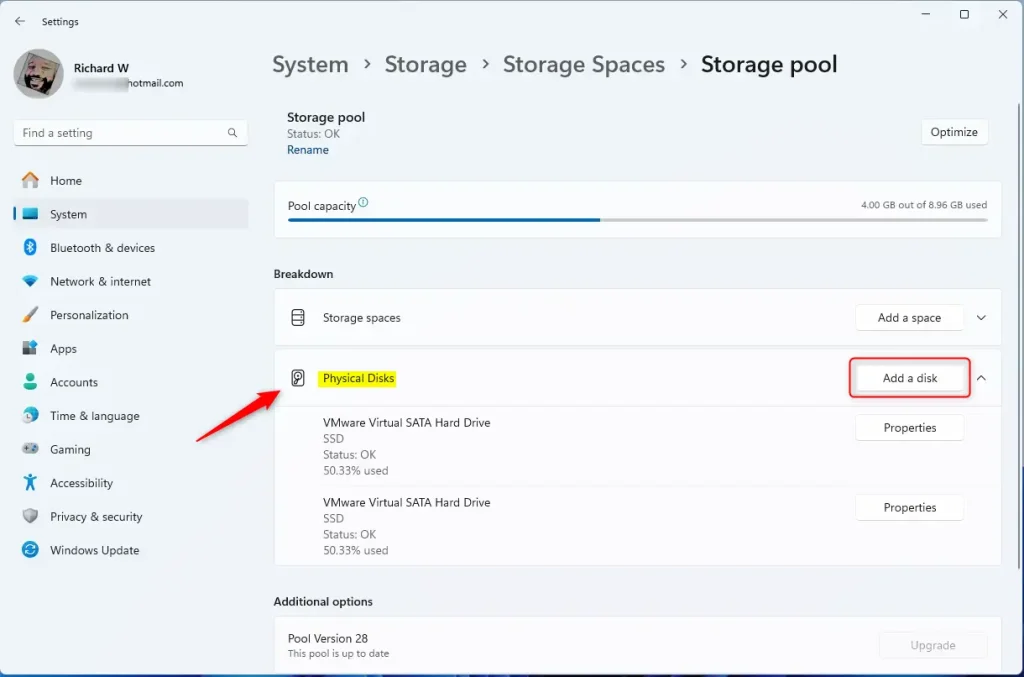
Add physical disk to pool in Windows 11 - Select the Drive. Choose the new drive you want to add and click Add. Important: This drive will be formatted (all data erased) before joining the pool. Make sure you have backed up any important files first.
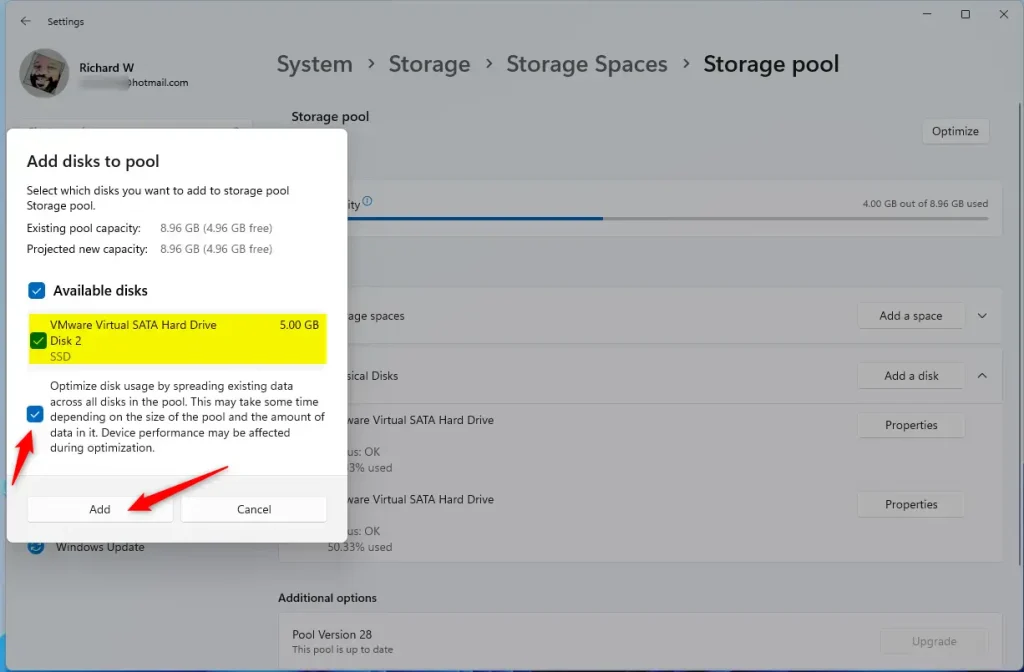
Add physical disk to pool window in Windows 11
After the process finishes, your new drive will be part of the Storage Pool!
You can now close the Settings app.
Why Add Drives to a Storage Pool?
Adding drives to a Storage Pool gives you more space, better protection for your files, and can even speed up how quickly you can read and write data.
Better Protection: Keep copies of your data. If one drive fails, you don’t lose your files.
Improved Speed: Multiple drives can work together to read and write files faster.
Adding drives to Storage Spaces helps you keep your data safe. It also gives you more room to store your files.
For more details about creating and managing Storage Pools, check out this guide: How to Create a New Storage Pool with Storage Spaces in Windows 11
Summary
Storage Spaces in Windows 11 lets you combine multiple drives into one storage pool for more space, better data protection, and faster performance.
How do I add a new disk to the storage pool?
Now from here you can specify the size now let's specify the size 50 GB. And then click on. Okay. Now as you can see our total size of our visk. 1 is 50.3GB.
How do I assign drives to a storage pool?
To assign drives to a storage pool, first connect the drives you want to use with Storage Spaces.
How to extend a disk in a storage pool?
Here you need to specify the size. And as you can see the current size is 100 GB i want to assign a full space to this virtual disk. Which is 253GB. Let's click on. Okay.
Was this guide helpful?

About the Author
Richard
Tech Writer, IT Professional
Richard, a writer for Geek Rewind, is a tech enthusiast who loves breaking down complex IT topics into simple, easy-to-understand ideas. With years of hands-on experience in system administration and enterprise IT operations, he’s developed a knack for offering practical tips and solutions. Richard aims to make technology more accessible and actionable. He's deeply committed to the Geek Rewind community, always ready to answer questions and engage in discussions.


No comments yet — be the first to share your thoughts!