
Do you have a touchscreen device like a tablet or laptop with a touchscreen? Windows 11 has a special tool for you. You can type using an on-screen keyboard. But there’s more. You can also use the touch keyboard to write words by hand. Just use your finger or a pen. This feature is called the handwriting-panel/” class=”sal-link” rel=”noopener” target=”_blank” data-sal-id=”1477″>Handwriting panel.
Many apps will open the touch keyboard automatically when you tap where you want to type. But if you want to use handwriting instead, follow this simple guide.
Steps to Open the Handwriting Panel
Why use this? The handwriting panel lets you write text naturally. Windows will turn your handwriting into typed text.
What happens when done? Your written words will appear as regular text in your apps.
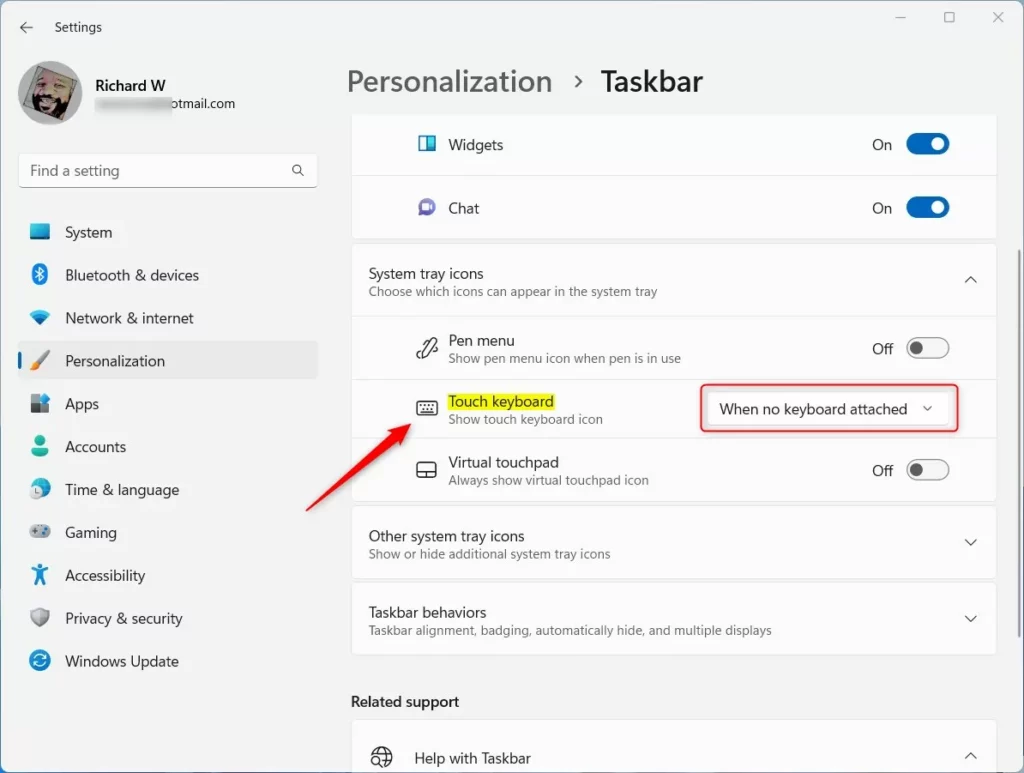
Turn on the Touch Keyboard button on the taskbar.
Go to
Start > Settings > Personalization > Taskbar > System tray iconsFind “Touch keyboard” and turn it on.
Set when the touch keyboard shows up.
Click the dropdown menu. Choose either When no keyboard attached or Always. This controls when the keyboard appears on your screen.
Click the touch keyboard icon on your taskbar.
It looks like a small keyboard. This opens the on-screen keyboard.
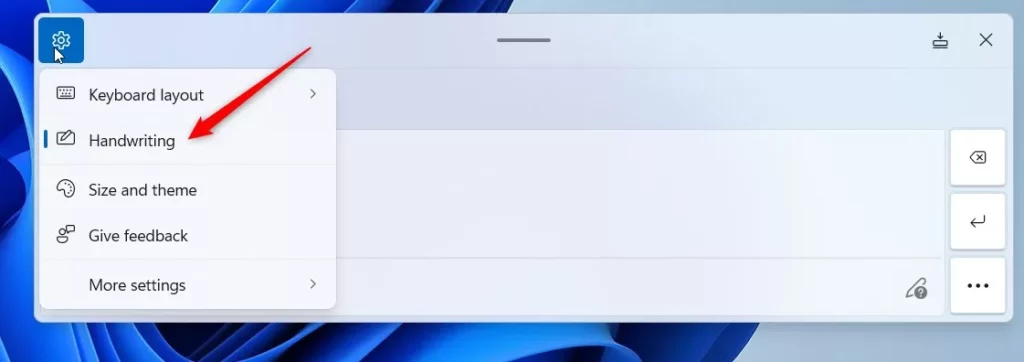
Click the Settings icon (gear icon) on the keyboard window.
Then select Handwriting from the menu.
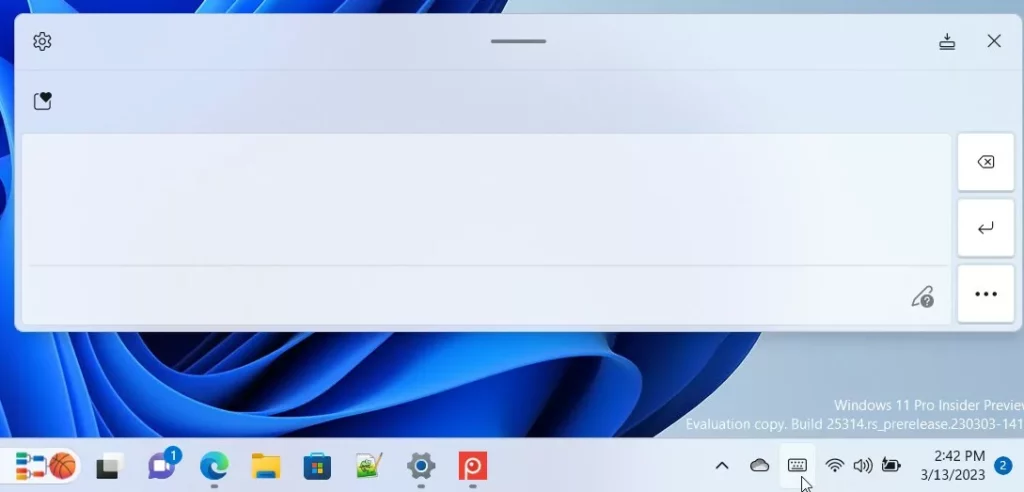
Start writing in the panel.
Use your finger or pen. Windows will change your handwriting into typed text automatically.
Summary
- The handwriting panel lets you write text using your finger or a pen on touchscreen devices.
- You access it through the touch keyboard’s settings in Windows 11.
- Enable the touch keyboard button on the taskbar. Then select handwriting mode to start writing by hand.
- Your written words will automatically turn into typed text.
Want to learn more about the touch keyboard? Check out these helpful guides:



Leave a Reply Cancel reply