
This simple guide will help you add a PIN to your Windows 11 account. A PIN is a quick and safe way to sign in to your computer.
What is Windows Hello and Why Use a PIN?
Windows Hello lets you sign in to your PC using a PIN, your face, or your fingerprint. Setting up a PIN is part of setting up face or fingerprint sign-in, but you can just use a PIN if you want.
Using a PIN is easy and safer because:
- Your PIN only works on your own device.
- If someone steals your PIN, they still need your computer to use it.
- Your PIN isn’t sent over the internet or saved on Microsoft’s servers.
Why is a PIN better than a password?
Even though a PIN looks like a password, it works differently and is safer. For example:
- Tied to your device: Your PIN only works on your own computer.
- Stored locally: The PIN stays on your device and isn’t sent anywhere.
- Protected by special hardware: Most devices have a chip called TPM that keeps your PIN safe.
- Can be made complex: You can use numbers, letters, and symbols to make your PIN stronger.
- Backs up biometrics: If fingerprint or face sign-in doesn’t work, you can still sign in with your PIN.
Want to learn more? Check out this explanation from Microsoft.
How to Add a PIN to Your Account
Option 1: Add PIN in Settings
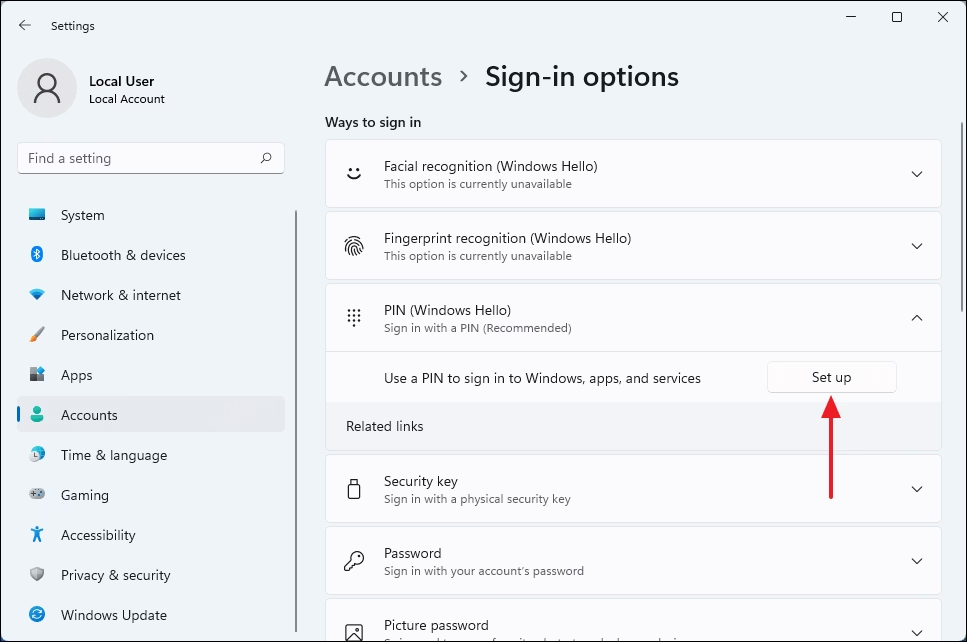
- Open Settings: Press Windows key + I on your keyboard.
- Click Accounts on the left, then select Sign-in options on the right.
- Under Ways to sign in, find PIN (Windows Hello) and click it to expand.
- Click the Set up button next to Use a PIN to sign in to Windows, apps, and services.
- Click Next if asked (Microsoft accounts only).
- Type your account password and click Sign in or OK (this verifies your identity).
- Choose a PIN – at least 4 digits. You can also check Include letters and symbols to make it stronger.
- Click OK to finish.
- You can now close Settings.

Option 2: Add PIN from the Sign-in Screen
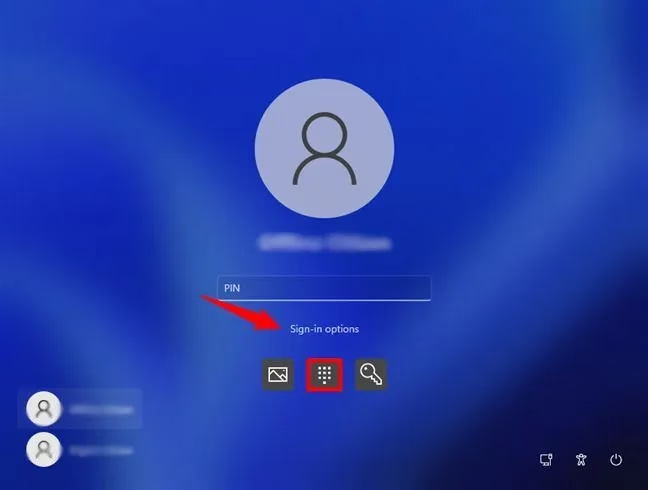
- On the sign-in screen, click Sign-in options.
- Click the PIN icon.
- Enter your Microsoft account password and press Enter.
- Click Next if prompted.
- Type your new PIN (at least 4 digits). You can include letters and symbols if you want.
- Click OK.
- You will be signed in using your new PIN.
Summary
By setting up a PIN on your Windows 11 device, you get:
- Better security: Your PIN is unique to your device and harder for others to misuse.
- Privacy: Your PIN stays on your device and isn’t shared over the internet.
- Hardware protection: Special chips keep your PIN safe.
- Flexibility: You can make your PIN simple or complex based on your needs.
- Backup access: Use your PIN if fingerprint or face sign-in isn’t working.
Enjoy a safer and easier way to sign in to your Windows 11 PC!
More Help and Info
- Windows Sign-In Options – Microsoft Support – Learn about different ways to sign in on Windows 11.
- Troubleshooting PIN Setup Errors – Fix problems you may see when creating a PIN.


Leave a Reply Cancel reply