Did you know you can bring a window to the front just by moving your mouse over it? This handy feature is called “Activate on hover.” It lets you switch between windows without clicking them first.
In this guide, you’ll learn how to turn on a setting that not only activates windows by hovering but also moves the window to the top automatically when you hover your mouse over it in Windows 11.
What Does This Feature Do?
Usually, to work on a window, you need to click it to bring it forward. But with Activate on hover, just placing your mouse pointer over a window will select it. The extra setting we’ll enable makes sure the window also moves above all others, so you always see what you’re working on.
How to Turn On “Move Window to Top” with Mouse Hover
Follow these simple steps:
- Open Windows Settings:
– Click the Start menu (Windows icon in the bottom-left corner) and then click Settings.
OR
– Press Windows key + I on your keyboard to open Settings instantly. - Go to Accessibility Settings:
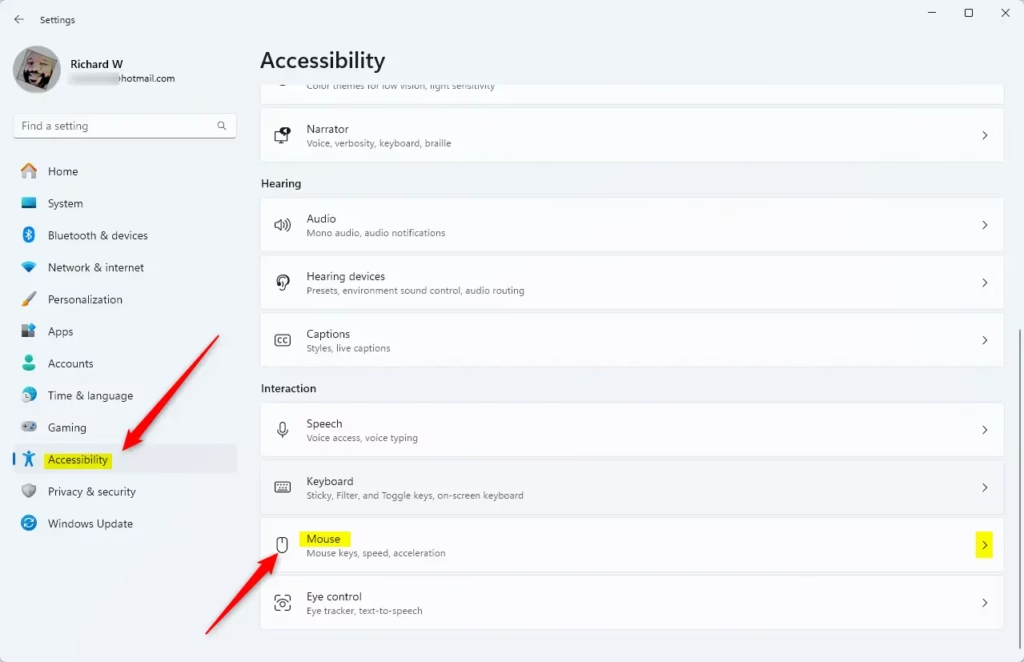
In the Settings window, look for Accessibility on the left side menu and click it. - Open Mouse Settings:
On the right side, scroll down and click on Mouse.
- Turn On Activate on Hover:
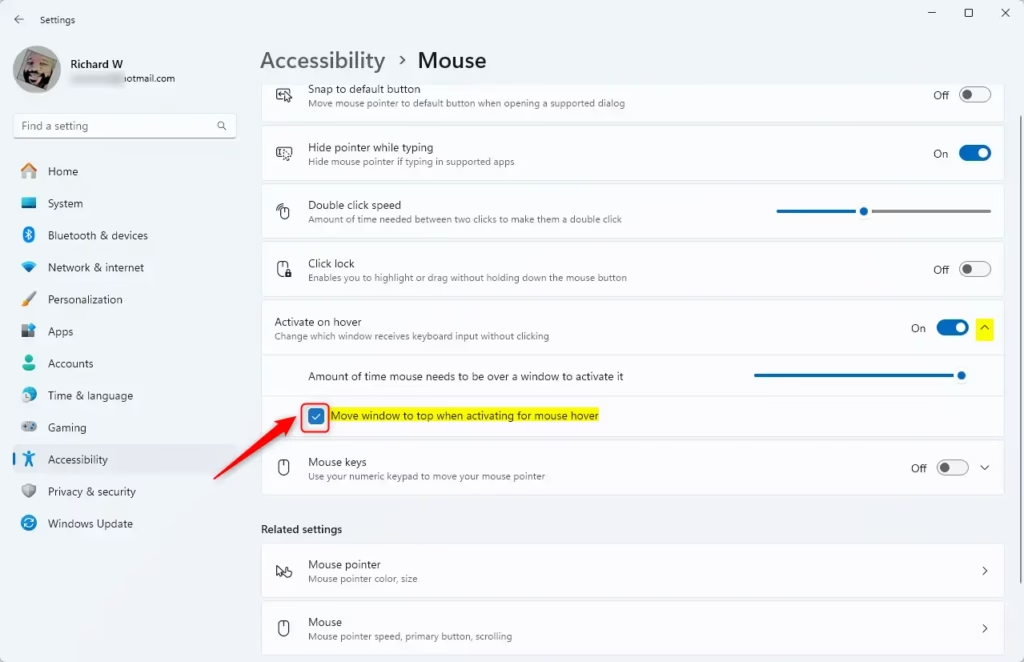
Find the switch for Activate on hover and turn it on (slide it to the right). - Enable Move Window to Top:
Click on the Activate on hover text or arrow to expand more options.
Then, check the box that says “Move windows to the top when activating for mouse hover.”
Once done, you can close the Settings app.
What Now?
Try moving your mouse over different windows and see how they come to the front automatically! This makes switching between apps faster and easier.
Summary
- Find it in Accessibility: The setting is inside the Accessibility > Mouse page in Windows Settings.
- Activate on Hover First: You need to turn on Activate on hover before moving windows to the top.
- Make It Your Own: You can turn this feature on or off anytime depending on what feels best for you.
- Work Faster: This helps reduce clicks and keep your workflow smooth.
Want to learn more about Activate a window by hovering in Windows 11? Check out that detailed guide for extra tips.


Leave a Reply Cancel reply