How to Zip and Unzip Files in Windows 11

You can zip and unzip files in Windows 11 directly through File Explorer, no extra software needed.
Zipping, or compressing, reduces the size of your files for easier sharing or storage. Unzipping, or extracting, unpacks these compressed files so you can access them.
Windows 11’s built-in compression utility handles these tasks efficiently, making it simple to manage archives like .zip files.
For instance, you can select multiple files or a folder, right-click, and choose “Compress to .zip file” in just a few clicks.
To zip files in Windows 11, right-click the file or folder and select “Compress to .zip file.” To unzip, right-click the .zip file and select “Extract All.
What is zipping and unzipping?
Zipping means putting one or more files or folders into a single compressed file called a ZIP file. This makes the file smaller and easier to share or save.
Unzipping means opening a ZIP file to get the original files back so you can use them.
Why zip files?
- Make large files smaller for easy sharing (like through email).
- Keep many files together in one folder.
- Save space on your computer.
How to Zip (Compress) Files or Folders in 🪟 Windows 11
- Find the file or folder you want to zip on your computer.
- Right-click the file or folder.
- From the menu, click Compress to ZIP file (you may see “Send to” > “Compressed (zipped) folder”).
- A new zipped folder will appear in the same place with the same name.
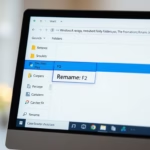
- You can rename the zipped folder by right-clicking it and choosing Rename.
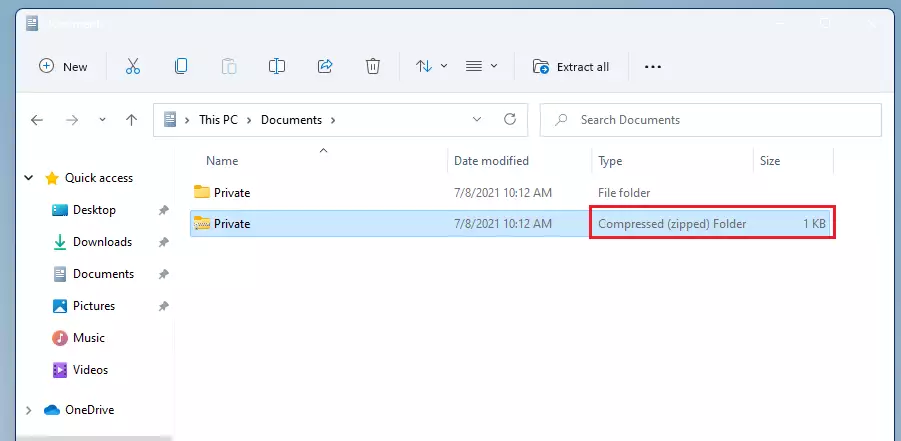
Note: You cannot zip an empty folder. Make sure there is at least one file inside.
How to Unzip (Extract) Files or Folders in 🪟 Windows 11
Find the zipped (compressed) folder you want to open.
To extract only some files:
- Double-click the zipped folder to open it.
- Drag and drop the files or folders you want to another folder on your PC.
To extract all files:
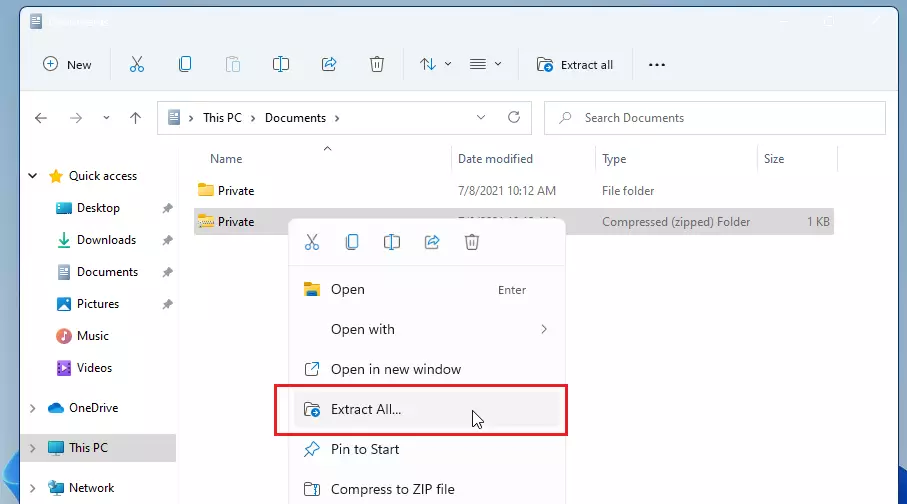
- Right-click the zipped folder.
- Select Extract All.
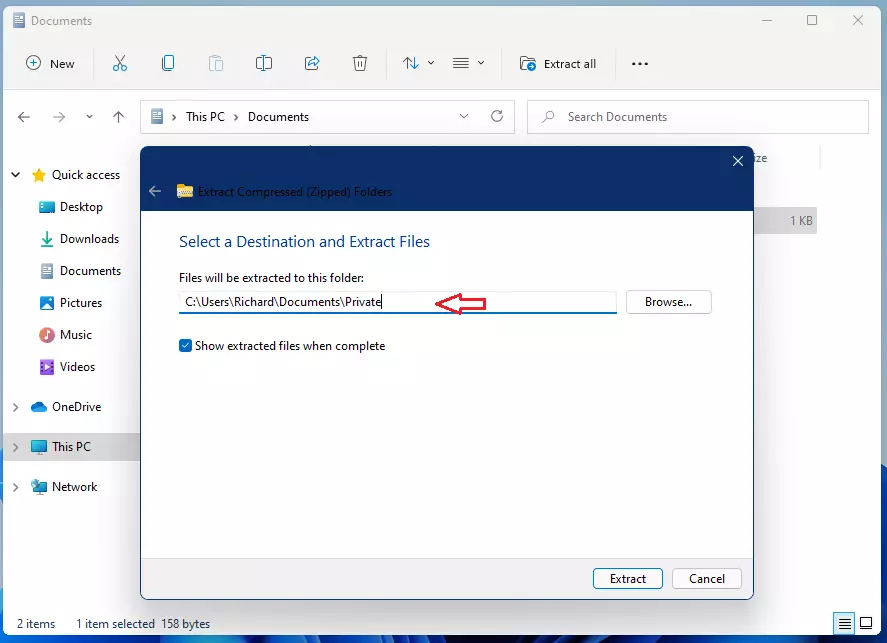
- Choose where you want the files to be saved (or use the default location).
- Click Extract.
Summary
- Zipping files makes them smaller and easier to share or store.
- Unzipping lets you open compressed files and use them like normal files.
- Windows 11 makes zipping and unzipping simple with just a few clicks.
- Learning this helps you keep your files organized and saves space.
For more tips on using Windows 11, visit the official Microsoft support site.
Can 🪟 Windows 11 unzip ZIP files?
Once downloaded, you need to 'unzip' the case to access your files. Windows has a built-in tool to extract files from a ZIP – no additional software is required.
Why can't I unzip my ZIP file?
Right click that zip file and select Properties, is there an 'Unblock' check-box at the bottom of that Properties dialog? If that does not solve this, move the zip file to another folder that is not synced by any cloud service like OneDrive, DropBox… etc. and then try extracting the file again.
Was this guide helpful?

About the Author
Richard
Tech Writer, IT Professional
Richard, a writer for Geek Rewind, is a tech enthusiast who loves breaking down complex IT topics into simple, easy-to-understand ideas. With years of hands-on experience in system administration and enterprise IT operations, he’s developed a knack for offering practical tips and solutions. Richard aims to make technology more accessible and actionable. He's deeply committed to the Geek Rewind community, always ready to answer questions and engage in discussions.


No comments yet — be the first to share your thoughts!