
Is your printer acting up? Updating its driver (the software that lets your computer talk to your printer) can fix problems and make it work better.
Why update your printer driver? Keeping drivers up to date makes sure your printer works well with Windows 11 and can use all the newest features.
What happens when you update? Your printer will run smoother, and you’ll avoid connection problems.
Here’s a simple guide to help you update your printer drivers easily.
Method 1: Update Printer Drivers Using Windows Update
Windows 11 can often find and install the latest drivers for your printer automatically. Here’s how to check:
- Press
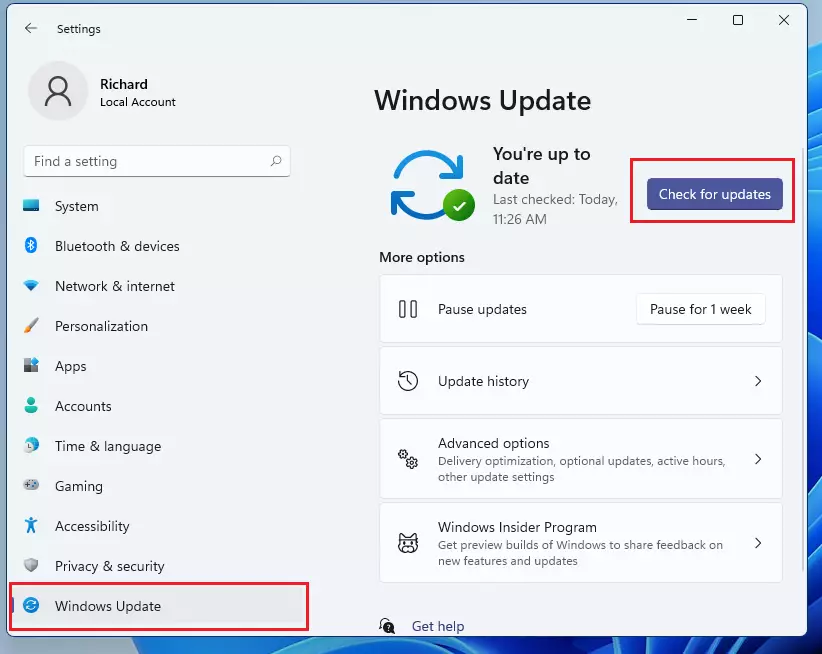
Windows key + Ion your keyboard to open the Settings window. Or click the Start button and select Settings. - In Settings, click on Windows Update (usually at the bottom of the left menu).
- Click Check for updates on the right side.
- If Windows finds any printer driver updates, it will download and install them automatically.
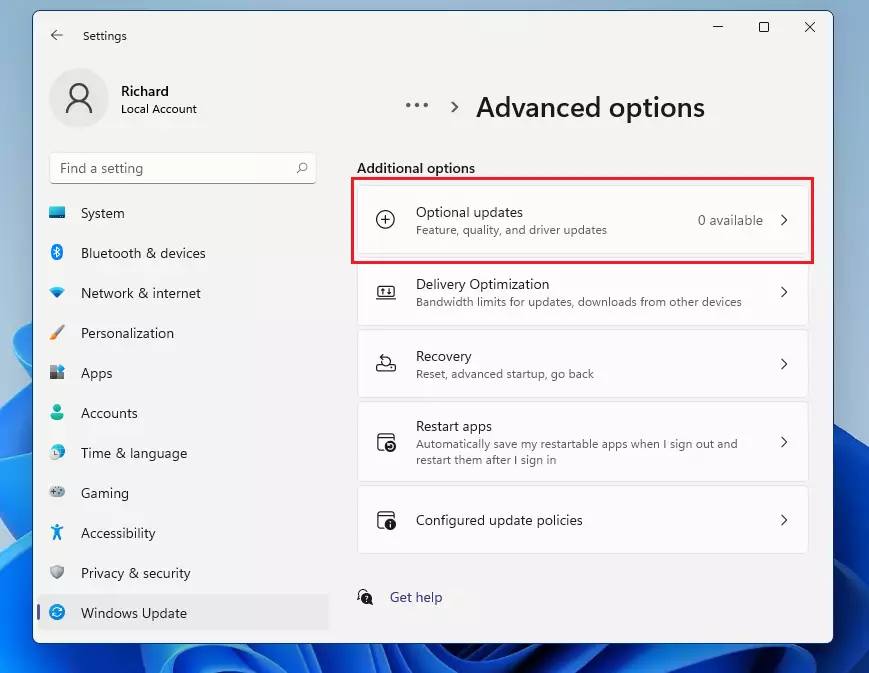
Note: Sometimes driver updates show up under Optional updates. To check for these:
- Click Advanced options under Windows Update.
- Then select Optional updates.
- Look for any printer driver updates, select them, and click Download & install.
Method 2: Download Printer Drivers from the Manufacturer’s Website
If Windows Update doesn’t find a driver, you can get one straight from your printer maker’s website. Here’s how:
- Go to your printer brand’s support website. For example:
- Search for your printer model.
- Download the latest driver for Windows 11 (make sure to choose the correct 64-bit or 32-bit version if asked).
- Once downloaded, open the file and follow the instructions to install the driver.
After Installing the Driver:
- Open Settings (press
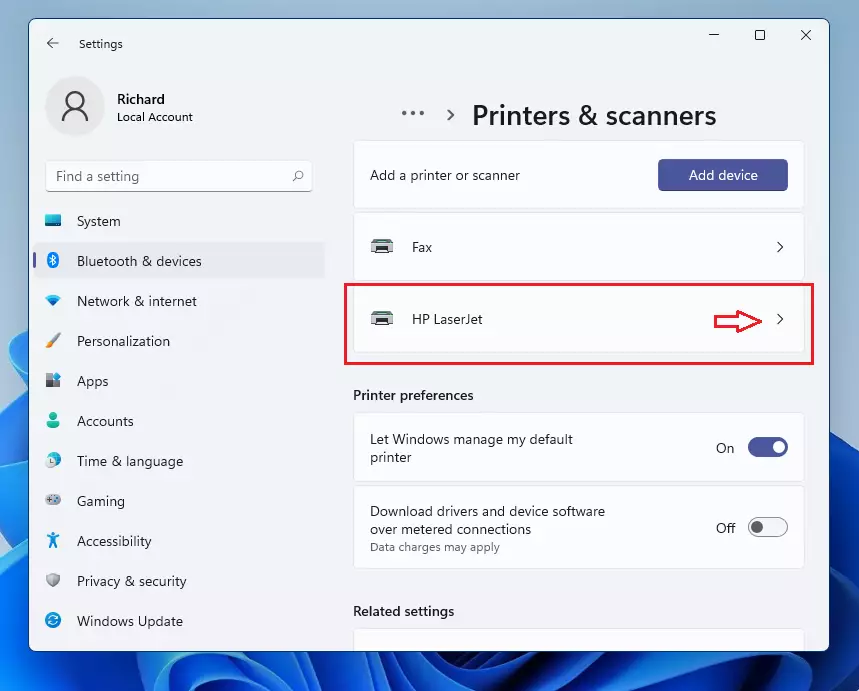
Windows key + I). - Go to Bluetooth & devices > Printers & scanners.
- Find your printer in the list and click on it.
- Click Remove to uninstall the current printer setup.
Once removed:
- Click Add a printer or scanner.
- Wait for Windows to find your printer, select it, then click Add device.
This will reinstall your printer, now using the new driver you downloaded.
Method 3: Manually Install Printer Drivers (If Needed)
If the driver you downloaded doesn’t have an installer, you can add it manually like this:
- Open Settings
> Bluetooth & devices > Printers & scanners. - ⚙️ ADMIN REQUIRED: On the right, click Print server properties (near the bottom).
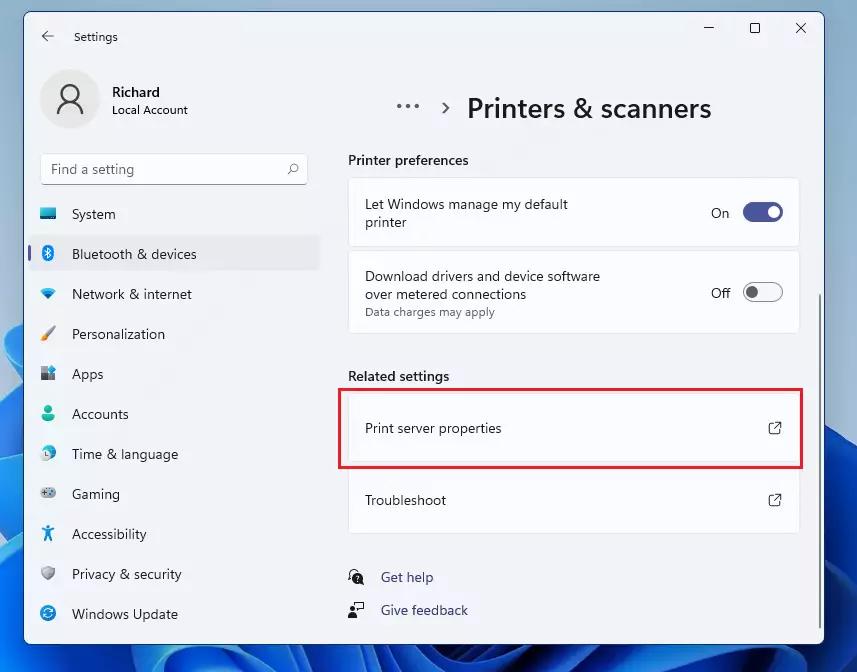
- In the new window, go to the Drivers tab.
- If your printer is not listed, click Add.
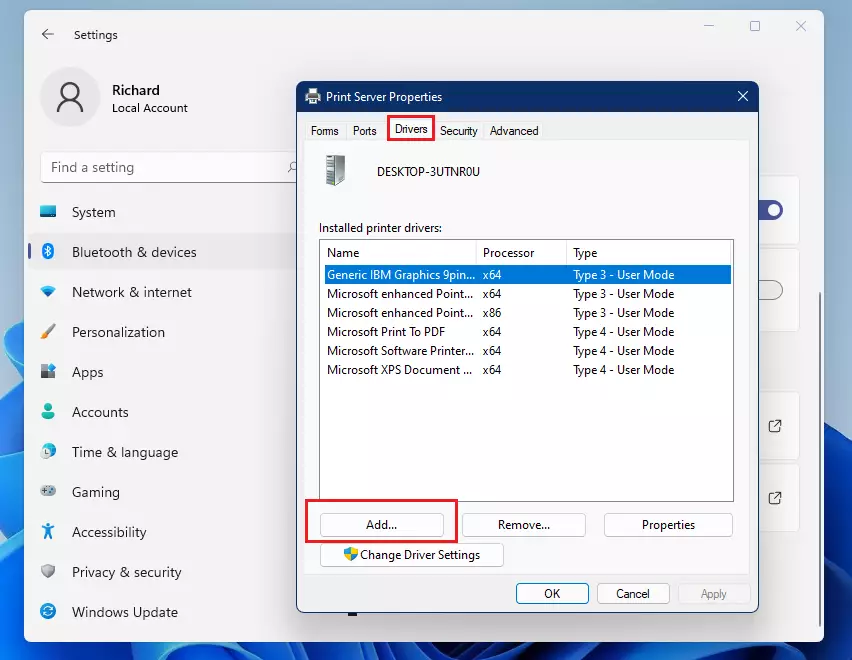
- Follow the Add Printer Driver Wizard:
- Choose both x64 and x86 support.
- Select your printer’s manufacturer and model from the list.
- Click Next and then Finish.
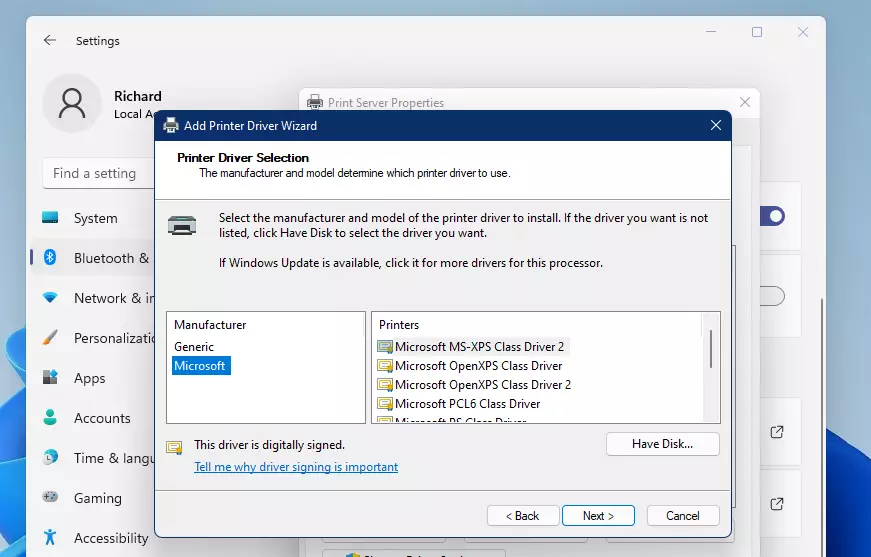
This will manually add your new printer driver to Windows.
Summary
- Keeping your printer driver up to date helps your printer work well with Windows 11.
- Try updating drivers first through Windows Update.
- If that doesn’t work, download drivers from your printer maker’s website.
- Sometimes you’ll need to remove and reinstall your printer after updating drivers.
- If the driver doesn’t install automatically, use the manual method to add it through Print Server Properties.
- If you follow these simple steps, your printer should stay up to date and work smoothly!



Leave a Reply Cancel reply