

This article explains how to type special characters and symbols in Windows 11.
Special characters and symbols in Windows include things like the copyright symbol (©), the trademark symbol (™), various currency symbols ($€£), mathematical symbols (+−×÷=), and many others. These characters can be inserted into documents and text fields using character codes or the Windows Character Map utility.
Windows 11 has additional symbols, including a new emoji panel that you can use.
Below are steps to insert special characters and symbols into a document or text input field.
Access special characters and symbols in Windows 11
As mentioned above, users can use an emoji panel, character map, and touch keyboard to access and type special characters and symbols.
Here’s how to do it.
Type special characters and symbols using the emoji panel
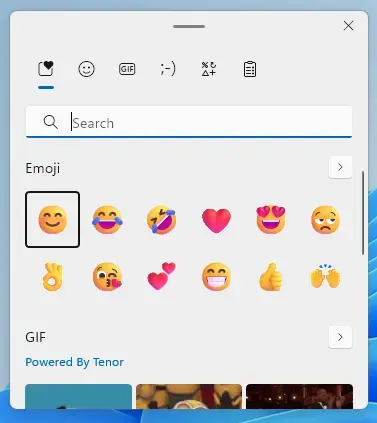
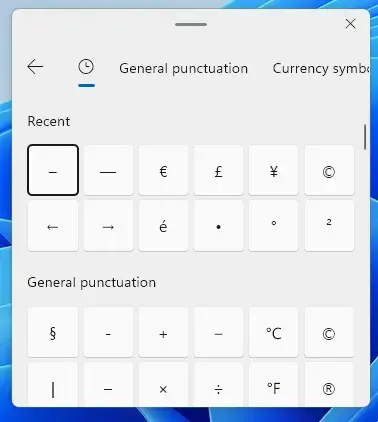
The quickest way to access special characters and symbols in Windows is to place the cursor where you want to insert a symbol and open the Emoji Panel (Window key + .).
Use the top button to select different characters and symbols. Under symbols, scroll through the various categories: [General punctuations], [Currency symbols], [Latin symbols], [Geometric symbols], [Math symbols], [Supplemental symbols], and [Language symbols].
Type special characters and symbols on the Touch keyboard
Using the Touch keyboard, you can launch the emoji panel from the top left corner.
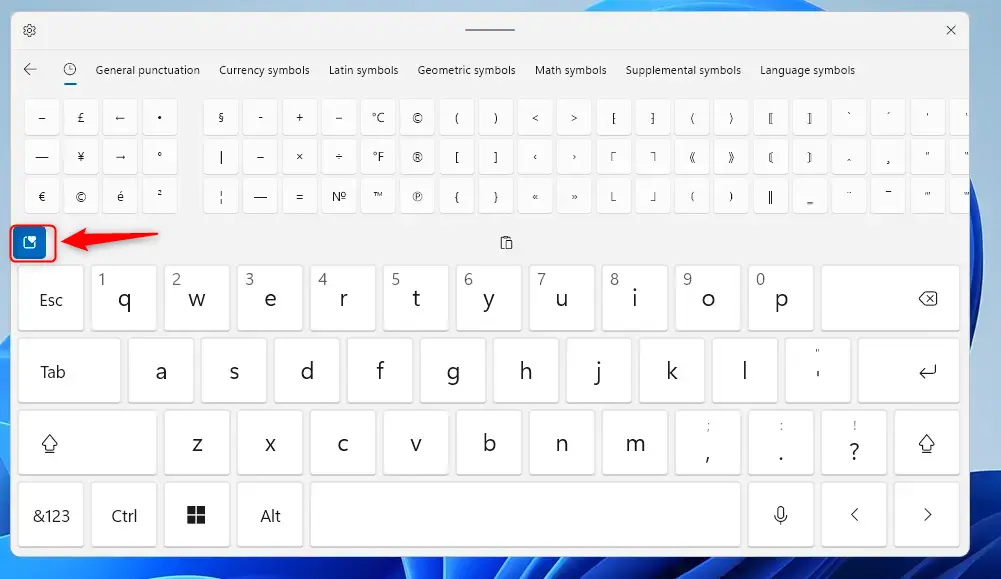
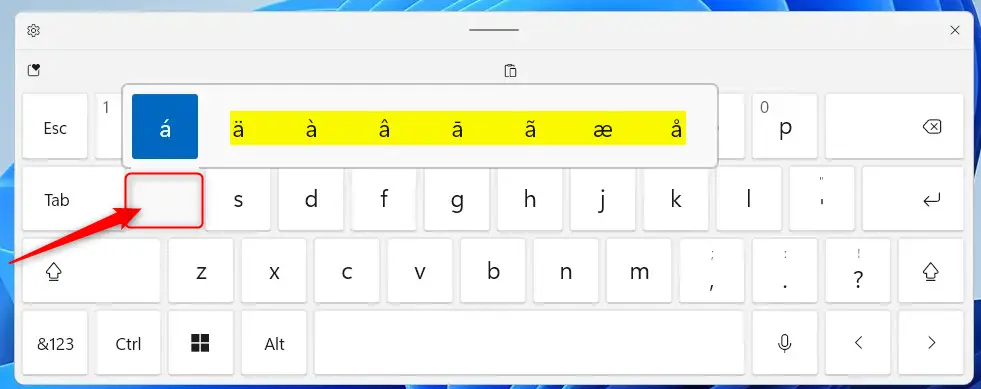
Another way to access and type special characters and symbols in Windows when using the Touch keyboard is to perform the below actions:
- Press and hold on a key you want on the Touch Keyboard to see that key’s available accents or symbols, slide your finger over to the character you want to insert, and release your finger to insert.
- Left click and hold on a key you want on the Touch Keyboard to see that key’s available accents or symbols, move the pointer over to the character you want to insert and release the left click to insert.
Use the Character Map application to type specific characters and symbols
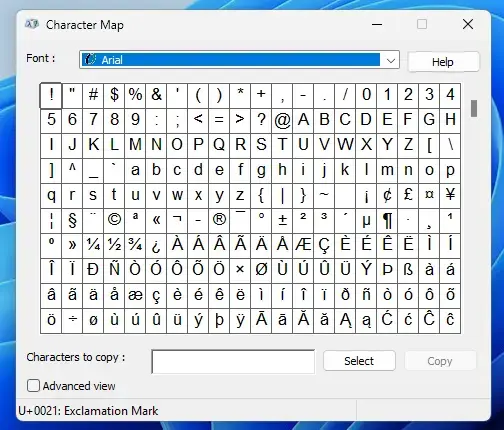
Windows Character Map application lets you access and type special characters and symbols.
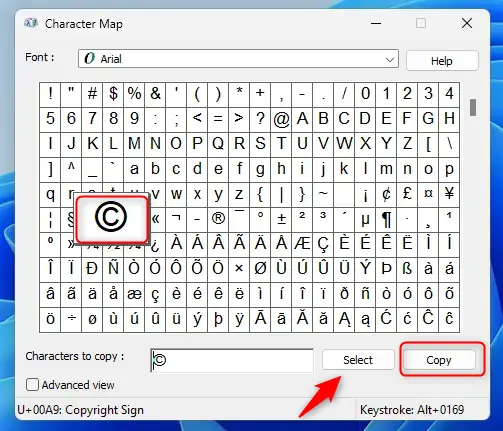
First, open the Character Map app or search for the command (charmap.exe). When the app opens, select the character you want, click the Select button to select it, and click the Copy.
That should do it!
Conclusion:
- In conclusion, Windows 11 offers various methods to access and type special characters and symbols.
- The Emoji Panel, Touch Keyboard, and Character Map application provide convenient ways to insert symbols and characters into documents and text input fields.
- Whether using the Emoji Panel for quick access, the Touch Keyboard for mobile devices, or the Character Map for specific characters, Windows 11 caters to diverse user needs for typing special characters and symbols.
- Feel free to provide feedback or additional insights using the comments section below.


Leave a Reply Cancel reply