

This article explains how to turn “Start Dropbox on system startup” on or off in Windows 11.
Dropbox is a cloud storage service allowing users to store and share files and folders online. It offers features such as file syncing, file versioning, and collaboration tools, making it easier for teams to collaborate on projects.
When you install the Dropbox app on Windows, it is set up to automatically start its processes in the background when the system starts up to ensure that the syncing of files and folders is seamless and uninterrupted.
By starting in the background, Dropbox is always running and can quickly sync any changes made to files or folders without user intervention. This is especially useful for teams that must collaborate on files and projects in real-time, as it ensures that everyone can access the latest version without any delays or interruptions.
Also, Dropbox notifications for @mentions and comments on files need the Dropbox background services to keep running in the background. When you turn it off, you won’t get notified when you’re mentioned or some comments on a file.
Enable or disable Dropbox background services to start on system startup
As mentioned above, Dropbox’s background service is set up to start when the system starts automatically. It can quickly sync any changes to files or folders without user intervention.
Here’s how to turn it on or off.
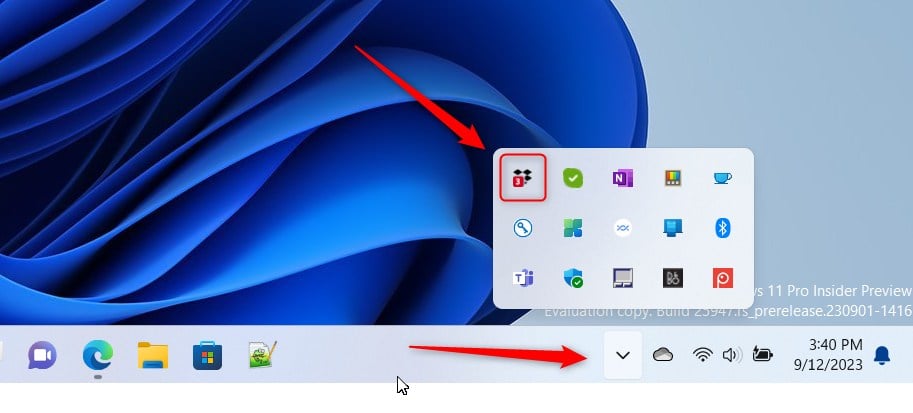
First, open the Dropbox flyout window from the notification area. You can do that by clicking the Taskbar overflow and selecting Dropbox to open its flyout window.
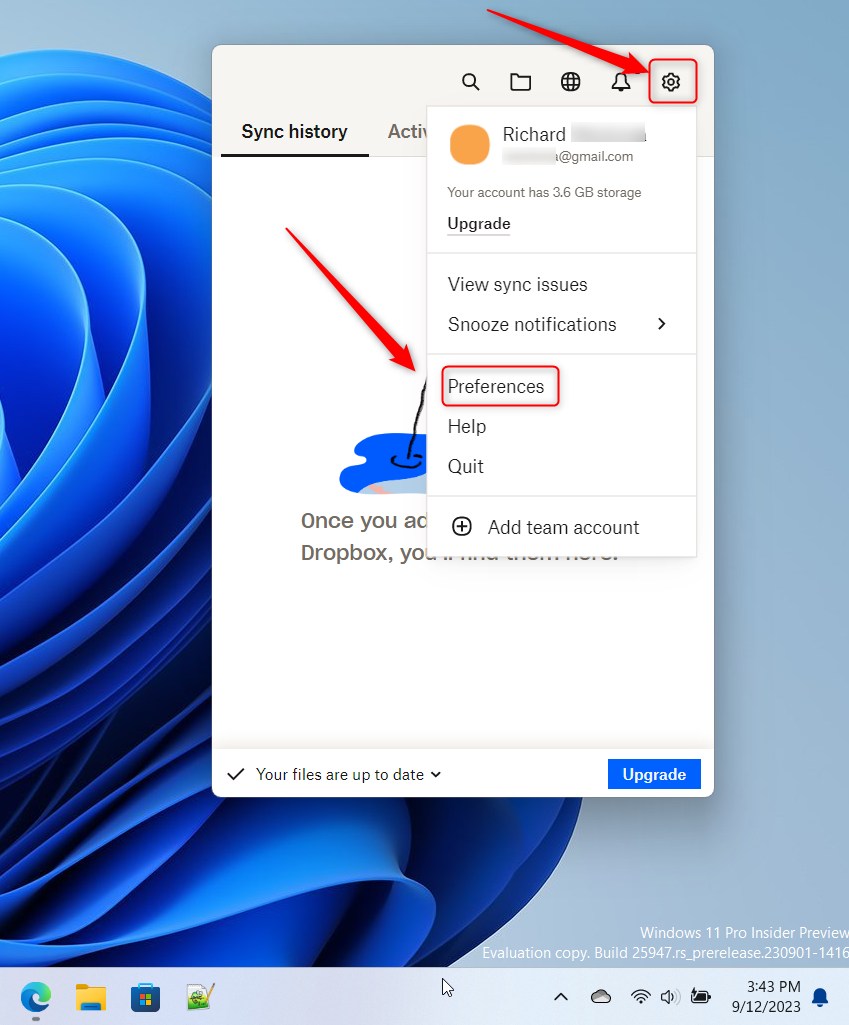
When the flyout opens, select the Settings (gear) at the top of the screen and click Preferences.
On the Preferences page, select the General tab. Under System, check the box next to “Start Dropbox on system startup” to enable it.
To disable it, uncheck the box.
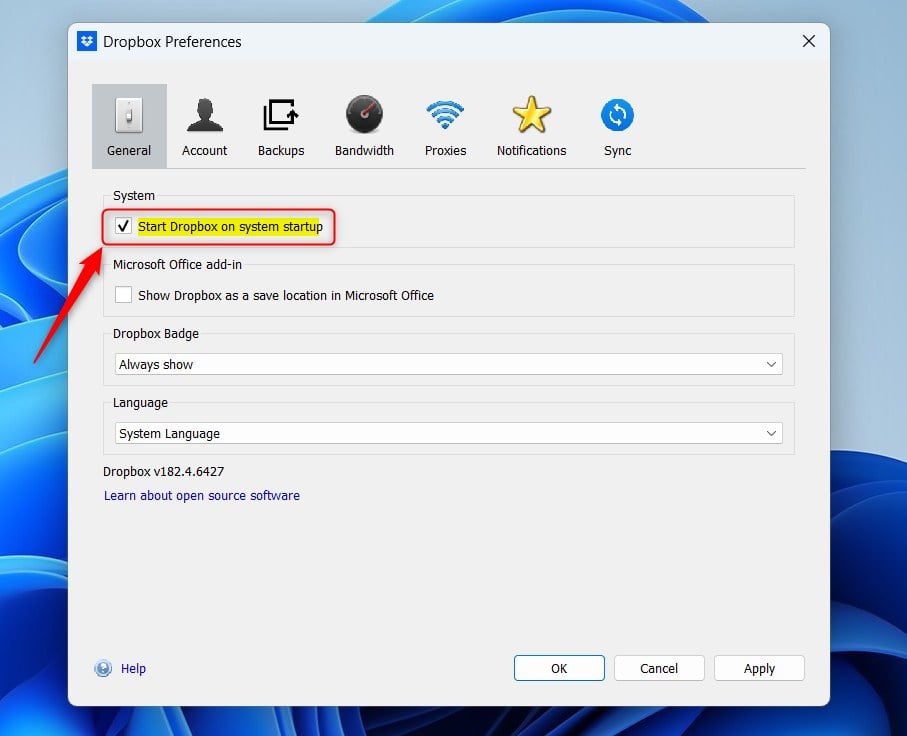
Click the Apply button to save your changes when you’re done.
That should do it!
Conclusion:
- Enabling Dropbox’s background service on system startup facilitates seamless syncing of files and folders without user intervention.
- This feature ensures real-time team collaboration by allowing quick access to the latest file versions.
- Disabling the startup option may result in missed notifications for @mentions and comments on files, impacting real-time communication and collaboration.
- Users can easily enable or disable this feature by accessing Dropbox’s preferences and making the necessary selections under the General tab.



Leave a Reply Cancel reply