
Windows 11 can give you newer updates faster. These updates include new features and fixes. This guide will show you how to turn this option on or off. It’s easy to do.
Why Update Your Windows?
Windows Updates help keep your computer safe and working well. They fix problems and add improvements. Usually, Windows installs these updates automatically. You don’t need to do anything.
What Is This New Update Option?
Starting with Windows 11 build 22621.1635, Windows 11 has a new switch in Settings. It’s called “Get the latest updates as soon as they are available.”
What happens when you turn this on? Your computer will try to download new updates faster than normal. But this only works for updates that aren’t security-related.
Note: This feature might turn off automatically if your workplace or school manages your computer.
How to Turn This Option On or Off
Follow these simple steps:
- Open Settings. Click the Start menu button and select Settings. Or press
Windows key + Ion your keyboard. - In the Settings window, click Windows Update on the left side.
- On the right side, find the option that says “Get the latest updates as soon as they’re available”.
- Toggle the switch to On to get updates faster. Toggle it to Off to stop.
- Close the Settings window when you’re done.
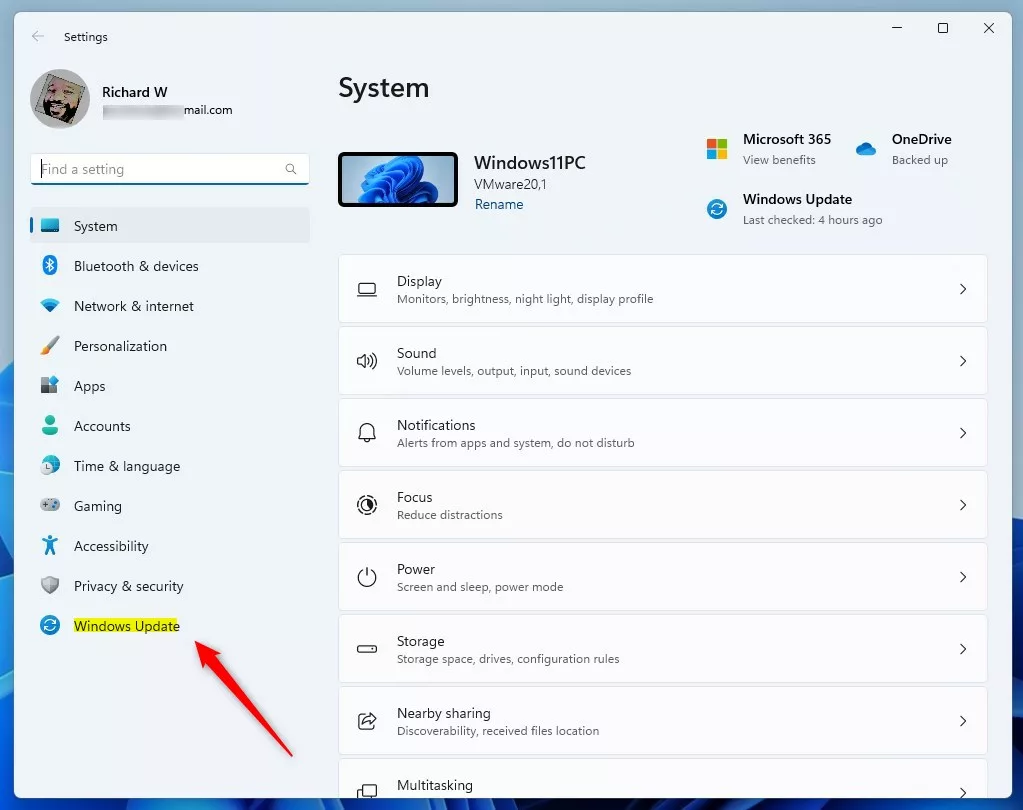
Click Windows Update in the Settings app.
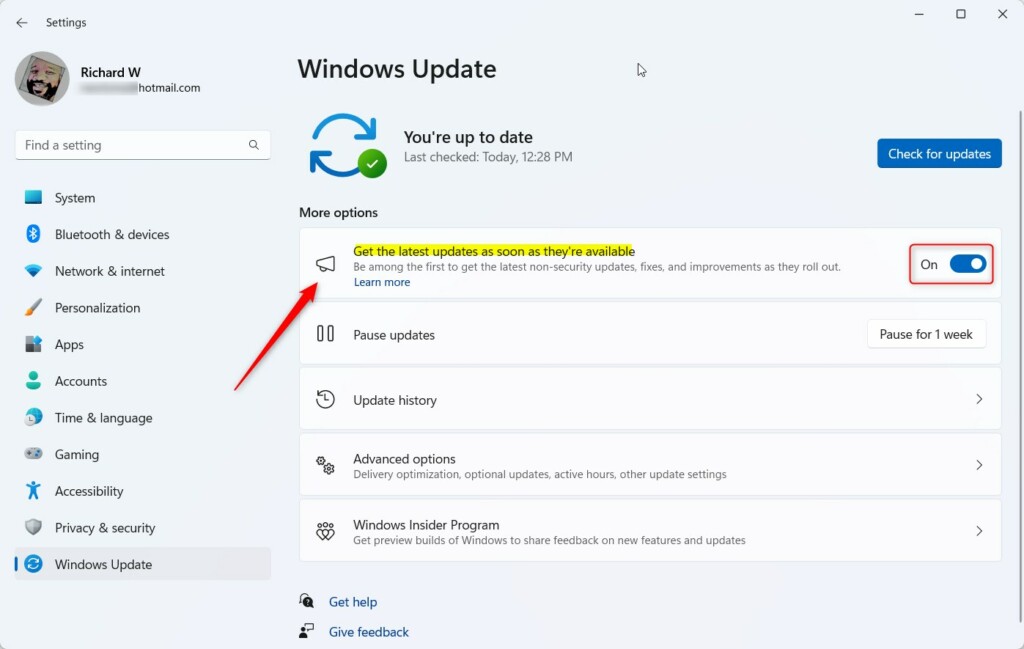
Turn this switch on to get updates faster.
How to Use the Windows Registry (For Advanced Users)
If you’re comfortable changing your computer’s system files, you can use the Windows Registry. This is an advanced method.
Warning: Be careful when editing the Registry. Mistakes can cause problems with your PC.
Here’s how:
- ⚠️ Admin privileges required. Open the Registry Editor. Type
regeditin the Start menu search box and press Enter. For more help, see how to open Registry Editor. - Go to this folder path in the Registry Editor:
HKEY_LOCAL_MACHINE\SOFTWARE\Microsoft\WindowsUpdate\UX\Settings - If you don’t see the Settings folder, right-click on UX. Select New > Key. Name it Settings.
- Click on the Settings folder. In the right pane, right-click and choose New > DWORD (32-bit) Value.
- Name the new value
IsContinuousInnovationOptedIn. - Double-click
IsContinuousInnovationOptedIn. Set the Base to Decimal. Then enter:1to turn the feature ON0to turn the feature OFF
- Click OK and close the Registry Editor.
- Restart your computer to apply the change.
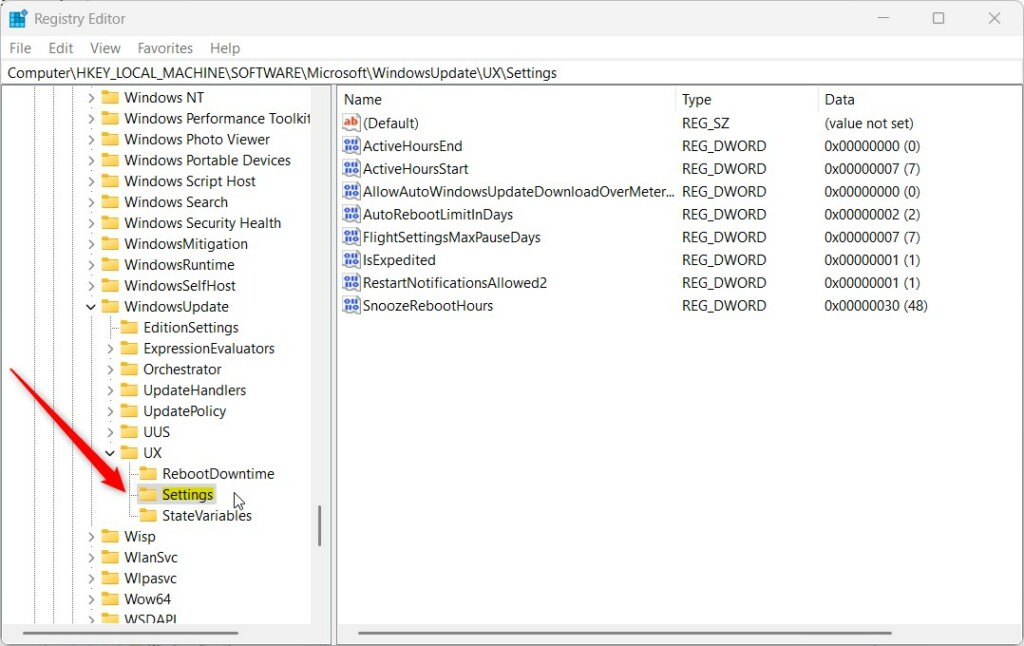
Navigate to this folder in Registry Editor.
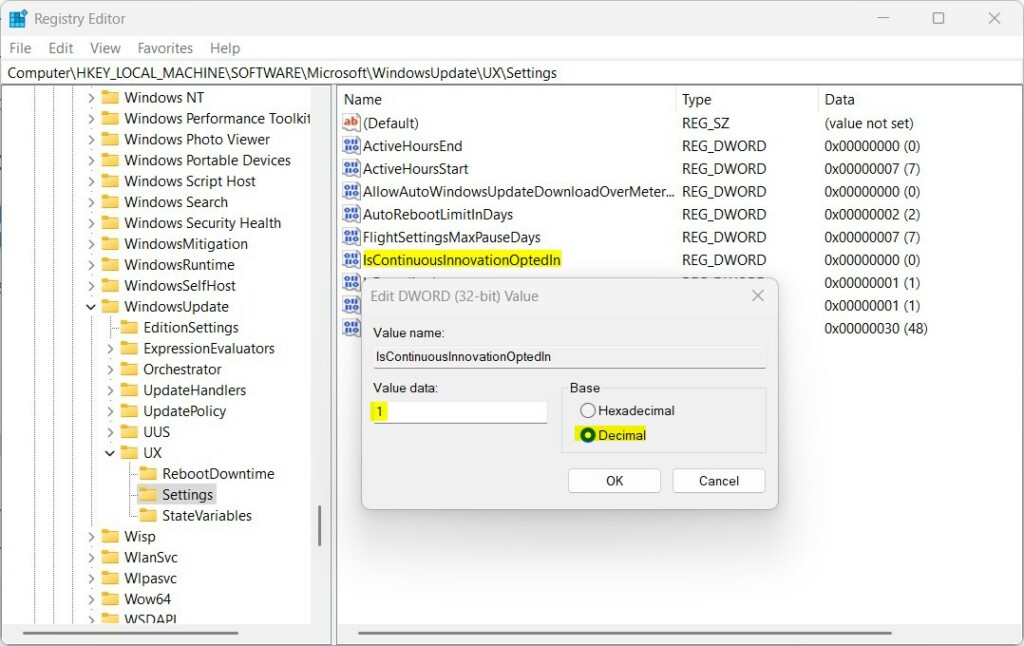
Set the value to 1 (on) or 0 (off).
Summary
- You can get Windows 11 updates faster by turning on the new update option.
- Use the Settings app to easily turn it on or off.
- If you prefer, you can change this setting using the Registry Editor. This method is for advanced users.
- Choose the method that works best for you. Keep your PC updated the way you want.
For more details, visit the official Microsoft page on this topic: Get Windows updates as soon as they’re available – Microsoft.

Leave a Reply Cancel reply