
Windows 11 has a cool feature called Windows Hello that lets you sign in to your computer in a fast and safe way. Instead of typing a password, you can use a PIN, face recognition, or fingerprint to log in.
Many new Windows computers already have these biometric features. Windows will often ask you to set one up to keep your device and data safer.
But sometimes, using biometrics might not be the best choice — maybe at work or in some places where it causes problems. In that case, you might want to turn Windows Hello biometrics off.
Here’s a simple way to turn Windows Hello biometrics on or off in Windows 11.
Turn Windows Hello Biometrics On or Off Using Local Group Policy Editor
This tool lets you change settings for your computer. If you want to enable or disable biometrics, follow these easy steps:
- Open Local Group Policy Editor:
Press Windows key + R on your keyboard, typegpedit.msc, and press Enter. - On the left side, find and click these folders one by one:
Computer Configuration → Administrative Templates → Windows Components → Biometrics - Click on the Biometrics folder.
- On the right side, double-click “Allow the use of biometrics”.
- Choose one option:
- Not Configured — Biometrics is allowed (this is the default).
- Enabled — Biometrics is allowed and turned on.
- Disabled — Biometrics is turned off and can’t be used.
- Click OK to save.
- Restart your computer to make the change work.
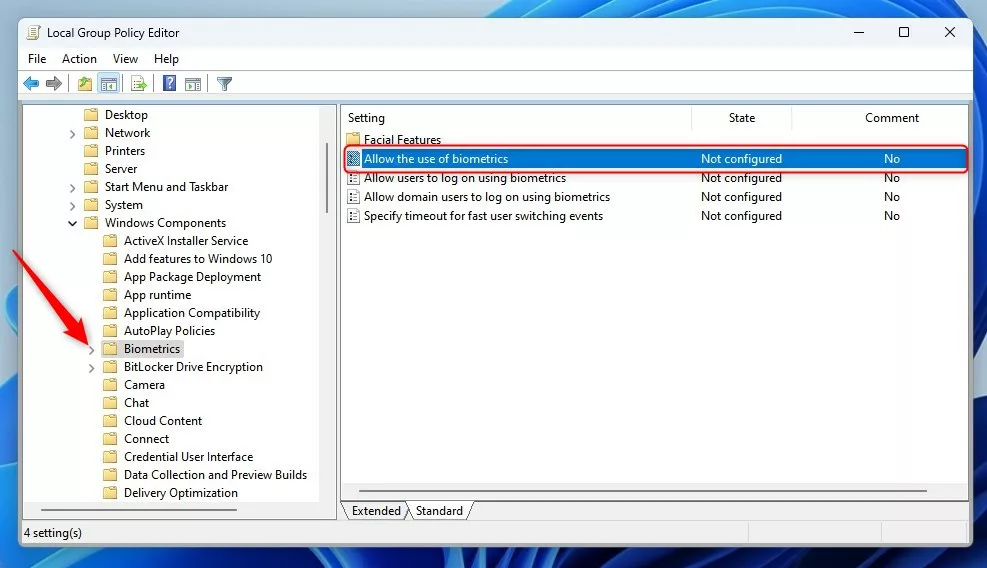
Windows Hello biometrics setting in Group Policy Editor
Turn Windows Hello Biometrics On or Off Using Windows Registry Editor
If you don’t have the Local Group Policy Editor (usually on Windows Home edition), you can use the Registry Editor instead. Be careful when using this tool — changing the wrong settings can cause problems.
- Open Registry Editor:
Press Windows key + R, typeregedit, and press Enter. If a pop-up appears, click Yes to allow. - In Registry Editor, go to this folder:
HKEY_LOCAL_MACHINE\SOFTWARE\Policies\Microsoft - If you don’t see a folder named Biometrics inside Microsoft, create it:
– Right-click on Microsoft → New → Key → name it Biometrics. - Click the Biometrics folder.
- On the right side, right-click and choose New → DWORD (32-bit) Value.
- Name this new value Enabled.
- Double-click Enabled and set:
– Base: Decimal
– Value data:
1 to turn biometrics ON
0 to turn biometrics OFF - Click OK and close Registry Editor.
- Restart your computer to apply the change.
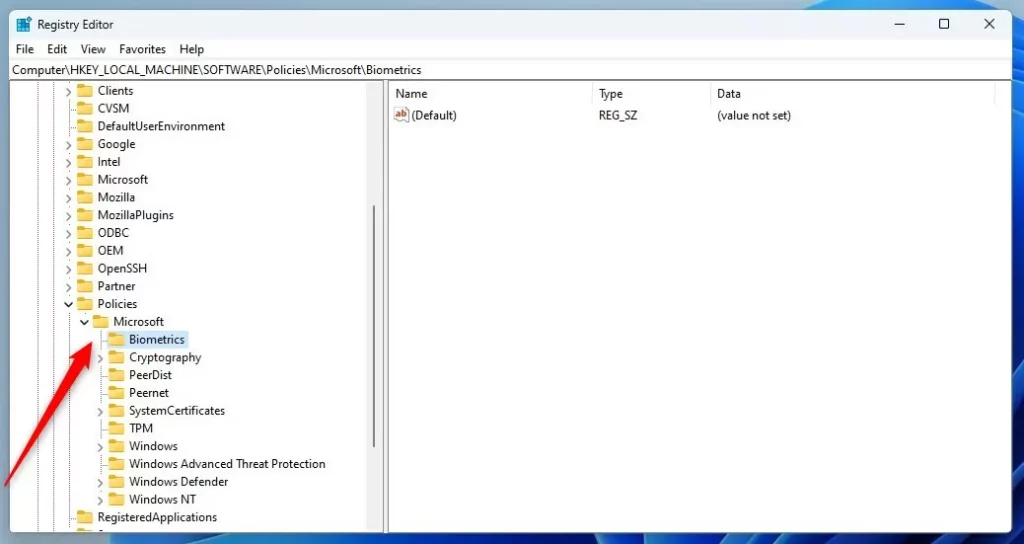
Creating and editing the Biometrics key in Registry Editor
Summary
- Windows Hello lets you sign in using PIN, face, or fingerprint for better security.
- You can turn biometrics on or off using either the Local Group Policy Editor or the Registry Editor.
- Think about where and how you use your computer — biometrics can be great for security but might not work everywhere.
- Follow the simple steps above to control Windows Hello biometrics based on what works best for you.
If you have questions or want to share your experience, please leave a comment below!


Leave a Reply Cancel reply