

This post describes steps to enable or disable Two-finger Scrolling in Ubuntu Linux.
In Ubuntu Linux, if your device has a touchpad, you can click, double-click, drag, and scroll using only your Touchpad without separate hardware buttons.
Your device’s Touchpad can quickly perform similar actions as a mouse or other pointing devices without needing a separate mouse or additional device to point and click.
When two-finger scrolling is enabled, you can scroll using your Touchpad with two fingers. Tapping and dragging with one finger will usually work, but if you drag two fingers across any part of the Touchpad, it will scroll instead.
Below is how to enable or disable Two-finger Scroll in Ubuntu Linux.
How to turn on or off two-finger scrolling in Ubuntu Linux
As described above, if your device has a touchpad, you can click, double-click, drag, and scroll using only your Touchpad without separate hardware buttons.
Below is how to do that.
Ubuntu Linux has a centralized location for the majority of its settings. From system configurations to creating new users and updating, all can be done from the System Settings panel.

Alternatively, click on the System menu at the top-right corner of the top bar on your desktop.
On the System menu, select Settings, as highlighted below.

Click on Mouse & Touchpad tile in the Settings app to open the panel.
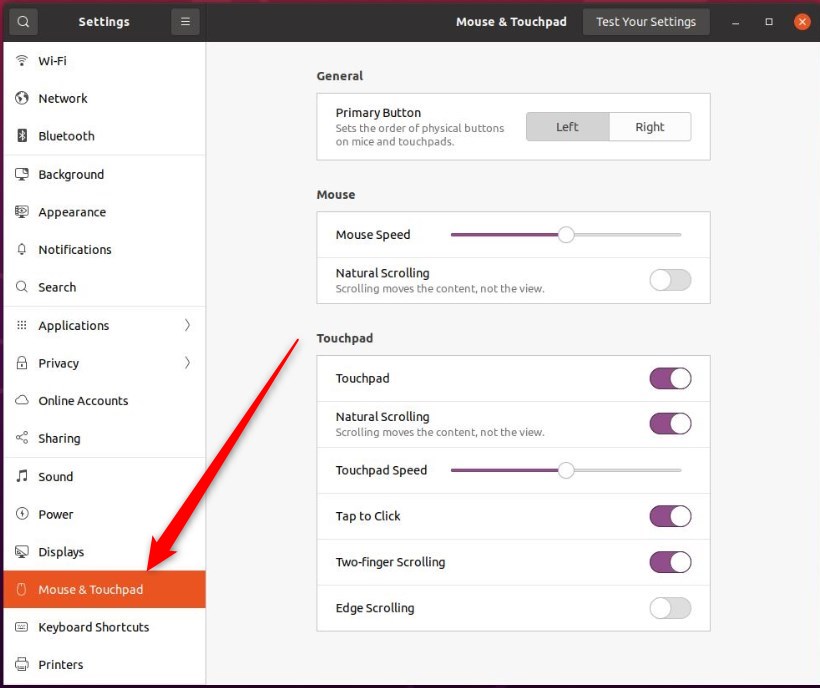
In the System Settings -> Mouse & Touchpad panel, under Touchpad, toggle the Touchpad button to the On position to enable.
The Touchpad section only appears if your system has a touchpad. Also, Touchpad needs to be enabled before you can configure additional settings under Touchpad.
Once Touchpad is enabled, toggle the Two-finger Scrolling button to the On position to enable.
To disable it, toggle the button to the Off position.
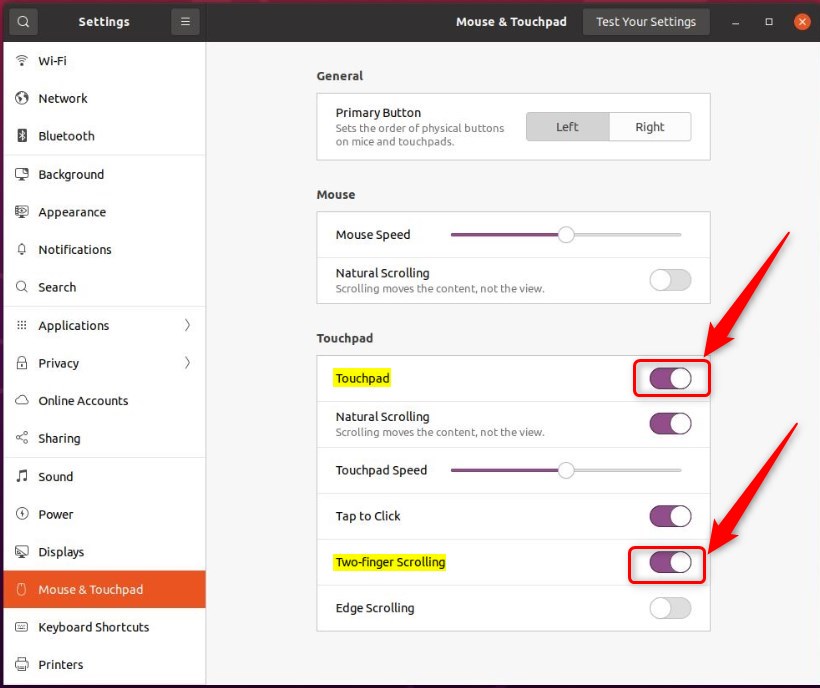
That should do it! You can now close the Settings app.
Conclusion:
- Enabling or disabling Two-finger scrolling in Ubuntu Linux can greatly enhance the user experience for touchpad users.
- The centralized location for system settings in Ubuntu Linux makes accessing and modifying touchpad preferences easy.
- The visual aids in this post provide helpful guidance for users adjusting their touchpad settings.
- Have additional insights to share or spotted an error? Feel free to use the comment section below to provide feedback or suggestions.



Leave a Reply Cancel reply