If you use a touchscreen on your Windows 11 device, you might notice a small circle that appears whenever you touch the screen. This circle is called the Touch Indicator. It helps you see exactly where you are touching, which can be useful for easier control.
Some people like to have this circle visible, while others find it distracting. The good news is you can easily turn it on or off anytime you want.
What is the Touch Indicator?
The Touch Indicator is a small circle that shows up on your screen when you tap it with your finger or a stylus. It gives you visual feedback, so you know where your touch is registered.
How to Turn the Touch Indicator On or Off
Follow these simple steps to enable or disable the touch indicator on your Windows 11 touchscreen device:
- Open Settings:
- Click the Start button (the Windows icon at the bottom-left of your screen), then select Settings.
- Or press Windows key + I on your keyboard to open Settings quickly.
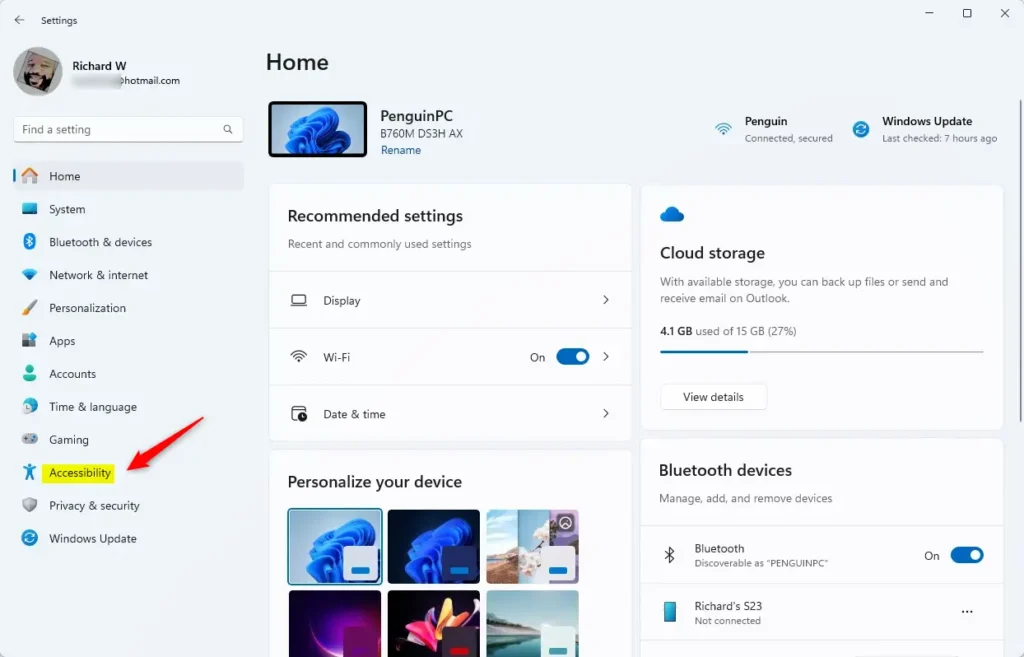
- Go to Accessibility:
In the Settings window, look for Accessibility on the left side and click it.
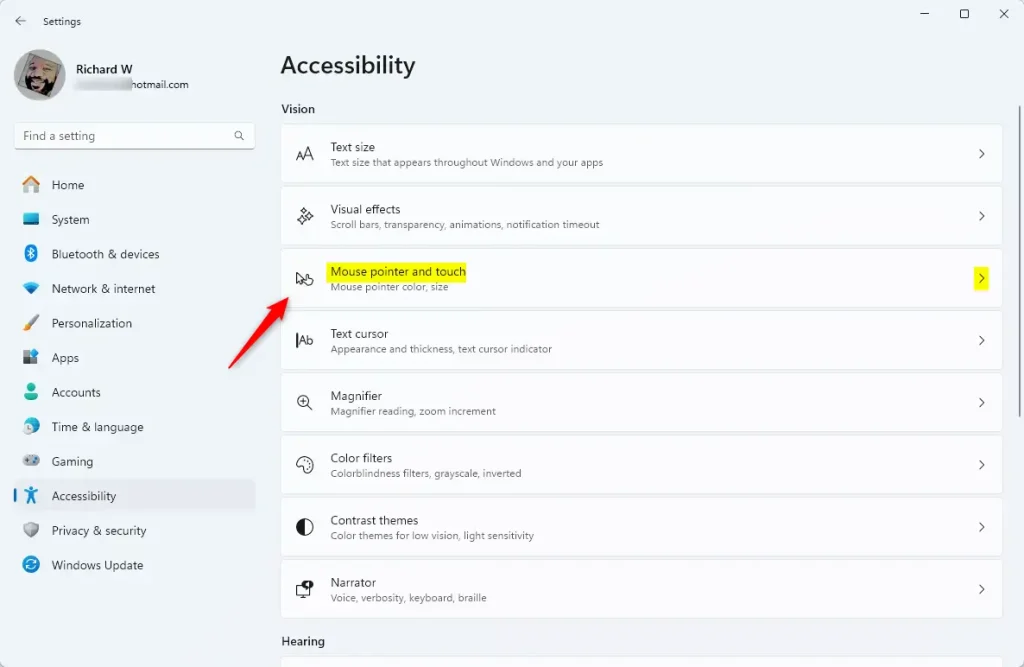
- Select Mouse pointer and touch:
On the right side, find and click the box labeled Mouse pointer and touch.
- Find Touch Indicator settings:
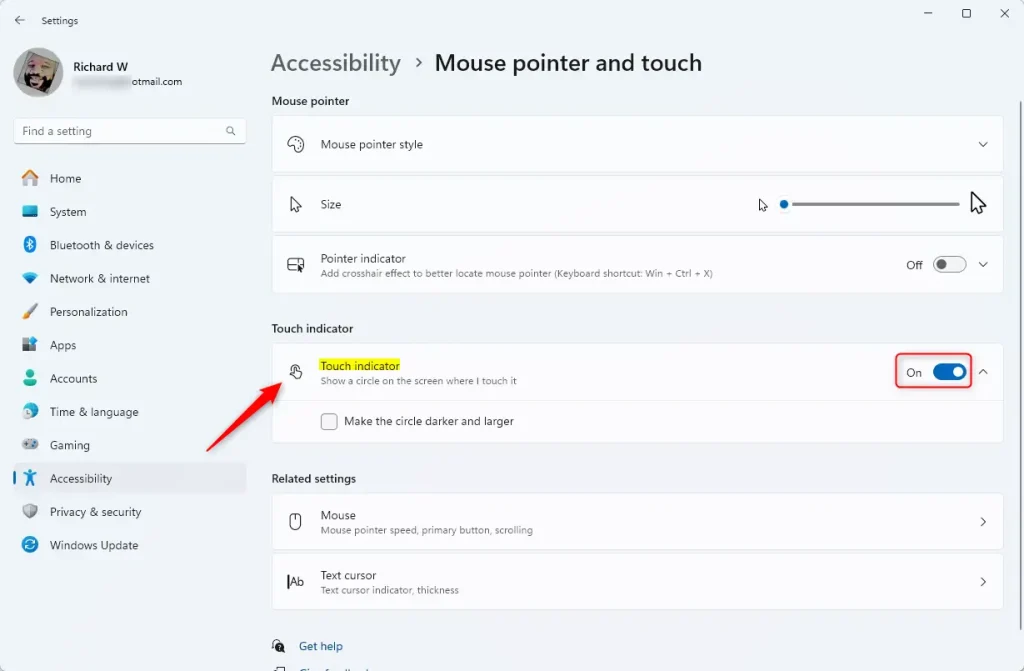
Scroll down until you see the Touch indicator option. Click it.
- Turn On or Off:
Use the switch to turn the Touch Indicator On or Off.
- Optional – Make the circle bigger and darker:
If you turn it on, you can also check the box that says “Make the circle darker and larger” if you want the touch indicator to be easier to see.
Once you are done, you can simply close the Settings app.
Summary
- The Touch Indicator shows a small circle where you touch the screen on Windows 11 touch devices.
- You can turn it on or off anytime to make your touchscreen experience better for you.
- Use the Settings app under Accessibility > Mouse pointer and touch to find the option.
- Making the circle bigger and darker can help if you want it easier to see.
We hope this guide helped you customize your touchscreen settings! If you want to learn more about Windows 11 tips, check out this guide on using the Settings app.
Leave a Reply Cancel reply