

If you use a device with a touch screen (like a tablet or laptop), you might want to see a little circle whenever you touch the screen. This circle is called a touch indicator, and it helps you know exactly where you touched.
This guide will show you simple steps to turn the touch indicator on or off, and even make the circle bigger and darker if you want to see it better.
What is a Touchscreen?
A touchscreen is the part of your device’s screen that senses your fingers or a pen. Instead of using a mouse, you can tap, swipe, or pinch right on the screen to control your device.
Option 1: Turn On or Off Touch Indicator Using Settings
- Press Windows key + I on your keyboard to open Settings.
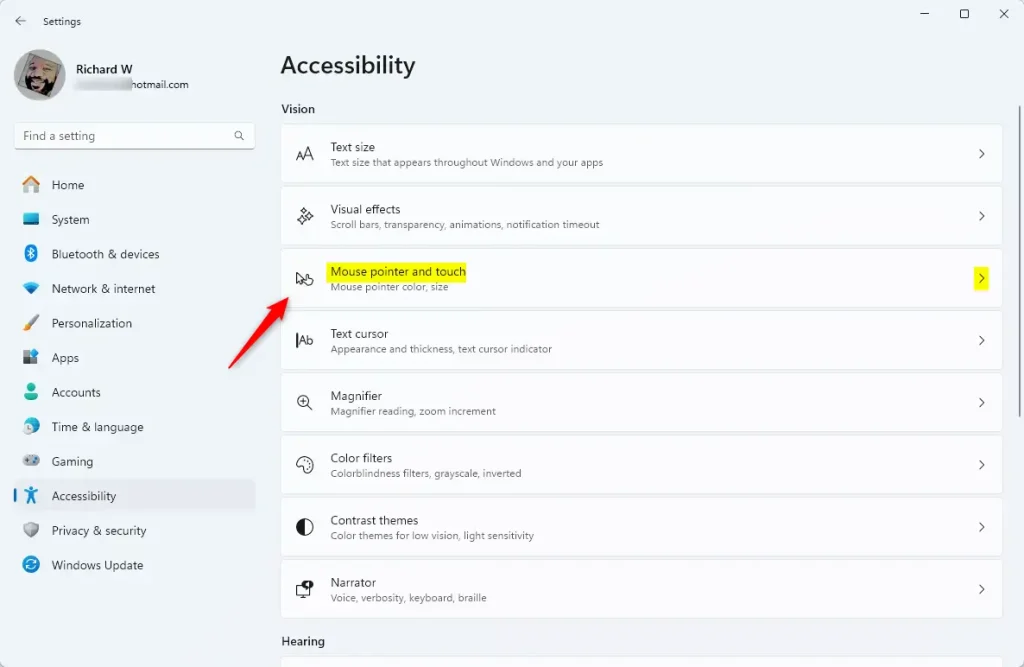
- On the left side, click Accessibility.
- On the right side, click Mouse pointer and touch.
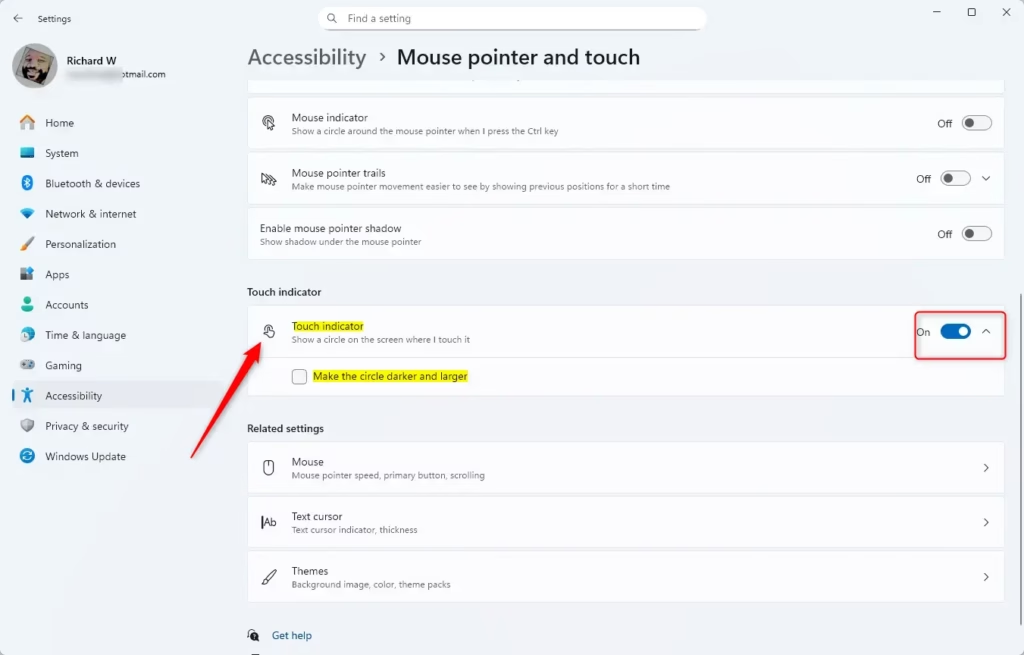
- Find the Touch indicator option and turn it On or Off as you like.
- If you turn it On, you can also check the box for Make the circle darker and larger to make the circle easier to see.
- When done, you can simply close the Settings window.
Here is what the settings look like:
Option 2: Turn On or Off Touch Indicator Using Control Panel
- Open the Control Panel. You can do this by typing Control Panel in the search box and pressing Enter.
- Make sure the view is set to Small icons or Large icons (not Category view).
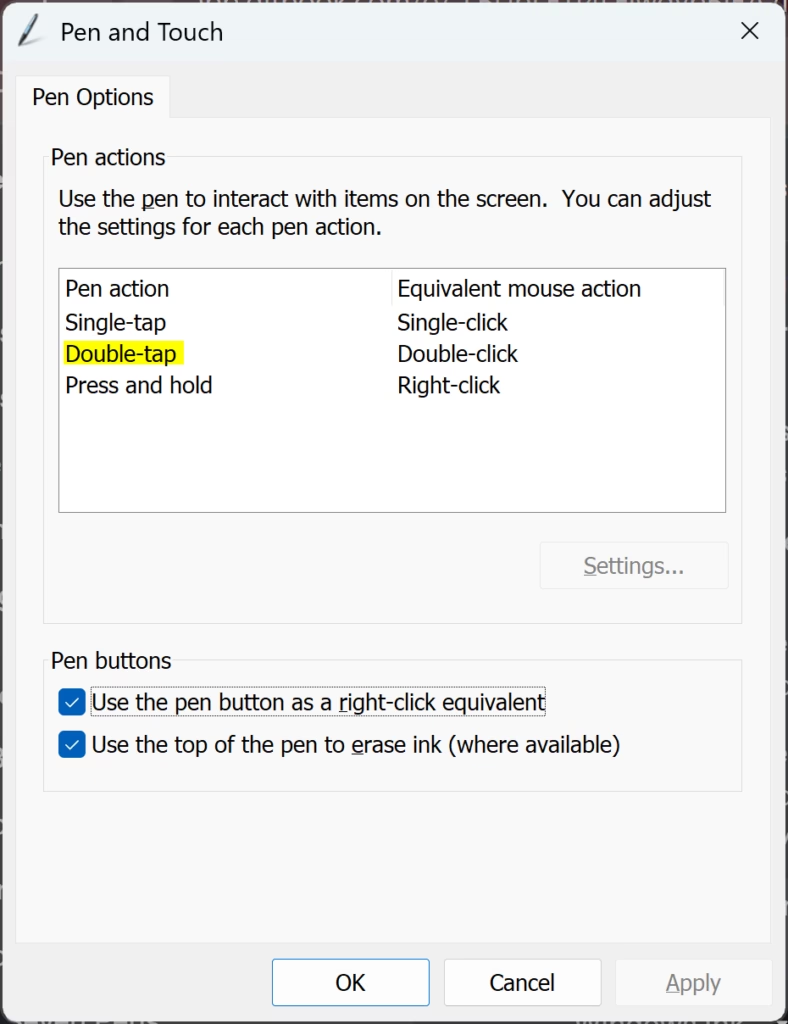
- Click on Pen and Touch.
- In the new window, click the Touch tab.
- Check or uncheck Show visual feedback when touching the screen to turn the touch indicator on or off.
- If you turn it on, you can also check Optimize visual feedback for projection to an external monitor to make the circle darker and bigger.
- Click OK when you are done.
Here are some images to help you:
Option 3: Turn On or Off Touch Indicator Using Registry (For Advanced Users)
If you are comfortable with advanced settings, you can change the touch indicator by editing the Windows Registry. This method is for experienced users only. Always back up your registry before making changes.
Turn On Touch Indicator (default)
reg add "HKEY_CURRENT_USER\Control Panel\Cursors" /v ContactVisualization /t REG_DWORD /d 1 /f
reg add "HKEY_CURRENT_USER\Control Panel\Cursors" /v ContactVisualization /t REG_DWORD /d 31 /f
Turn On Touch Indicator with Darker and Larger Circle
reg add "HKEY_CURRENT_USER\Control Panel\Cursors" /v ContactVisualization /t REG_DWORD /d 2 /f
reg add "HKEY_CURRENT_USER\Control Panel\Cursors" /v ContactVisualization /t REG_DWORD /d 31 /f
Turn Off Touch Indicator
reg add "HKEY_CURRENT_USER\Control Panel\Cursors" /v ContactVisualization /t REG_DWORD /d 0 /f
reg add "HKEY_CURRENT_USER\Control Panel\Cursors" /v ContactVisualization /t REG_DWORD /d 0 /f
Summary
- The touch indicator shows a circle when you touch your screen, giving you visual feedback.
- You can turn this on or off using Windows Settings, Control Panel, or the Registry Editor.
- You can also make the circle bigger and darker to see it more easily.
- Remember to close any open windows after you change the settings.
By following these easy steps, you can customize how your touch screen shows feedback and make your Windows 11 device easier to use.

Leave a Reply Cancel reply