
When you turn on your Windows 11 PC, some apps start running automatically. Sometimes, Windows can let you know when a new app is set to start this way. This is called Startup App Notification. By default, this notification is turned off.
In this guide, you will learn how to easily turn these notifications on or off, so you can decide when Windows should alert you about apps that start automatically.
What Are Startup Apps?
Startup apps are programs that open automatically when you turn on your computer. Some apps, like security software (for example, Microsoft Defender Antivirus), start on their own because they help keep your computer safe.
You may also install other apps that you want to start automatically. Windows 11 can notify you when a new app adds itself to this startup list.
Why Use Startup App Notifications?
- Stay informed: Know when new apps want to run automatically.
- Control: Decide if you want to let the app start with Windows.
- Keep your PC running smoothly: Too many startup apps can slow down your computer.
Steps to Turn On or Off Startup App Notifications
Step 1: Open Windows Settings
You can open Settings in two easy ways:
- Press Windows key + I on your keyboard at the same time.
- Or click the Start button (Windows logo) in the bottom-left corner, then select Settings.
Here’s what the Settings button looks like:

Step 2: Go to System Settings
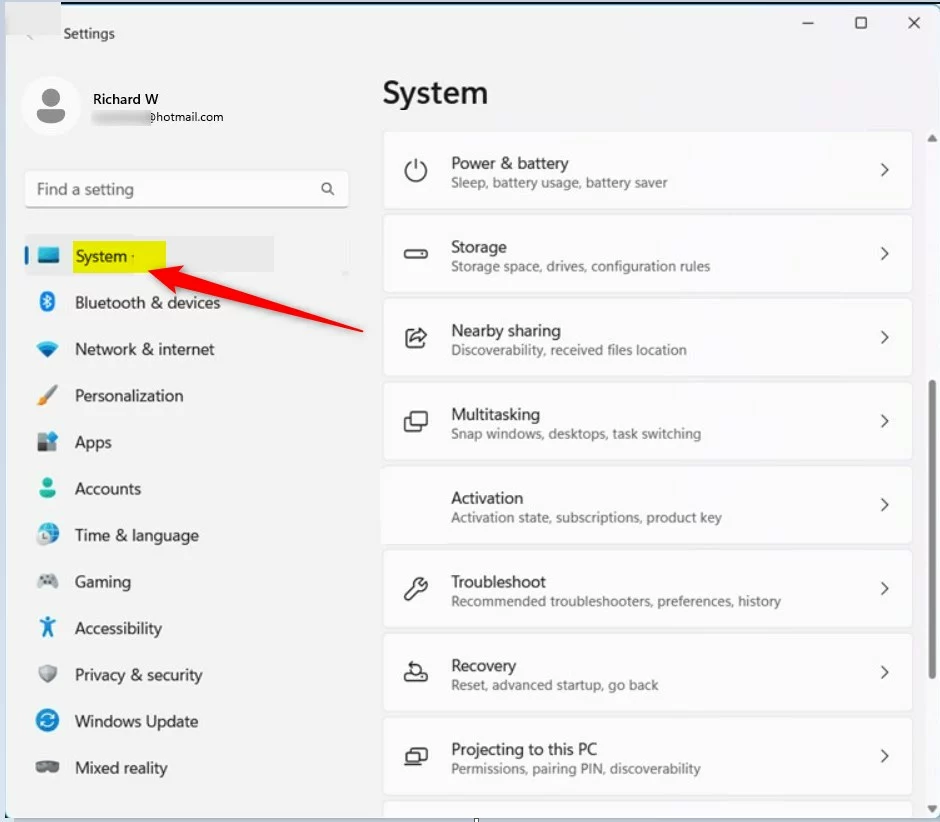
In the Settings window, click on System from the menu on the left side.
Step 3: Open Notifications Settings
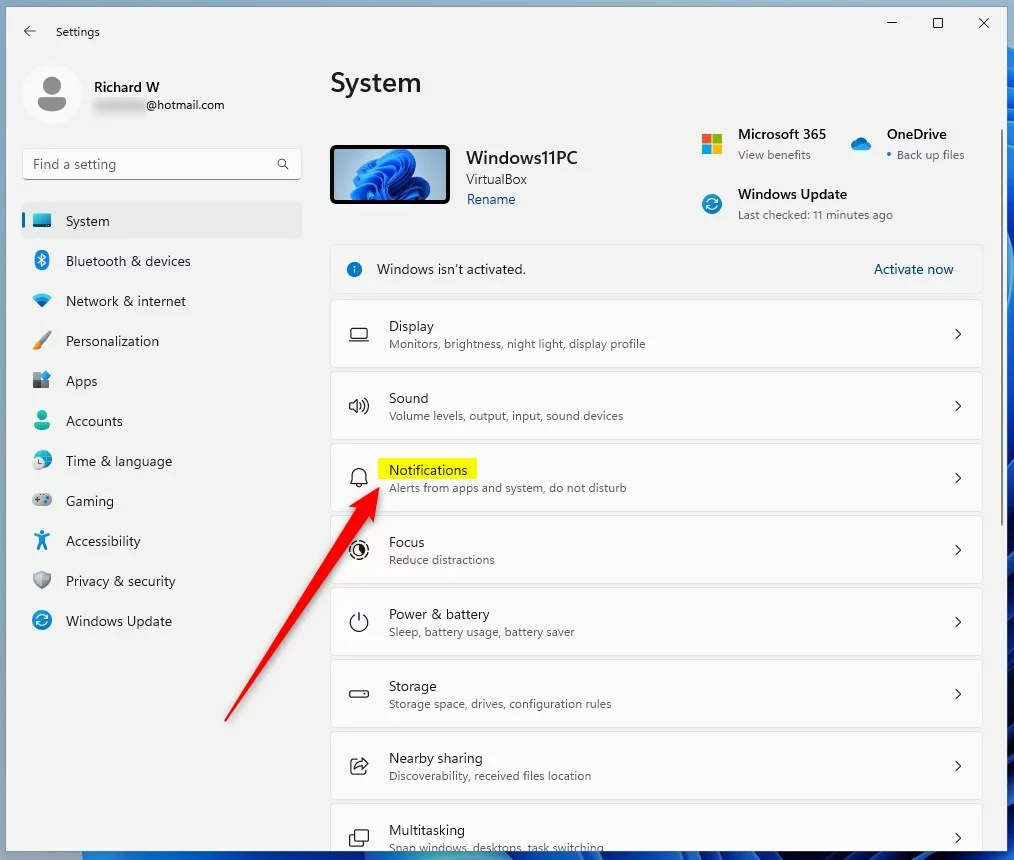
On the right side, find and click on the Notifications section.
Step 4: Turn Startup App Notifications On or Off
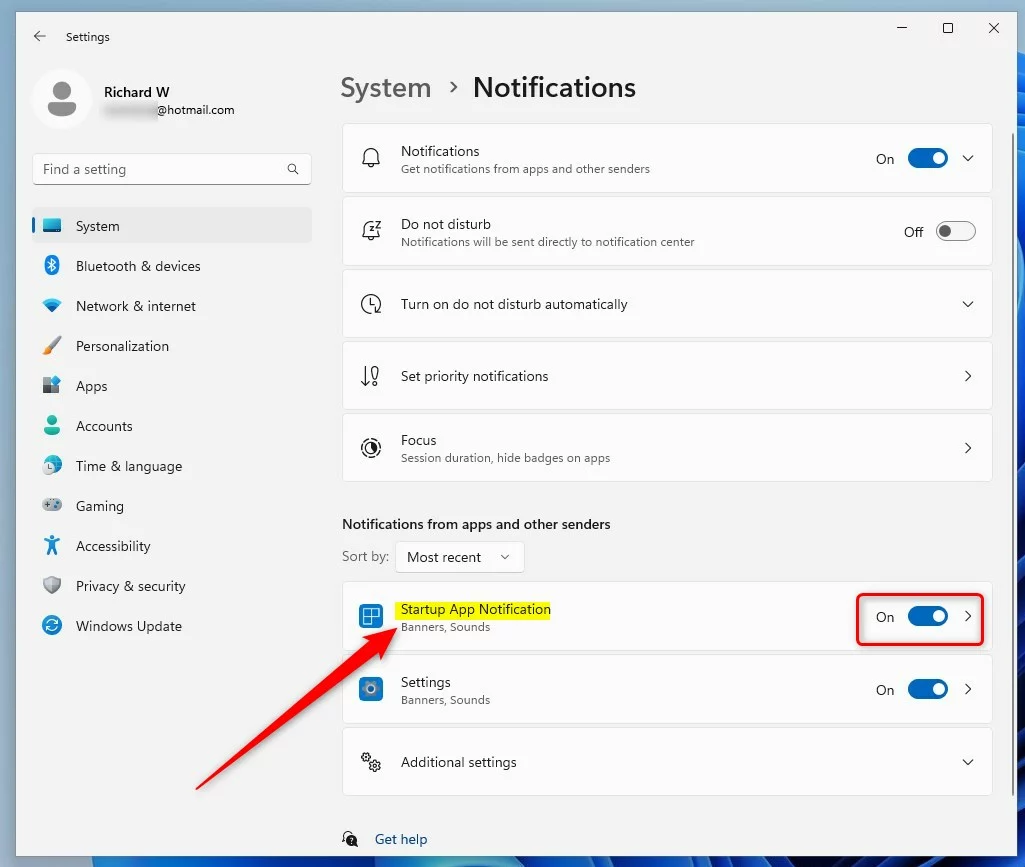
Scroll down until you see Startup App Notification. Use the switch to turn it On if you want to get notifications when new apps start automatically. Switch it Off if you don’t want to see these notifications.
You’re all set!
From now on, Windows will notify you whenever a new app sets itself to start automatically — but only if you turned the notification on.
Summary
- Windows 11 can notify you when new apps add themselves to startup.
- This notification feature is off by default but you can turn it on anytime.
- Use the Settings app to easily switch this notification on or off.
If you want to learn more about managing apps on startup, check out this helpful guide on How to Manage Startup Apps in Windows 11.

Leave a Reply Cancel reply