
This tutorial shows you how to turn on or off pinch to zoom on your touchpad in Windows 11.
If your Windows 11 laptop or device has a built-in precision touchpad, you can control whether pinch to zoom works.
Reference:
Precision touchpad tuning (touchpad-tuning-guidelines) – This topic presents information about touchpad tuning capabilities in Windows 10 and beyond
Option One
Turn On or Off Pinch to Zoom on Touchpad in Settings
- Open Settings by pressing
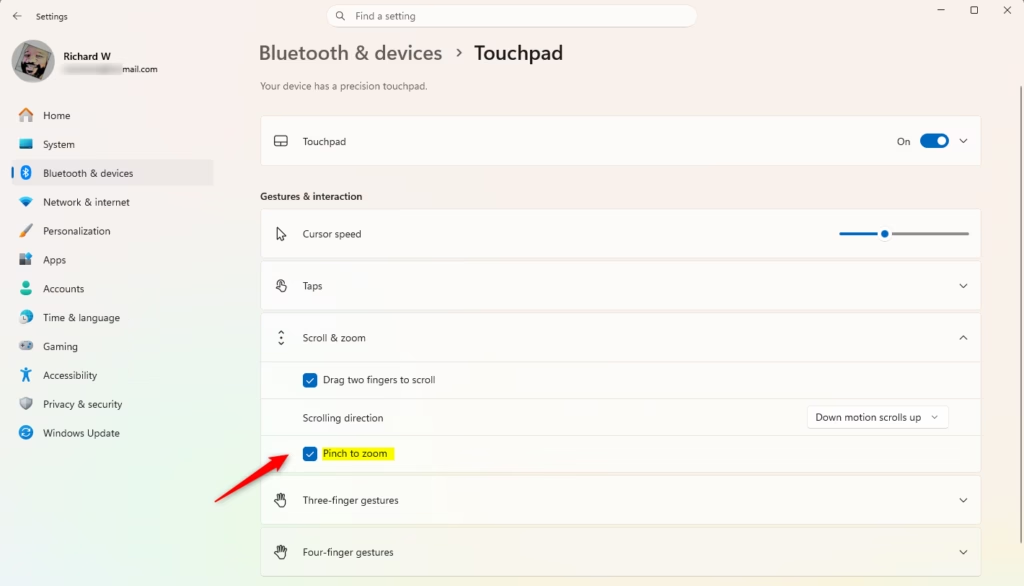
Win+I. - Click on Bluetooth & devices on the left side. Then click on Touchpad on the right side. (see screenshot below)
- Open Touchpad settings
- Click on Scroll & zoom to expand it open. (see screenshot below step 4)
- Check (on – default) or uncheck (off) Pinch to zoom for what you want. (see screenshot below)
- You can now close Settings if you like.
Option Two
Turn On or Off Pinch to Zoom on Touchpad Using Registry
Flag: Admin privileges required
Turn On “Pinch to zoom”
This is the default setting.
reg add "HKEY_CURRENT_USER\Software\Microsoft\Windows\CurrentVersion\PrecisionTouchPad" /v ZoomEnabled /t REG_DWORD /d 0xFFFFFFFF /f
Turn Off “Pinch to zoom”
reg add "HKEY_CURRENT_USER\Software\Microsoft\Windows\CurrentVersion\PrecisionTouchPad" /v ZoomEnabled /t REG_DWORD /d 0 /f
Summary
You now know two ways to control pinch to zoom on your touchpad in Windows 11. The easiest way is through Settings. Just go to Bluetooth & devices, select Touchpad, expand Scroll & zoom, and check or uncheck Pinch to zoom. If you prefer using the registry, you can enable it by setting the ZoomEnabled value to ffffffff or disable it by setting it to 00000000. Both methods work on precision touchpads in Windows 11.

Leave a Reply Cancel reply