
This tutorial will show you how to turn on or off the On-Screen Keyboard (OSK) in Windows 11.
What Is the On-Screen Keyboard?
Windows has a built-in tool called the On-Screen Keyboard (OSK). It helps you type on your computer. You can use it instead of a physical keyboard.
You don’t need a touchscreen to use the OSK. It shows a visual keyboard with all the standard keys on your screen. You can click with your mouse to select keys. You can also use a physical key or group of keys to move through the on-screen keys.
Why Use the On-Screen Keyboard?
When you turn on the OSK, a keyboard appears on your screen. You can use it to move around and enter text. The keyboard stays on your screen until you close it.
OSK Options
With the OSK open, you can click or tap on the Options key and choose what you want:
- Use click sound: Hear a sound when you press a key.
- Show keys to make it easier to move around the screen: Keys light up as you type.
- Turn on numeric keypad: Expand the OSK to show a numeric keypad.
- Click on keys: Click or tap on-screen keys to enter text.
- Hover over keys: Use your mouse or joystick to point to a key. Characters are entered automatically when you point to them for a set time.
- Scan through keys: The OSK scans the keyboard. Scan mode highlights areas where you can type by pressing a keyboard shortcut or using a device.
- Use Text Prediction: The OSK suggests words as you type so you don’t need to type complete words.
Use the On-Screen Keyboard (OSK) to type – Microsoft Support
Learn how to use the On-Screen Keyboard (OSK) instead of a physical keyboard to type and enter text on your PC.
If you have a touchscreen, a touch keyboard also appears when you tap inside a text box.
How to Turn On or Off the On-Screen Keyboard
Option One
Turn On or Off On-Screen Keyboard Using a Keyboard Shortcut
Press Win + Ctrl + O keys to turn the On-Screen Keyboard on or off.

Option Two
Turn Off On-Screen Keyboard by Closing It
Click or tap the Close (X) button on the On-Screen Keyboard.
Option Three
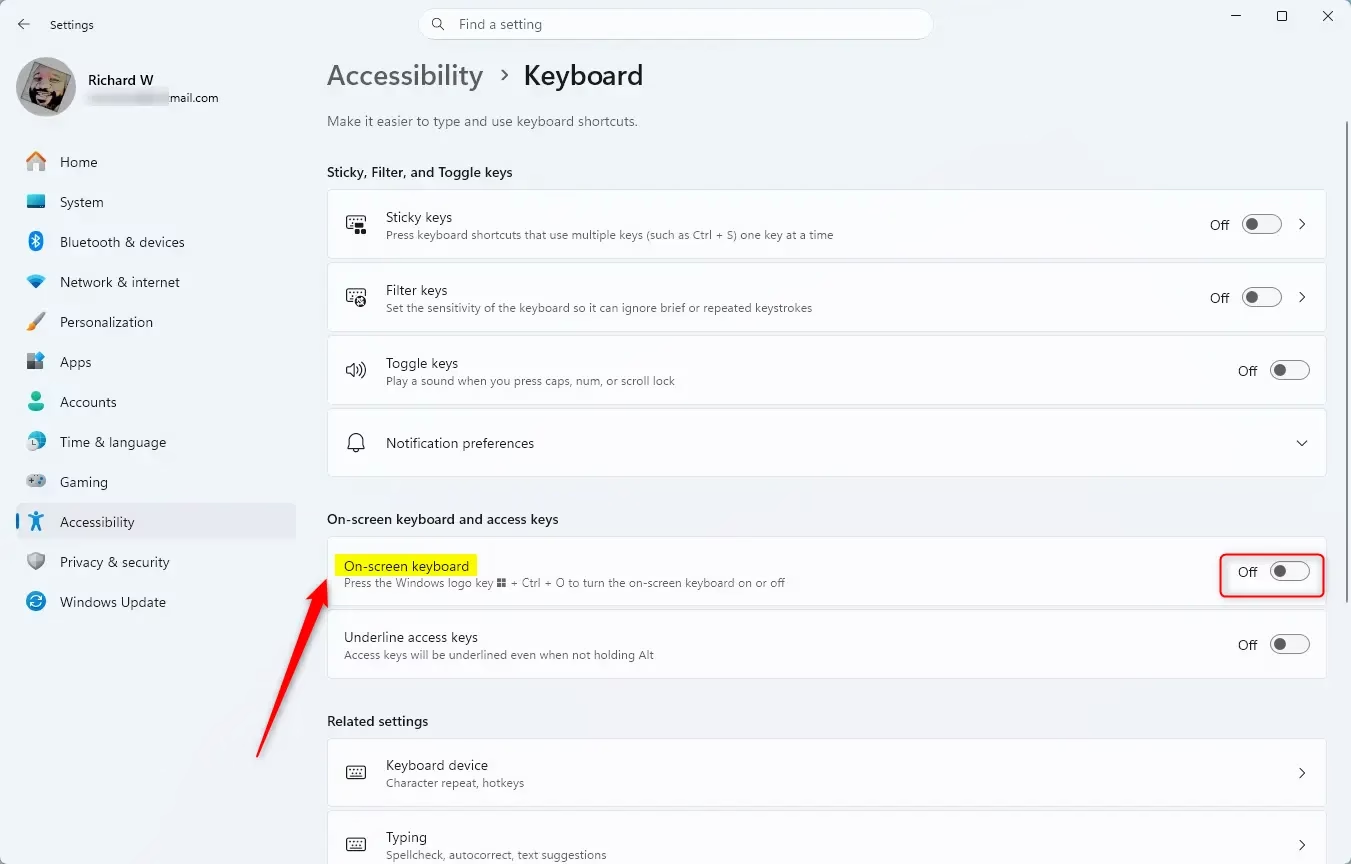
Turn On or Off On-Screen Keyboard in Settings
- Open Settings (press
Win + I). - Click or tap Accessibility on the left side. Then click or tap Keyboard on the right side.
- Open Keyboard settings Turn On or Off the On-screen keyboard setting.
- You can now close Settings if you like.
Option Four
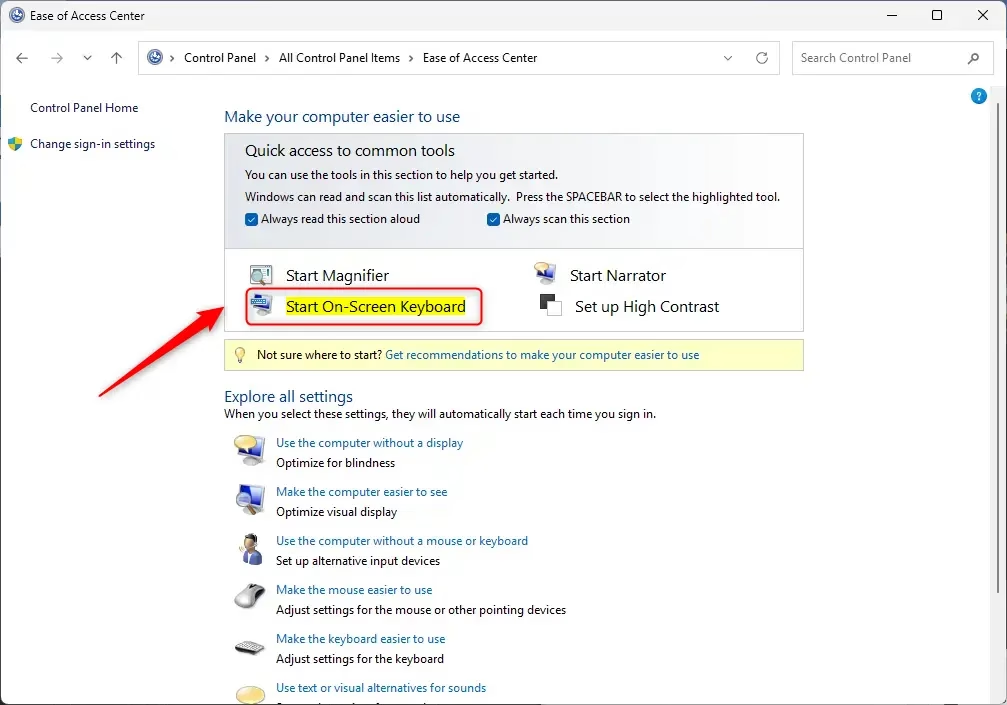
Turn On On-Screen Keyboard in Control Panel
- Open Control Panel (icons view). Click or tap the Ease of Access Center icon. [Admin privileges required]
- Click or tap the Start On-Screen Keyboard link at the top.
- You can now close the Ease of Access Center if you like.
Option Five
Turn On On-Screen Keyboard in Windows Search
- Open Windows Search (press
Win + S). - Type
oskinto the search box. - When On-Screen Keyboard appears, press Enter or click or tap Open.
Option Six
Turn On On-Screen Keyboard in Run
- Open Run (press
Win + R). - Type
oskinto Run. Press Enter or click or tap OK.
Option Seven
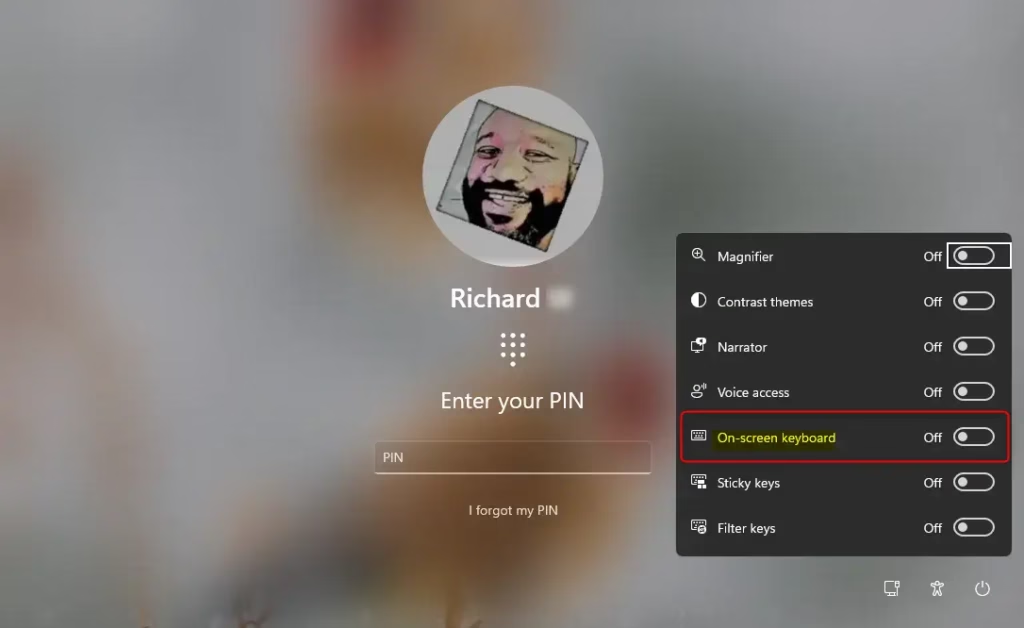
Turn On or Off On-Screen Keyboard on Sign-in Screen
When you open the On-Screen Keyboard on the sign-in screen, it will not stay open when you sign in to Windows.
- While on the Sign-in screen with your account selected, click or tap the Accessibility icon.
- Turn On or Off the On-screen keyboard setting.
Summary
The On-Screen Keyboard (OSK) is a helpful Windows 11 tool that lets you type without a physical keyboard. You can use your mouse or other pointing devices to select keys. There are seven different ways to turn the OSK on or off: using a keyboard shortcut, closing it, using Settings, Control Panel, Windows Search, Run, or the Sign-in screen. You can also customize the OSK with options like click sounds, key highlighting, text prediction, and different typing modes to match your needs.



Leave a Reply Cancel reply