
This guide will help you easily turn on or off the notification that pops up when a new Bluetooth device tries to connect to your Windows 11 PC.
What is Bluetooth?
Bluetooth is a wireless technology that lets two devices close to each other share data without wires. For example, your PC and a wireless headset or mouse can connect using Bluetooth.
You can connect many types of Bluetooth devices to your PC, like phones, headphones, speakers, fitness bands, mice, and keyboards. If you want to learn how to pair Bluetooth devices, check out this official guide from Microsoft: How to pair a Bluetooth device in Windows 11.
By default, Windows 11 shows you a notification called “Add a device” when a new Bluetooth device tries to connect. This lets you approve or deny the connection.
If you don’t want to see these notifications, you can turn them off. Here’s how:
Option 1: Turn On or Off Notifications Using Settings
- Open Settings by pressing Win + I on your keyboard.
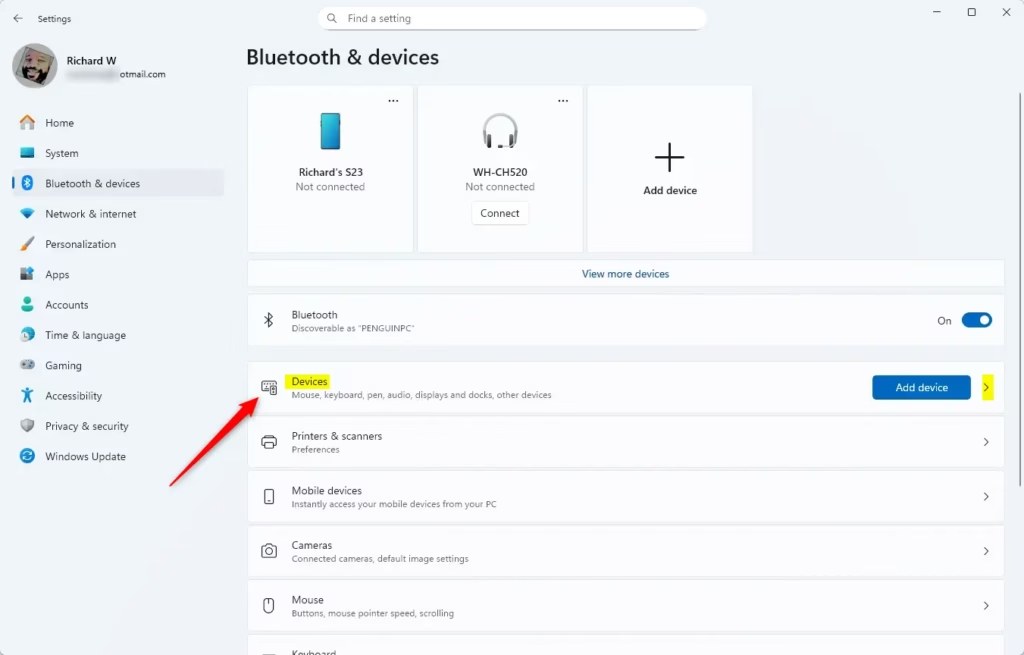
- Click on Bluetooth & devices in the left menu.
- Then click on Devices on the right side.
- You can also open this directly by clicking here: Open Bluetooth & devices settings.
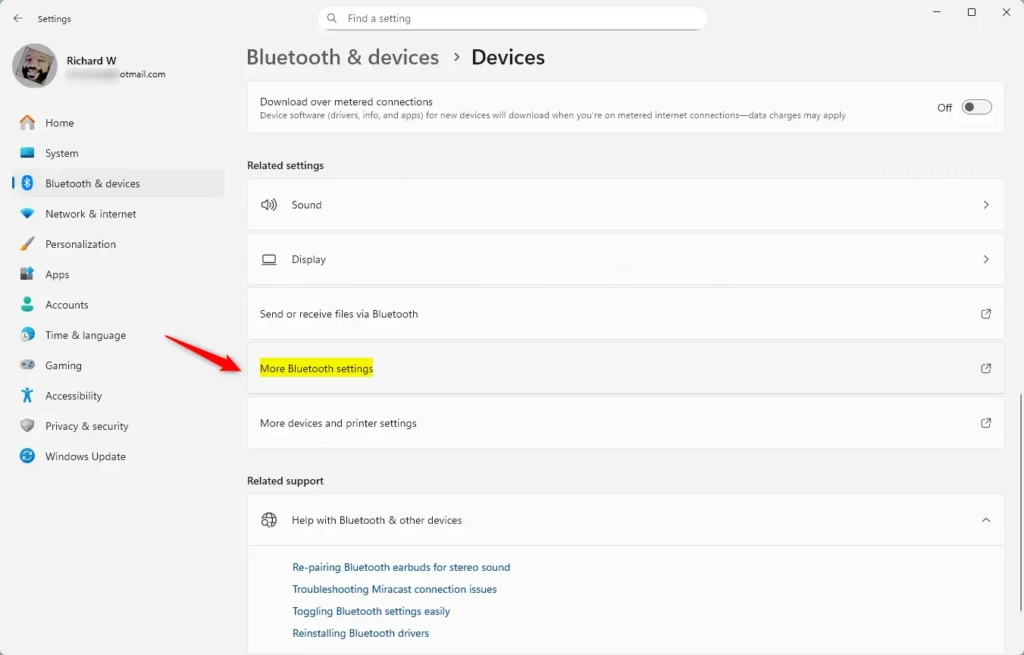
- Scroll down and click More Bluetooth settings under the Related settings section.
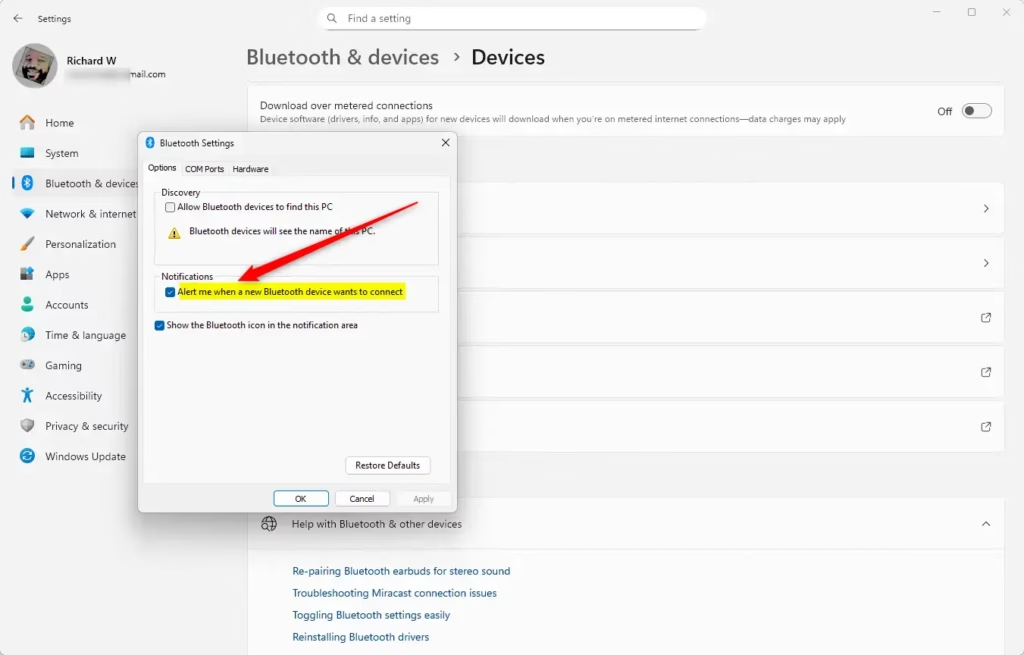
- In the window that opens, go to the Options tab.
- Check the box Alert me when a new Bluetooth device wants to connect to turn notifications ON.
- Uncheck the box to turn notifications OFF.
- Click OK to save your choice.
- You can now close the Settings window.
Option 2: Turn On or Off Notifications Using the Registry (Advanced)
Note: Editing the Windows Registry can affect your system. Be sure to follow the steps carefully or create a backup first.
To turn ON notifications (default setting):
reg add "HKEY_CURRENT_USER\Software\Microsoft\BluetoothAuthenticationAgent" /v AcceptIncomingRequests /t REG_DWORD /d 1 /fTo turn OFF notifications:
reg add "HKEY_CURRENT_USER\Software\Microsoft\BluetoothAuthenticationAgent" /v AcceptIncomingRequests /t REG_DWORD /d 0 /fSummary
You can choose to get notified or not when a new Bluetooth device tries to connect to your PC. This setting is easy to change in the Windows 11 Settings app or, if you prefer, by editing the Registry.
By default, notifications are ON to keep you in control of device connections. Turning notifications off can help reduce interruptions, but be sure you want to approve devices another way.
By following these simple steps, you can control how your Windows 11 PC alerts you about new Bluetooth connections and manage your devices more comfortably.

Leave a Reply Cancel reply