
This tutorial shows you how to turn on or off the spell checking feature in Windows 11. This feature highlights words you misspell as you type them.
Why Use This Feature?
Windows 11 has a built-in spell checker. When you turn it on, misspelled words get a red squiggly line under them. This helps you catch typing mistakes right away.
What Happens When You Use It?
When highlight misspelled words is turned on, any word you type that is not in your personal dictionary will show a red squiggly line. You can right-click on the word to see correction options.
Option One: Use Settings
Turn On or Off Highlight Misspelled Words in Settings
- Open Settings by pressing
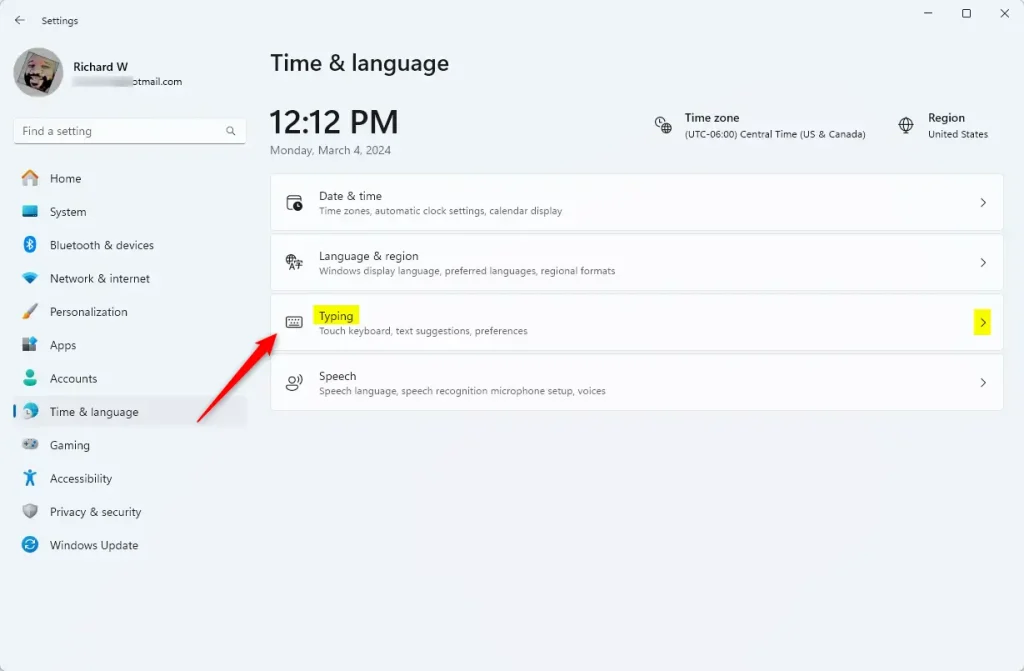
Win+I. - Click Time & language on the left side.
- Click Typing on the right side. (see screenshot below)
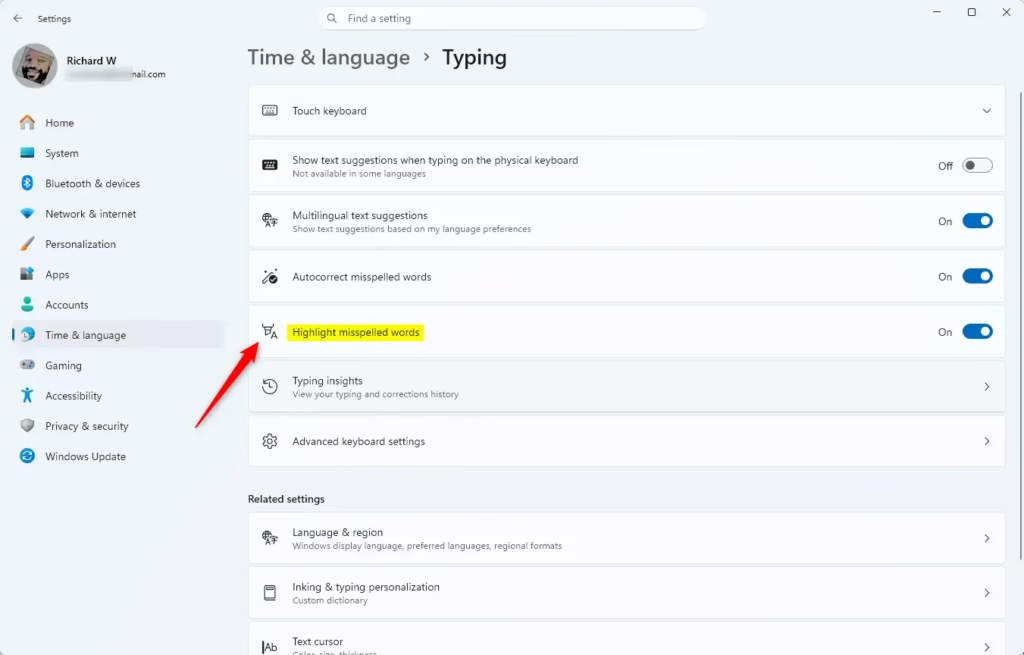
- Check the box (on – default) or uncheck the box (off) next to Highlight misspelled words. (see screenshot below)
- You can now close Settings.
Option Two: Use Registry
Turn On or Off Highlight Misspelled Words Using Registry
⚠️ Admin privileges required
Turn On Highlight Misspelled Words
This is the default setting:
reg add "HKEY_CURRENT_USER\SOFTWARE\Microsoft\TabletTip\1.7" /v EnableSpellchecking /t REG_DWORD /d 1 /f
Turn Off Highlight Misspelled Words
reg add "HKEY_CURRENT_USER\SOFTWARE\Microsoft\TabletTip\1.7" /v EnableSpellchecking /t REG_DWORD /d 0 /f
Summary
Windows 11 includes a spell checker that highlights misspelled words with a red squiggly line. You can turn this feature on or off in two ways. The easiest way is through Settings under Time & language, then Typing. You can also change this setting using the Registry if you prefer. Either method works the same way.
Leave a Reply Cancel reply