
This guide will show you simple steps to turn on or off App diagnostics access on your Windows 11 computer.
What is App Diagnostics Access?
App diagnostics access is a feature in Windows 11 that lets apps share information about how they work. This helps app makers find problems and make apps better for you.
Normally, apps don’t interfere with each other, but sometimes it’s helpful for an app to see info about other running apps — like diagnostic tools that check your system.
If you care about privacy or want to improve your computer’s speed, you can choose to turn off this feature. Turning it off means apps won’t share diagnostic info.
How to Turn On or Off App Diagnostics Access (Using Settings)
Follow these easy steps:
- Open Settings:
Click the Start menu (Windows icon) at the bottom left, then click Settings.
Or, press Windows key + I on your keyboard to open Settings directly. - Go to Privacy & Security:
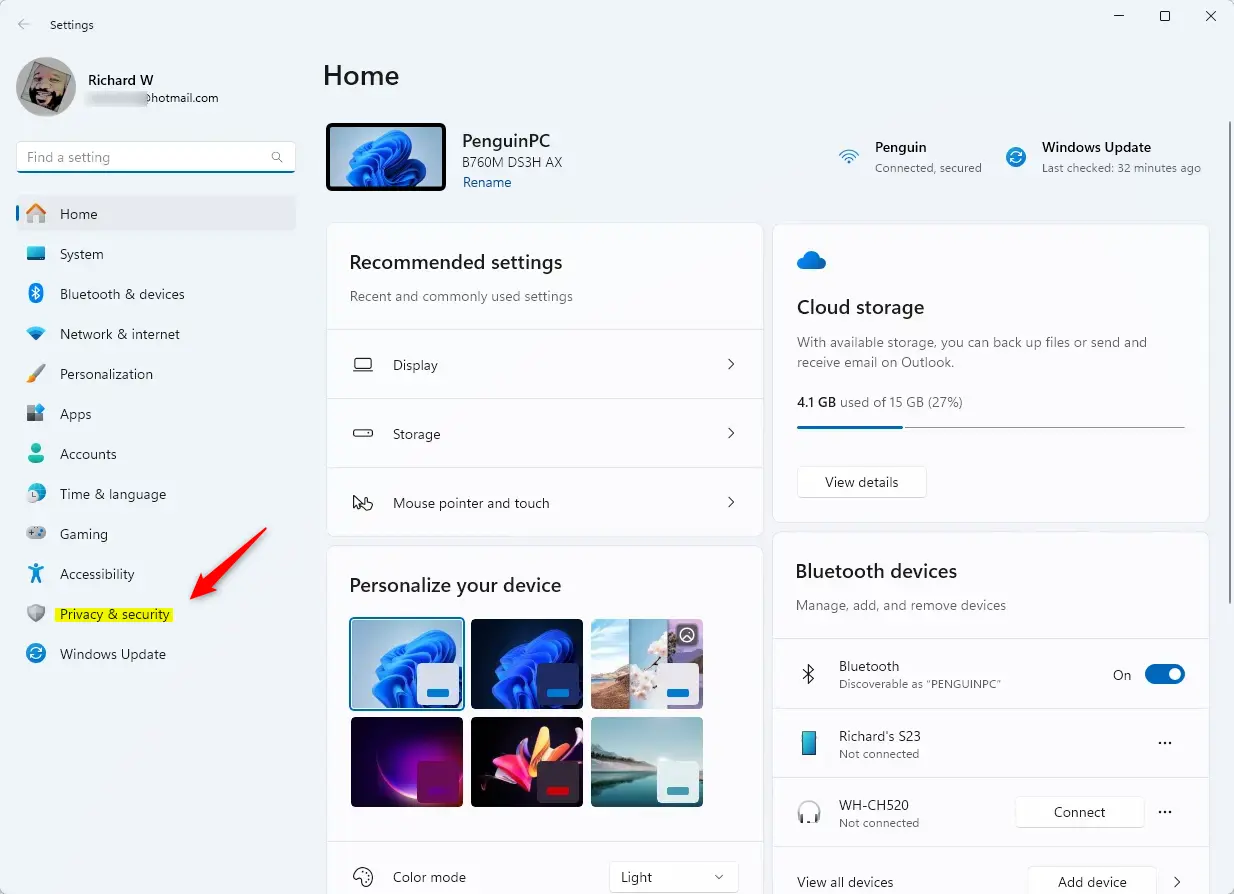
In the Settings window, click Privacy & security on the left side. - Find App Diagnostics:
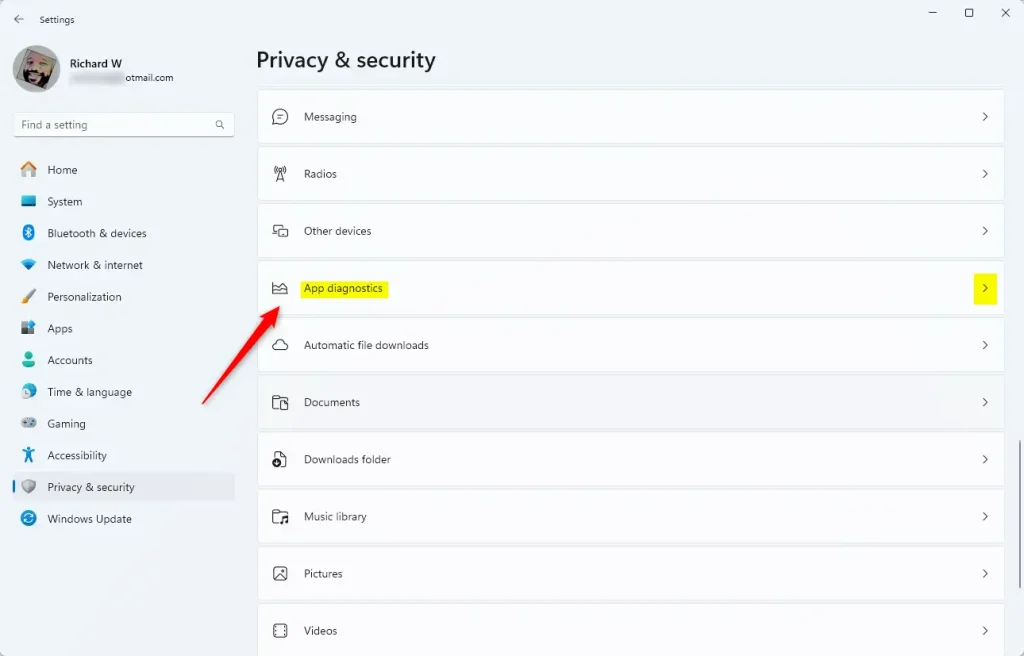
Scroll down on the right and click on App diagnostics. - Turn On or Off App Diagnostics Access:
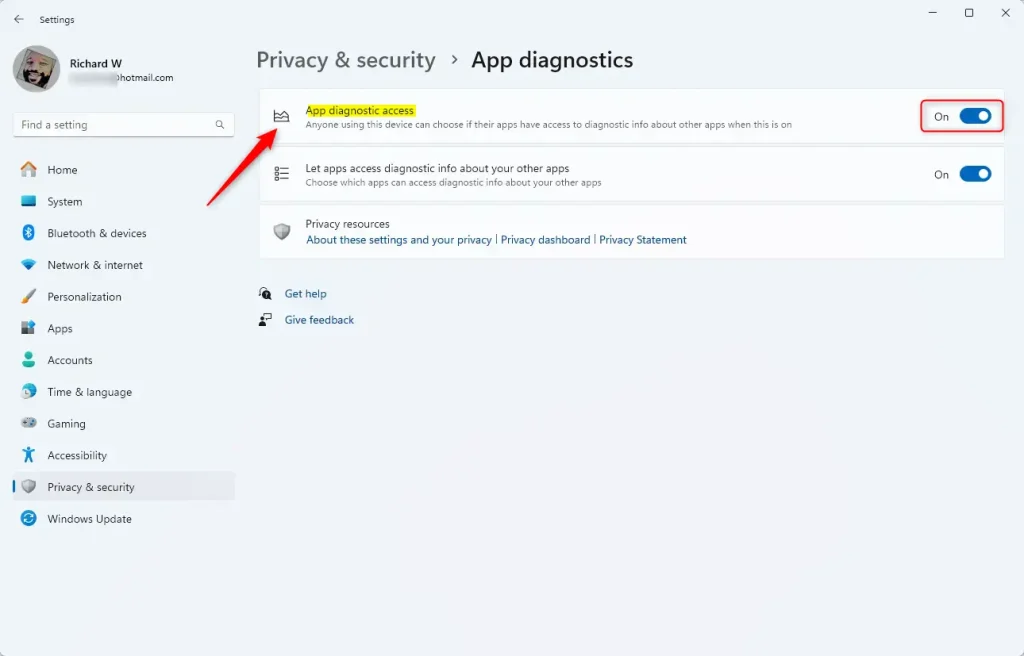
Use the toggle switch under App diagnostics access to turn it On or Off. - Control Access for Current User:
If you want to control diagnostics only for your user account, use the toggle for Let apps access diagnostic info about your apps below it. - Close Settings:
When done, just close the Settings window.
How to Turn On or Off App Diagnostics Access (Using Group Policy Editor)
If you want another way, you can use the Local Group Policy Editor. This tool is usually found on Windows 11 Pro or higher editions.
- Open Group Policy Editor:
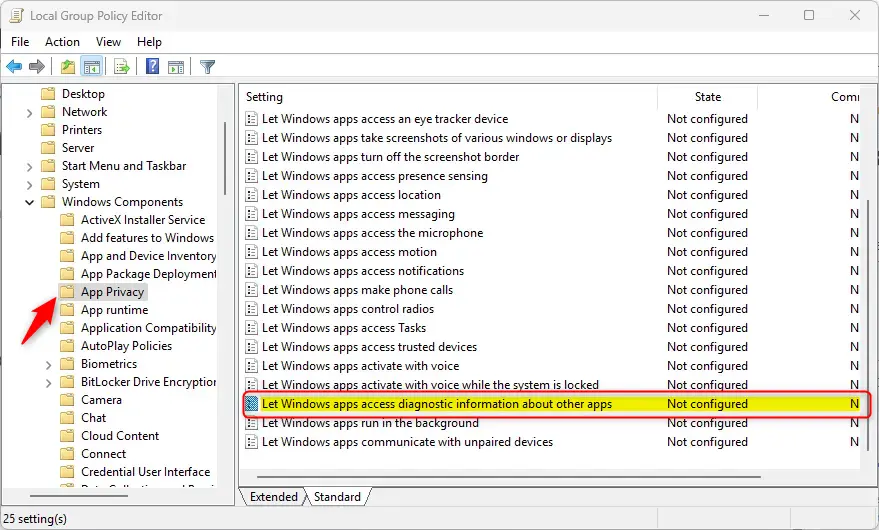
Click the Start menu, type Edit group policy, and press Enter. - Navigate to the Setting:
Go toComputer Configuration > Administrative Templates > Windows Components > App Privacy - Find the Policy:
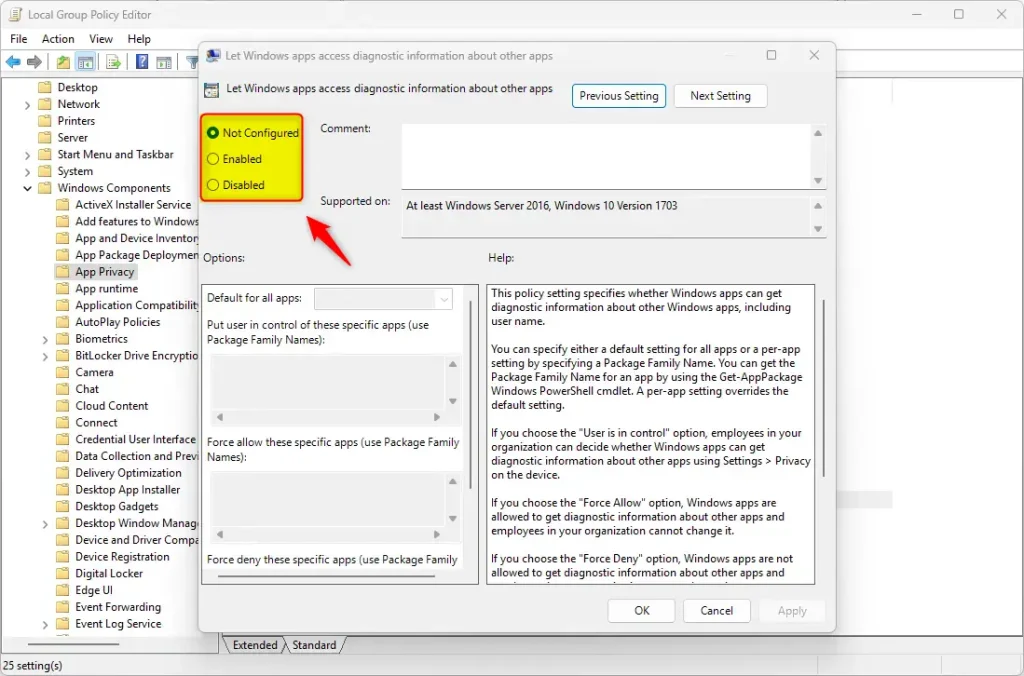
Double-click Let Windows apps access diagnostic information about other apps. - Choose Your Option:
- Not Configured – Use Windows default settings.
- Enabled with Force Allow – Turns on diagnostics access for all users.
- Enabled with Force Deny – Turns off diagnostics access for all users.
- Disabled – Turns off the policy (similar to Not Configured).
- Click OK to save.
How to Turn On or Off App Diagnostics Access (Using Registry Editor)
For advanced users, you can also change this setting using the Windows Registry Editor. Be careful — changing the registry incorrectly can cause problems. Always back up your registry or create a system restore point before you start.
- Open Registry Editor:
Press Windows key + R, typeregedit, and press Enter - Go to this folder:
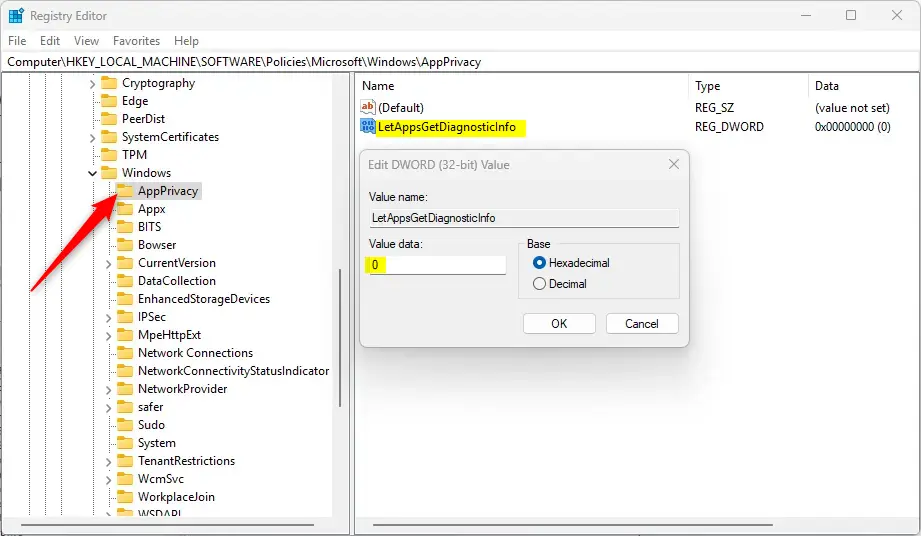
HKEY_LOCAL_MACHINESOFTWAREPoliciesMicrosoftWindowsAppPrivacy - Create or edit a DWORD:
Right-click AppPrivacy > New > DWORD (32-bit) Value.
Name itLetAppsGetDiagnosticInfo. - Set the value:
Double-click the new DWORD and enter:1to turn on App diagnostics access0to turn it off
- Close Registry Editor and restart your computer to apply changes.
Summary
- App diagnostics helps developers fix and improve apps by sharing info about app behavior.
- You can easily turn this feature on or off in Windows 11 using Settings, Group Policy Editor, or Registry Editor.
- Turning it off increases your privacy and control over your computer data.
- Always back up your data or create a restore point before making system changes.
By following these simple steps, you can decide how much information your apps share on your Windows 11 PC.
Reference: Microsoft Support – Windows App Diagnostics and Privacy



Leave a Reply Cancel reply