

In this guide, you’ll learn how to turn on or off the Dynamic Refresh Rate (DRR) feature on your Windows 11 PC. Don’t worry—it’s easy, and we’ll walk you through each step!
What is Dynamic Refresh Rate?
Dynamic Refresh Rate (DRR) is a smart feature in Windows 11 that changes how fast your screen updates (called the refresh rate) depending on what you’re doing. For example, it can use a slower refresh rate when you’re reading or doing simple tasks to save battery, and switch to a faster refresh rate when you’re watching videos or playing games for smoother visuals.
This feature helps your laptop run better and use less power. But it only works if your laptop screen supports something called Variable Refresh Rate (VRR) and can run at 120Hz or higher.
How to Turn On Dynamic Refresh Rate
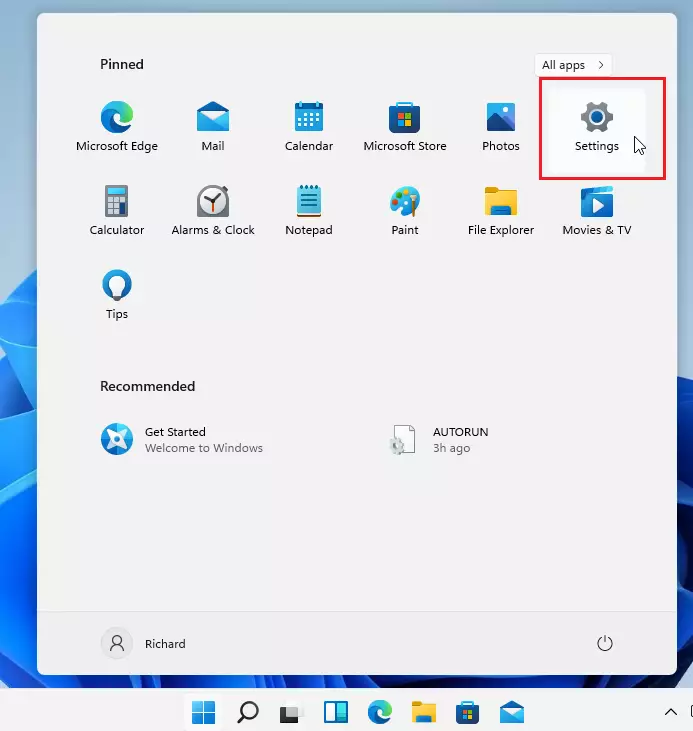
- Click on the Start Menu (the Windows icon at the bottom left of your screen), then click Settings.
- In the Settings window, click on System, then select Display on the left menu.
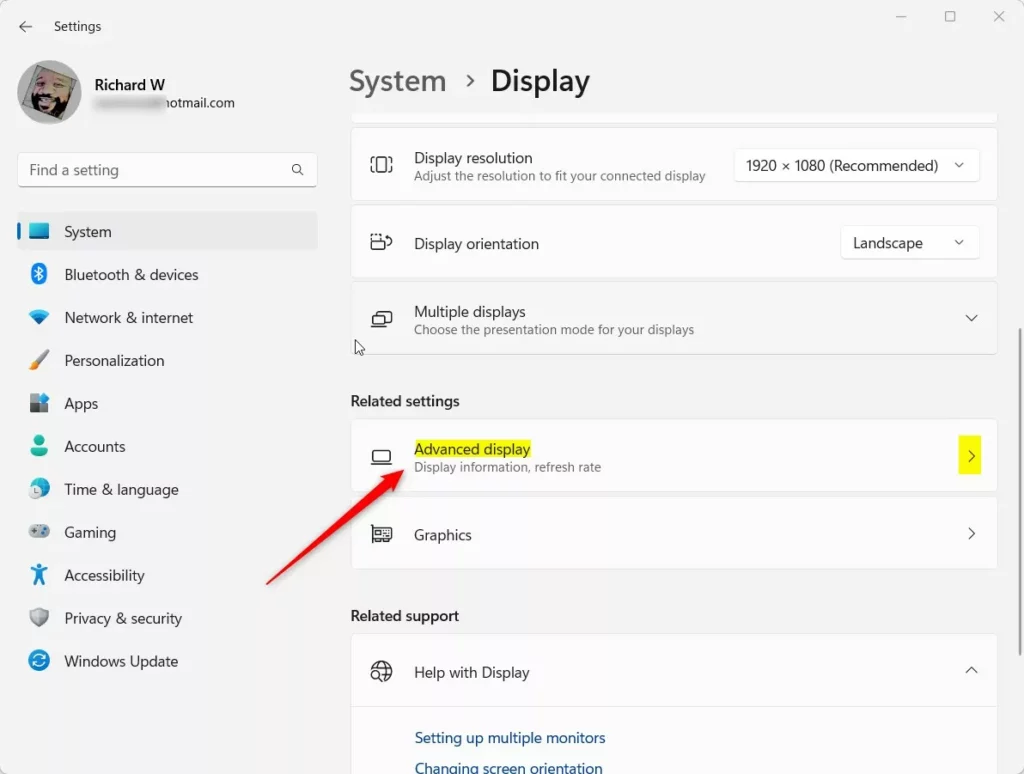
- Scroll down and click on Advanced display.
- Look for the Refresh rate dropdown menu. Click it and choose Dynamic (60 Hz or 120 Hz) if you see this option.

Note: If you don’t see the “Dynamic” option, your device probably doesn’t support this feature.
How to Turn Off Dynamic Refresh Rate
If you want to turn off Dynamic Refresh Rate, follow the same steps above but select a fixed refresh rate, like 60 Hz, from the dropdown menu instead.
Summary
- Dynamic Refresh Rate helps your computer save power and work smoothly by changing how fast your screen updates.
- It works only on laptops with screens that support Variable Refresh Rate and have 120Hz or higher refresh rates.
- You can turn it on or off easily in the Display settings under Advanced display.
- If you don’t see the option, your computer screen might not support this feature.
That’s all! Now you know how to use Dynamic Refresh Rate in Windows 11 to get the best balance between performance and battery life.

Leave a Reply Cancel reply