How to Hide Recent Search History on Windows 11 Taskbar

Windows 11 makes it easy to find apps, files, and folders using the search icon on your taskbar. However, hovering over this icon shows a list of your recent searches. You may want to hide this for privacy.
Why: This feature keeps your search history visible to anyone looking at your screen. Turning it off keeps your activity private.
What happens: Once you complete these steps, the recent search list will no longer appear when you hover your mouse over the search icon.
How to hide recent search history
You can adjust this setting through the Windows Settings menu. This does not require special administrative rights.
1. Open the Settings app by pressing the Windows key + I on your keyboard, or click on Start %%LNK0%% and select Settings.

2. In the Settings menu, click on Personalization in the left sidebar.
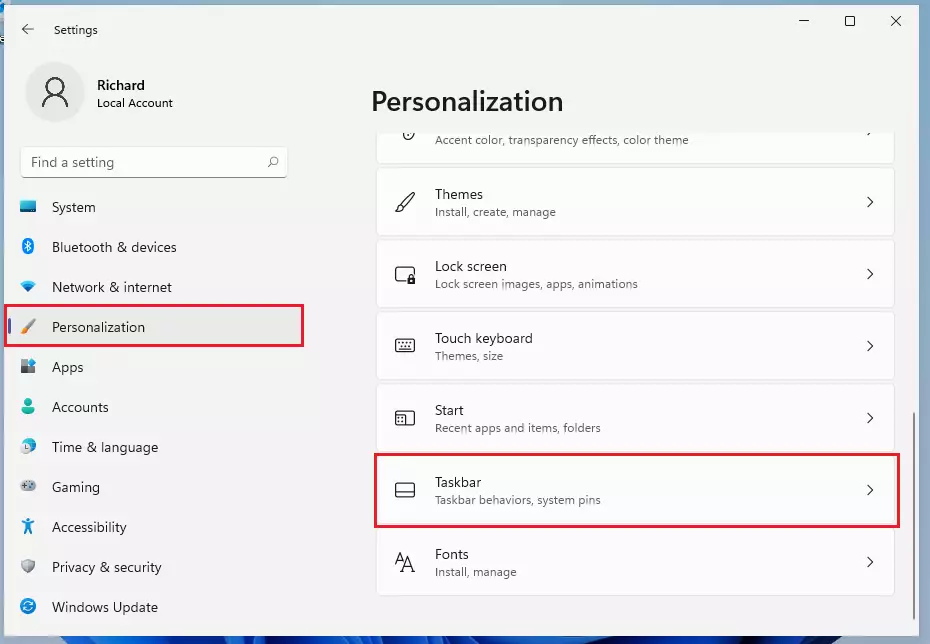
3. On the right side, scroll down and click on Taskbar.
4. Look for Taskbar behaviors and click the arrow to expand that section.
5. Find the option labeled “Show recent searches when I hover over the search icon” and uncheck the box.
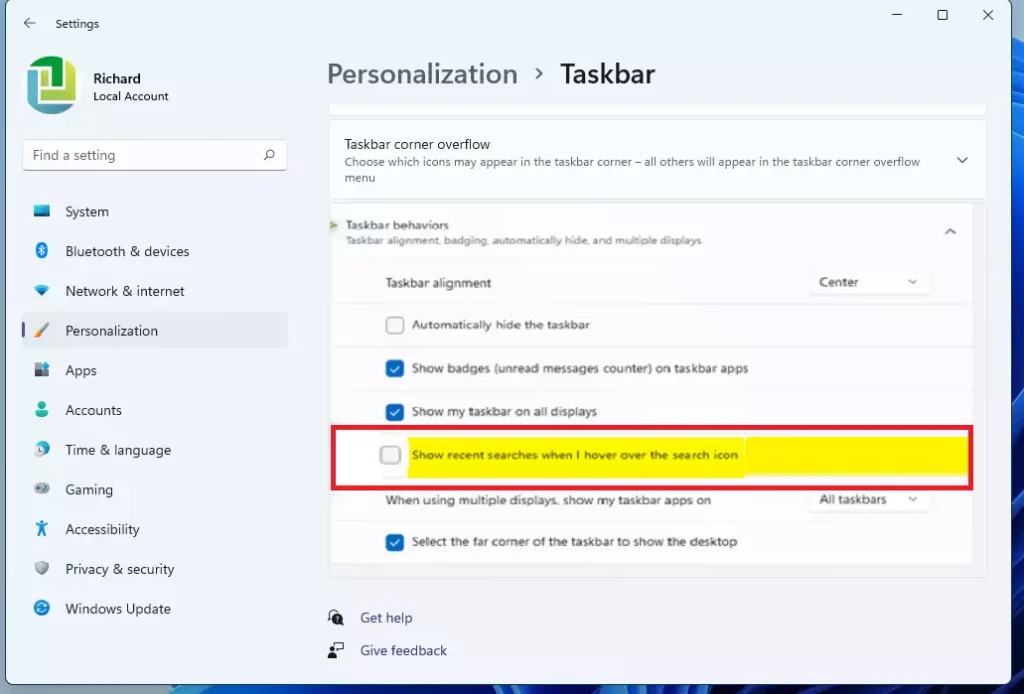
The change happens immediately. You do not need to restart your computer.
Summary
Windows 11 tracks your recent searches to help you find items faster. If you prefer more privacy, you can disable this feature in the Taskbar behaviors section of your system settings. This ensures your search history remains hidden from view when you hover over the search icon.
Was this guide helpful?


Leave a Reply Cancel reply