How to turn Automatically Move Pointer to the Default Button on or off in Windows 11

Automatically Move Pointer to the Default Button in Windows 11 jumps your mouse cursor to the highlighted option in many pop-up windows. This feature, also known as “auto-க்கப்பட்டுள்ளது pointer,” helps you complete tasks faster by placing your cursor directly over buttons like “Yes” or “OK” when they appear.
Many users find this setting useful because it saves a small but noticeable amount of time and clicking. Instead of moving your mouse each time a confirmation box pops up, the pointer is already waiting.
To automatically move your pointer to the default button in Windows 11, go to Settings > Bluetooth & devices > Mouse > Additional mouse settings. In the “Mouse Properties” window, select the Pointer Options tab, check “Automatically move pointer to the default button in a dialog box,” then click Apply and OK.
How to Turn On Automatic Pointer Movement
Let’s turn on this feature by going into your mouse settings.
Step 1Open Mouse Settings
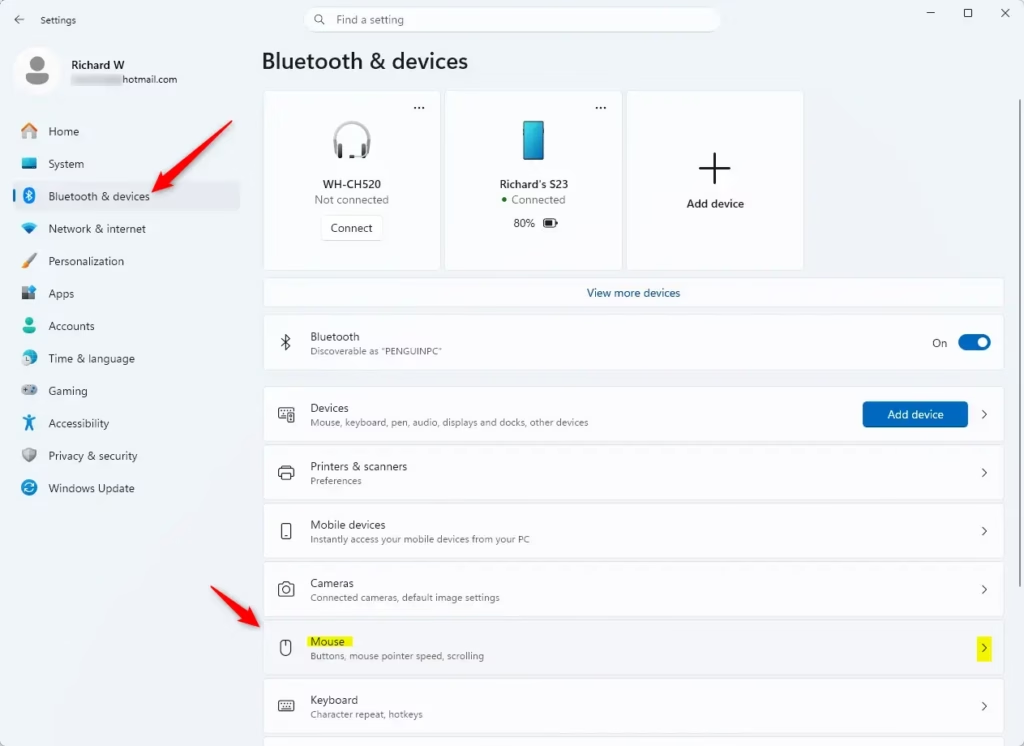
First, let’s find the right place. Click the Start button (the Windows logo, usually in the bottom-left corner). Then, click on Settings (it looks like a gear icon).
In the Settings window, click on Bluetooth & devices on the left side. Now, find and click on Mouse.
Step 2Access More Mouse Options
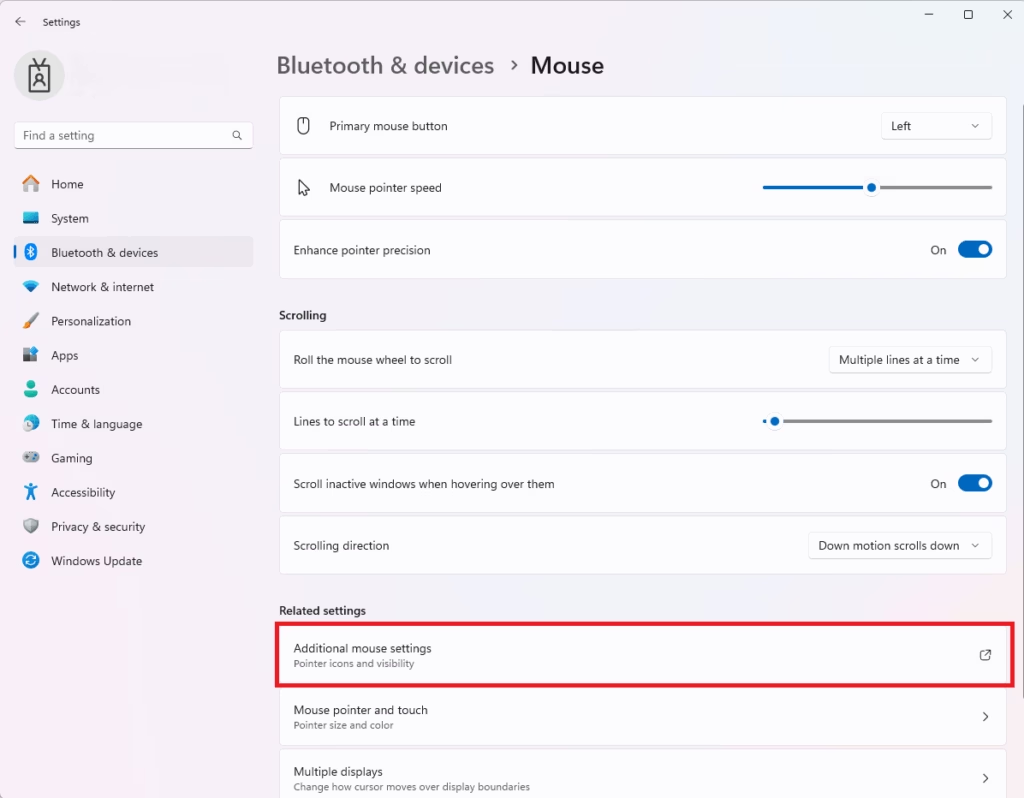
In the Mouse settings, you’ll see a few choices. We need to find a more detailed section. Scroll down until you see something like Related settings. Click on Additional mouse settings.
A new window will open. It looks a bit older and is called “Mouse Properties.”
Step 3Find the “Snap To” Option
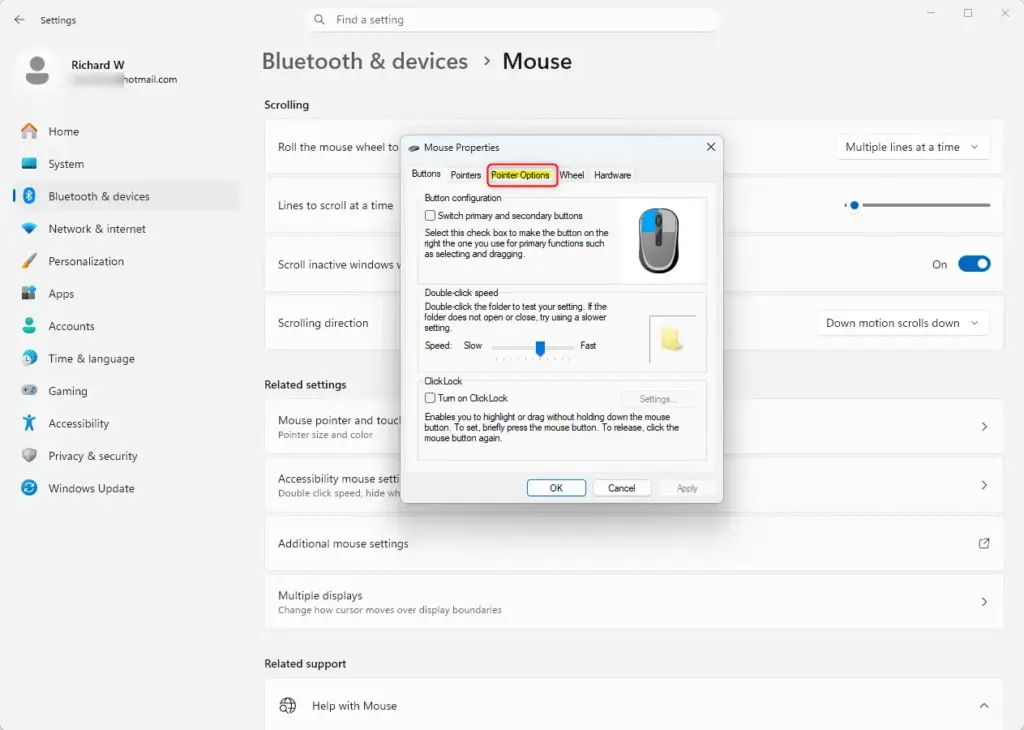
In the “Mouse Properties” window, look for tabs at the top. You’ll see Buttons, Pointers, Pointer Options, and Wheel. Click on the Pointer Options tab.
Step 4Enable Automatic Pointer Movement
Now, look for a section called Snap To. You should see a checkbox that says Automatically move pointer to the default button in a dialog box. Click this box to put a checkmark in it.
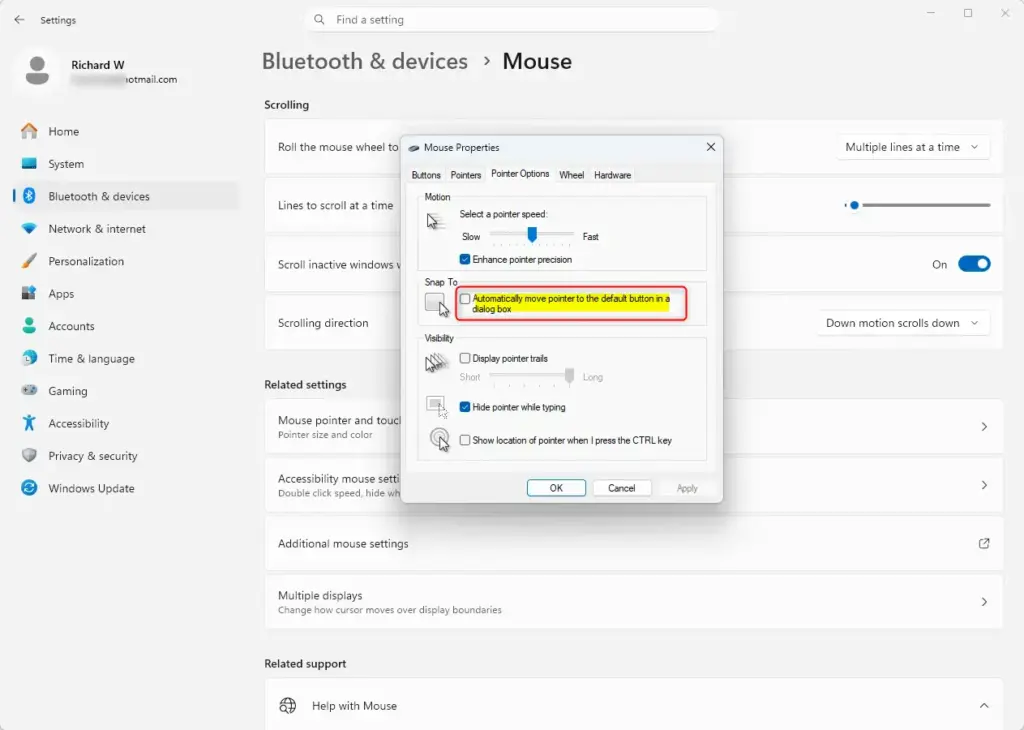
This is the setting that does the magic!
Step 5Apply Your Changes
Almost done! At the bottom of the “Mouse Properties” window, click the Apply button. This saves your change without closing the window.
Then, click the OK button to close the “Mouse Properties” window. You can now close the main Settings window too.
How to Turn Off Automatic Pointer Movement
You can easily turn off the feature that automatically moves your mouse pointer to the default button in Windows 11 by going to your mouse settings.
Go to Settings > Bluetooth & devices > Mouse > Additional mouse settings.
In the “Mouse Properties” window, click the Pointer Options tab.
Under the Snap To section, uncheck the box that says Automatically move pointer to the default button in a dialog box.
Click Apply, then click OK.
Reference:
https://support.microsoft.com/de-DE/Windows/Hardware/input-devices/change-mouse-settings
Summary
This guide showed you how to control whether your mouse pointer jumps to the default button in Windows 11 pop-up windows, saving you time by making common actions quicker.
Was this guide helpful?

About the Author
Richard
Tech Writer, IT Professional
Richard, a writer for Geek Rewind, is a tech enthusiast who loves breaking down complex IT topics into simple, easy-to-understand ideas. With years of hands-on experience in system administration and enterprise IT operations, he’s developed a knack for offering practical tips and solutions. Richard aims to make technology more accessible and actionable. He's deeply committed to the Geek Rewind community, always ready to answer questions and engage in discussions.

No comments yet — be the first to share your thoughts!