
This guide will help you turn on or off a handy Windows 11 feature. It lets you see your desktop by clicking the far right corner of the taskbar.
Why Use This Feature?
This feature is useful if you need to quickly get to your desktop. Click the far right corner of the taskbar and all your open windows hide. Click it again and your windows come back. You can also press Windows key + D on your keyboard for the same result.
This built-in Windows 11 feature is usually turned off by default. You can turn it on if you use it often. Or you can turn it off if you worry about accidentally clicking it and losing your work.
Method 1: Use Windows Settings (Easy)
This is the simplest way to turn the feature on or off.
- Open the Settings app. Click the Start button and select Settings, or press
Windows key + Ion your keyboard. - In the Settings window, click Personalization on the left side.
- On the right, click Taskbar.
- Scroll down and click Taskbar behaviors to open more options.
- Look for the option that says “Select the far corner of the taskbar to show the desktop”.
- Check the box to turn it on. Uncheck the box to turn it off.
- Close the Settings app when done.
Here are some images to help you find these settings:
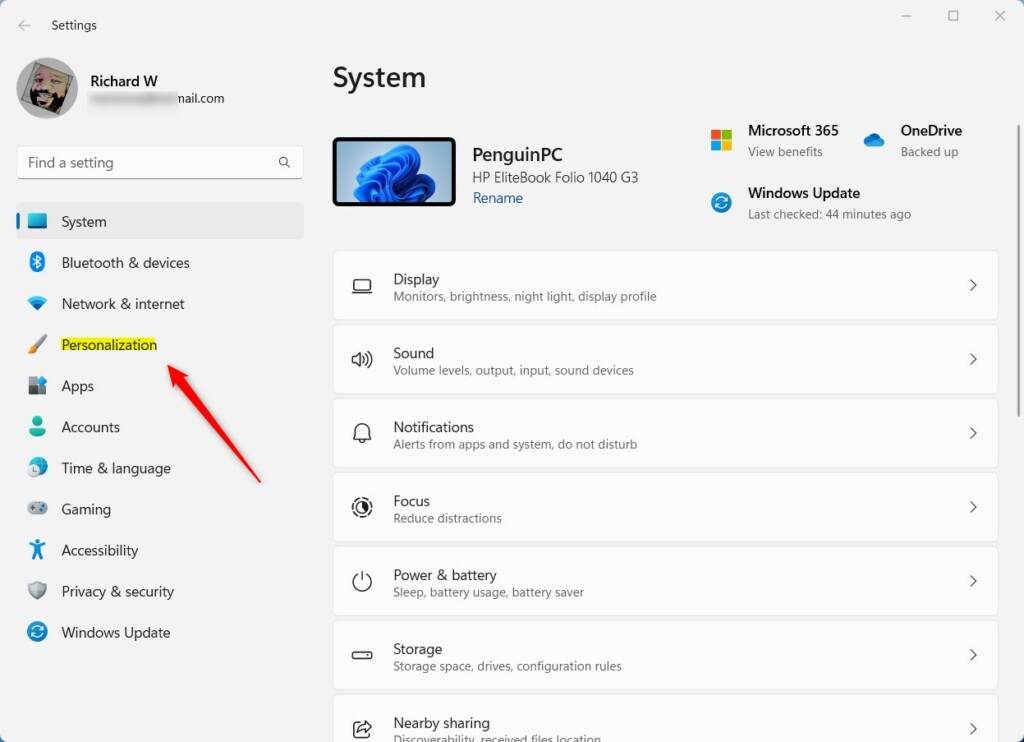
Click Personalization in Settings
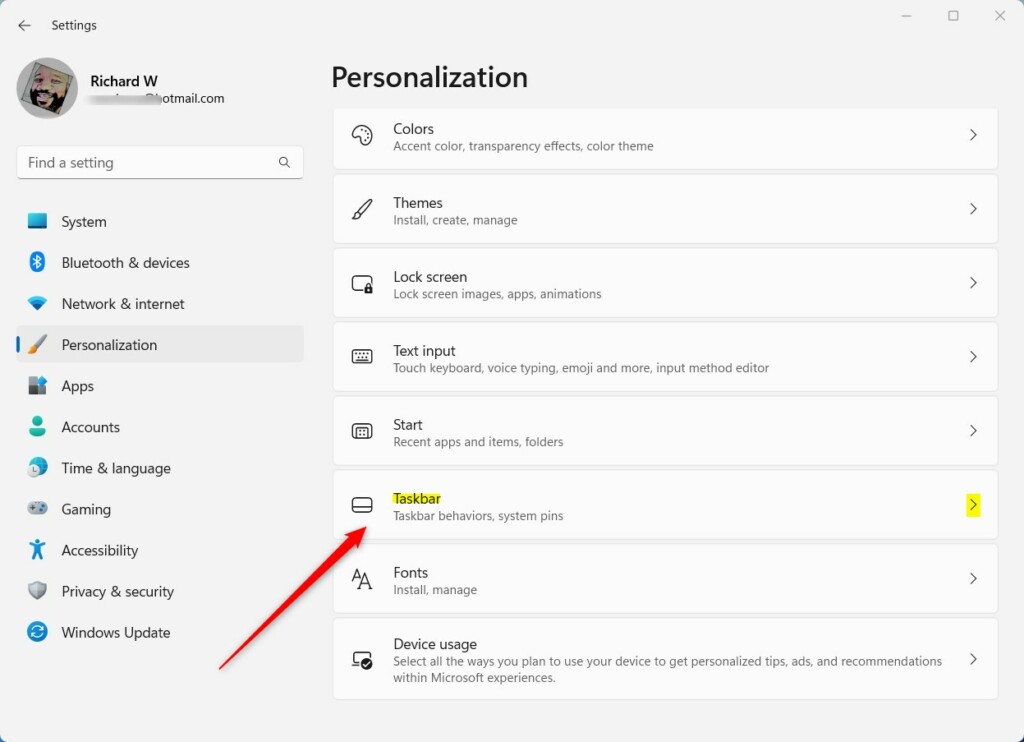
Click Taskbar in Personalization

Check or uncheck this box to turn the feature on or off
Method 2: Use Registry Editor (Advanced)
⚠️ Admin privileges required
If you are comfortable with advanced changes, you can use the Registry Editor. Follow these steps exactly. Be careful when editing the registry.
- Open the Registry Editor. Press
Windows key + Rto open the Run box. - Type
regeditand press Enter. - Navigate to this folder path:
Computer\HKEY_CURRENT_USER\Software\Microsoft\Windows\CurrentVersion\Explorer\Advanced - On the right side, look for a value named
TaskbarSd. - If you see it, double-click it to open. If not, right-click a blank space, choose New > DWORD (32-bit) Value, and name it
TaskbarSd. - Set the value data to:
1to turn the feature ON0to turn the feature OFF
- Click OK and close the Registry Editor.
- Restart your computer to apply the changes.
Here is an example screenshot of the Registry Editor setting:

Set TaskbarSd value to 1 or 0
Summary
This feature lets you quickly see your desktop by clicking the far right corner of the Windows 11 taskbar.
What happens when done: Your open windows hide and you can see your desktop. Click the corner again to bring your windows back.
How to turn it on or off: Use Settings > Personalization > Taskbar > Taskbar behaviors. Or use the Registry Editor and change the TaskbarSd value to 1 (on) or 0 (off).
Turning this feature off can prevent accidental clicks. Turning it on gives you fast desktop access. Try it out and choose the setting that works best for you!



Leave a Reply Cancel reply