

This tutorial shows you how to create a QR code to easily share your Windows 11 mobile hotspot with other devices. It’s quick and simple.
Why Use a Mobile Hotspot?
Your Windows PC can act like a mobile hotspot. This means it shares your internet connection with other devices using Wi-Fi. You can share a Wi-Fi connection, an Ethernet connection, or even cellular data. If your PC has a cellular data plan and you share it, the data will come from your plan.
What Happens with Windows 11 Version 24H2?
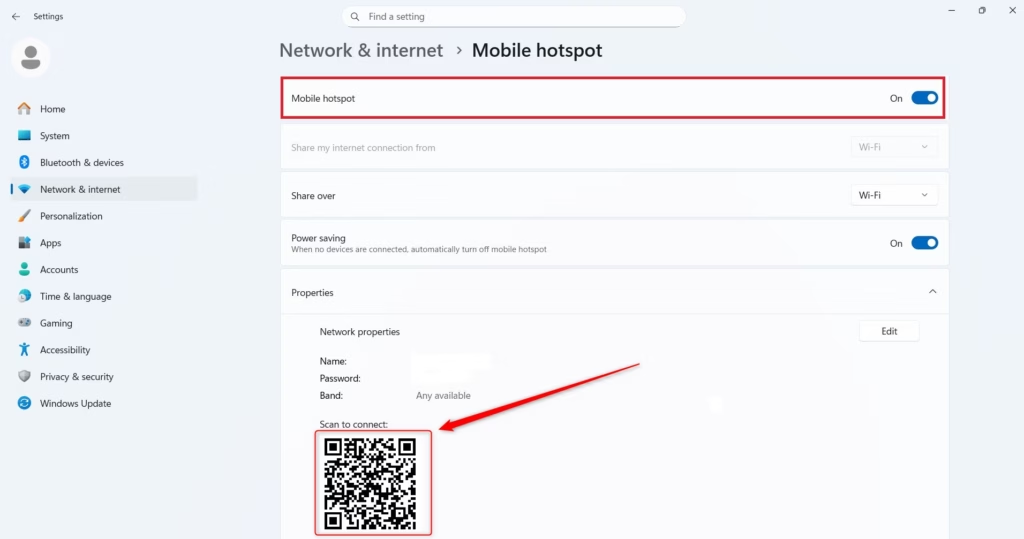
Starting with Windows 11 version 24H2, a QR code appears in Settings. You can use this QR code to share your network connection quickly. Other devices can scan it and connect right away.
How to Share Your Mobile Hotspot with a QR Code
- Open Settings by pressing
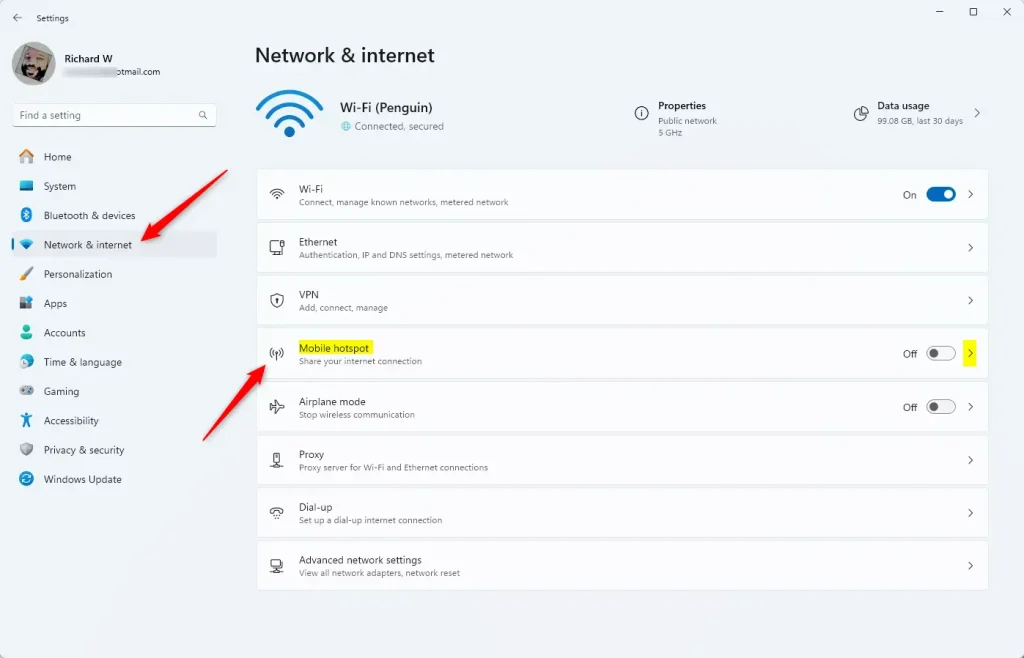
Win+Ion your keyboard. - On the left side, click Network & internet. On the right side, click Mobile hotspot. Open Mobile hotspot settings
- Take another device with a camera. Open the Camera app on that device.
- Point the camera at the QR code shown in Settings. Scan the QR code.
- Follow any steps that appear on the other device to connect to your mobile hotspot.
Use Any QR Code Scanner
You don’t have to use the camera app. You can also use any QR code scanning app on your device. The process is the same.
Summary
Sharing your Windows 11 mobile hotspot with a QR code is easy. Open Settings, go to Network & internet, and select Mobile hotspot. A QR code will appear. Other devices can scan this code with their camera app or a QR code scanner. Once scanned, they can connect to your hotspot right away. This method is faster than typing out a long password. It works with Windows 11 version 24H2 and newer.

Leave a Reply Cancel reply