
Microsoft Defender is the free antivirus program that comes with Windows 11. It helps keep your computer safe from viruses and malware by regularly checking your files.
By default, Defender scans your PC when it’s not busy, so it doesn’t slow you down. But if you want, you can pick a specific time for these scans to happen. This way, the scan runs when it’s most convenient for you — like at night or during a break.
Steps to Schedule Microsoft Defender Scans
- Open Task Scheduler:
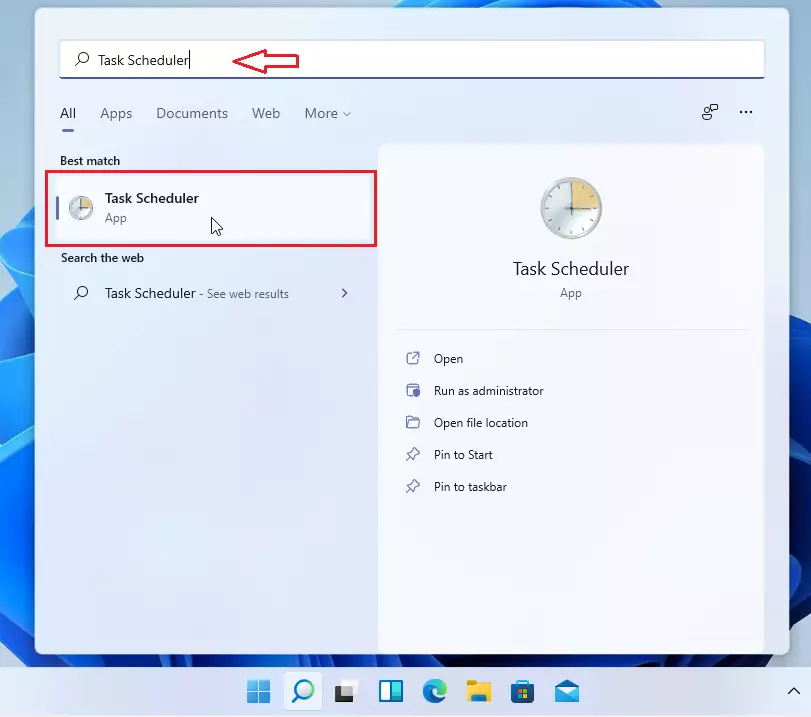
Click the Start button (the Windows icon at the bottom left of your screen).
Type Task Scheduler in the search box and press Enter.
Or, click the search box on the taskbar and type Task Scheduler, then click the app when it appears. - Find the Windows Defender Scan Task:
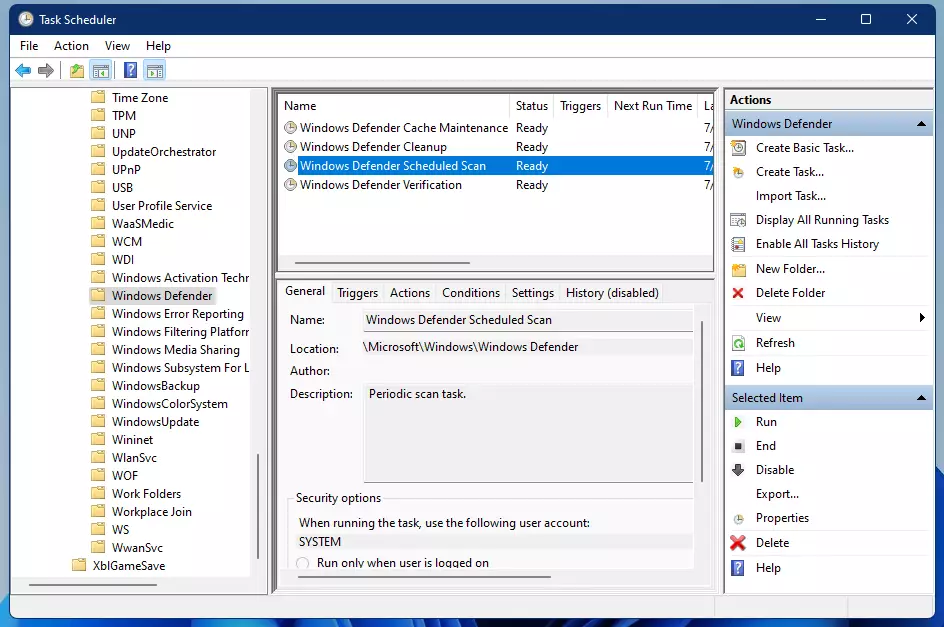
In the Task Scheduler window, look to the left side panel.
Click the arrow next to Task Scheduler Library to open it.
Then open Microsoft > Windows.
Scroll down and click the Windows Defender folder. - Open the Scheduled Scan Settings:
In the middle panel, find and double-click on Windows Defender Scheduled Scan. - Set When the Scan Runs:
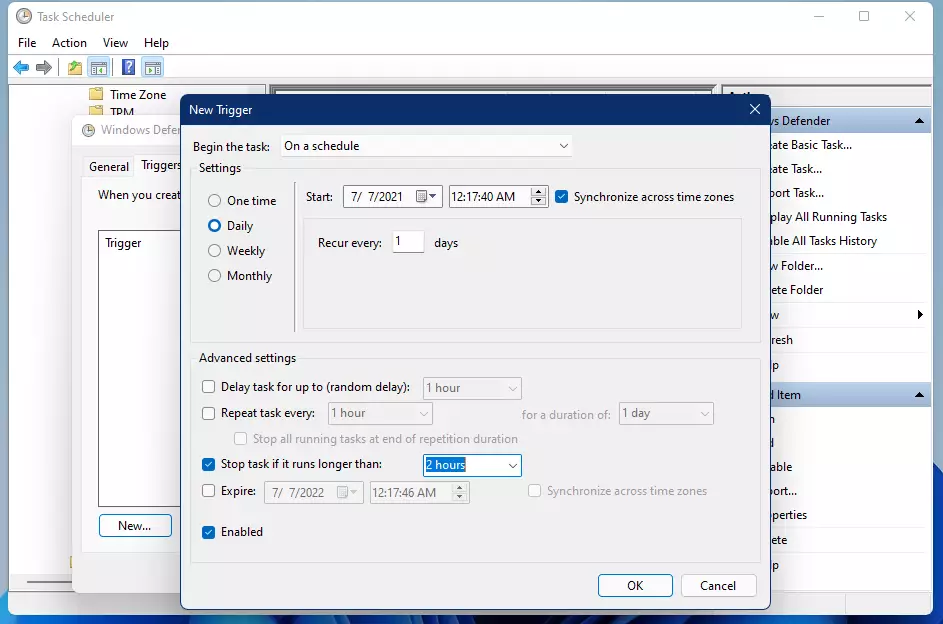
In the new window, click the Triggers tab at the top.
Click the New… button at the bottom.
Choose how often you want the scan to run (daily, weekly, etc.) and the time you want it to start.
Make sure your computer is turned on and awake at the scheduled time. If it is off, the scan won’t start.
- Finish and Save:
Click OK to save your new schedule.
Click OK on the previous window to close it.
That’s it! Your Microsoft Defender will now scan your computer at the times you set, helping to keep your PC safe without interrupting your work.
Helpful Images
Opening Task Scheduler:
Finding Windows Defender folder:
Setting a new scan schedule (Triggers tab):
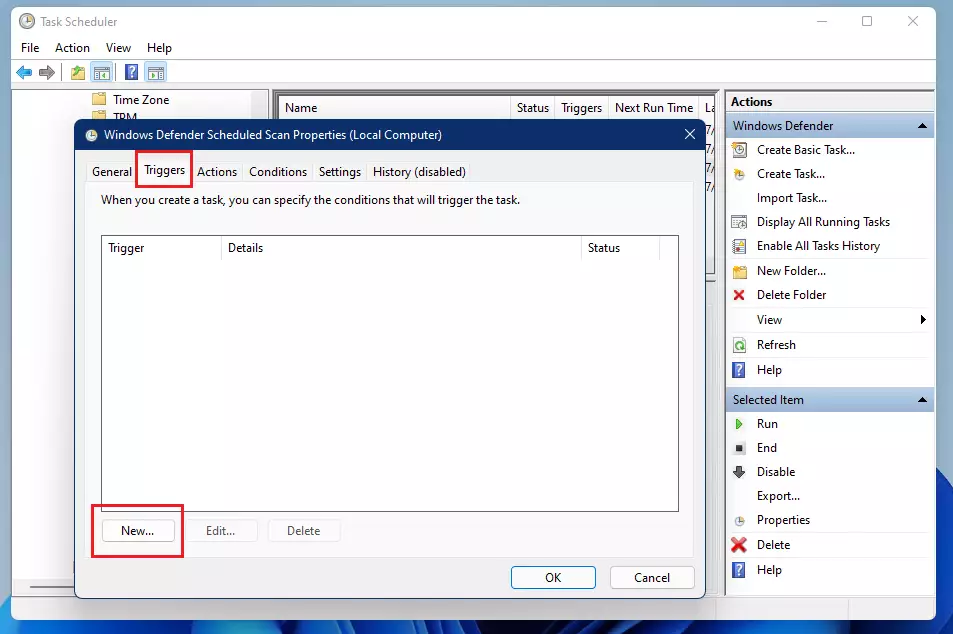
Choosing scan frequency and start time:
Why Schedule Defender Scans?
- It helps keep your computer safe by regularly checking for viruses and malware.
- You can pick a time when the scan won’t disturb your work or gaming.
- It’s easy to set up using Windows’ built-in Task Scheduler — no extra software needed.
- Regular scans help keep your PC running smoothly and securely.
- By scheduling scans, you take control of your computer’s security in a simple way.
If you want to learn more about Microsoft Defender or Windows Security, you can visit the official Microsoft support page here: Windows Security – Microsoft Support.



Leave a Reply Cancel reply