
Sometimes when you plug in a new device (like a printer or USB drive), your computer doesn’t notice it right away. This guide will show you simple ways to tell Windows to look for new hardware so it can work properly.
Why Scan for Hardware Changes?
- If Windows doesn’t automatically detect your new device, scanning helps your computer find it.
- It allows Windows to install the right drivers (software that helps your device work).
- It can also find some older devices that don’t tell Windows when they’re connected.
Important: You need to be signed into your computer as an administrator to do this.
Method 1: Use Device Manager to Scan for Hardware Changes
Step 1: Open Device Manager:
- Press Windows key + R on your keyboard.
- Type
devmgmt.mscand press Enter.
Step 2: In Device Manager, do one of the following:
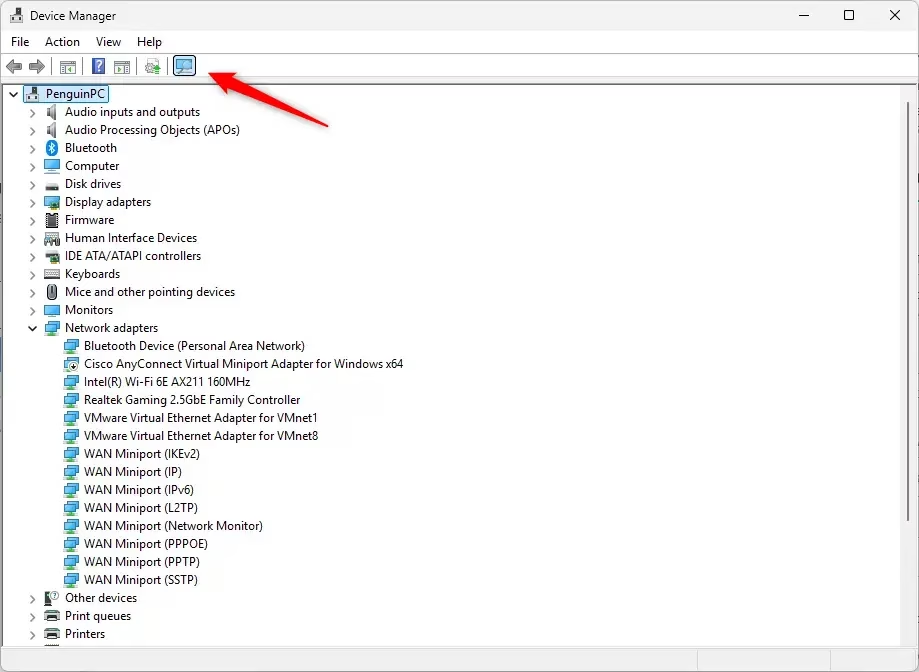
- Click the Scan for hardware changes button in the toolbar (it looks like a computer with a magnifying glass).
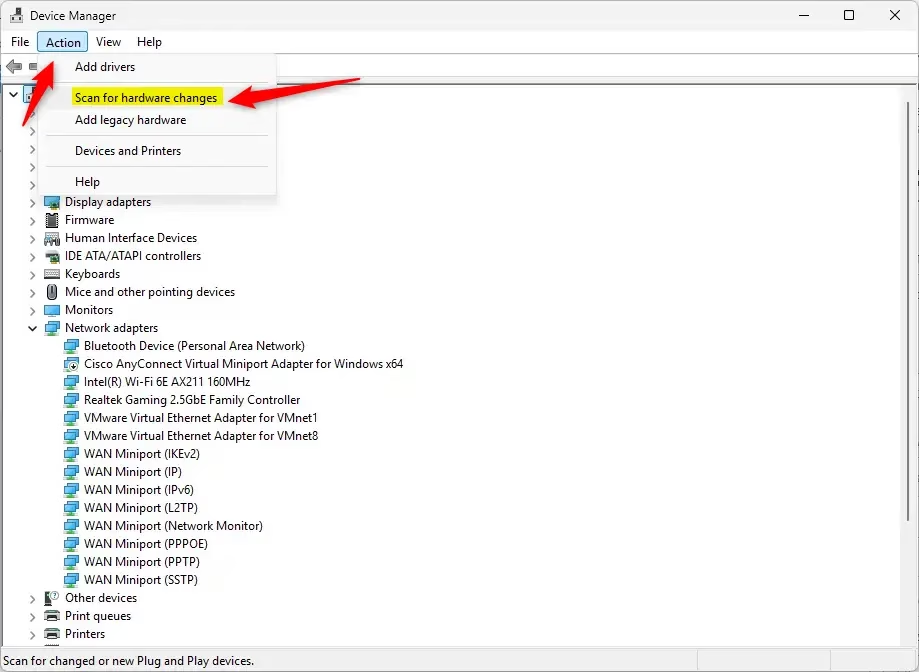
- Or, click on the top device name (like your PC name), then click Action in the menu bar, and select Scan for hardware changes.
Here’s what it looks like:
Method 2: Use a Command in Windows Terminal
If you like using commands, you can do this:
Step 1: Open Windows Terminal as an administrator:
- Right-click the Start button and select Windows Terminal (Admin).
- If prompted by User Account Control, click Yes.
Step 2: In the terminal window, type or copy-paste this command and press Enter:
pnputil /scan-devicesThis command tells Windows to scan for new devices and install drivers if needed.
Step 3: When it finishes, you can close Windows Terminal.
Learn more about this command on the official Microsoft page: PnPUtil Command Syntax – Microsoft Docs
Summary
To make sure your Windows 10 or 11 PC recognizes new hardware:
- Use Device Manager’s Scan for hardware changes button or menu.
- Or run the
pnputil /scan-devicescommand in Windows Terminal (Admin). - You must be signed in as an administrator to do these.
- These steps help Windows find and set up new devices without you needing to restart.
By following these easy steps, you can fix hardware detection problems quickly and keep your devices working smoothly.

Leave a Reply Cancel reply