
If you want to stop others from changing important settings on your Windows 11 computer, this guide will show you easy ways to do that. You can block access to the Settings app and the old Control Panel.
Windows 11 has two main places where you can change how your computer works:
- Settings app – This is the new, easy-to-use panel for most settings.
- Control Panel – This is the older tool for advanced settings.
Sometimes, you might want to prevent others from changing these settings, especially if you share your computer or want to keep it safe from mistakes.
Method 1: Use Registry Editor to Block Settings and Control Panel
Warning: Be careful when using the Registry Editor. Changing the wrong thing can cause problems. It’s a good idea to back up your registry before you start.
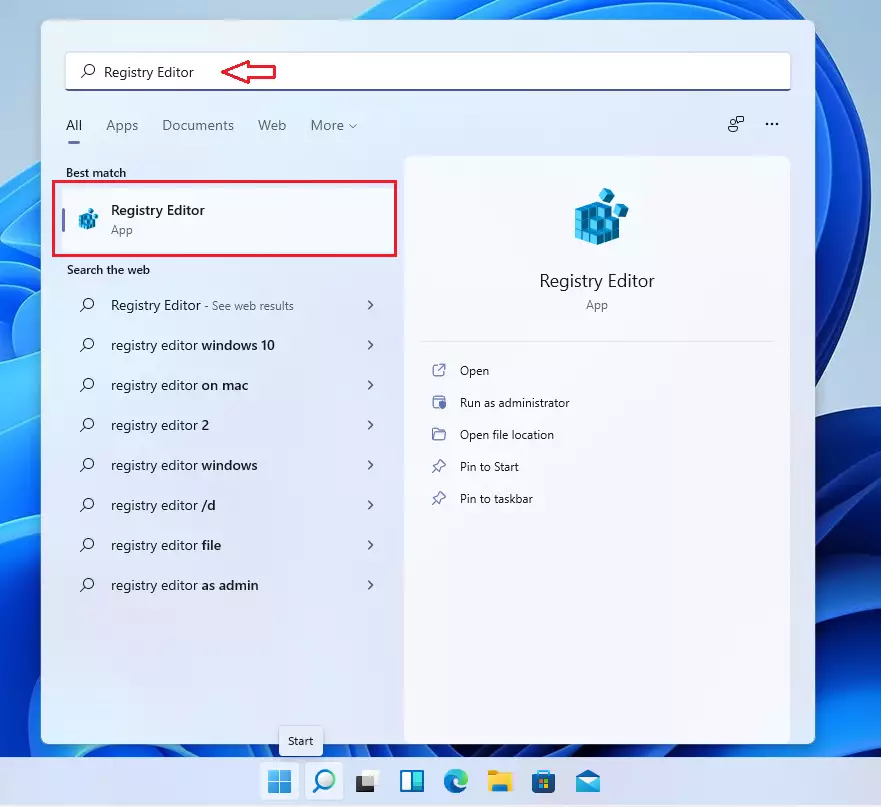
- Click the Start button and type Registry Editor.
- Click the Registry Editor app to open it.
- In Registry Editor, look at the top bar and copy-paste one of these paths, then press Enter:
HKEY_CURRENT_USERSoftwareMicrosoftWindowsCurrentVersionPolicies
or
HKEY_LOCAL_MACHINESOFTWAREMicrosoftWindowsCurrentVersionPolicies
- In the left panel, right-click on Policies, choose New > Key, and name it Explorer.
- Right-click on the new Explorer key, choose New > DWORD (32-bit) Value.
- Name this new value NoControlPanel.
- Double-click NoControlPanel, set the value data to 1, and click OK.
- Repeat the steps for both registry paths above to make sure it applies to all users.
- Close Registry Editor and restart your computer.
Here’s what it looks like in Registry Editor:
Method 2: Use Group Policy Editor to Block Settings (For Windows 11 Pro or Enterprise)
If your version of Windows 11 includes the Group Policy Editor, you can use it to block access without editing the registry.
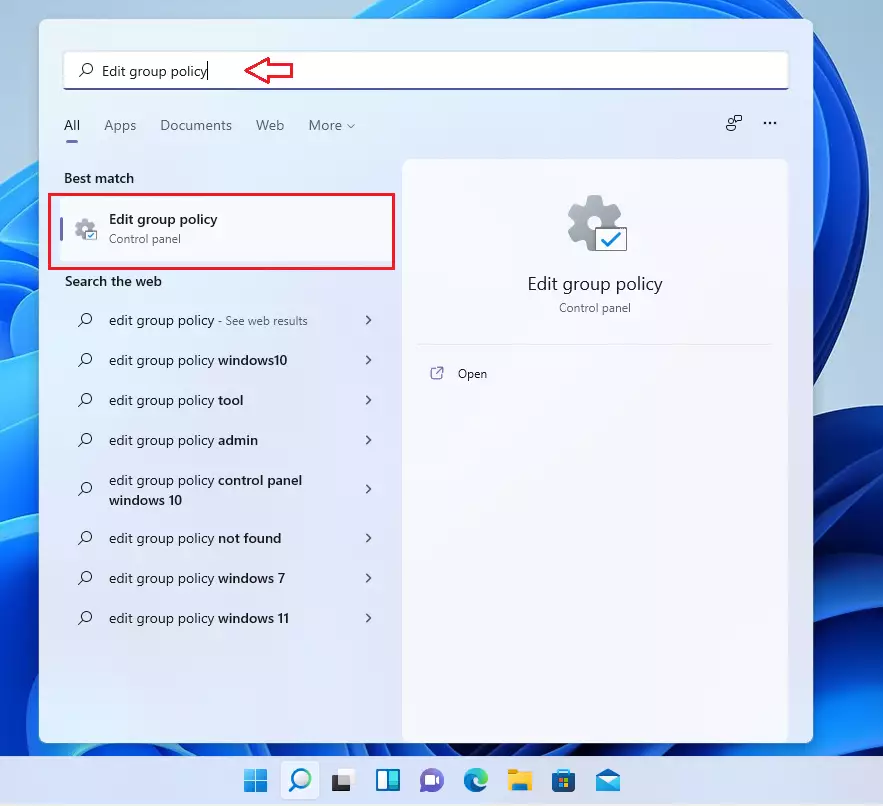
- Click Start, type Edit group policy, and open the app.
- In the left menu, go to:
User Configuration > Administrative Templates > Control Panel
- In the right pane, double-click Prohibit access to Control Panel and PC settings.
- Select Enabled, then click OK.
- Close the Group Policy Editor and restart your PC.
What Happens After?
Once you’ve done these steps, users will no longer be able to open the Settings app or Control Panel. If they try, they will see a message saying it’s blocked.
Summary
- Restricting access helps protect your computer from unwanted changes.
- The Registry Editor method works on all editions of Windows 11 but is a bit technical.
- The Group Policy Editor is simpler but only available on Windows 11 Pro, Enterprise, or Education editions.
- Always be careful when changing system settings and back up important data.
By following these simple steps, you can keep your Windows 11 PC safer and prevent accidental or unwanted changes to important settings.


Leave a Reply Cancel reply