
This tutorial will show you how to reset Windows 11. You can choose to remove everything or keep your files.
Why Reset Windows 11?
You should reset Windows 11 when your PC isn’t working well. This is especially helpful if it’s been a while since you installed an app, driver, or update.
What Happens When You Reset?
Resetting reinstalls Windows 11 completely. You get to choose whether to keep your files or remove them. Then Windows installs fresh on your PC.
Reset Options Explained
Keep my files with preinstalled apps ON:
- Reinstalls Windows 11
- Keeps all your accounts and personal files in C:\Users
- Removes apps and drivers you installed
- Removes changes you made to settings
- Restores apps your PC manufacturer installed
Keep my files with preinstalled apps OFF:
- Reinstalls Windows 11
- Keeps all your accounts and personal files in C:\Users
- Removes apps and drivers you installed
- Removes changes you made to settings
- Removes apps your PC manufacturer installed
Remove everything:
- Reinstalls Windows 11
- Removes all your accounts and personal files
- Removes apps and drivers you installed
- Removes changes you made to settings
- Removes any apps your PC manufacturer installed (If your PC came with Windows 10, those apps will be reinstalled)
Data Erasure Options:
Data erasure ON removes files and cleans the drive. Use this if you’re donating, recycling, or selling your PC. It takes an hour or two but makes it much harder for others to recover your files.
Data erasure OFF just removes files. It takes less time but is less secure.
Important Notes Before You Start
The Reset this PC feature is not available in Safe Mode.
If you set up a Microsoft account during Windows Setup, it will link to OneDrive to backup and sync your files by default. You can set up a local account instead to avoid this. Or you can stop the backup and sync when installation finishes.
A folder called $SysReset is created when you reset. It contains a log folder that may help troubleshoot reset problems. You can safely delete the $SysReset folder when you’re done.
Option One: Reset From Advanced Startup at Boot
Reinstall Windows | Microsoft Support
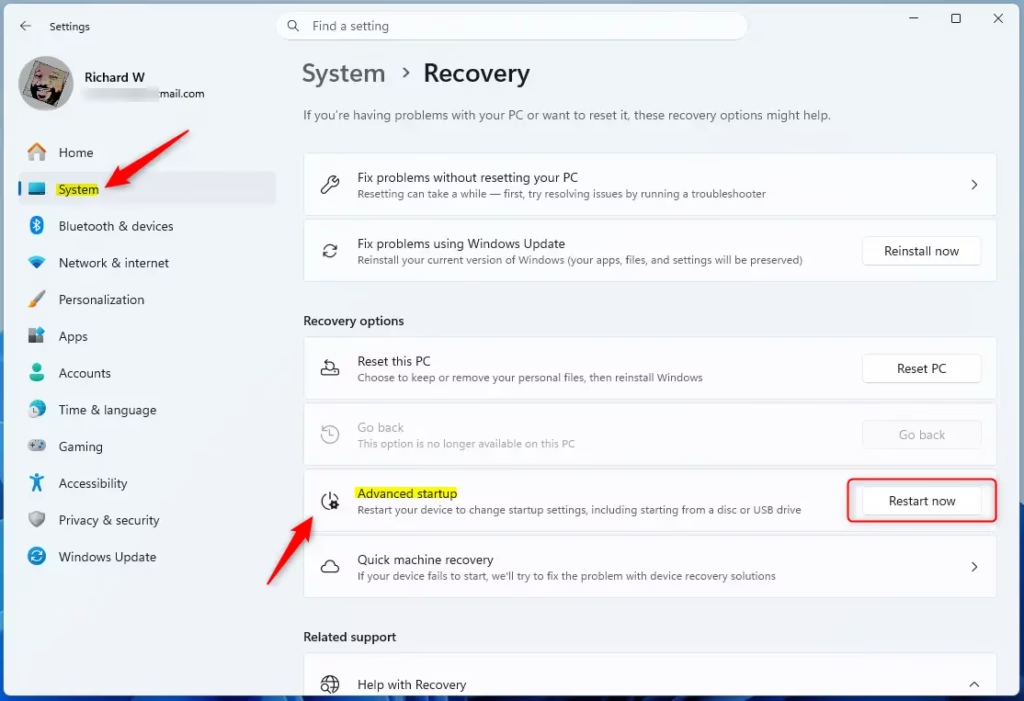
Step 1: Boot to Advanced Startup
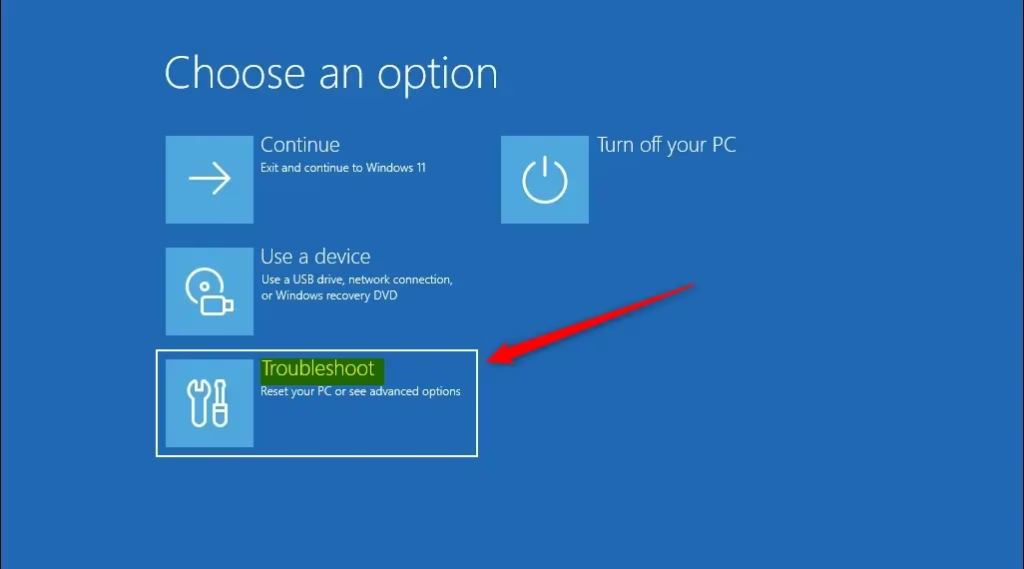
Step 2: Click Troubleshoot
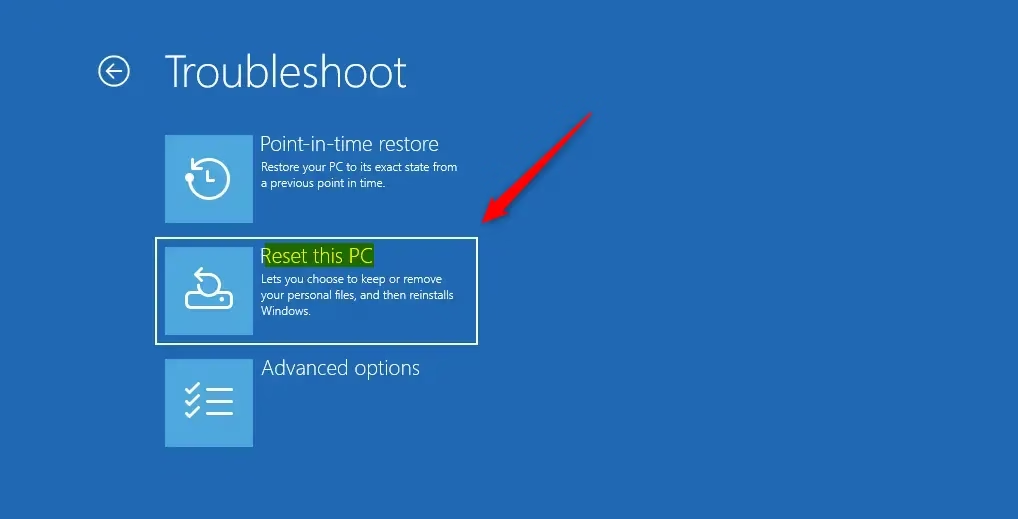
Step 3: Click Reset this PC
Step 4: Go to the section below that matches what you want to do: “Keep my files” (Step 5) or “Remove everything” (Step 6).
Reset Windows 11 and Keep My Files
Step 5A: Click Keep my files
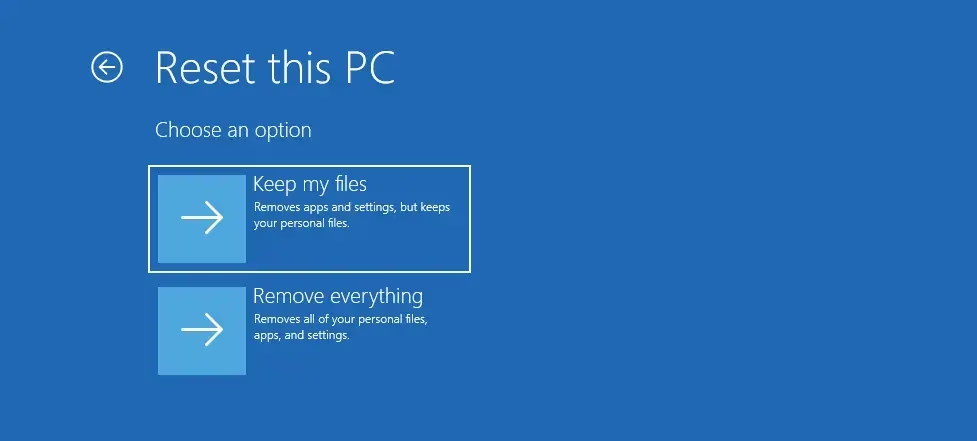
Step 5B: Choose your reinstall method
Click Cloud download or Local reinstall (recommended). This tells Windows how to reinstall.
You can use the Cloud download option if you have internet. Windows downloads from the cloud instead of using existing files. This can be more reliable and sometimes faster. Before, you had to create a USB stick to do this. Now it’s built-in, so no extra steps needed.
Local reinstall uses the recovery image by default to reset your PC.
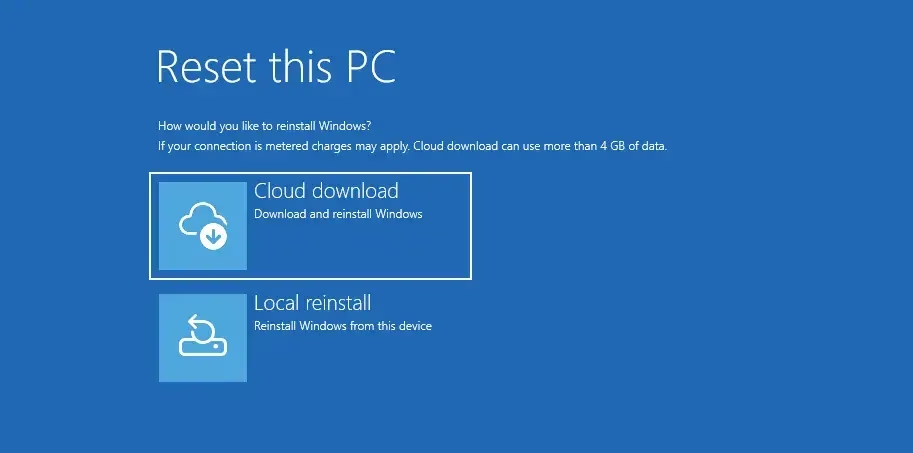
Step 5C: Click Reset when ready
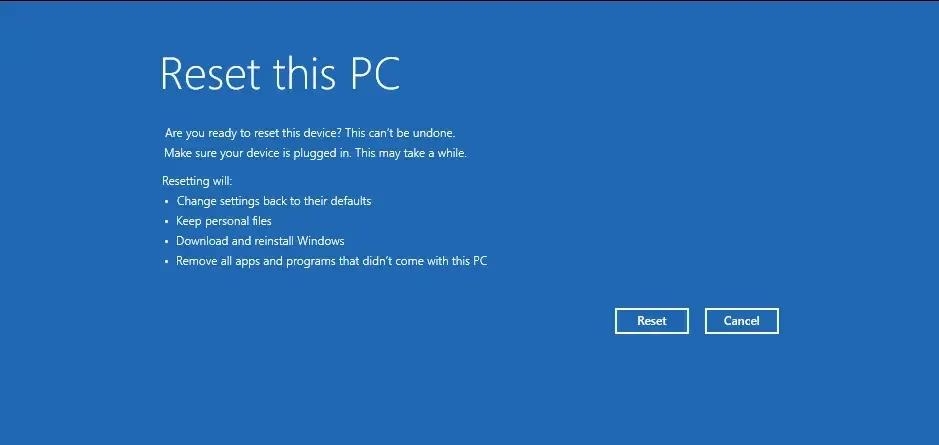
Step 5D: Wait for reset to finish
Resetting Windows 11 will start now. This takes a while. Your PC will restart several times during the process.
Step 5E: Sign in when done
When resetting finishes, dismiss the lock screen and sign in to Windows 11.
A file called Removed Apps.html will be saved on your desktop. It shows all apps that were removed by the reset.
Reset Windows 11 and Remove Everything
Step 6A: Click Remove everything
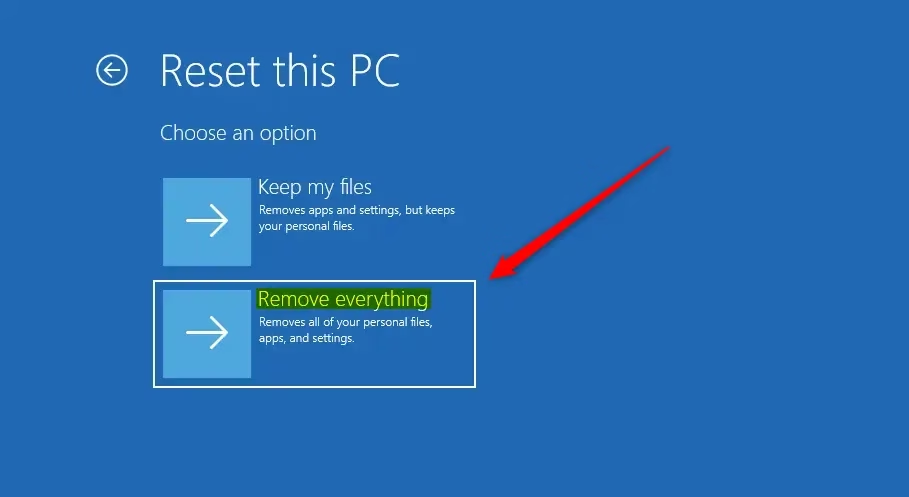
Step 6B: Choose your reinstall method
Click Cloud download or Local reinstall (recommended). This tells Windows how to reinstall.
You can use the Cloud download option to get Windows from the cloud. This can be more reliable and sometimes faster. Before, you had to create a USB stick. Now it’s built-in with no extra steps.
Local reinstall uses the recovery image by default to reset your PC.
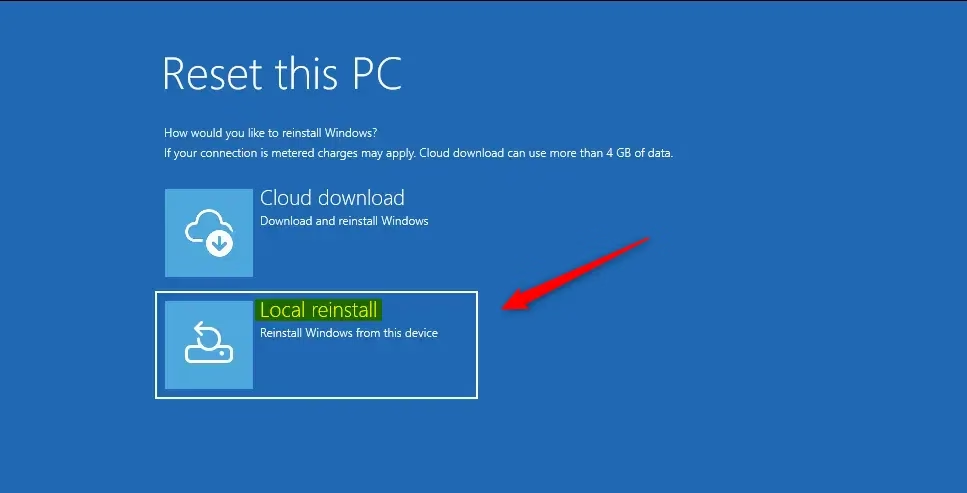
Step 6C: Choose which drives to erase
If your PC has more than one drive, click Only the drive where Windows is installed or All drives.
Choose All drives to erase all partitions on the Windows system disk.
Choose Only the drive where Windows is installed to erase only the partition where Windows 11 is installed.
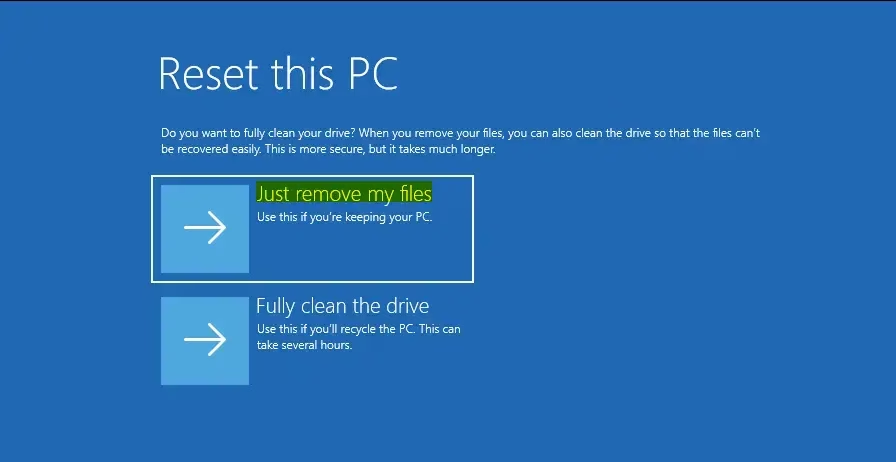
Step 6D: Choose how to clean your drive
Click Just remove my files or Fully clean the drive.
Just remove my files does a quick format. It doesn’t take long. Your files might be recoverable by someone else since they’re only marked as deleted. Use this if you’re keeping your PC.
Fully clean the drive does a secure erase. It overwrites your files so they can’t be easily recovered. This takes several hours. Use this if you’re recycling or selling your PC.
Step 6E: Click Reset when ready
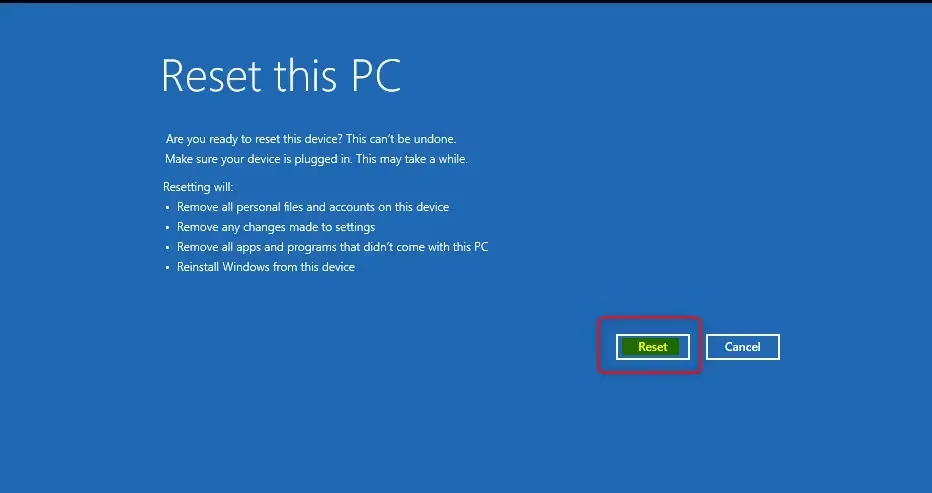
Step 6F: Wait for reset to finish
Resetting Windows 11 will start now. This takes a while. Your PC will restart several times during the process.
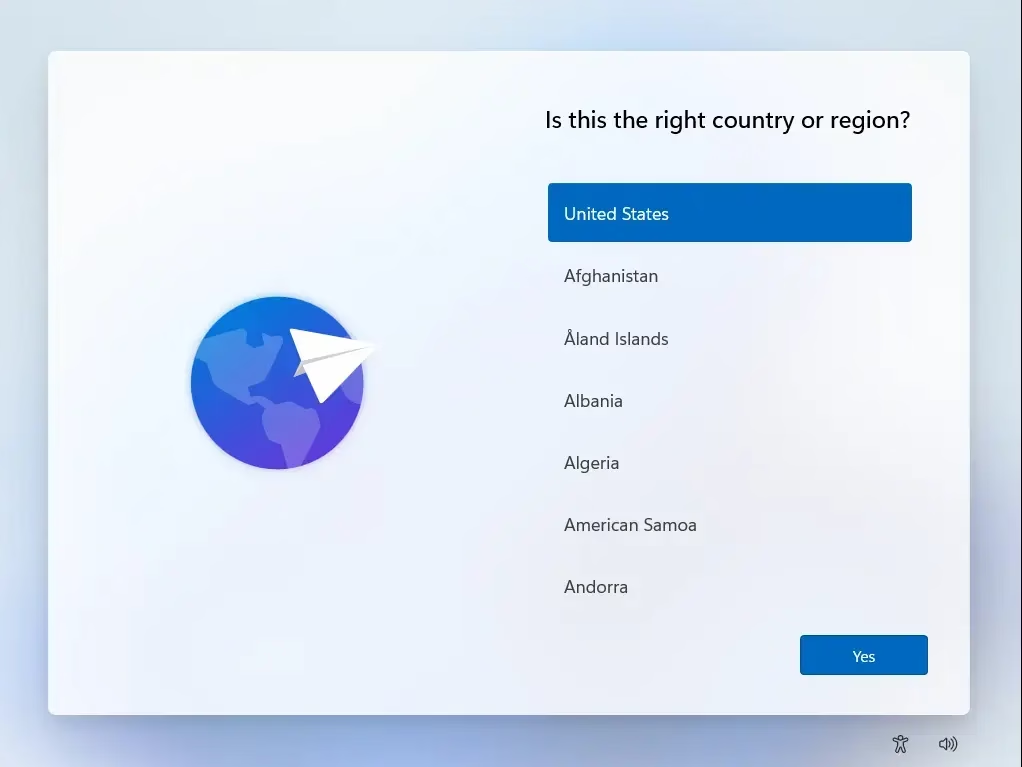
Step 6G: Select your country or region
When resetting finishes, select your country or region (example: “United States”) and click Yes.
Optional: If you want another user to finish setup with their own account, follow these steps:
1. Press Shift + F10 to open a command prompt.
2. Type this command in the prompt:
C:\Windows\System32\shutdown -s -t 0 -f
3. Press Enter to shut down Windows.
Step 6H: Select keyboard layout
Select the keyboard layout you want (example: “US”) and click Yes.
Step 6I: Add another keyboard layout (optional)
Click Add layout if you want a second keyboard layout. Otherwise, click Skip.
Step 6J: Accept the license agreement
Click Accept.
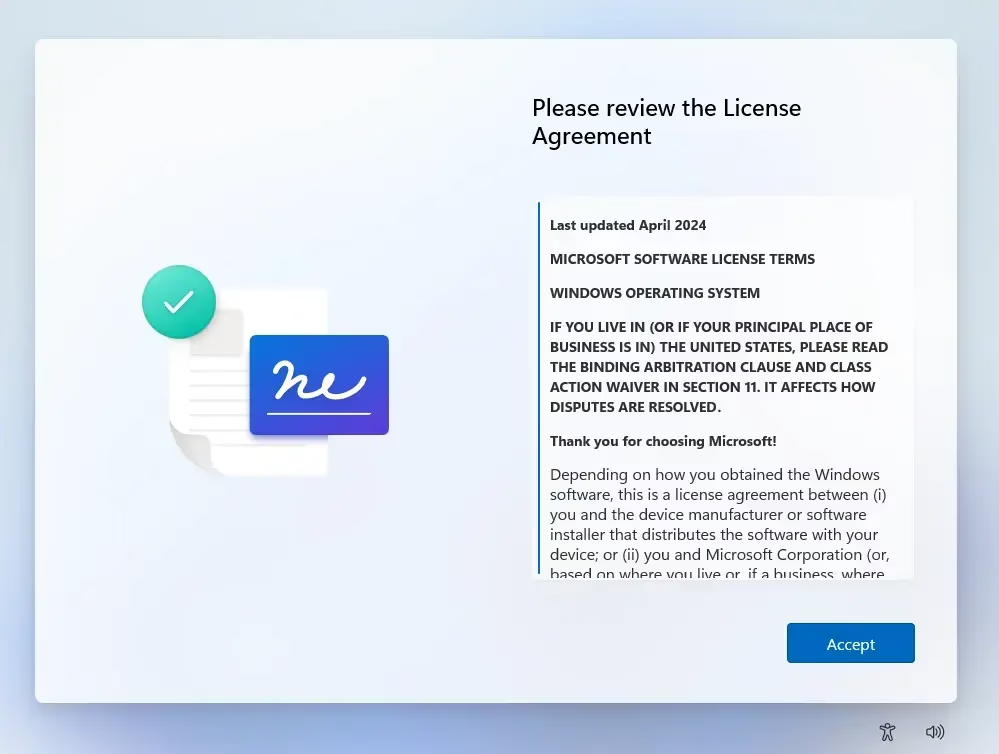
Step 6K: Finish setting up Windows 11
You can now finish setting up Windows 11.
Option Two: Reset From Settings in Windows 11
Step 1: Open Settings
Press Win + I to open Settings.
Step 2: Go to Recovery settings
Click System on the left. Then click Recovery on the right.
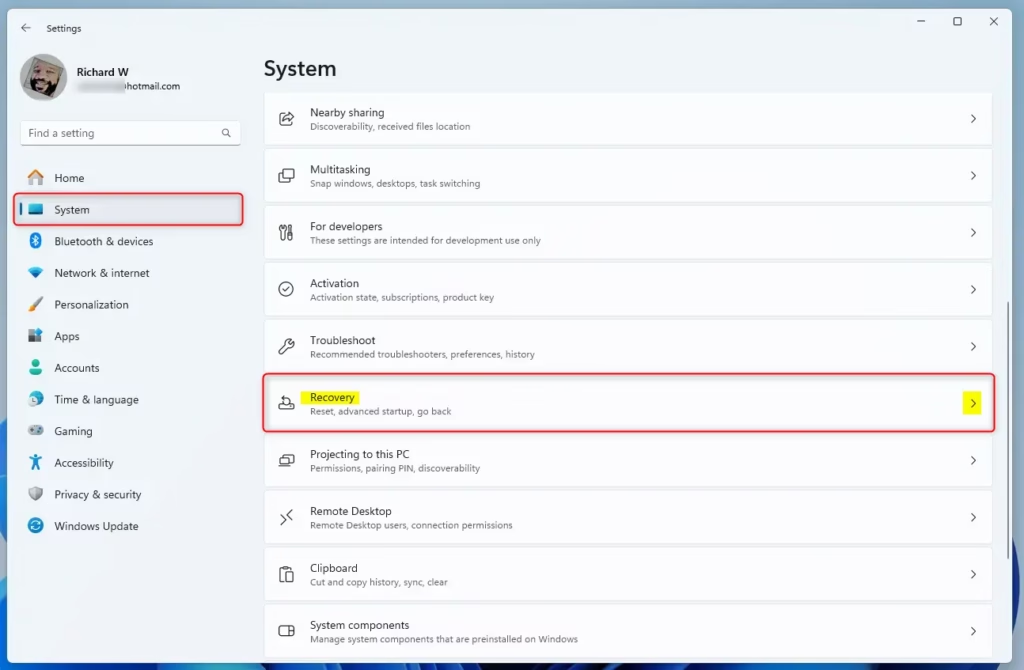
Step 3: Click Reset PC
Click the Reset PC button under Recovery options.
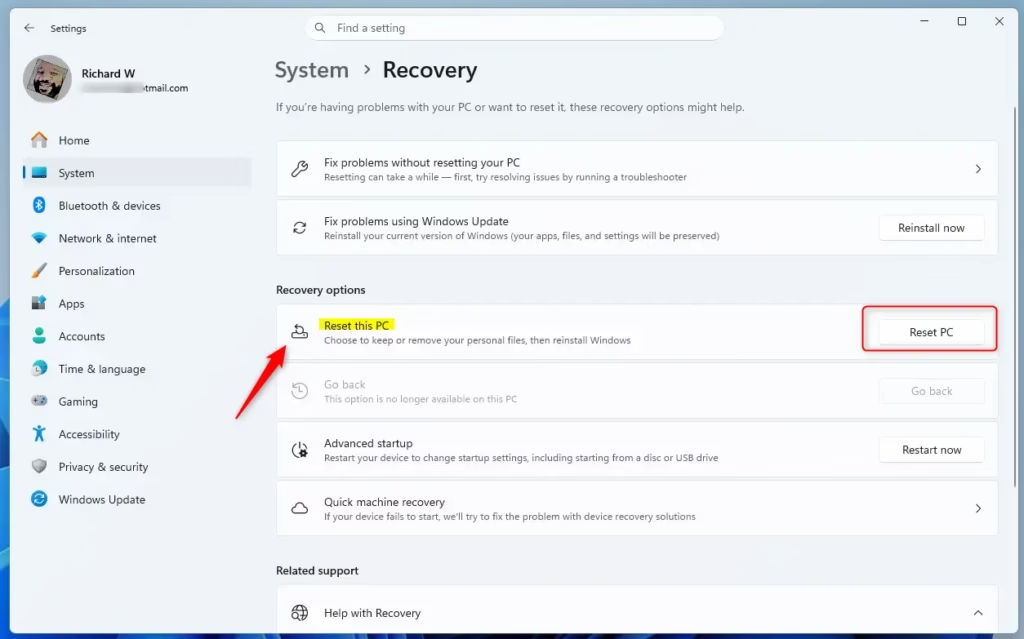
Step 4: Go to the section below that matches what you want to do: “Keep my files” (Step 5) or “Remove everything” (Step 6).
Reset Windows 11 and Keep My Files
Step 5A: Click Keep my files
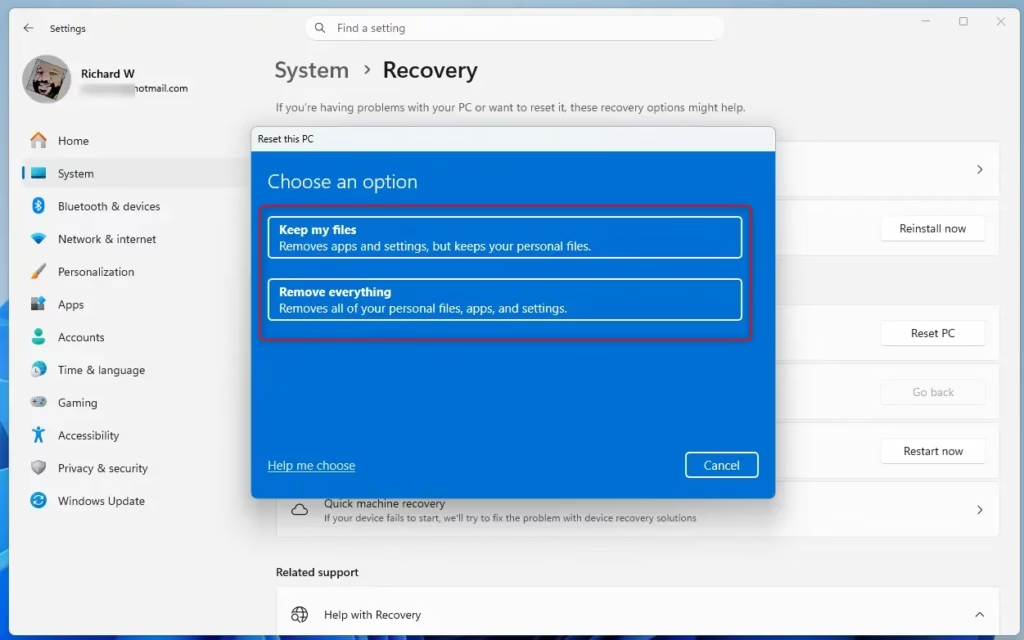
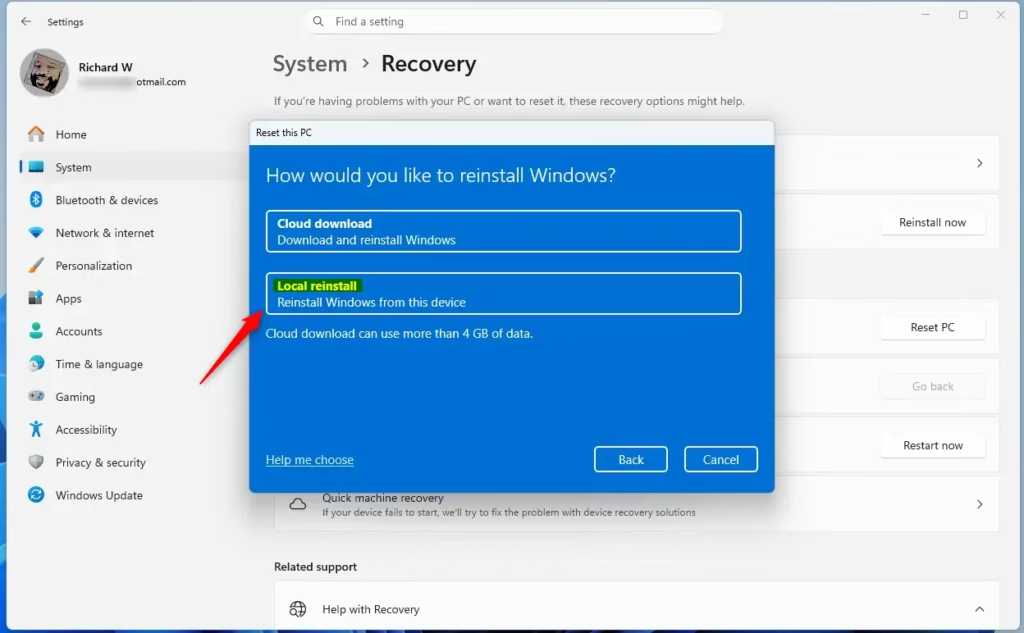
Step 5B: Choose your reinstall method
Click Cloud download or Local reinstall (recommended).
You can use the Cloud download option if you have internet. Windows downloads from the cloud instead of using existing files. This can be more reliable and sometimes faster. Before, you had to create a USB stick. Now it’s built-in with no extra steps.
Local reinstall uses the recovery image by default to reset your PC.
Step 5C: Click Next
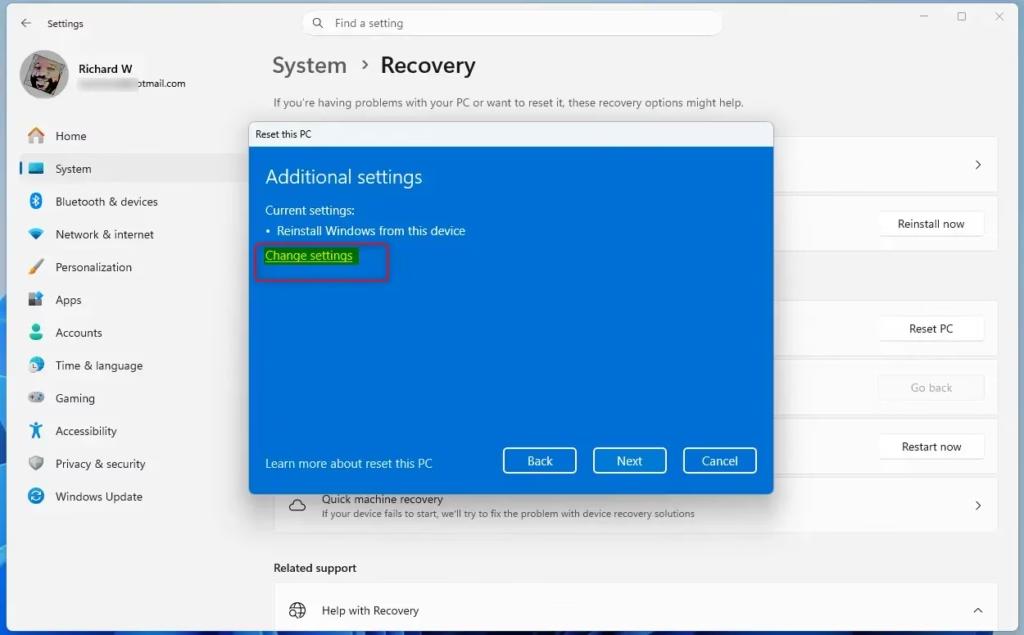
You can click Change settings if the “Current settings” aren’t correct.
Step 5D: Handle recent update prompt (if shown)
If you see a prompt about a recent update, click Next.
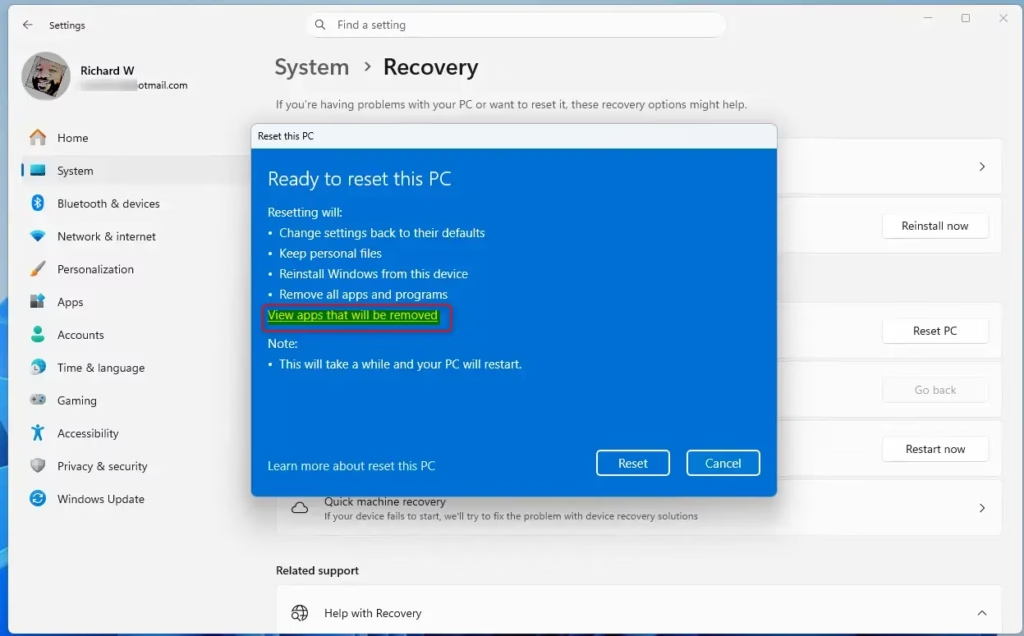
Step 5E: Review and confirm removal
You can click View apps that will be removed if you want to see the list. When ready, click Reset.
Step 5F: Wait for reset to finish
Resetting Windows 11 will start now. This takes a while. Your PC will restart several times during the process.
Step 5G: Sign in when done
When resetting finishes, dismiss the lock screen and sign in to Windows 11.
A file called Removed Apps.html will be saved on your desktop. It shows all apps that were removed by the reset.
Reset Windows 11 and Remove Everything
Step 6A: Click Remove everything
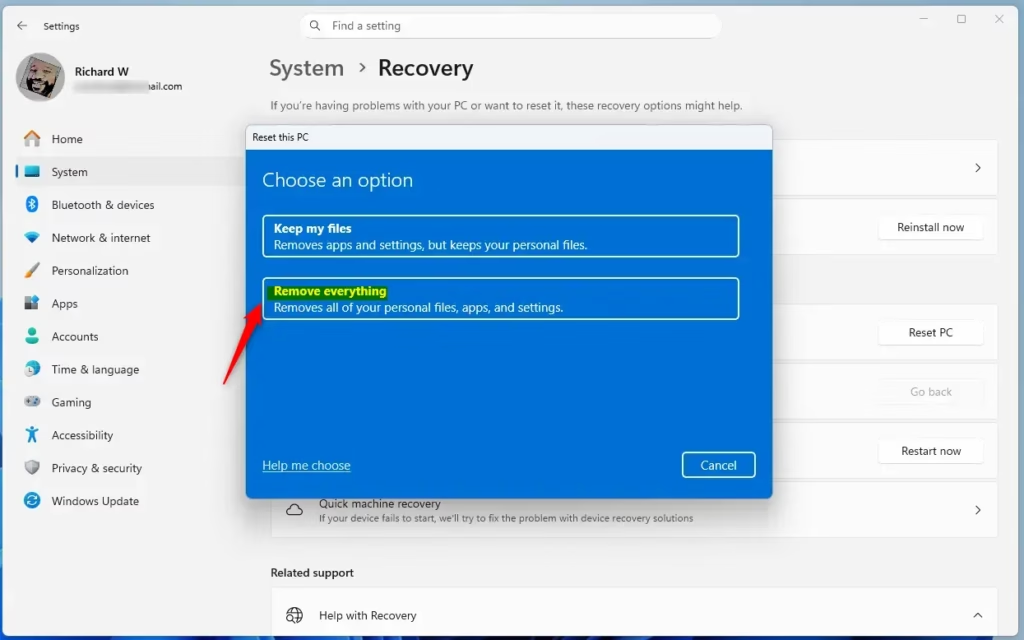
Step 6B: Choose your reinstall method
Click Cloud download or Local reinstall (recommended).
You can use the Cloud download option to get Windows from the cloud. This can be more reliable and sometimes faster. Before, you had to create a USB stick. Now it’s built-in with no extra steps.
Local reinstall uses the recovery image by default to reset your PC.
Step 6C: Change settings (optional)
Click Change settings to turn settings on or off. Then click Confirm and Next.
The Delete files from all drives setting only shows if you have more than one drive.
Yes, all drives (ON) erases all partitions on the disk where Windows is installed.
No, only Windows drive (OFF) erases only the partition where Windows is installed.
Clean data? – Just remove your files does a quick format. It doesn’t take long. Your files might be recoverable by someone else. Use this if you’re keeping your PC.
Clean data? – Clean the drive does a secure erase. It overwrites your files so they can’t be easily recovered. This takes several hours. Use this if you’re recycling or selling your PC.
Download Windows is the same as Cloud download (yes) or Local reinstall (no) from Step 6B. It’s another chance to change this setting before starting the reset.
Step 6D: Handle recent update prompt (if shown)
If you see a prompt about a recent update, click Next.
Step 6E: Click Reset when ready
Step 6F: Wait for reset to finish
Resetting Windows 11 will start now. This takes a while. Your PC will restart several times during the process.
Step 6G: Select your country or region
When resetting finishes, select your country or region (example: “United States”) and click Yes.
Optional: If you want another user to finish setup with their own account, follow these steps:
1. Press Shift + F10 to open a command prompt.
2. Type this command in the prompt:
C:\Windows\System
Summary
Resetting Windows 11 gives your PC a fresh start. You have two main ways to reset: from Advanced Startup at boot or from Settings in Windows 11. Choose whether to keep your files or erase everything. You can also pick a quick cleanup or a secure erase that makes files harder to recover. The reset takes time and your PC will restart several times. After it finishes, you’ll set up Windows 11 fresh with your choice of language, keyboard, and region. This is a great solution when your PC isn’t running smoothly or before you sell or donate your computer.
Leave a Reply Cancel reply