
Do you have a microphone plugged into your computer? You can give it a name that’s easy to remember. Windows 11 gives microphones default names, usually the brand or model number. But you can change it to anything you want!
Why rename your microphone? If you have more than one microphone connected (like a headset mic, a built-in camera mic, or an external microphone), renaming them helps you find the right one quickly.
Rename Your Microphone Using Windows Settings
Here’s how to rename your microphone in Windows 11:
- Open Settings
- Click the Start menu (the Windows icon in the bottom-left corner) and select Settings.
- Or press Windows key + I on your keyboard to open Settings quickly.
- Go to System > Sound
- In Settings, click System on the left side.
- Then click on Sound on the right.
- Open All Sound Devices
- Scroll down and click on the All sound devices link under the Advanced section.
- Choose Your Microphone
- Under Input devices, find the microphone you want to rename.
- Click it.
- Rename Your Microphone
- On the next page, click the Rename link next to your microphone’s current name.
- Type a new name and click Save.
- Close the Settings app when you’re done.
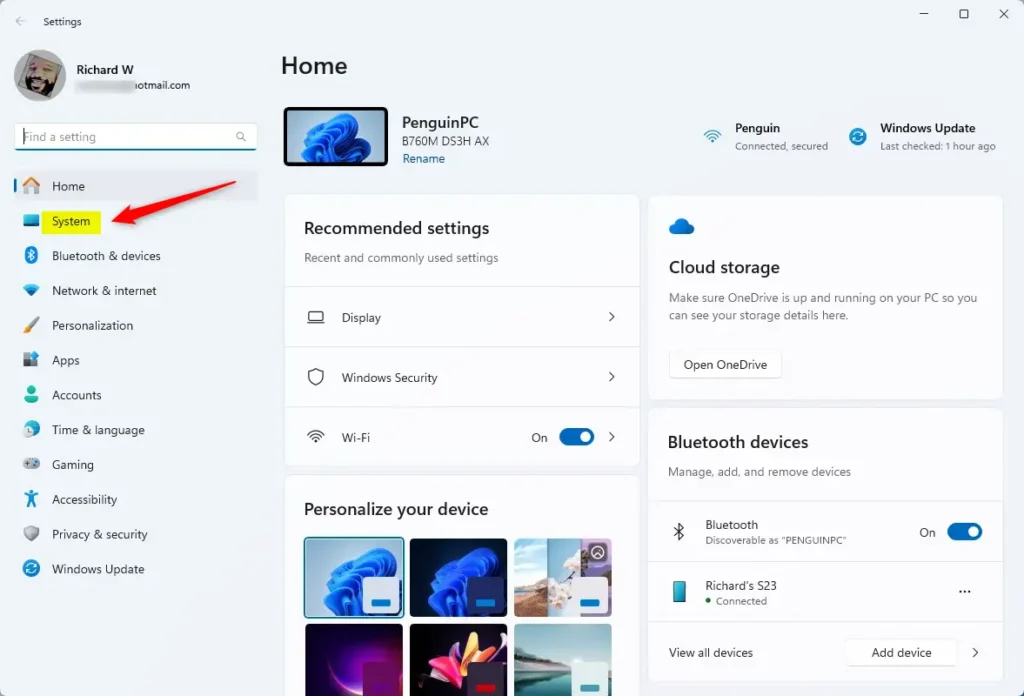
Click “System” in the Windows Settings app.

Click the “Sound” tile in Settings.
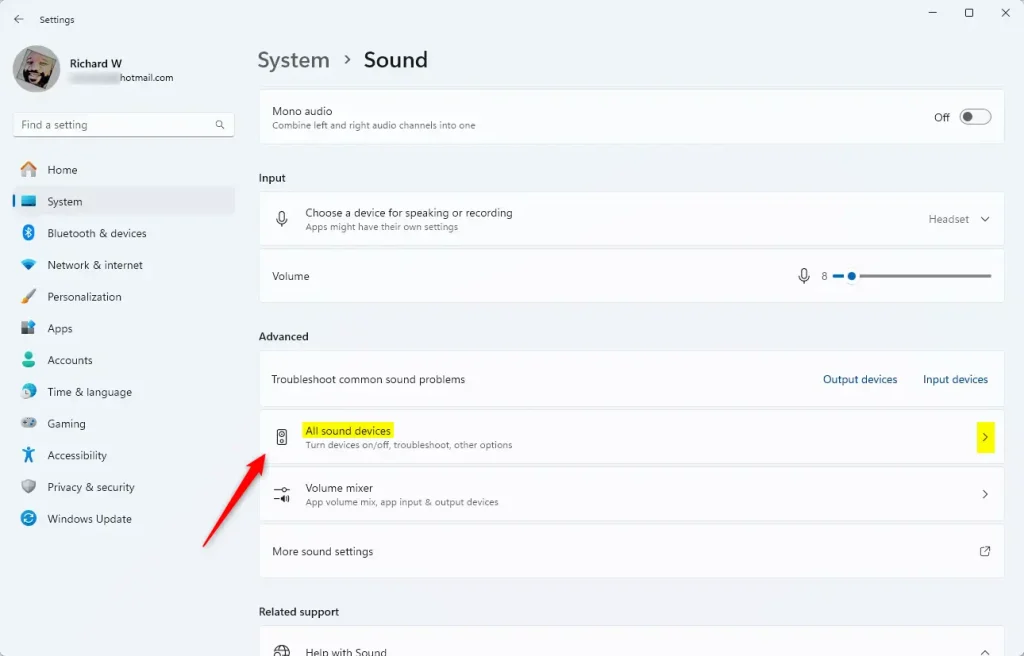
Find and click “All sound devices”.
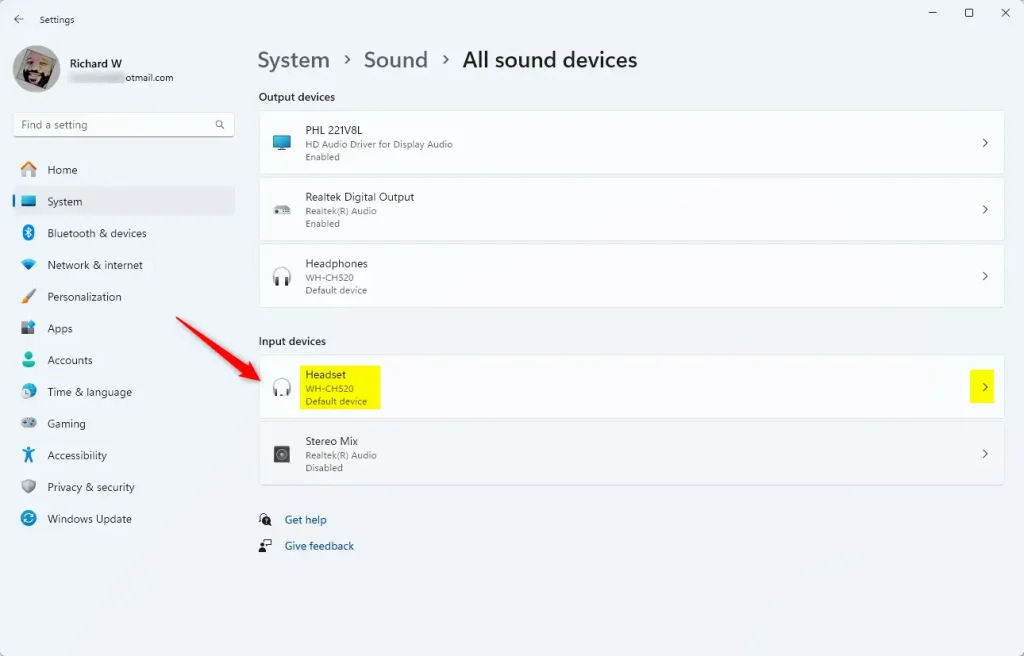
Select the microphone you want to rename.
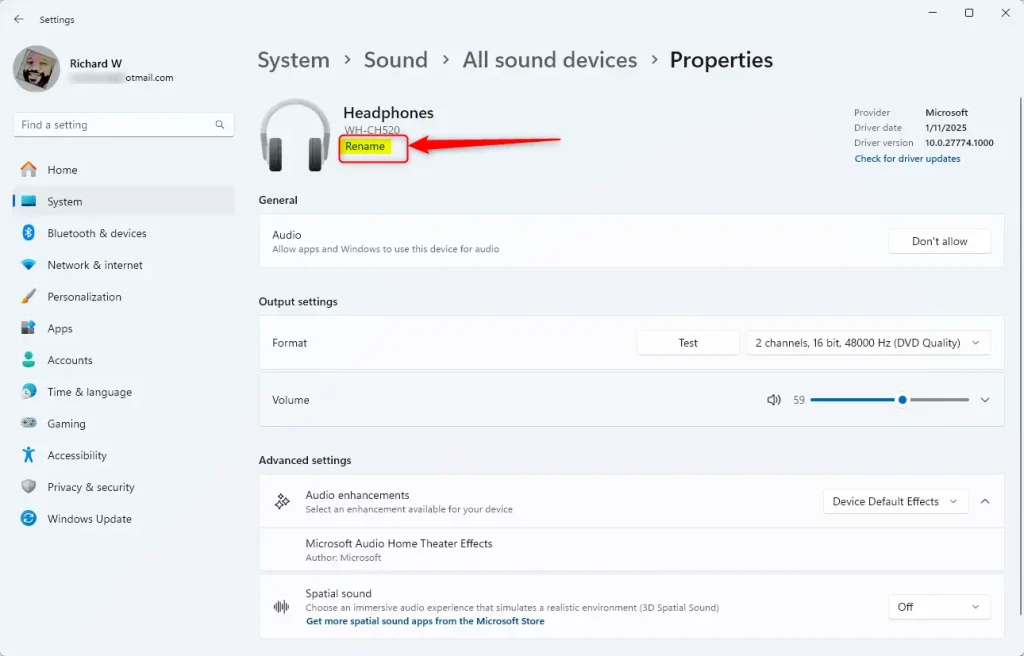
Click “Rename” and type your new name.
Rename Your Microphone Using Control Panel
You can also rename your microphone using the classic Control Panel:
- Open Control Panel
- Click the Start menu.
- Type Control Panel and press Enter.
- Go to Hardware and Sound > Sound
- In Control Panel, click Hardware and Sound.
- Then click Sound.
- Find Your Microphone
- In the Sound window, click the Recording tab.
- Select Your Microphone
- Click the microphone you want to rename.
- Then click Properties.
- Rename It
- In the Properties window, type the new name in the box at the top.
- Click Apply, then OK.
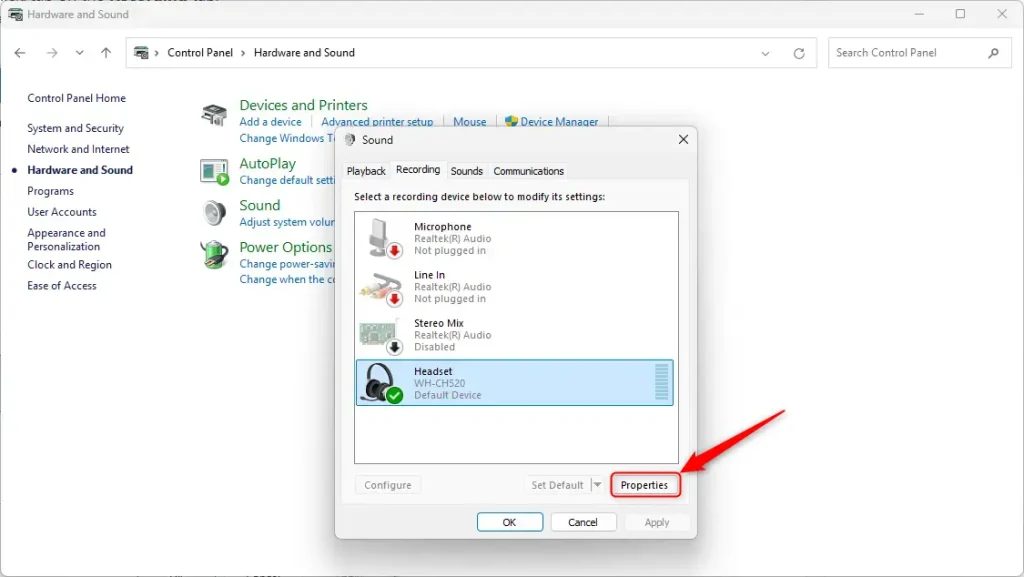
Select your microphone and click “Properties.”
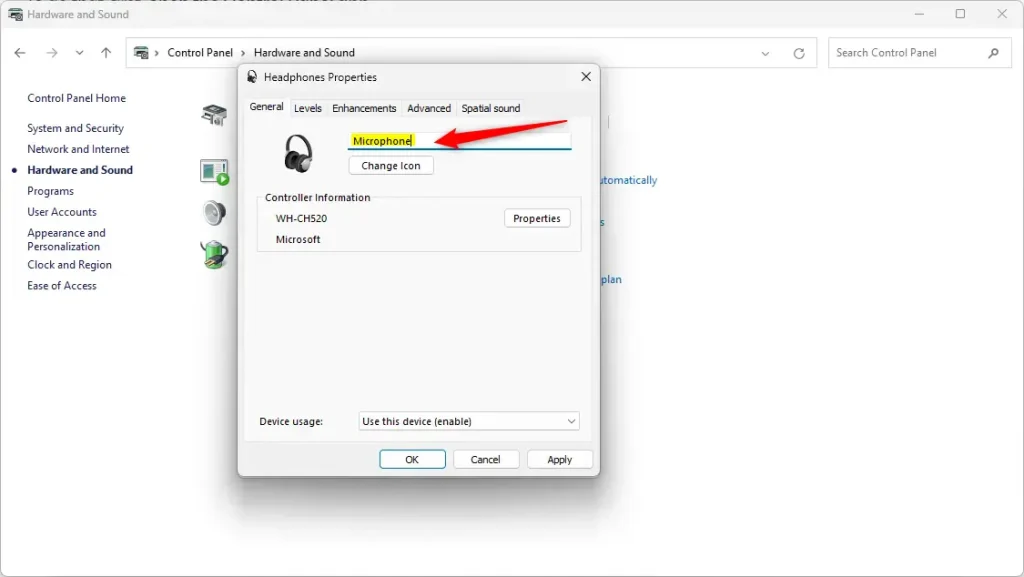
Type a new name and click Apply.
Why Rename Your Microphone?
- Personalized Names: Give your microphones names that make sense to you.
- Better Organization: Easily tell one microphone from another if you have several.
- Faster Selection: Pick the right microphone quickly when recording or chatting.
- Easy Access: Rename microphones anytime using either Settings or Control Panel.
- Simple Process: It only takes a few clicks and seconds to rename your device.
Summary
Renaming your microphone in Windows 11 is a quick and easy way to stay organized. You have two options: use the Settings app or the Control Panel. Both methods take just a few clicks. When you rename your microphone, you’ll know exactly which device you’re using when recording audio or video chatting. This is especially helpful if you have more than one microphone connected to your computer. Try renaming your microphone today and see how much easier it makes managing your audio devices!


Leave a Reply Cancel reply