

This article explains how to password-protect PDFs and encrypt documents using Windows.
By default, there are no out-of-the-box options to password-protect PDF documents in Windows.
However, there are multiple tools and options available to users to protect PDF documents in Windows, and one such tool is PDFEncrypt.
PDFEncrypt is a free, open-source native Windows app that allows you to password-protect (encrypt) PDF files for free without purchasing expensive software.
The content becomes unreadable without the password when you use PDFEncrypt to encrypt your PDF documents. Only a user with the correct password can decrypt and read the content.
Below is how to protect PDF documents with a password in Windows using PDFEncrypt.
How to password-protect PDF documents in Windows using PDFEncrypt
As mentioned above, by default, there are no out-of-the-box options to password-protect PDF documents in Windows.
However, using PDFEncrypt, one can password-protect (encrypt) PDF files for free without purchasing expensive software.
First, download PDFEncrypt using the link below. You can also use the portable version (without installing) it.
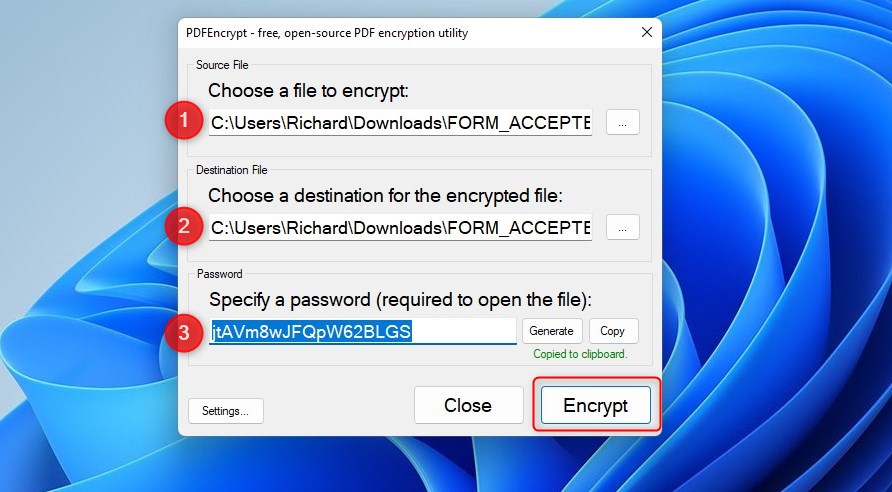
Whether you use a full or portable version, run the program once installed or downloaded, and select the document you want to password-protect.
- Choose the file
- Choose the destination after the file is encrypted
- Generate or type a password to open and read the content
- Click the Encrypt button
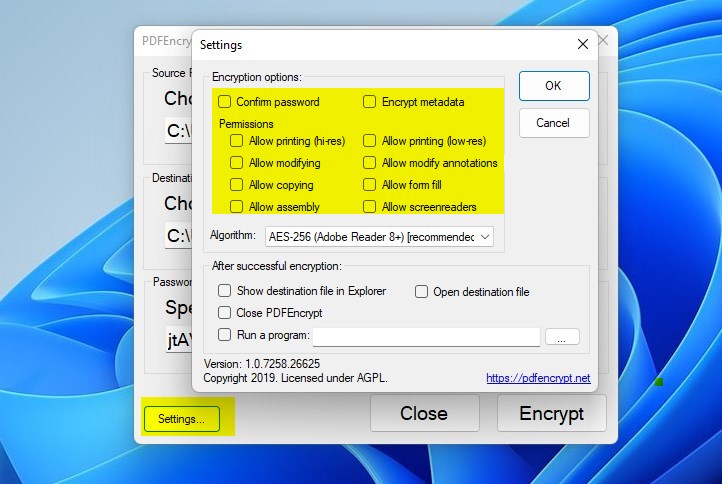
To encrypt with additional options, click on Settings. Then, choose what other restrictions to include in the documents.
After creating the file, a new password-protected (encrypted) version will be saved at the destination provided without changing the original version.
You can send the encrypted version via email or other means, knowing that only a person with the correct password will be able to read it.
That should do it!
Conclusion:
- PDFEncrypt is a convenient and cost-effective tool for password-protecting and encrypting PDF documents on Windows.
- With PDFEncrypt, users can ensure the security and privacy of their sensitive information without purchasing expensive software.
- The easy-to-use interface and additional options make PDFEncrypt a versatile solution for protecting PDF files.
- By following the simple steps outlined above, users can encrypt their PDFs and share them securely, knowing that only authorized individuals can access the content.



Leave a Reply Cancel reply