Windows 11 gives you several ways to sign in to your computer. One of the easiest and safest ways is using Windows Hello facial recognition, which lets you log in by just looking at your device.
You can also sign in using a PIN, facial recognition, fingerprint, or even a passkey. You can also use a small security key (a USB device) instead of typing your password on websites.
If you prefer, you can still use a regular password, but it’s less secure than Windows Hello options.
Even though facial recognition is more secure and fast, sometimes it might not work well — for example, if you wear a mask or if your workplace has rules against using it. In those cases, you might want to turn off facial recognition sign-in and use another method instead.
How to Turn On or Off Facial Recognition Sign-in in Windows 11
If you want to stop people from signing in with their face on your computer, or if you want to set a rule for all users to sign in another way, here’s a simple way to do it by changing a system setting called the “Registry.” Don’t worry, we’ll guide you step-by-step.
Step 1: Open the Registry Editor
First, open the Registry Editor. Here’s how:
- Press the Windows key + R on your keyboard.
- Type
regeditand press Enter. - If a window pops up asking for permission, click Yes.
Need more help opening Registry Editor? Check this guide: How to Open the Registry Editor in Windows 11.
Step 2: Find the Facial Recognition Setting
In the Registry Editor window, look for this folder path on the left side:
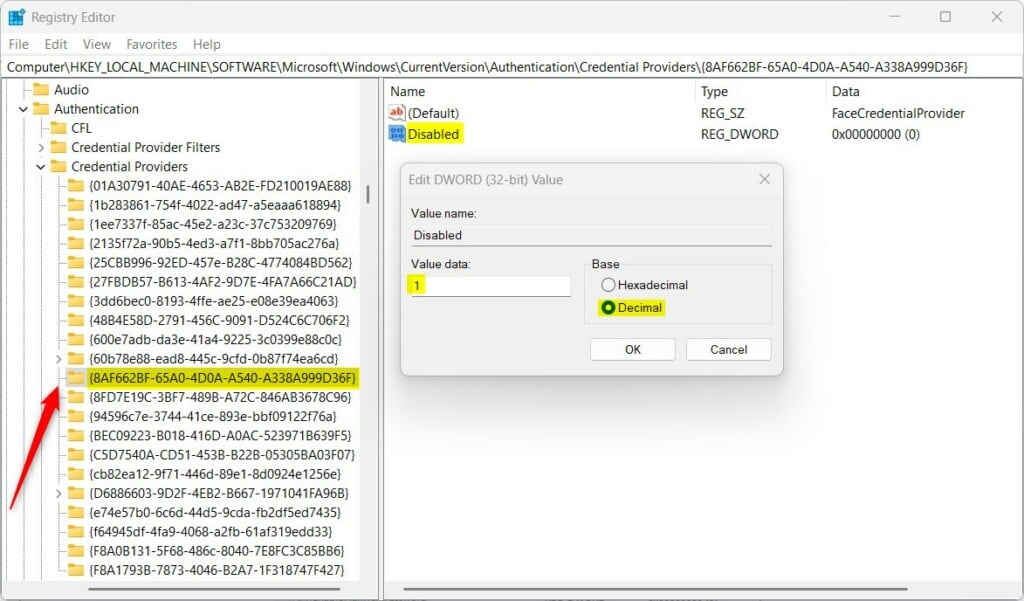
Computer\HKEY_LOCAL_MACHINE\SOFTWARE\Microsoft\Windows\CurrentVersion\Authentication\Credential Providers{8AF662BF-65A0-4D0A-A540-A338A999D36F}
Click through each folder to get there.
Step 3: Change the Facial Recognition Status
On the right side, look for an item named Disabled (it should be a “REG_DWORD” type).
- To turn OFF facial recognition: Double-click Disabled and change the value to
1. Then click OK. - To turn ON facial recognition: You can delete the Disabled item by right-clicking it and selecting Delete, or set its value to
0.
If you don’t see a Disabled item, you can create one:
- Right-click on a blank area in the right pane.
- Choose New > DWORD (32-bit) Value.
- Name it Disabled (exactly).
- Double-click it and enter
1to disable facial recognition, or0to enable it.
Step 4: Restart Your Computer
For the changes to work, restart your PC.
Why Use or Not Use Windows Hello Facial Recognition?
- Pros: It’s quick, easy, and more secure than a password.
- Cons: It may not work if your face is covered (mask, scarf), or if your organization has rules against it.
If facial recognition isn’t working for you or your workplace, you can always switch to other sign-in methods like PIN, password, or security key.
More Help
Microsoft has more info about sign-in options here: Windows Sign-in Options and Account Protection
Summary
- Windows Hello facial recognition is a safe and fast way to sign in to Windows 11.
- Sometimes it may not work well or be allowed, so you may want to disable it.
- You can turn it on or off by changing a setting in the Registry Editor.
- Always restart your PC after making changes.
If you found this guide helpful or have questions, feel free to leave a comment below!


Leave a Reply Cancel reply