

Wi-Fi lets your Windows 11 computer connect to the internet without wires. Sometimes, you might want to turn Wi-Fi on or off to save battery or keep your network safe. This guide will show you easy steps to manage your Wi-Fi settings, and how an administrator can stop others from turning Wi-Fi on or off.
Turning Wi-Fi On or Off in Windows 11
By default, you can turn Wi-Fi on or off anytime on your Windows 11 device. Here’s how:
- Click the Wi-Fi icon on the right side of your taskbar (near the clock).
- Click the Wi-Fi button to toggle it on or off.
- If Wi-Fi is on, your device will try to connect to known networks automatically.

More on connecting to Wi-Fi in Windows 11
Why You Might Want to Disable Wi-Fi
- Save battery: Turning off Wi-Fi when you don’t need it helps your laptop last longer.
- Control access: If you share your computer, you might want to stop others from turning Wi-Fi on or off.
How Administrators Can Stop Users from Changing Wi-Fi Settings
If you are managing a shared or work computer, you might want to prevent others from turning Wi-Fi on or off. This can be done by changing a setting in the Windows Registry. (Note: This is for advanced users or administrators only. Be careful when using Registry Editor.)
Steps to Restrict Wi-Fi Switching
- Click the Start Menu, type Registry Editor, and open the app.
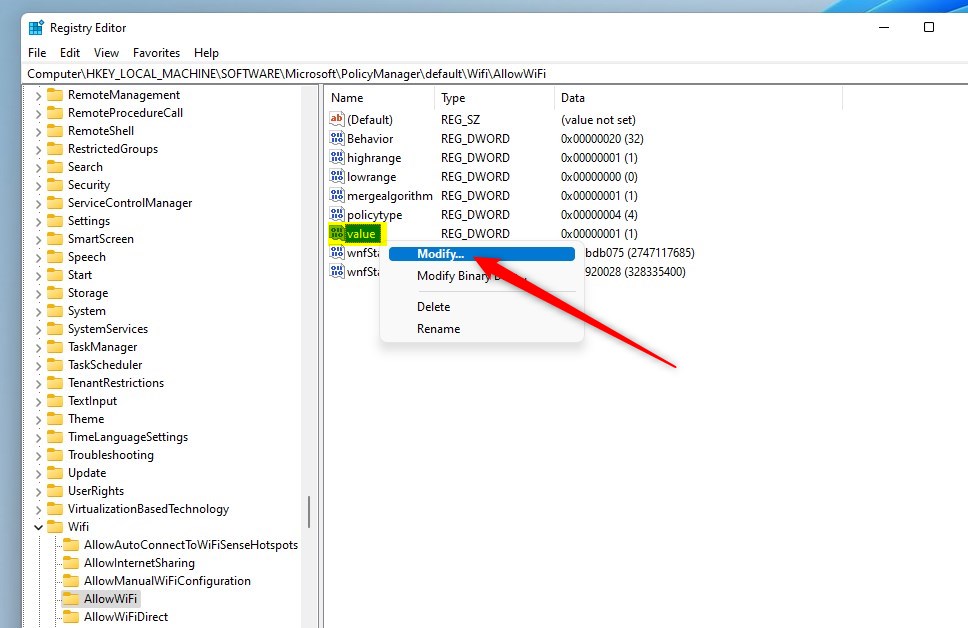
- In the Registry Editor window, find this folder path on the left side (you can copy and paste it into the address bar at the top):
HKEY_LOCAL_MACHINE\SOFTWARE\Microsoft\PolicyManager\default\WifiAllowWiFi - Click on the AllowWiFi folder.
- On the right side, find the entry named value (it should be a type called REG_DWORD).
- Double-click on value to open a small window where you can change the number.
- Set the number to:
- 0 to disallow Wi-Fi (users cannot turn it on or off),
- 1 to allow Wi-Fi (default setting).
- Click OK to save.
- Close Registry Editor.
After this, users will (or won’t) be able to turn Wi-Fi on or off, depending on the value you set.
Summary
- You can easily turn Wi-Fi on or off from the taskbar in Windows 11.
- Turning Wi-Fi off can save battery or prevent unwanted network access.
- Administrators can use Registry Editor to stop users from changing Wi-Fi settings by setting a special value.
If you want to learn more about using Windows 11, check out Geek Rewind for easy guides and tips.


Leave a Reply Cancel reply