
If you want the icons on your Windows 11 taskbar to be bigger or smaller, this guide will help you do it easily.
What are Taskbar Icons?
The taskbar is the bar usually at the bottom of your screen. It has icons like:
- Start Menu Icon – Opens the Start menu where you can find your apps and settings.
- Search Icon – Helps you find files and apps on your PC.
- Task View Icon – Shows all open windows and desktops.
- Widgets Icon – Gives you quick info like news and weather.
You can also add icons for your favorite apps on the taskbar.
How to Change Taskbar Icon Size Using Settings
Windows 11 now allows you to choose smaller or bigger taskbar icons starting with the Insider preview build 22635.4291.
Follow these simple steps:
- Open Settings. You can do this by:
- Click the Start button and then click Settings.
- Or press the Windows key + I on your keyboard to open Settings directly.
- In Settings, click on Personalization in the left menu.
- Click on Taskbar on the right side.
- Scroll down and click on Taskbar behaviors to see more options.
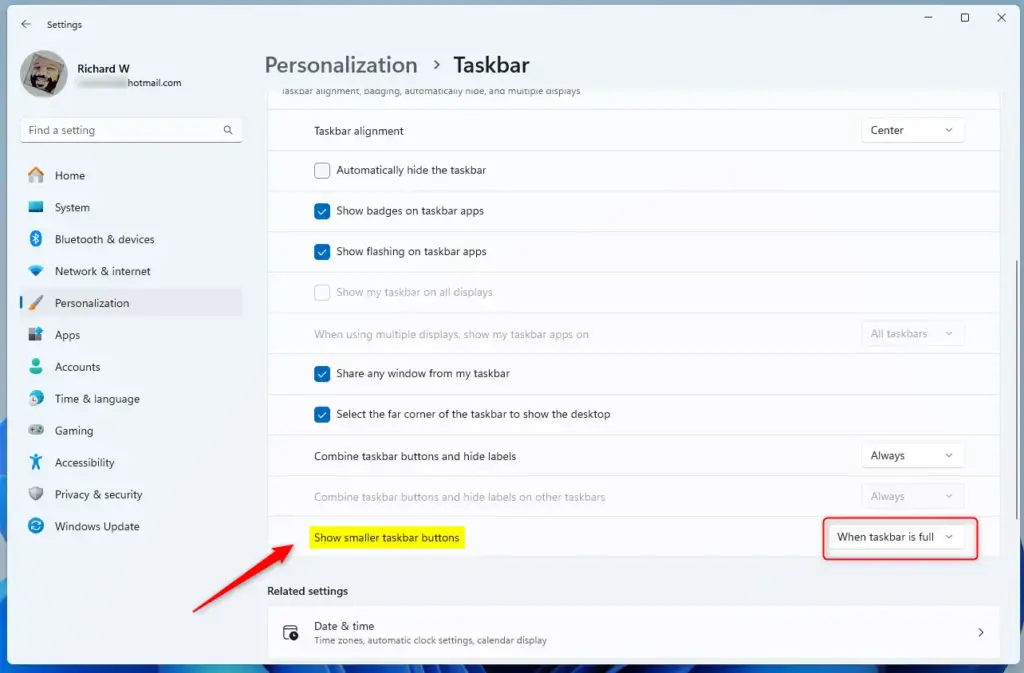
- Find the drop-down menu next to “Show smaller taskbar buttons”.
- Choose one of these options:
- Always – The icons stay small all the time.
- Never – The icons stay the normal size.
- When taskbar is full (default) – Icons become small only when the taskbar is crowded.
- Close Settings when you’re done. The changes will take effect immediately.
How to Change Taskbar Icon Size Using Windows Registry (Advanced)
If you like trying advanced options, you can change the icon size through the Windows Registry. But be careful! Changing the Registry can cause problems if done wrong.
Steps:
- Open the Registry Editor by typing regedit in the Start menu search and pressing Enter.
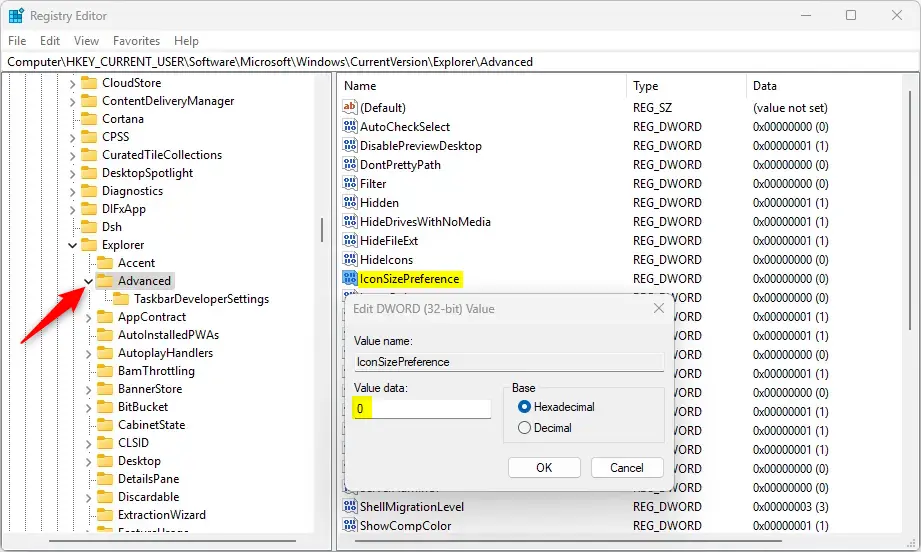
- Go to this folder path in the Registry Editor:
HKEY_CURRENT_USERSoftwareMicrosoftWindowsCurrentVersionExplorerAdvanced
- Right-click on Advanced > New > DWORD (32-bit) Value.
- Name the new DWORD IconSizePreference.
- Double-click IconSizePreference and set the value to:
0= Always show smaller icons1= Never show smaller icons (normal size)2= Show smaller icons only when taskbar is full
- Click OK and close the Registry Editor.
- Restart your PC to see the changes.
Summary
- You can make your taskbar icons bigger or smaller in Windows 11 using Settings or the Registry Editor.
- The Settings method is easier and safer for most users.
- The Registry method is for advanced users and requires care.
- These options are available in Windows 11 Insider build 22635.4291 and later.
Try these steps to customize your taskbar and make your Windows 11 experience more comfortable!
Leave a Reply Cancel reply