
This tutorial shows students and new users how to install and run Kali Linux on Windows Subsystem for Linux 2 (WSL2).
What is Windows Subsystem for Linux?
In 2017, Windows released Windows Subsystem for Linux. This tool lets developers run a Linux environment directly in Windows. You get command-line tools, utilities, and applications without setting up a virtual machine or dual-boot.
WSL2 came later as an improved version. It runs faster and works better with Linux. WSL2 is built with a new design that makes running Linux in Windows easy and reliable.
What Do You Need?
To install WSL2 on Windows 10 or 11, you need:
- Windows 10 May 2020 (2004) or later, or Windows 11
- A computer with Hyper-V Virtualization support
Why Use Kali Linux?
Kali Linux is a popular Linux system used for security testing. Security professionals use it to test and improve computer system safety. Before WSL, you had to install Kali Linux as your main operating system or run it as a virtual machine.
Now you can run Kali Linux directly in Windows using WSL. This makes security testing easier without needing a separate virtual machine.
How to Enable WSL in Windows
⚠️ Admin privileges required
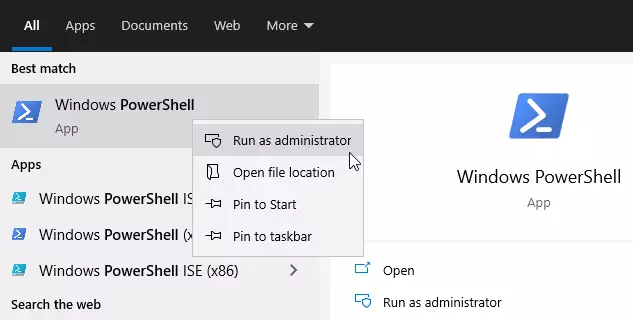
First, open PowerShell as an administrator. Click Start and type PowerShell.
Right-click Windows PowerShell and select “Run as administrator.”
When the console opens, run this command:
dism.exe /online /enable-feature /featurename:Microsoft-Windows-Subsystem-Linux /all /norestart
You should see a success message like this:
Deployment Image Servicing and Management tool

Version: 10.0.19041.844
Image Version: 10.0.19042.844
Enabling feature(s)

[==========================100.0%==========================]

The operation completed successfully.
How to Enable Virtual Machine Platform
⚠️ Admin privileges required
WSL2 needs the Virtual Machine Platform turned on. This is different from Hyper-V. Run this command in the same PowerShell console:
dism.exe /online /enable-feature /featurename:VirtualMachinePlatform /all /norestart
If you have Windows 10 version lower than 2004, use this command instead:
Enable-WindowsOptionalFeature -Online -FeatureName VirtualMachinePlatform -NoRestart
After running the command, restart your computer. The changes need your computer to restart to work properly.
After restarting, log back in and open PowerShell as administrator again. Run this command to set WSL2 as your default version:
wsl --set-default-version 2
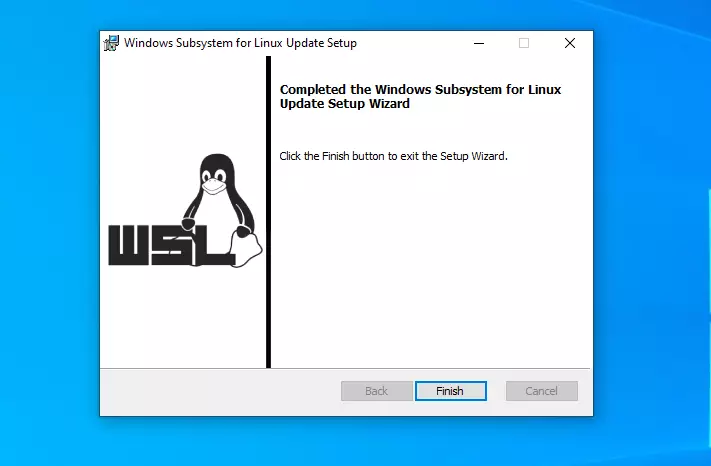
If you get an error about missing Linux kernel, download it from here: https://wslstorestorage.blob.core.windows.net/wslblob/wsl_update_x64.msi
Run the file in Windows, then try the command above again.
How to Install Kali Linux on Windows 10 or 11
⚠️ Admin privileges required
Now that WSL2 is ready, download Kali Linux from the Windows Store using this link: Get Kali Linux – Microsoft Store
With Kali Linux on Windows, you get Kali Linux Terminal and command-line tools like bash, ssh, git, and apt.

Click the “Get” button to install it. After downloading, you’ll see a “Launch” button.

Click “Launch” to start Kali Linux. The first time takes a few minutes as it finishes installation. You’ll be asked to create a user account.
The system will show:
Installing, this may take a few minutes…

Please create a default UNIX user account. The username does not need to match your Windows username.

For more information visit: https://aka.ms/wslusers

Enter new UNIX username: user123

New password:

Retype new password:

passwd: password updated successfully

Installation successful!

┏━(Message from Kali developers)

┃

┃ This is a minimal installation of Kali Linux, you likely

┃ want to install supplementary tools. Learn how:

┃ ⇒ https://www.kali.org/docs/troubleshooting/common-minimum-setup/

┃ ┗━(Run: "touch ~/.hushlogin" to hide this message)

┌──(user123㉿DESKTOP-ABC123)-[~]

└─$
That’s it! Your Kali Linux is ready to use.
Troubleshooting Commands
⚠️ Admin privileges required
If you run into issues, try these commands:
wsl --set-default-version 1

bcdedit /set hypervisorlaunchtype auto start
How to Launch Kali Linux
Now you can launch Kali Linux from Windows. Click Start and search for Kali Linux. You can also right-click it and pin it to your taskbar for quick access.


Summary
This tutorial showed you how to:
- Enable WSL in Windows using PowerShell commands
- Enable Virtual Machine Platform for WSL2
- Install Kali Linux from the Windows Store
- Create a user account for Kali Linux
- Launch Kali Linux on Windows
WSL2 lets you run Kali Linux directly in Windows without a virtual machine or dual-boot. This makes security testing faster and easier. If you have any problems, check the troubleshooting commands above or leave a comment below.




Leave a Reply Cancel reply