How to Install FreePBX 17 on Ubuntu 24.04

You install FreePBX 17 on Ubuntu 24.04 to manage your Asterisk 22 PBX system.
FreePBX is an open-source web interface simplifying the management of Asterisk, the leading open-source telephony framework. It lets you build and control your business phone system easily.
FreePBX 17 offers a streamlined dashboard for setting up extensions, voicemail, and call routing. It’s designed for user-friendliness, even if you’re new to PBX systems.
Combining FreePBX 17 with Ubuntu 24.04 creates a powerful and adaptable platform for your business communications.
Install Apache, MariaDB, and PHP via the Ubuntu terminal using `apt install`. Then, download the FreePBX 17 Distro ISO and follow the on-screen installer prompts.
Install Asterisk PBX
The first step to installing FreePBX on Ubuntu 24.04 is to install Asterisk, the powerful open-source PBX software that FreePBX manages.
The first thing you’ll need to do is install the Asterisk PBX system. The post below shows you how to do that.
How to install Asterisk PBX on Ubuntu Linux
After installing Asterisk, proceed to the following steps to install and configure FreePBX.
Install Apache
FreePBX needs a web server to work, and installing Apache on your Ubuntu system is the next step.
To do that, open the Ubuntu terminal and run the commands below to install the Apache web server.
sudo apt update
sudo apt install apache2
After installing Apache, you can use the following commands to start, stop, and enable the Apache web server to start when your server boots up automatically.
sudo systemctl stop apache2
sudo systemctl start apache2
sudo systemctl enable apache2
You can verify that the Apache web server is operational by opening your web browser and navigating to the server’s localhost or IP address.
When you see the Apache2 Default Page, it means the Apache HTTP server is successfully installed.
Additional help on installing Apache on Ubuntu is in the link below.
Install the MariaDB database server on Ubuntu
A database is essential for FreePBX to store its information, so we’ll install the MariaDB database server on Ubuntu next.
To install and use the MariaDB database server, use the instructions below.
Open the Ubuntu terminal and run the commands below to install the MariaDB database server.
sudo apt update
sudo apt install mariadb-server
After installing the MariaDB database server, use the commands below to stop, start, and enable the server to start automatically on boot.
sudo systemctl stop mariadb
sudo systemctl start mariadb
sudo systemctl enable mariadb
Run the following commands to validate and test if the MariaDB database server is installed successfully.
sudo mariadb
After executing the commands, you will be logged into the MariaDB console, displaying a message similar to the one below.
Welcome to the MariaDB monitor.  Commands end with ; or g.
Your MariaDB connection id is 32
Server version: 10.11.2-MariaDB-1 Ubuntu 23.04

Copyright (c) 2000, 2018, Oracle, MariaDB Corporation Ab and others.

Type 'help;' or 'h' for help. Type 'c' to clear the current input statement.

MariaDB [(none)]>
The message tells you that the server is installed successfully.
By default, MariaDB on Ubuntu uses the UNIX auth_socket plugin for security. To allow the root user to use mysql_native_password, use the steps below.
You’ll need a MariaDB root account to set up FreePBX later.
First, log on to the database server.
sudo mariadb
Then, update the root account to use mysql_native_password.
ALTER USER 'root'@'localhost' IDENTIFIED VIA mysql_native_password USING PASSWORD('TypeRootPasswordHere');Finally, save your changes and exit.
FLUSH PRIVILEGES;
exit;
Install PHP and Related Modules
FreePBX is built with PHP, so you need to install PHP and the specific modules it requires on your Ubuntu system.
Then, run the commands below to install the latest PHP version.
sudo apt install php libapache2-mod-php php-intl php-mysql php-curl php-cli php-zip php-xml php-gd php-common php-mbstring php-xmlrpc php-bcmath php-json php-sqlite3 php-soap php-zip php-ldap php-imap php-cas
Additional help on installing PHP
Install Nodejs
Node.js is required for FreePBX to function correctly, so the next step is to add its repository and install it on your Ubuntu system.
sudo apt install curl dirmngr apt-transport-https lsb-release ca-certificates
curl -sL https://deb.nodesource.com/setup_22.x | sudo bash
Then, run the commands below to install Nodejs.
sudo apt-get install gcc g++ make
sudo apt install nodejs
Install FreePBX
Now that all the required software is set up, you can install FreePBX version 17 on your Ubuntu system.
Run the command below to download and extract FreePBX files.
cd /tmp
wget http://mirror.freepbx.org/modules/packages/freepbx/freepbx-17.0-latest.tgz
tar xfz freepbx-17.0-latest.tgz
Then, please change it to the extracted folder and install FreePBX.
cd freepbx
sudo ./start_asterisk start
sudo ./install -n --dbuser root --dbpass TypeDatabaseRootPasswordHere
If you get an error,
Error!
Unable to read /etc/asterisk/asterisk.conf or it was missing a directories section
run the commands below to resolve:
sudo cp /etc/asterisk/asterisk.conf.old /etc/asterisk/asterisk.conf
If you also get an error:
‘asterisk’ user…bash: line 0: cd: /home/asterisk/: No such file or directory
Run the commands below to resolve:
sudo mkhomedir_helper asterisk
When you have resolved all the errors above, try the installation again.
After installing, you should get a similar message as shown below:
Finished generating default configurations
You have successfully installed FreePBX
Next, change Apache service runner from www-data to Asterisk user. To do that, run the command below to open the [envvars] file.
sudo nano /etc/apache2/envvars
Then, change the highlighted lines and replace the user with Asterisk.
# Since there is no sane way to get the parsed apache2 config in scripts, some
# settings are defined via environment variables and then used in apache2ctl,
# /etc/init.d/apache2, /etc/logrotate.d/apache2, etc.
export APACHE_RUN_USER=asterisk
export APACHE_RUN_GROUP=asterisk
Save the file and exit.
Also, add the www-data user to the asterisk group and restart the Apache service.
sudo a2enmod rewrite
sudo usermod -aG www-data asterisk
sudo systemctl restart apache2
Now, go and access the FreePBX portal. If you get a blank page, restart your computer and try again.
http://localhost/admin
Create your administrator account.
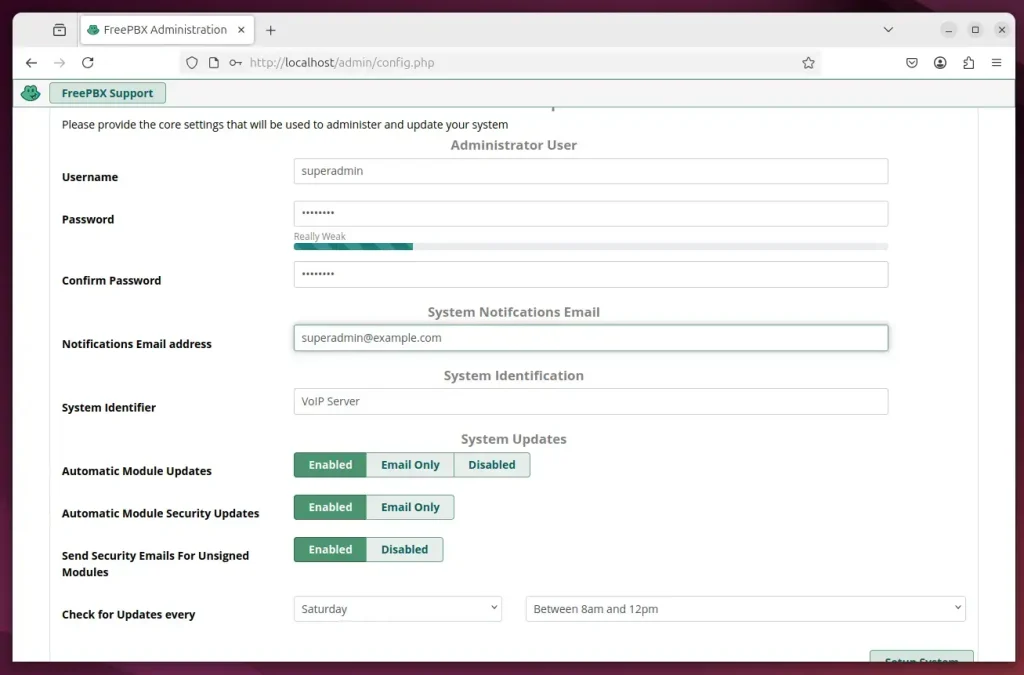
Setup, login, and start building your PBX
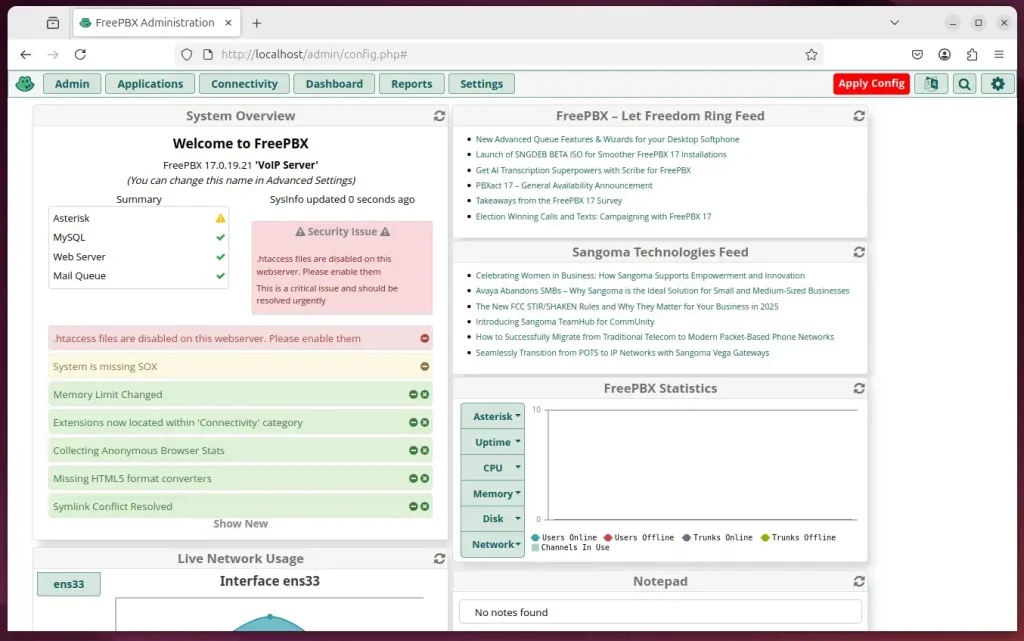
That should do it!
Conclusion:
In summary, installing FreePBX 17 on Ubuntu 24.04 to manage your Asterisk 22 PBX system consists of several key steps:
- Install Asterisk: Set up the Asterisk PBX system before integrating FreePBX.
- Set Up Apache: Install and configure the Apache web server to host the FreePBX interface.
- Install MariaDB: Deploy the MariaDB database server to manage FreePBX data storage.
- Install PHP: Ensure you have the required PHP version and extensions for FreePBX to function correctly.
- Add Node.js: Include Node.js as part of your server environment for web application functionalities.
- Download and Install FreePBX: Retrieve the latest version and complete the installation process.
- Configure Permissions: Adjust Apache settings to run under the Asterisk user for proper access.
- Access FreePBX: Finally, navigate to the FreePBX portal, create your administrator account, and start managing your PBX system.
These steps will help you set up a fully functional Asterisk-based phone system using FreePBX on Ubuntu.
Was this guide helpful?

About the Author
Richard
Tech Writer, IT Professional
Richard, a writer for Geek Rewind, is a tech enthusiast who loves breaking down complex IT topics into simple, easy-to-understand ideas. With years of hands-on experience in system administration and enterprise IT operations, he’s developed a knack for offering practical tips and solutions. Richard aims to make technology more accessible and actionable. He's deeply committed to the Geek Rewind community, always ready to answer questions and engage in discussions.



No comments yet — be the first to share your thoughts!