How to Help Someone You Know with Quick Assist in Windows 11

Quick Assist in Windows 11 lets you remotely help someone with their PC. It’s a built-in tool that allows you to see their screen and, with their permission, take control to fix problems.
Imagine your friend is stuck with a computer issue, but they live far away. Phone calls can be difficult for explaining technical steps. Quick Assist bridges that gap, acting like having a tech-savvy person right there beside them.
This feature lets a trusted helper connect to a PC and provide direct support. You can use it to help others or get help yourself when you’re facing a computer challenge.
Open Quick Assist, click “Help someone,” and share the 6-digit security code it generates. Wait for the other person to allow your connection, then use the tools to view their screen or request control. End the session when finished.
Helping Someone With Quick Assist
Quick Assist is a Windows tool that lets you help someone you know with their computer problems by connecting to their screen remotely.
Step 1Open Quick Assist on Your Computer
To start helping someone with Quick Assist, you first need to open the app on your own computer.
- Using the Start Menu: Click the Windows button (the little Windows flag icon in the bottom-left corner). Then, click ‘All apps’. Scroll down until you find ‘Quick Assist’ and click on it.
- Using a Keyboard Shortcut: For a quicker way, press the
Ctrlkey, theWindows logo keykey, and theQkey all at the same time. This should open Quick Assist right away.
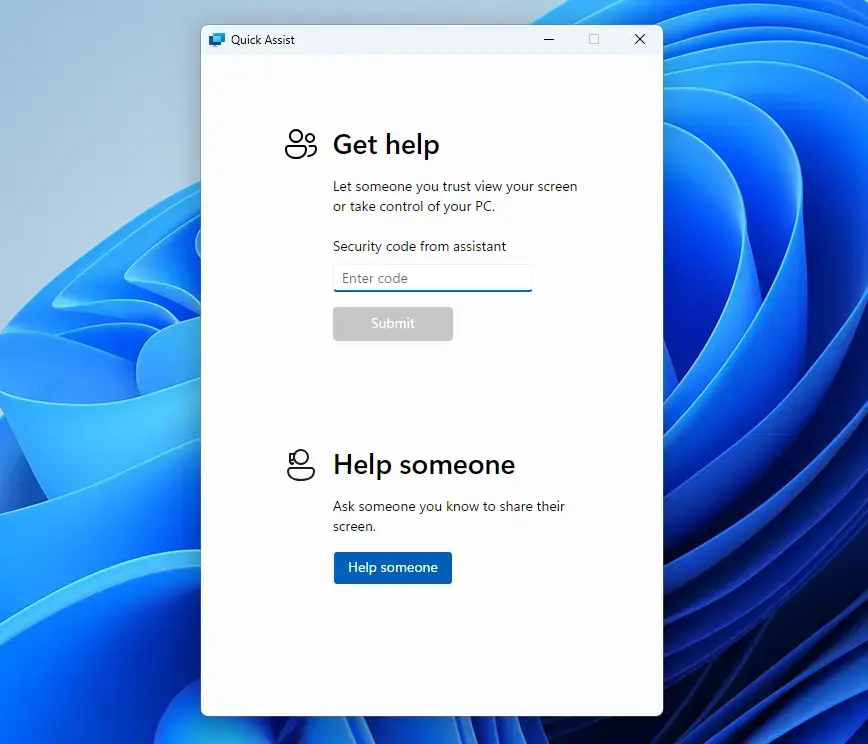
Step 2Choose “Help someone”
When Quick Assist launches, a main screen appears. Since you’re the one providing help, click the button labeled “Help someone.” This prepares the app to generate a code for the person you’re assisting.
Step 3Share the 6-Digit Security Code
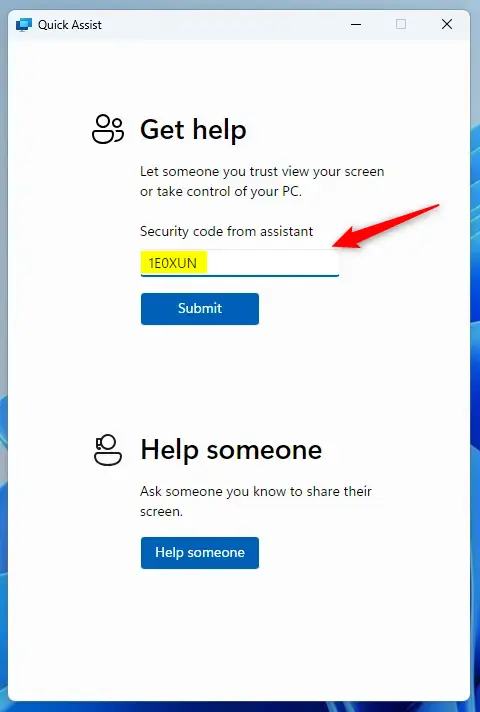
Quick Assist gives you a 6-digit security code to share with the person you’re helping, acting like a temporary key for them to connect.
Step 4Wait for Them to Allow the Connection
Once the person you’re helping enters the 6-digit code on their computer, they’ll be prompted to permit the connection. They will see your name (or the name associated with your Microsoft account). They must click “Allow” for you to view their screen.

Step 5Use Quick Assist Tools to Help
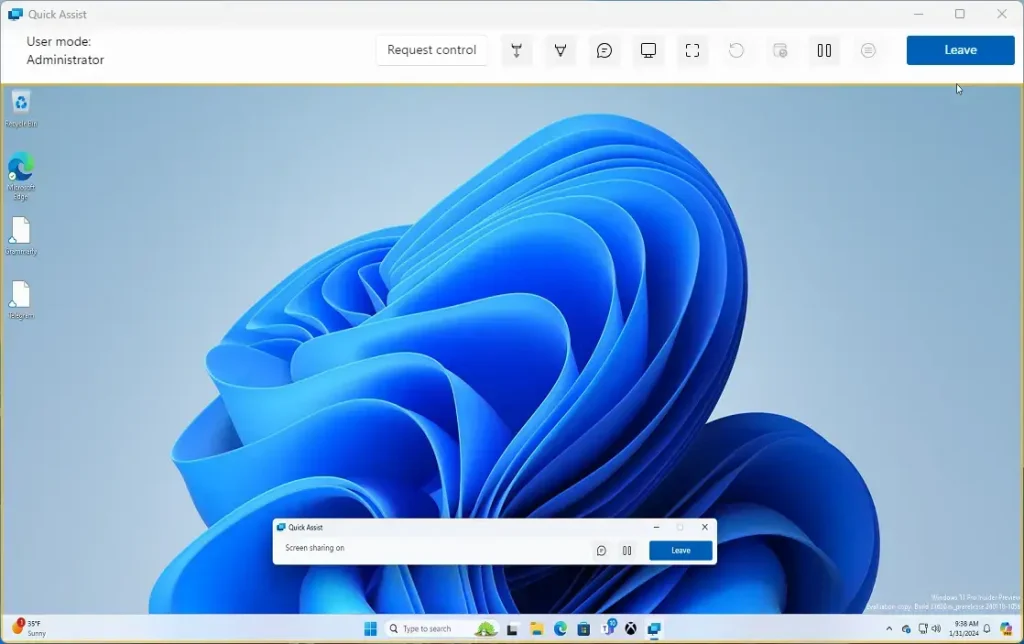
Once connected, you can use Quick Assist tools like a pointer to show the person what to do on their screen, or just view their screen to guide them.
- View Only: By default, you can just see their screen. This is good for telling them what to do.
- Drawing Tools: Quick Assist has tools like a laser pointer or drawing. You can use these to point to buttons or areas on their screen. This makes your instructions clearer. Look for these tools in the Quick Assist toolbar.
- Chat: Quick Assist often has a chat feature. You can type instructions here. They can also ask questions without interrupting.
Step 6Ask to Control Their Screen (If Needed)
If you need to take direct control of the other person’s computer to help them faster, you can ask for permission using the ‘Request control’ option in Quick Assist.
Step 7End the Session When Finished
When you’re done helping, it’s important to end the Quick Assist session by clicking the ‘Leave’ or ‘End session’ button to disconnect.
Reference:
Summary
Quick Assist is a simple Windows tool that lets you help friends and family with computer issues remotely by viewing or controlling their screen.
Was this guide helpful?

About the Author
Richard
Tech Writer, IT Professional
Richard, a writer for Geek Rewind, is a tech enthusiast who loves breaking down complex IT topics into simple, easy-to-understand ideas. With years of hands-on experience in system administration and enterprise IT operations, he’s developed a knack for offering practical tips and solutions. Richard aims to make technology more accessible and actionable. He's deeply committed to the Geek Rewind community, always ready to answer questions and engage in discussions.
No comments yet — be the first to share your thoughts!