

This article explains how to find a printer IP address in Windows 11.
A printer IP address is a unique numerical identifier that is assigned to a printer on a network. It allows devices on the network to communicate with the printer and send print jobs to it. Each printer connected to a network has its unique IP address, which can be used to locate and configure the printer.
If your Windows device is connected to a printer, and you want to know the printer’s IP address, you can use the tricks below to locate the IP address.
Knowing the IP address of a printer can be useful in various situations. For example, if you want to set up a new printer, you may need to know its IP address to configure it properly. You may also need to know the IP address if you are experiencing issues with the printer and need to troubleshoot the problem.
Additionally, suppose you are working in a large office or networked environment. In that case, knowing the IP address of a printer can help you locate it among many other devices on the network.
Locate printer IP address in Windows 11
As mentioned above, knowing the IP address of a printer can help you troubleshoot or identify it on a network.
Here’s how to do that.
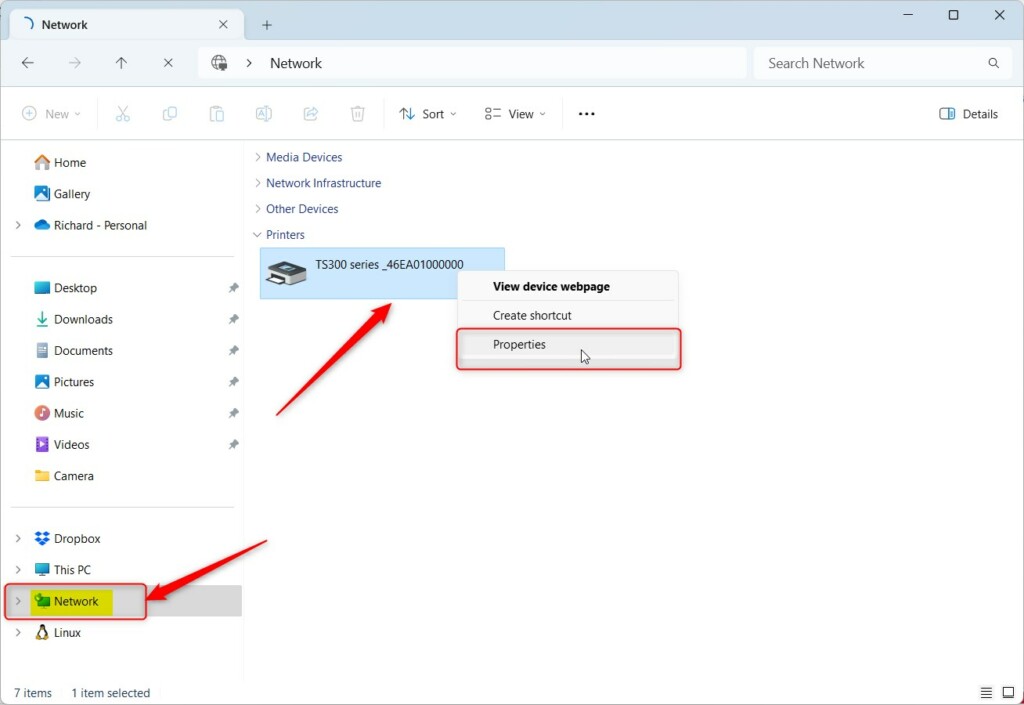
First, open File Explorer or press the keyboard shortcut (Win+E). Next, click the Network folder in the navigation panel on the left.
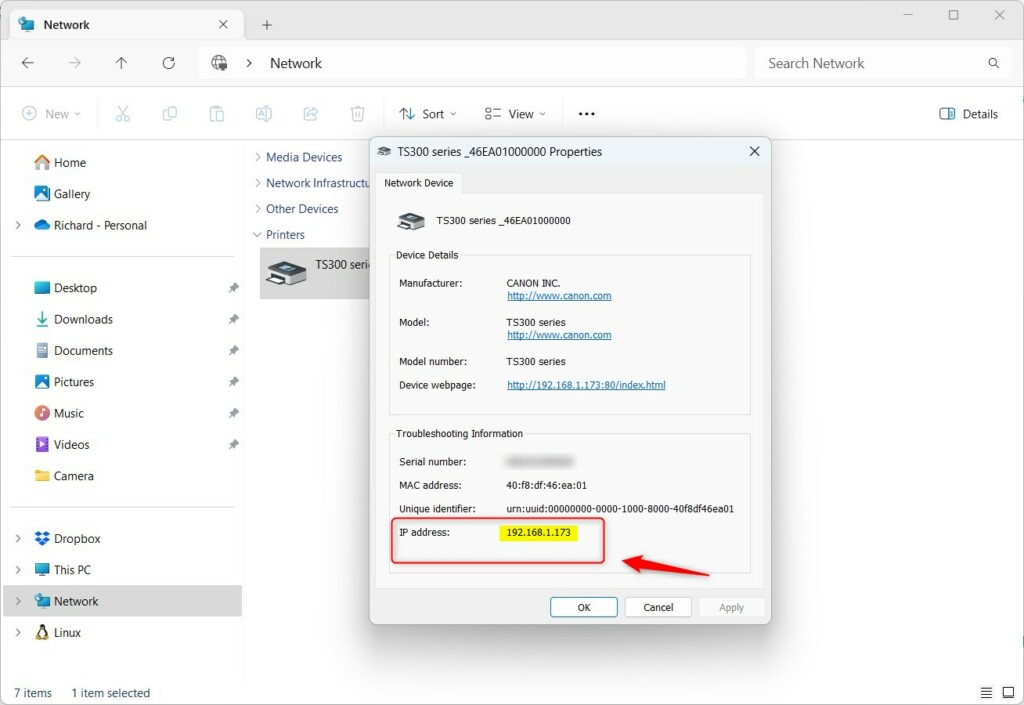
Then, under Printers, locate the printer you wish to identify, right-click it, and select Properties on the context menu.
On the Properties detail pane, you will see the printer’s IP address.
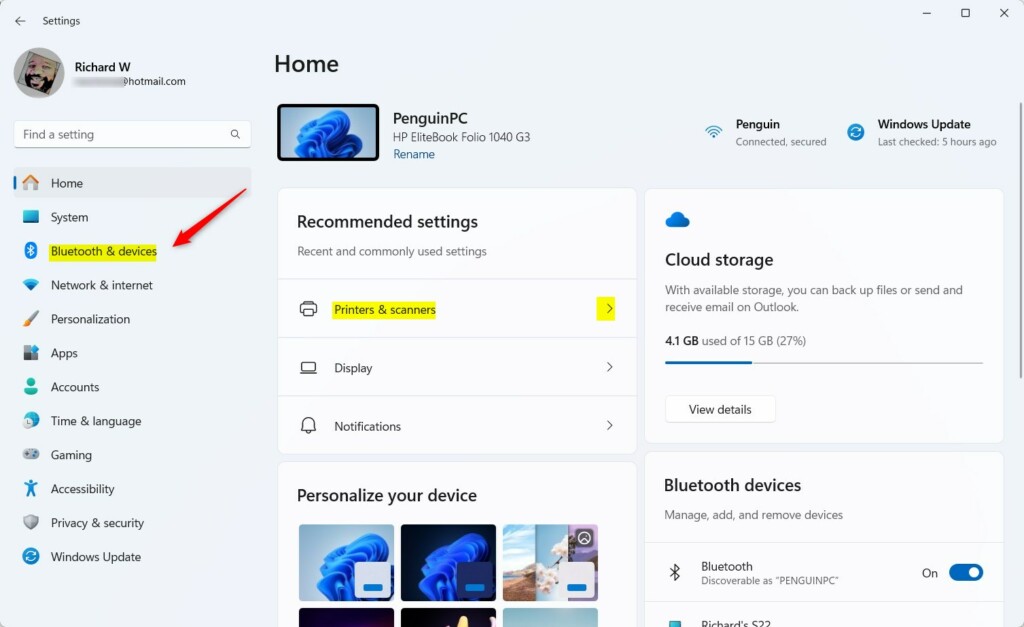
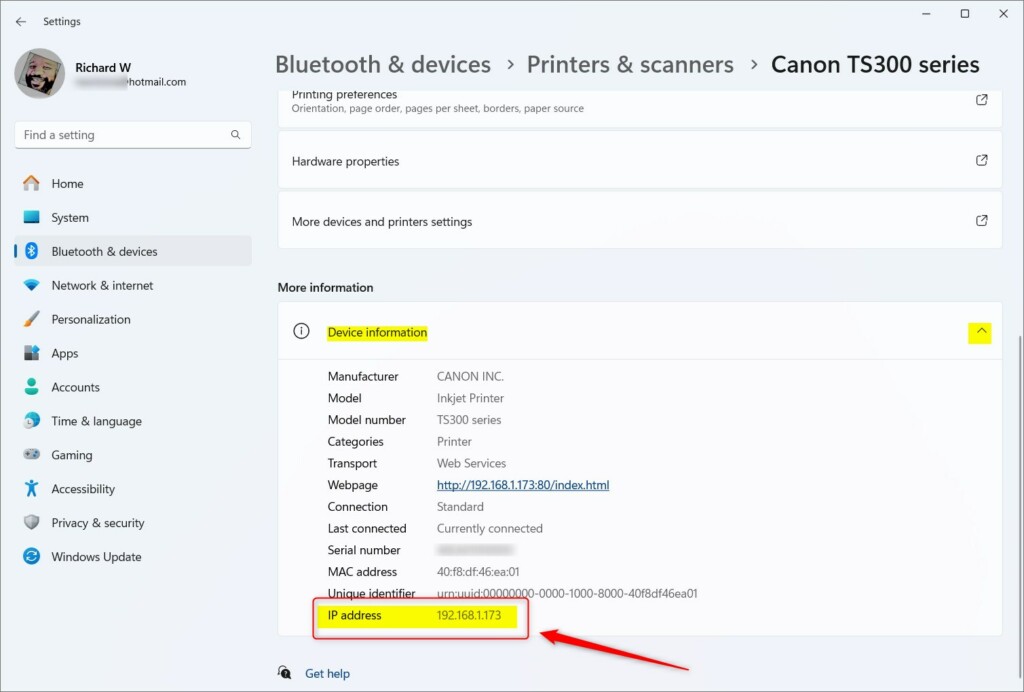
Alternatively, click the Start menu and select Settings. Then, click Bluetooth & devices in the Settings app.
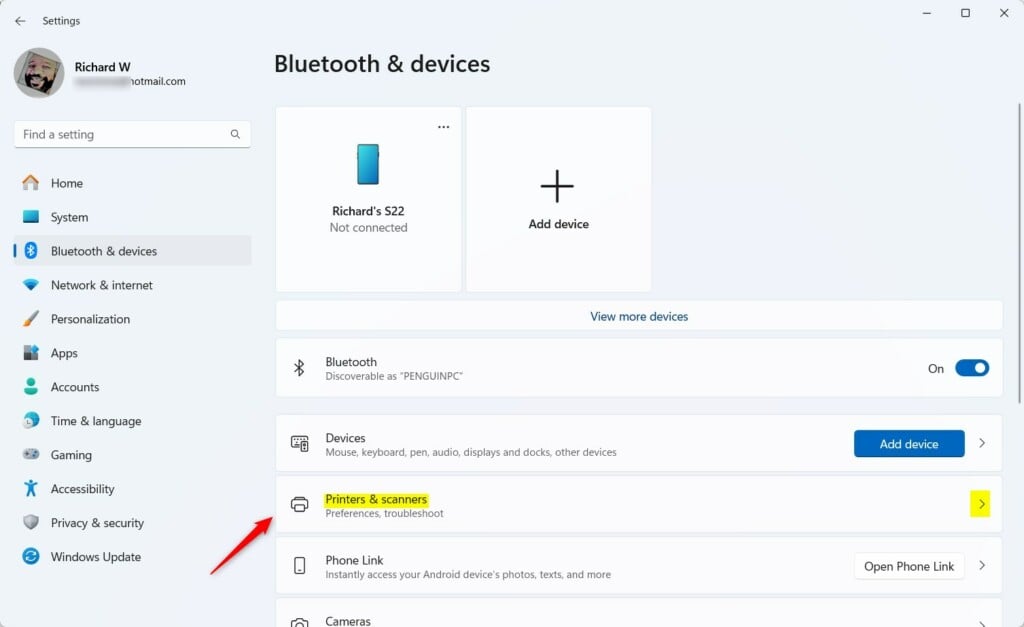
On the right, click the Printers & scanners tile to expand it.
On the Printers & scanner settings pane, select the printer you wish to find its IP address.
Then, expand the “Device information” tile under More information. On the details pane, you will find the printer’s IP address.
That should do it!
Conclusion:
- Understanding how to locate a printer’s IP address in Windows 11 is essential for troubleshooting and configuring printers on a network.
- Finding a printer’s unique IP address can be particularly valuable in large offices or networked environments.
- By following the outlined steps using File Explorer or the Settings app, users can easily retrieve the IP address of a printer connected to their Windows 11 device.
- Knowing a printer’s IP address enables efficient problem-solving and facilitates seamless integration of new printers into the network.



Leave a Reply Cancel reply