

This post shows students and new users steps to turn On or Off the voice typing launchers in Windows 11.
With voice typing, you can enter text on your PC by speaking. Voice typing uses online speech recognition powered by Azure Speech services.
Voice typing lets users enter text on their PC by speaking into a microphone. For example, use voice typing commands to quickly edit text by saying things like “delete that” or “select that. “
When you enable voice typing, you can use its launcher to quickly access voice typing when your cursor is in a text box or text editor.
Below is how to turn the voice typing launcher on or off in Windows 11.
How to turn on or off the voice typing launcher in Windows 11
As mentioned above, you can also use its launcher to quickly access voice typing when your cursor is in a text box.
Below is how to use the voice typing launcher in Windows.
First, make sure you know how to use voice typing. The post below shows you how:
How to use voice typing in Windows 11
Open voice typing with the keyboard shortcut (Windows key + H).
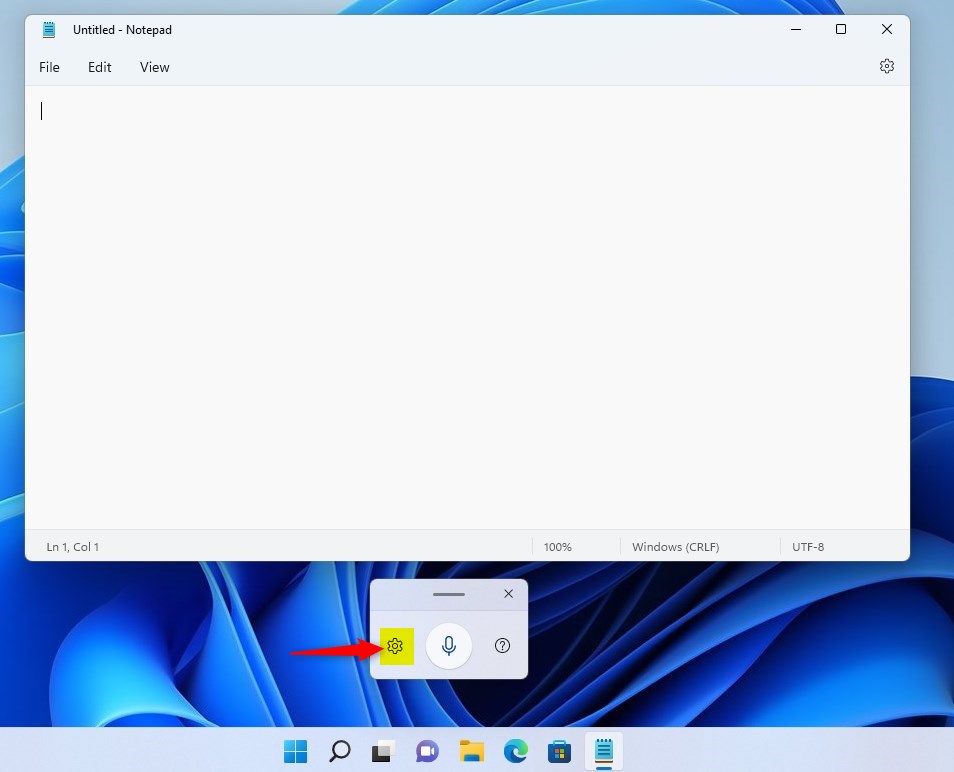
Once voice typing is opened, click on Settings (gear).
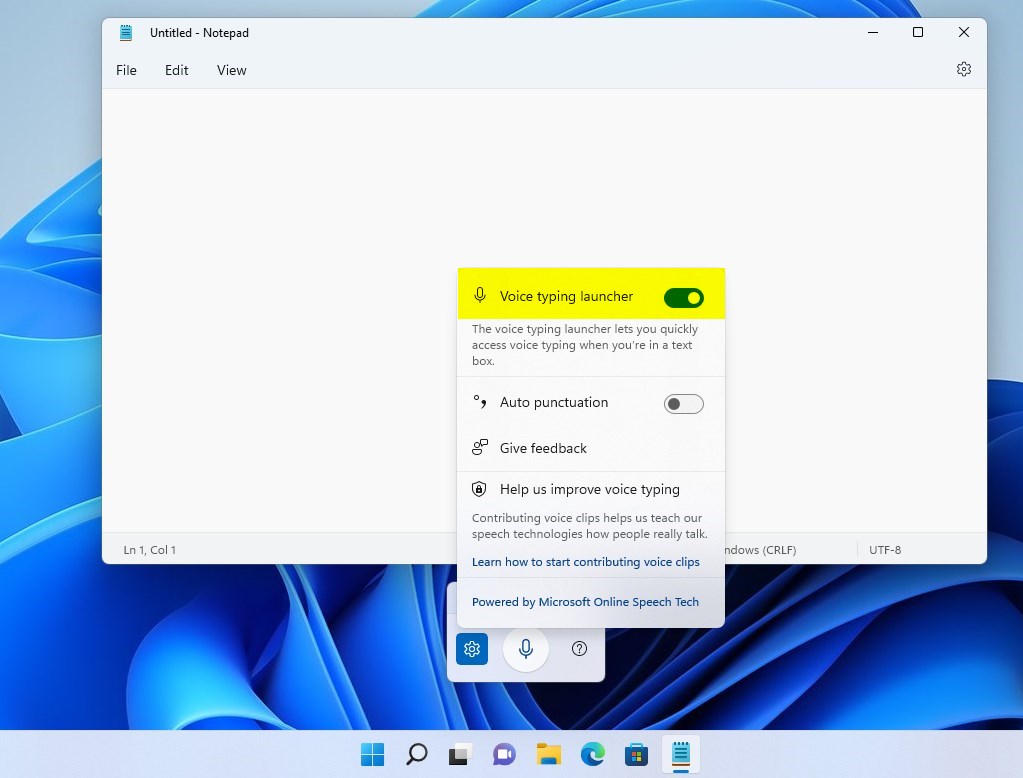
On the Settings window, toggle the switch button to the On position to enable. To turn it disabled, move the switch back to Off.
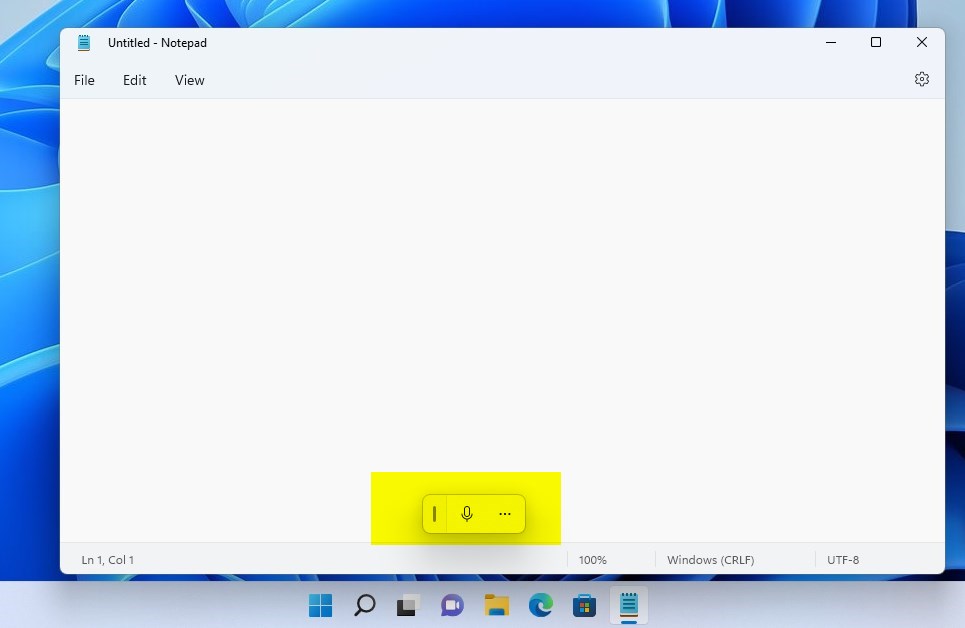
The next time you’re in a text box or editor, voice typing will automatically be available.
That should do it!
Conclusion:
- Voice typing in Windows 11 provides a convenient way to input text using speech recognition.
- Enabling the voice typing launcher allows quick access to voice typing when working in a text box or editor.
- Users can easily turn the voice typing launcher on or off by accessing the settings and toggling the switch button.
- The keyboard shortcut “Windows key + H” opens the voice typing feature for seamless input using speech.


Leave a Reply Cancel reply